
Are you unable to log out of your Facebook account? Learn proven methods to fix the FB logout problem.
If you’re unable to log off Facebook, the issue is rarely your account itself. In most situations, the problem is connected to how Facebook manages login sessions in the background. Facebook relies on session tokens, cookies, cached files, background authentication services, and connected third-party apps to keep you signed in seamlessly. When one of these elements malfunctions, logout may fail completely, appear unresponsive, or instantly reverse itself.
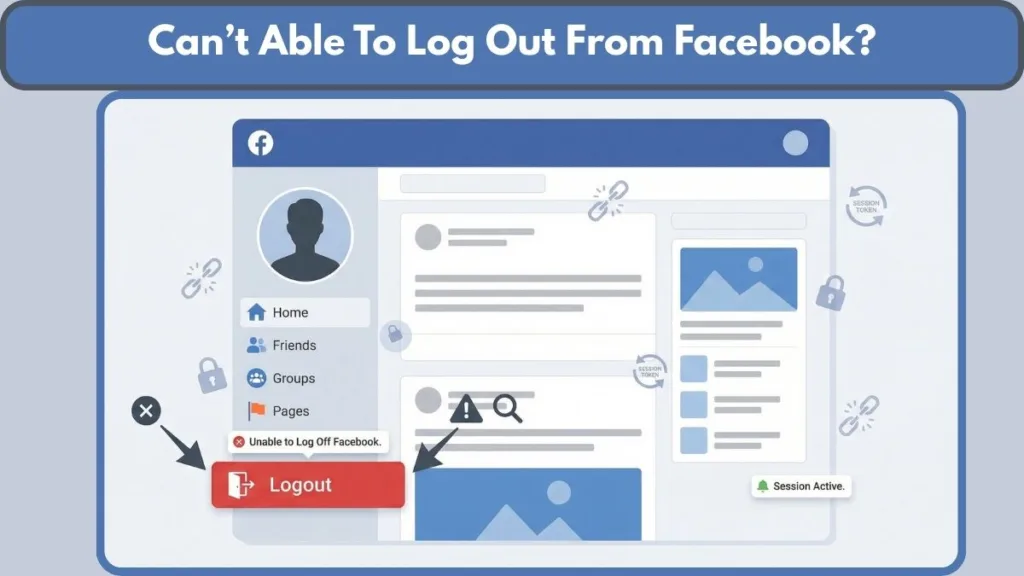
You may tap “Log Out” and see nothing happen. You may successfully log out, only to find yourself signed back in automatically. In other cases, the logout button appears to work, but refreshing the page takes you right back to your feed. These behaviors are typically tied to session persistence rather than account errors.
This guide explains in detail why Facebook won’t log out, why it keeps logging you back in, how session handling works behind the scenes, and how to fix the issue on Android, iPhone, and desktop browsers like Chrome, Edge, and Firefox.
Why You Can’t Log Out of Facebook: 6 Common Causes
To understand why logout fails, it helps to understand what happens technically when you press the logout button. When you select “Log Out,” Facebook attempts to invalidate your active session token on its servers. At the same time, your device or browser must delete stored session cookies. If either of these actions fails or is reversed by another process, you remain logged in.
Several technical factors can interrupt this process.
1. Facebook Server or Session Outage
Facebook operates through distributed servers that manage authentication and session control. If those servers are temporarily unstable or undergoing maintenance, your logout request may not complete properly. The page may refresh, but the backend session token remains active. This type of issue usually affects multiple users at the same time and often resolves within a few hours without any action required from you.
Note: If logout suddenly stops working across multiple devices and browsers simultaneously, it is likely a server-side issue rather than a device-specific problem.
2. Corrupted Cache and Cookies
Browsers and mobile apps store cookies and cached files to reduce the need for repeated logins. These stored files contain session identifiers that tell Facebook you are authenticated. If cookies become corrupted, duplicated, or outdated, they can immediately re-authenticate your account even after logout.
This is one of the most common reasons why Facebook logout is not working on Chrome or why Facebook keeps logging you back in. Even if the logout button functions correctly, the browser may restore the session automatically using stored data. Clearing cache and cookies removes these stored references and forces Facebook to establish a fresh authentication state.
3. Third-Party Apps Using “Login with Facebook”
Many websites and applications allow users to authenticate through Facebook. When you use this feature, the platform generates a secure OAuth token that remains active until revoked. Even if you manually log out from Facebook in your browser, that external service may refresh the token in the background.
This background authentication refresh can cause Facebook to restore your session automatically. As a result, it may appear that logout is not working or that Facebook will not stay logged out. Disconnecting unnecessary third-party apps from your Facebook settings prevents these background session renewals.
4. Outdated Facebook App or Browser
Logout issues can also arise from compatibility problems. Facebook regularly updates its authentication scripts and session management systems. If your browser is outdated or your Facebook app update was interrupted, logout scripts may fail to execute properly.
Using the latest version of your browser and keeping the Facebook app updated ensures compatibility with Facebook’s current security protocols.
5. Browser Extensions Blocking Logout
Certain browser extensions interfere with website scripts, cookies, or background requests. Privacy tools, ad blockers, and script-blocking add-ons can prevent the logout request from being processed fully. If the extension blocks cookie deletion or prevents Facebook from communicating with its authentication server, the session remains active.
If Facebook logout is not responding, temporarily disabling extensions can help determine whether an add-on is responsible.
6. Active Sessions on Other Devices
Facebook allows simultaneous login across multiple devices. If your account is open on another phone, tablet, or computer, your session continues to exist on those devices. While this does not usually prevent logout on your current device, it can create confusion about whether you are fully signed out.
Terminating all active sessions ensures complete logout from every location.
Why Facebook Keeps Logging Me Back In Automatically?
When Facebook logs you back in immediately after logout, the issue typically involves session persistence. Facebook is designed to reduce login friction and keep users signed in for convenience.
If the “Remember Me” option was enabled during login, the browser may store persistent cookies that automatically re-authenticate you. Browser autofill features can also automatically submit stored credentials. In addition, connected apps or Meta ecosystem services such as Messenger may sync authentication states.
Unless cookies and stored login data are completely removed, Facebook may restore your session automatically when you revisit the site.
How to Fix Facebook Logout Not Working on Mobile
Mobile logout problems are usually tied to cached app data, background authentication processes, or incomplete updates.
Solution 1: Can’t Log Out of Facebook on Android?
On Android devices, the Facebook app stores temporary files to speed up performance. Over time, this data can become corrupted and interfere with logout.
To fix this, begin by opening your device Settings and navigating to the Apps menu. Locate and select Facebook from the list of installed applications. Once inside the app info screen, access the Storage section and tap Clear Cache. This action removes stored session files without deleting your account data.
After clearing cache, Force Stop the app and reopen it before attempting logout again. If the issue continues, updating the app through the Play Store ensures you are using the latest stable version. If the update does not fix the problem, uninstalling and reinstalling the app removes all local session data and forces a fresh login state.
In rare cases where a recent update introduced a bug, temporarily installing an older version of the app may restore logout functionality.
Solution 2: Can’t Log Out of Facebook on iPhone?
On iOS, direct cache clearing is not available, but you can achieve a similar result through the settings menu.
Start by going to your iPhone Settings and opening the General tab. Select iPhone Storage and scroll down to choose Facebook. From here, use the Offload App option, which removes stored app data while keeping your account intact.
Reinstalling the app afterward resets local session storage. It is also important to verify that Background App Refresh is not interfering with session behavior and that internet connectivity is stable. If logout continues to fail, logging into Facebook from a desktop browser and terminating all sessions remotely can resolve the issue.
Fix Facebook Logout Not Working on Desktop (Chrome, Edge, Firefox)
Desktop logout problems are most commonly related to stored cookies or browser configuration.
Method 1: Clear Browser Cache and Cookies
Open your browser’s settings and navigate to the Privacy section. Clearing browsing data, including cookies and cached files, removes stored Facebook session identifiers. Selecting the “All time” range ensures complete deletion of saved login tokens.
Once cookies are removed, Facebook cannot automatically restore the previous session.
Method 2: Disable Browser Extensions
Access your browser’s Extension Manager and temporarily disable all installed add-ons. Attempt logout again to see if the issue is resolved. If logout works after disabling extensions, re-enable them one at a time to identify which extension is interfering.
Privacy-focused tools are frequently responsible for blocking logout scripts.
Method 3: Try Another Browser
If logout fails in one browser, testing Facebook in another browser can help isolate the issue. If logout works elsewhere, the original browser likely contains corrupted cookies or conflicting extensions.
How to Force Logout of Facebook From All Devices
The most effective way to ensure complete logout is to terminate all active sessions from Facebook’s security settings.
To perform this reset, log into Facebook and navigate to Settings & Privacy followed by Settings. Tap on Accounts Center (usually located at the very top of the menu) and select Password and Security. From there, tap Where you’re logged in, select your account, and choose the option to Select devices to log out.
This method forces Facebook to invalidate every active session token associated with your account. This is particularly important if you have used public computers, shared devices, or notice unfamiliar login activity.
Check and Remove Third-Party Apps Causing Logout Glitches
To prevent background authentication refresh, review connected applications in your Facebook settings.
Navigate to Settings and look for Apps and Websites to view all active integrations. Carefully review the list and Remove any unused or unnecessary apps.
Disconnecting third-party services reduces the chance of Facebook auto-login issues recurring.
Is Facebook Down? Checking for Server-Side Logout Bugs
If logout fails across multiple devices and networks simultaneously, the issue may originate from Facebook’s backend systems. Checking for widespread reports of outages (on sites like Downdetector) can confirm whether the problem is external.
In such cases, waiting 24 to 48 hours is often necessary while Facebook resolves the issue internally. Repeated login attempts during instability may trigger temporary account restrictions.
Security Check: Is Your Facebook Account at Risk?
Most logout issues are technical rather than security-related. However, it is important to verify your account activity. Reviewing login locations and device history ensures no unauthorized access is occurring.
If you detect suspicious activity:
- Immediately change your password.
- Enable two-factor authentication.
- Terminate all active sessions to secure your account.
Advanced Fix: Reset Browser and Reinstall App
If standard troubleshooting methods fail:
Reset browser settings to default: This removes hidden configuration conflicts.
Use Incognito Mode: Using private or incognito mode bypasses stored cookies and allows you to test logout without persistent session data.
Reinstall the App: Reinstalling the Facebook app entirely or temporarily using an older Android version may resolve update-related bugs.
If none of these approaches work, contacting Facebook Support with detailed device and browser information is recommended.
Prevention: How to Stop Facebook Logout error
Preventing logout issues requires controlling session persistence.
- Avoid enabling “Stay Logged In” on shared or public devices.
- Periodically clear browser cookies to remove outdated session tokens.
- Keep your Facebook app and browser updated to maintain compatibility with Facebook’s authentication systems.
- Limit unnecessary browser extensions that interfere with scripts or cookies.
- Regularly review connected apps and active sessions to ensure only trusted devices remain logged in.
Maintaining awareness of how session data is stored helps ensure logout works reliably whenever needed.
FAQ:
Q: Why can’t I log out of Facebook?
A: Logout usually fails because of corrupted cookies, background authentication refresh, outdated apps or browsers, active sessions on other devices, or temporary server instability.
Q: Why does Facebook keep logging me back in?
A: Persistent login cookies, autofill credentials, connected third-party apps, or ecosystem synchronization may automatically restore your session after logout.
Q: How do I log out of Facebook on all devices?
A: Navigate to Settings > Accounts Center > Password and Security > Where You’re Logged In, and select the option to log out of all sessions.
Q: Is it dangerous if I can’t log out?
A: In most cases, it is a technical issue rather than a security risk. However, if you notice unfamiliar login activity, secure your account immediately.
Summary: If you are unable to log off Facebook, the problem is almost always tied to session persistence rather than account malfunction. Clearing stored login data, terminating active sessions, and removing third-party integrations resolves the issue in the vast majority of cases.