
Getting a VALORANT connection error and worried it’s a ban? Learn how to fix the VAN 79 error quickly and get back in-game.
Stuck on VAN 79? Here’s What’s Actually Blocking You (Read This First)
If you’re staring at the VAN 79 error in VALORANT, you’re probably trying to jump into a match right now—friends waiting, queue ready—and the game just won’t let you in. Frustrating? Absolutely. Random? No.
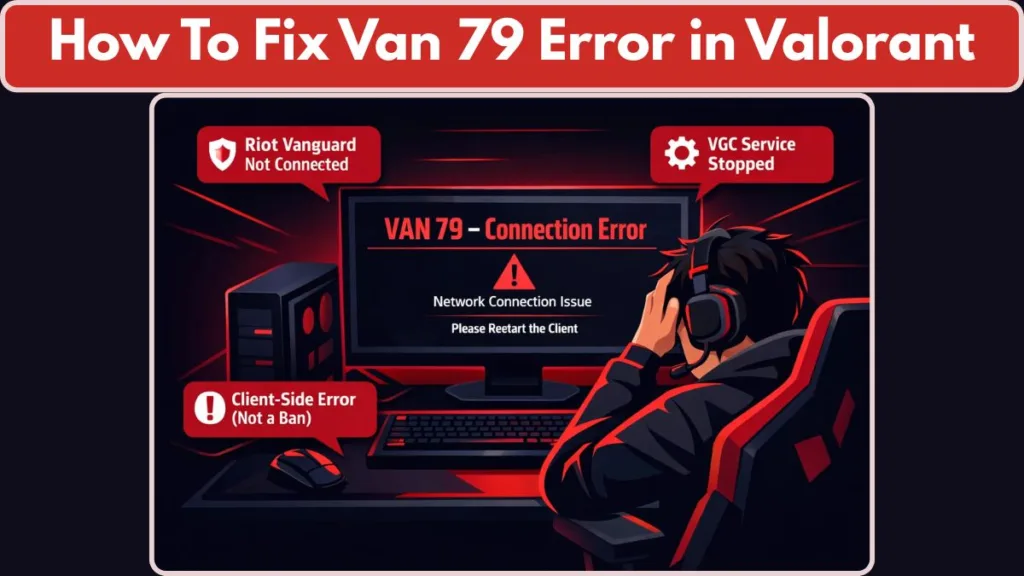
Here’s the quick truth upfront: VAN 79 is not a ban , and it’s usually not a server outage either. This Valorant connection error VAN 79 happens when Riot Vanguard (the anti-cheat) fails to initialize or communicate properly on your PC. Even if your internet is working, the game blocks access until that connection is restored.
he VAN 79 error in VALORANT is a startup connection failure, not a gameplay bug and not a matchmaking issue.
In simple terms, this error appears when Riot Vanguard—VALORANT’s anti-cheat—doesn’t start correctly or can’t communicate with the game client. When that happens, VALORANT blocks the launch and shows the Valorant error code VAN 79 to prevent an unsafe session.
Here’s the key part many players miss:
VAN 79 is triggered before you even reach the servers.
That’s why your internet can be working perfectly and you’ll still see this Valorant connection error VAN 79.
What’s Actually Failing Behind the Scenes
- Riot Vanguard is required to be active before VALORANT launches
- The VGC service (Vanguard’s Windows service) must start and stay running
- If that connection fails, the Riot Client cannot authorize the game session
When any of these steps break, VALORANT stops immediately and throws VAN 79.
Step 1 – Check Riot Games Server Status (Do This First)
Before changing settings or reinstalling anything, pause for a moment and confirm whether the problem is actually on your PC.
Even though VAN 79 is usually a client-side issue, it’s still smart to rule out a temporary outage. This saves you time and prevents unnecessary troubleshooting.
If Riot Games is experiencing service issues, the Riot Client may fail to connect, Vanguard may time out during startup, and you could see a Valorant connection error VAN 79 even with a perfectly healthy system. In that case, no local fix will work until services are restored.
How to Check Server Status Quickly
You can check the official Riot Games status page to see whether VALORANT and related services are currently operational or experiencing problems.
Live outage trackers like DownDetector and IsDown also show that, at the moment, there are no widespread connection or launch issues being reported for VALORANT, suggesting servers are likely up and serving players normally.
Look specifically for the status of:
- VALORANT
- Riot Client
- Login / platform services
If these are marked as degraded or offline, the smartest move is to wait. Restarting, reinstalling, or running commands won’t bypass a live outage.
If Servers Are Online, Fix VAN 79 on Your PC (Riot Vanguard–Focused Troubleshooting Guide)
If Riot servers are confirmed online, the VAN 79 error is coming from your system, not your account. At this stage, you’re dealing with a local Riot Vanguard initialization failure, not a matchmaking issue and not a server outage. This is why friends may already be playing while you’re stuck on the error screen.

The fixes below are ordered from fastest and most common to deeper system-level checks. Follow them in sequence, and give each fix a proper restart before moving to the next. In most cases, players resolve Valorant error code VAN 79 within the first few steps.
Fix 1 – Restart the VGC Service (Riot Vanguard Not Running on Windows)
The VGC service is the Windows service that allows Riot Vanguard to start and stay active in the background. If this service is stopped, misconfigured, or fails silently, VALORANT immediately blocks launch and throws the VAN 79 error.
How to Verify and Restart the VGC Service
To check this, open the Windows Services panel by pressing Windows + R, typing services.msc, and pressing Enter. Scroll through the list until you find VGC. Open its properties and confirm that the Startup type is set to Automatic. If the service is stopped, start it manually and apply the changes.
This step matters because Vanguard must initialize before the Riot Client completes its connection handshake. If VGC doesn’t start on time—or stops shortly after—VALORANT treats it as a security failure and cuts the connection instantly.
Fix 2 – Reinstall Riot Vanguard Only (Correct Fix for Vanguard Corruption)
A very common mistake is reinstalling VALORANT itself. While that may feel logical, it usually doesn’t fix VAN 79. The real issue almost always lives inside Riot Vanguard, not the game files.
Proper Way to Reinstall Riot Vanguard
Uninstall Riot Vanguard from Programs and Features in Control Panel, then restart your PC. This restart is critical because it removes Vanguard’s kernel-level drivers fully. After rebooting, open the Riot Client. You’ll be prompted to reinstall Vanguard automatically. Allow it, complete the installation, and restart again when asked.
This process clears corrupted Vanguard drivers, resets its connection to Windows services, and fixes many cases where Valorant VAN 79 keeps returning after updates or crashes.
Fix 3 – Reset Network Stack (Winsock & DNS for Vanguard Communication)
Although VAN 79 is not a traditional internet problem, Riot Vanguard still depends on clean local network communication to validate your system during startup. If your network stack is corrupted, Vanguard may fail to complete its initialization step.
What This Reset Actually Fixes
Open Command Prompt as Administrator and reset the network stack by running the standard Winsock and IP reset commands, followed by DNS flush and renewal. These commands repair broken network bindings, clear cached DNS conflicts, and reset how Windows handles local connections.
Once finished, restart your PC. This step often fixes cases where the Valorant connection error VAN 79 appears suddenly after a network change, VPN use, or system update.
Fix 4 – Allow VALORANT & Vanguard Through Firewall / Antivirus (Silent Blocking Issue)
Firewalls and antivirus programs can block Riot Vanguard without showing any warnings. This is especially common with third-party antivirus software that silently restricts kernel-level drivers.
What to Check in Firewall and Antivirus Settings
Open Windows Security and review your firewall settings. Make sure both VALORANT and Riot Vanguard are allowed on private and public networks. If they aren’t listed, add them manually. Then check your antivirus quarantine or protection logs and ensure Vanguard hasn’t been restricted.
If needed, temporarily disabling your antivirus can help confirm whether it’s the cause. If VAN 79 disappears when protection is disabled, you’ll know exactly where the conflict is.
Fix 5 – Check Startup & Background Software Conflicts (Hidden Vanguard Interference)
Riot Vanguard loads at system startup, not when you click Play. That means background software can interfere with it long before VALORANT launches.
Common Conflict Sources That Trigger VAN 79
Utilities such as debuggers, memory editors, overlay tools, RGB controllers, or mod-related software from other games can trigger Vanguard’s integrity checks. Even if these tools are not actively running, their drivers may still load at boot.
If you’ve recently installed new system utilities or game mods, temporarily disable them and restart. Many players resolve VAN 79 Valorant simply by removing a background conflict they didn’t realize was still active.
Fix 6 – Update Windows & Network Adapter Drivers (System Compatibility Fix)
Outdated Windows builds or network drivers can break Vanguard’s ability to communicate securely with the Riot Client. This is especially common after partial Windows updates.
What Needs to Be Updated
Open Windows Update and install all pending updates, including optional security patches. After that, check Device Manager, expand Network adapters, and update your active network driver automatically.
This step ensures your system meets Vanguard’s current requirements and prevents compatibility mismatches that lead to repeated Valorant error code VAN 79 screens.
Fix 7 – Perform a Clean Boot (Advanced Diagnostic With High Success Rate)
If none of the fixes above work, a clean boot is the most reliable way to identify what’s blocking Vanguard.
How a Clean Boot Helps Fix VAN 79
Using msconfig, disable all non-Microsoft services and prevent third-party apps from launching at startup. Restart your PC and try launching VALORANT again. If the game opens without VAN 79, you’ve confirmed a hidden software conflict.
From there, re-enable services one at a time until the error returns. This process doesn’t just fix VAN 79—it tells you exactly what caused it, so the problem doesn’t come back later.
Important Reminder Before Retrying Any Fix
After every single fix, always restart your PC, then open the Riot Client first, and only then launch VALORANT. Skipping restarts or launching the game directly is one of the biggest reasons players think a fix “didn’t work” when it actually did.
Quick Checklist: Try This Before Reinstalling Anything Again
Before you uninstall VALORANT or reset your PC, pause and run through this fast sanity check. Most VAN 79 error cases in VALORANT are fixed by one of these steps.
- Riot servers checked and confirmed online: If servers are down, local fixes won’t work. Always verify this first.
- VGC service is running and set to Automatic: If Riot Vanguard isn’t active, the Valorant connection error VAN 79 will appear every time.
- Riot Vanguard reinstalled (not the full game): This clears corrupted anti-cheat drivers, which are a common trigger.
- Network stack reset completed: Winsock and DNS resets help Vanguard communicate properly with the Riot Client.
- Firewall and antivirus are not blocking Vanguard: Silent blocking is common and easy to miss.
- No background software conflicting at startup: Debug tools, overlays, or mod-related utilities can stop Vanguard before launch.
- PC restarted after every fix: Skipping restarts often makes a working fix look like it failed.
If all boxes are checked and Valorant error code VAN 79 still appears, the issue is likely a deeper system conflict, not an account problem or ban. In the next section, we’ll explain what that means and what to look at next.
FAQ: VAN 79 Error in Valorant
What causes VAN 79 error in Valorant?
The VAN 79 error happens when Riot Vanguard fails to initialize or communicate during startup. In most cases, the VGC service isn’t running, is blocked by security software, or is interrupted by a background conflict. This is a client-side issue, not a gameplay bug.
What is error code VAN 79 in VALORANT?
Valorant error code VAN 79 means the game cannot verify that Vanguard is active. When that verification fails, VALORANT stops the launch to protect the session and shows a connection error message.
Why does Valorant say connection error when my internet works?
Because this is not an internet outage. The Valorant connection error VAN 79 refers to an internal connection between the Riot Client and Riot Vanguard, not your Wi-Fi or ISP.
Is VAN 79 a ban?
No. VAN 79 is not a ban and does not affect your account standing. Bans use different messages and codes. VAN 79 is a startup timeout, usually caused by the Vanguard service stopping or being blocked.
Can I fix VAN 79 without reinstalling Valorant?
Yes. Most fixes involve:
- Restarting the VGC service
- Reinstalling Riot Vanguard only
- Clearing network conflicts
A full game reinstall is rarely needed.
Does VAN 79 happen more on Windows 10 or Windows 11?
It can occur on both, but it’s more common after Windows updates, driver changes, or system tweaks that interfere with Vanguard’s startup requirements.
What if VAN 79 keeps coming back?
If the error returns repeatedly, it usually means:
- A startup program is conflicting with Vanguard
- A driver or security tool is blocking it
A clean boot is the fastest way to identify the cause.
Do I need secure boot or TPM settings for Vanguard?
Yes, modern versions of Riot Vanguard sometimes check for BIOS security features like Secure Boot and TPM 2.0. If your system doesn’t meet these security requirements, it can cause startup errors similar to VAN 79. Adjust these in your BIOS settings if needed
Could a BIOS or firmware issue cause VAN 79?
Recently, Riot flagged a hardware security problem that requires players to update their motherboard BIOS to ensure anti-cheat checks work properly. If your BIOS isn’t updated, Vanguard may fail to initialize at boot, leading to errors at launch.
Should I run Valorant as administrator?
Yes, running Valorant with admin permissions can solve certain launch issues that block Vanguard startup. Always try this if other steps aren’t helping.
Conclusion: Getting Back In-Game Fast
Running into the VAN 79 error can feel like a hard stop—especially when your squad is already queuing. The good news is that this Valorant error code VAN 79 is fixable, local, and not a ban. In nearly every case, the block comes from Riot Vanguard failing to initialize correctly—not from your account and not from global servers.
If you followed the flow—checked server status first, then worked through the Vanguard-focused fixes—you’ve already done what matters most. For many players, the solution is as simple as restarting the VGC service or reinstalling Riot Vanguard. For others, it’s identifying a quiet conflict at startup. Either way, the path forward is clear.
Remember:
VAN 79 ≠ ban
Internet working ≠ Vanguard working
Restarts matter after every fix
Take it step by step, avoid rushing into full reinstalls, and you’ll usually be back in VALORANT faster than expected—ready to rejoin friends and get back into the match.
Visit Our Post Page: Blog Page