
Struggling with blur or delayed input? Learn the best monitor settings for FPS gaming to improve aim, reduce lag, fix crushed blacks, and spot enemies faster.
You’re already running high FPS, your mouse feels dialed in, and yet you’re still losing fights you should win. Enemies blend into shadows. Motion feels smeary when you flick. Your aim feels delayed even though the counter says 200+ FPS.
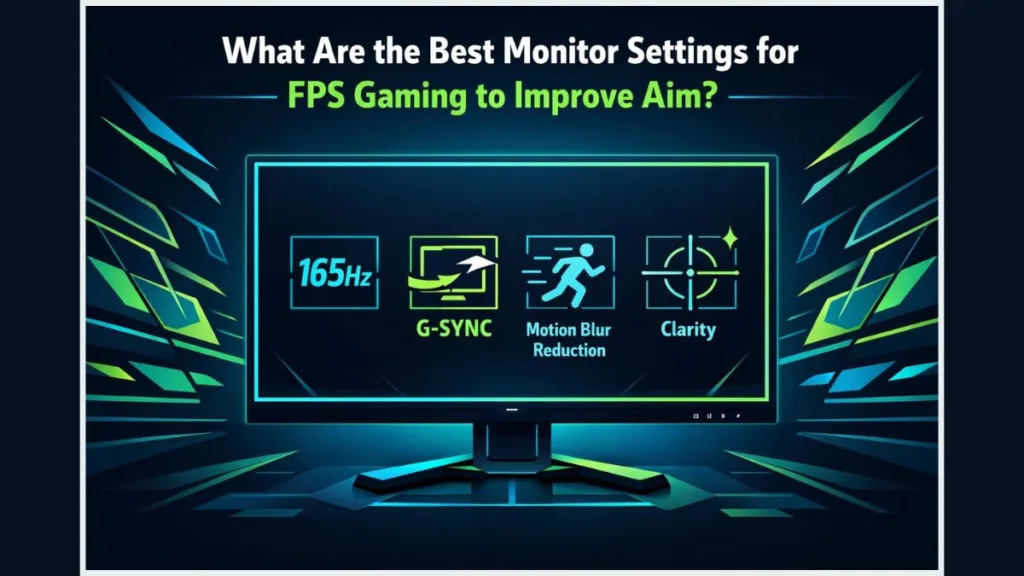
That’s not your mechanics—that’s your monitor working against you.
I’m standing right next to you while we fix it. You’re going to set the monitor up so what your hands do is exactly what your eyes see: no blur, no delay, and no crushed detail.
Why Monitor Settings Matter More Than You Think in FPS Games
When you play FPS games, you’re not reacting to still images—you’re reacting to motion. If your monitor is misconfigured, you lose clarity during fast strafes, enemies disappear in dark corners, and your mouse input feels disconnected from the screen.
Look at your display right now. Do fast turns smear together? Do shadows look like solid black blobs? That’s your monitor introducing motion blur, black crush, and input latency before your brain ever gets a chance to react.
Fixing this isn’t about making the game pretty. It’s about making enemy movement readable. Every setting you change below directly affects how quickly you spot targets and how consistently you win aim duels.
Best Monitor Settings for FPS (Quick Competitive Preset)
Use this list to get a “Known-Good” baseline immediately. These are the settings pros use to strip away lag and blur.
- Resolution: Native (1920×1080 or 2560×1440)
- Refresh Rate: Maximum Supported (144Hz / 240Hz / 360Hz)
- Game Mode / FPS Mode: On (Disables post-processing)
- Overdrive / Response Time: Medium (Never use “Max” or “Fastest”)
- Adaptive Sync (G-Sync/FreeSync): On (For smoothness)
- HDR: OFF (Adds latency and washes out colors)
- Motion Blur Reduction (DyAc/ULMB): Off (Unless you specifically train with it)
- Black Equalizer: Low/Medium (Enough to see corners, not enough to wash out the map)
What Is the Best Refresh Rate for FPS Gaming?
Refresh rate is how often your monitor redraws the image every second. In-game, this determines how smooth enemy movement looks when they strafe. If this is wrong, nothing else matters.
Go to Windows Settings > System > Display > Advanced Display. You might see your expensive monitor is still set to 60Hz. That single mistake makes everything feel delayed. Set it to the maximum advertised rate immediately.
- 144Hz: The minimum standard. Motion becomes dramatically clearer than 60Hz.
- 240Hz: Tracking targets during strafes feels tighter and more predictable.
- 360Hz: Gains are smaller, but at high ranks, every millisecond counts for micro-adjustments.
If your current screen can’t hit these numbers, check out our guide on how to choose a gaming monitor in 2026 to find a true competitive display.
How Should You Set Response Time and Overdrive?
Response time controls how fast pixels change color to clear up ghosting. In your monitor menu, this is usually called Overdrive, Trace Free, or Response Time.
The Trap: When you switch Overdrive to the “Fastest” or “Max” setting, you get Inverse Ghosting. Look closely while strafing. Do you see bright, glowing outlines trailing behind objects? That is pixel overshoot. It looks artificial and distracts your eye during tracking.
The Fix: Set Overdrive to Medium (or “Normal”). Motion stays clean without the glowing halos. This single adjustment usually fixes the “why does everything smear?” complaint instantly.
Best Brightness & Contrast Settings for Visibility
Brightness and contrast determine if you see the enemy or just a dark corner.
- Brightness: Lower it until blacks look dark but still show detail. (Usually 60-80%).
- Contrast: Balance is key. Too high, and bright areas blow out. Too low, and the image looks muddy.
- Digital Vibrance (NVIDIA) / Saturation: Crank this up slightly (e.g., 70%). It makes enemy outlines “pop” against the background, making them faster to spot.
Best Sharpness & Black Equalizer Settings
- Sharpness: Keep between 50 and 80. Too high introduces visual noise (shimmering edges) that fatigues your eyes.
- Black Equalizer / Shadow Boost: Use this lightly. Small increases help you spot campers in dark spots. Overdoing it removes depth perception, making everything look flat and ruining your distance judgment.
How to Set Monitor for Low Input Lag in FPS Games
Input lag is the delay between your mouse movement and the screen reacting. Even with high FPS, bad monitor settings add delay.
- Enable “Game Mode”: This usually bypasses unnecessary post-processing.
- Disable “Enhancements”: Turn off Dynamic Contrast, Noise Reduction, Super Resolution, and Eco Mode. These look good in store demos but fail in live matches.
- Result: When these are off, your mouse input will feel tighter and “snappier.”
Should You Enable G-Sync or FreeSync for FPS?
Adaptive Sync (G-Sync/FreeSync) removes screen tearing without the heavy lag of V-Sync.
- Verdict: Enable it.
- The Trade-off: You cannot use Adaptive Sync and Motion Blur Reduction (DyAc/ULMB) at the same time. You must choose: No Tearing (Sync) vs. Clearer Motion (Strobing). Most players prefer Sync for consistency.
Best Monitor Settings for FPS by Refresh Rate
Best Settings for 144Hz
At 144Hz, you need a balance. Use Adaptive Sync and Medium Overdrive. Prioritize visibility settings like Digital Vibrance. This setup gives you a massive edge over 60Hz players.
Best Settings for 240Hz
At 240Hz, ghosting artifacts become more visible. Response tuning is critical here. Test your Overdrive carefully—if “Medium” still shows trails, try “High,” but watch for that inverse glowing halo.
Best Settings for 360Hz
At 360Hz, it is all about latency. Disable everything that adds processing. Fine-tune Overdrive carefully. The gains here are subtle, but they are real for elite players.
Best Monitor Settings for Popular FPS Games
- Valorant: Prioritize clarity. HDR Off, Digital Vibrance High, Black Equalizer Low. You need to see heads clearly against walls.
- CS2 / CS:GO: Use slightly higher Sharpness for long-range engagements. Avoid aggressive Overdrive.
- Call of Duty / Warzone: Balance your brightness. Warzone has many dark indoors and bright outdoors; a moderate Shadow Boost is essential here to see into buildings.
How to Calibrate Your Monitor for FPS Gaming (Step-by-Step)
- Windows: Confirm Native Resolution & Max Refresh Rate.
- GPU Panel: Set “Output Dynamic Range” to Full (not Limited). Set Digital Vibrance/Saturation to ~70%.
- Monitor OSD: Enable Game Mode. Set Overdrive to Medium. Turn off Eco/Power Saving modes.
- Test: Load a custom game. Strafe left and right. If you see trails, adjust Overdrive. If shadows are too dark, bump the Black Equalizer.
FAQ: Best Monitor Settings for FPS Gaming
What monitor settings should I use for FPS games? Use native resolution, maximum refresh rate, Medium overdrive, Adaptive Sync enabled, and ensure HDR is OFF.
Does refresh rate really matter in FPS games? Yes. Higher refresh rates (144Hz+) drastically improve motion clarity and reduce input lag, making tracking moving targets significantly easier.
What brightness level is best for FPS gaming? Avoid 100% brightness as it causes eye strain. Set it high enough to reveal shadow detail (usually 70-80%) without washing out the image.
Should I use Overdrive for competitive FPS? Yes, but never set it to Max. Medium Overdrive provides the best balance of clear motion without causing distracting visual artifacts (inverse ghosting).
Visit Our Post Page: Blog Page