
144Hz not showing in Windows 11? Learn why your monitor is stuck at 60Hz and use these 4 methods to fix missing refresh rates on desktops and gaming laptops.
If you bought a high-refresh-rate monitor or recently updated Windows and suddenly 144Hz is missing in Windows 11, you are not dealing with a faulty monitor or broken hardware. In almost every real-world case, this problem is caused by how Windows verifies and exposes refresh rates.
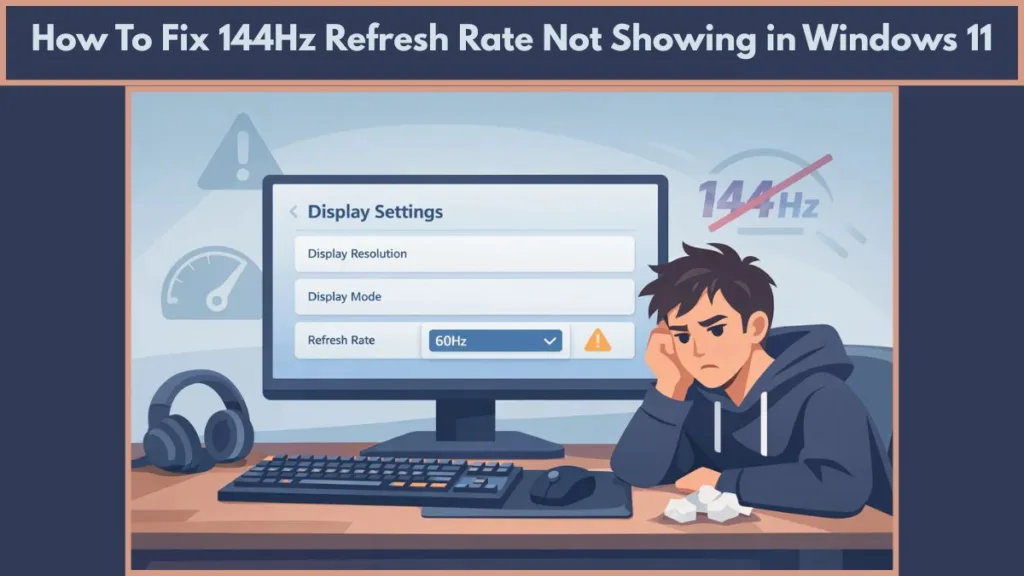
Windows only displays refresh rates it can confidently confirm through the graphics driver, display cable, and GPU output path. If any one of these elements is misconfigured, Windows hides 144Hz completely instead of showing a potentially unstable option.
What follows is a practical, no-guesswork explanation and fix, written for both desktop users and gaming laptop users who are most commonly affected.
Quick Summary: Why Your Monitor is Stuck at 60Hz
| Common Cause | The Fix |
| Wrong Cable | Switch from HDMI 1.4 to DisplayPort 1.2+ or HDMI 2.0+. |
| Monitor OSD Lock | Enable “Overclock” or “144Hz Mode” in your monitor’s physical menu. |
| Outdated Drivers | Install official drivers from NVIDIA/AMD (avoid Windows Update). |
| Hidden Settings | Use the “List All Modes” feature in Adapter Properties. |
| Laptop Wiring | Your port might be wired to the iGPU, not the dedicated RTX/GTX card. |
Understanding 144Hz on Windows 11 and Why It Makes a Difference
A refresh rate of 144Hz means the display redraws the image 144 times every second. Compared to 60Hz, this results in noticeably smoother motion, faster on-screen response, and reduced visual artifacts during fast movement.
- At 60Hz: Motion appears less fluid, and fast camera movements in games often show blur or tearing, which can negatively impact competitive gaming.
- At 120Hz and 144Hz: Motion becomes smoother, input lag drops, and screen tearing is significantly reduced, which enhances both responsiveness and visual clarity.
- Desktop Use: Even outside gaming, scrolling webpages, dragging windows, and general UI animations feel smoother and more responsive, which makes everyday computer use feel more enjoyable.
Windows 11 fully supports high refresh rate displays, including 144Hz, 240Hz, and beyond. However, Windows will only expose these refresh rates if the entire hardware and software chain reports them as valid. If Windows cannot verify stability, it automatically falls back to safer refresh rates such as 60Hz or 120Hz.
Additionally, newer Windows 11 features like Dynamic Refresh Rate (DRR) can adapt the refresh rate to save battery, which sometimes hides the maximum fixed rate unless you disable DRR in the settings.
Why a 144Hz Monitor Gets Limited to 60Hz in Windows 11
This section exists to help you identify the issue quickly before changing any settings.
1. GPU Drivers are Missing or Replaced
When Windows cannot detect a proper NVIDIA GeForce, AMD Radeon, or Intel Arc graphics driver, it reverts to a generic “Microsoft Basic Display Adapter” driver. This generic driver does not support high refresh rates, forcing Windows to limit the refresh rate to a safe mode like 60Hz.
Reinstalling the correct drivers from the manufacturer’s site often restores the missing refresh rate immediately.
2. Wrong Cable or Port is Being Used
You might be using an HDMI 1.4 cable or a low-spec adapter that cannot carry a 144Hz signal at common resolutions.
- HDMI 1.4: Limited to 144Hz at 1080p only.
- HDMI 2.0: Required for 144Hz at 1440p.
- DisplayPort: The standard for PC gaming; supports 144Hz+ on almost all versions.
3. Laptop Output is Wired to Integrated Graphics
On many gaming laptops (MSI, ASUS, Dell), the external display port is connected internally to the integrated Intel/AMD GPU rather than the dedicated NVIDIA/AMD GPU.
This routing can cap refresh rates at 60Hz or 120Hz even when the system has a powerful graphics card.
4. Monitor OSD Settings are restricting the Signal
Many monitors (specifically LG UltraGear and ASUS TUF series) have an internal setting called “Overclock” or “Power Saving Mode” enabled by default.
Until you use the physical buttons on the monitor to change this, the monitor itself will refuse to accept a 144Hz signal.
5. Refresh Rate Exists but is Hidden by Windows
Windows sometimes hides valid refresh rate modes from the default UI to keep the menu clean. This does not mean they are unsupported—just that they are not visible in the primary settings menu. Using legacy methods (like List All Modes) can reveal these hidden options.
Common Reasons the 144Hz Option Disappears in Windows 11
Missing or Incorrect Graphics Drivers
After a Windows update or a clean reinstall, Windows often replaces proper manufacturer drivers with a generic display driver.
- High refresh rate modes such as 144Hz disappear because the generic driver does not advertise them.
- Features like G-Sync or FreeSync stop working.
- Windows only displays limited, safe refresh rates that the generic driver supports.
Windows Locked at 60Hz or 120Hz
Windows does not guess refresh rates. It only displays modes that the system confirms as stable. If 144Hz fails validation because of driver, port, or hardware signaling issues, Windows hides it entirely. Instead of showing a broken option, Windows safely defaults to 60Hz or 120Hz to prevent display flicker or black screen errors.
Cable or Display Port Bandwidth Limits
Running a monitor at 144Hz requires massive bandwidth.
- DisplayPort 1.2 or newer supports the bandwidth needed for 1080p 144Hz and higher.
- HDMI 2.0 or newer is generally required for reliable 144Hz support at 1440p or 4K.
- Using old HDMI cables or passive adapters will hard-limit your refresh rate, even if the monitor itself is capable.
Laptop Display Output Limitations (The Laptop Gap)
This issue affects a large number of gaming laptops using NVIDIA Optimus technology.
- Many laptops route HDMI outputs through the integrated GPU to save power.
- When this internal routing occurs, external monitors may be stuck showing only 60Hz.
The Fix: Check your laptop software (Armoury Crate, MSI Center, Lenovo Vantage) for a “MUX Switch” or “Discrete Graphics Mode” to bypass the integrated GPU.
Check This First (Before Fixing Anything)
Before changing drivers or settings, confirm the basics to avoid unnecessary troubleshooting:
- The monitor supports 144Hz at the selected resolution (check the manual).
- The graphics card officially supports the refresh rate you want to use.
- The cable meets bandwidth requirements (DisplayPort 1.2+ or HDMI 2.0+).
- The monitor is connected directly to the GPU output, not the motherboard HDMI port.
- You have disabled HDR in Windows settings, as some monitors lock to 60Hz when HDR is on.
Step-by-Step: Enabling 144Hz in Windows 11
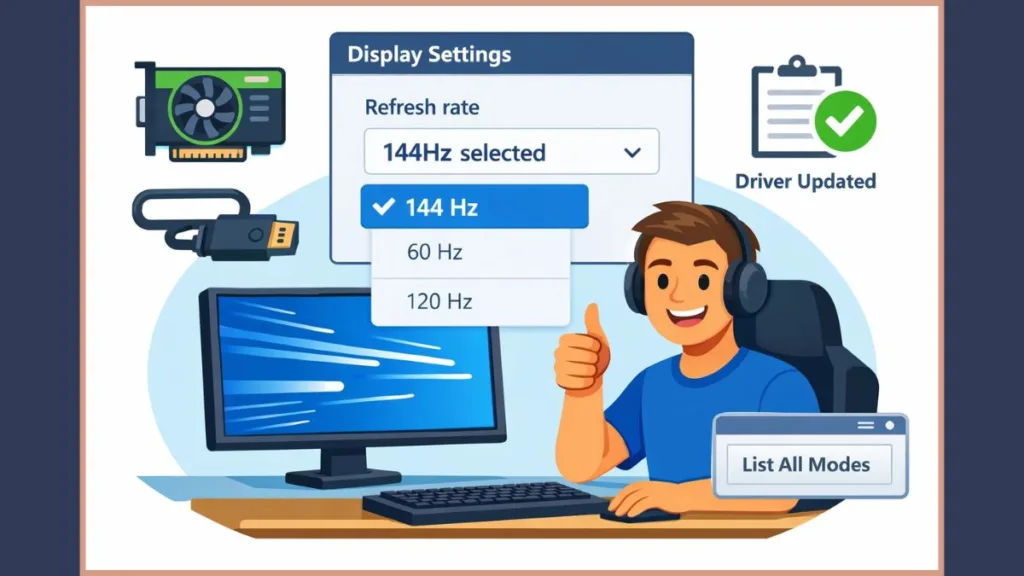
Method 1: Set 144Hz Using Windows 11 Display Settings
- Open Settings, then go to System > Display.
- Scroll down and click on Advanced display.
- Choose the correct monitor from the dropdown menu if multiple displays are connected.
- Open the Choose a refresh rate dropdown menu.
- Select 144Hz and confirm the changes.
Method 2: Enable 144Hz via NVIDIA Control Panel
- Right-click your desktop and select NVIDIA Control Panel.
- Navigate to Display > Change resolution.
- Select the correct monitor.
- Under the “PC” resolutions section (scroll down past “Ultra HD/HD/SD”), choose your resolution.
- Select 144Hz from the Refresh rate list and click Apply.
Method 3: Enable 144Hz Using AMD Adrenalin
- Right-click the desktop and open AMD Software: Adrenalin Edition.
- Click on the Gaming tab, then select Display.
- Verify that AMD FreeSync is enabled.
- Look for Custom Resolutions on the right and ensure your refresh rate is set to 144Hz within the global display settings.
Method 4: Reveal Hidden Refresh Rates with “List All Modes”
This is one of the most effective but overlooked solutions for “hidden” refresh rates.
- Open Settings > System > Display > Advanced display.
- Click the blue link labeled Display adapter properties for Display [X].
- In the pop-up window, click the List All Modes button.
- Scroll down and choose the resolution paired with 144Hz (e.g., 1920 by 1080, True Color (32 bit), 144 Hertz).
- Click OK and then Apply.
Fixing Missing 144Hz After a Windows 11 Update or Reinstall
Cleanly Reinstall Graphics Drivers
- Download the latest drivers directly from NVIDIA, AMD, or Intel.
- Do not rely on drivers supplied by Windows Update, as these are often “DCH” versions with stripped features.
- During installation, select “Custom Installation” and check the box for “Perform a clean installation.”
- Restart the system to reset the driver handshake.
What a Black Screen When Selecting 144Hz Indicates
When the screen goes black and then reverts to 60Hz:
- Windows attempted to apply the 144Hz refresh rate.
- The graphics driver failed to maintain a stable signal due to cable bandwidth limits.
- Windows automatically reverted to prevent loss of display output.
The Fix: You must replace your current cable with a VESA-certified DisplayPort 1.4 cable.
HDMI vs DisplayPort for 144Hz on Windows 11
DisplayPort is the most reliable option for high refresh rates.
- It typically offers higher bandwidth than HDMI at equivalent resolution levels.
- It supports G-Sync and FreeSync directly over the link.
HDMI can support 144Hz only if:
- The port on your GPU and Monitor is HDMI 2.0 or newer.
- The cable is a “Premium High Speed” HDMI cable.
Note: Many 144Hz monitors only support 144Hz over DisplayPort and cap HDMI at 120Hz. Check your monitor manual or our complete gaming monitor buying guide for more hardware details.
Windows 11 144Hz FAQ
Why doesn’t Windows 11 show the 144Hz option?
Windows cannot validate the refresh rate due to driver conflicts, insufficient cable bandwidth, or incorrect monitor OSD settings.
Can HDMI support 144Hz on Windows 11?
Yes, but only with HDMI 2.0 or HDMI 2.1 ports and compatible cables. Older HDMI 1.4 ports are often limited to 120Hz or 60Hz at higher resolutions.
Is it safe to force 144Hz in Windows 11?
You should not force it using third-party tools if the List All Modes method fails. This usually indicates a physical hardware limitation, and forcing it can cause signal instability.
Why does the screen go black when switching to 144Hz?
The GPU driver cannot maintain a stable signal, so Windows automatically reverts to the last known working refresh rate (usually 60Hz).
Final Steps to Restore 144Hz on Windows 11
- Install correct GPU drivers from NVIDIA, AMD, or Intel.
- Install the GPU control panel software (GeForce Experience / Adrenalin).
- Use a DisplayPort 1.2+ or HDMI 2.0+ cable.
- Verify laptop GPU routing and check for a MUX Switch.
- Select the refresh rate manually through the List All Modes feature.
Once the full display pipeline is configured correctly, 144Hz appears instantly without replacing any hardware.
Visit Our Post Page: Blog Page