
Struggling with a Yahoo Mail list server error? This easy IMAP folder sync guide walks you through what’s causing it and simple steps to get everything working smoothly again.
Why This Error Happens Today
If you’ve run into the List Server Error in Yahoo Mail, you’re definitely not alone.
This issue shows up often when Yahoo Mail tries to connect with apps like Outlook, eM Client, or even your everyday iPhone and Android mail apps. Instead of loading your folders smoothly, the app may throw messages like “[IMAP] Failed to LIST server folders” or “List server error, please try again later.”
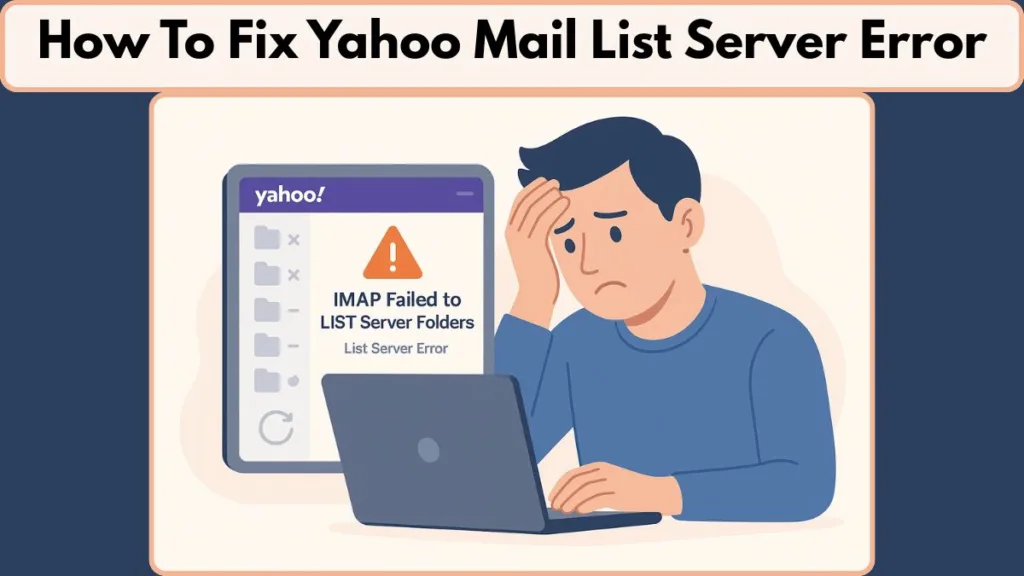
This happens because Yahoo Mail relies on IMAP to read and display your folder structure. When the connection isn’t set up correctly—or when something interrupts it—you may see errors related to server folders, IMAP list commands, or folder syncing. These issues can make your mailbox feel incomplete or out of sync, especially if you’re trying to open or refresh specific folders.
In today’s setups, the most common triggers include outdated server settings, missing App Passwords for third-party apps, temporary server outages, or simple miscommunication between your email app and Yahoo’s servers. The good news? These problems are usually easy to fix once you know where to look.
Here’s why those triggers matter:
- Yahoo Mail now requires correct IMAP/SMTP configuration to connect reliably. For instance, the incoming server must be set to imap.mail.yahoo.com, using port 993 with SSL enabled.
- If you’re using a third-party email client (not Yahoo’s own app or web interface), and your account has extra security (like two-step verification), you need to use a special App Password — your normal Yahoo login password won’t work.
- Skipping these settings or using outdated credentials often causes the “failed to LIST” or “list server error” messages many users see.
This guide walks you through the process step-by-step, helping you understand what’s going on and how to get your Yahoo Mail working smoothly again.
If your folders aren’t showing up or your app keeps saying “server connection failed,” you’re in the right place. Let’s clear things up together.
What the “List Server Error” Means in Yahoo Mail
When you see a message like “List server error” or “Failed to LIST server folders” in Yahoo Mail, it’s really your email app saying, “Hey, I can’t read your folder list right now.”
Yahoo Mail uses IMAP to display your inbox, sent mail, drafts, and any custom folders you’ve created.
To do that, it sends a LIST command asking the server for a clean folder map. If the server doesn’t respond correctly — or the app can’t interpret the response — you get errors tied to folder listing, IMAP sync, or server connection issues.
This is why apps like Outlook, eM Client, and mobile mail apps sometimes struggle. They rely on accurate IMAP configuration, valid authentication, and stable connections.
When something breaks in that chain, your folders may appear empty, incomplete, or fail to load altogether.
So in simple terms:
The List Server Error means your email app can’t pull your folder structure from Yahoo’s servers, which prevents normal syncing and smooth folder navigation.
Common Causes Behind the Error
A few different things can trigger this error — and understanding them makes it much easier to fix. Here are the most common reasons your Yahoo Mail app might fail to LIST server folders:
Incorrect IMAP or SMTP Settings
Yahoo Mail requires exact IMAP and SMTP settings to function properly.
According to Yahoo’s official documentation, the correct IMAP server is imap.mail.yahoo.com, using port 993 with SSL enabled.
If any detail is wrong — server name, port, or encryption — the connection may fail, and the folder list won’t load.
Missing or Invalid App Password (for Third-Party Clients)
If you’re using Outlook, Thunderbird, eM Client, or any other third-party email app, Yahoo may require an App Password.
Using your regular Yahoo password can trigger errors like “failed to LIST” or “list server error.”
Server Timeouts or Network Interruptions
A slow or unstable internet connection can cause the IMAP LIST command to time out.
When that happens, the app can’t retrieve your folder list and displays server-connection or folder-loading errors.
Corrupted Folder Cache or Sync Data
Your email app stores local sync data.
If those files become corrupted, the app may fail to match Yahoo’s folder structure, causing missing folders, sync loops, or LIST failures.
Incorrect IMAP Path Prefix
Some clients require a specific IMAP Path Prefix (often “INBOX”).
If this is blank or incorrect, the app may not interpret your folder structure correctly, leading to missing folder errors.
Temporary Yahoo Mail Outages
If Yahoo’s servers are experiencing issues or maintenance, IMAP requests can fail — even when everything is correctly set up on your device.
During an outage, users commonly see list server errors, failed folder sync, or server unavailable messages.
Is Yahoo Mail Down? How to Check Server Status
Before you dive into fixing any list server error or IMAP folder issue, it’s a good idea to rule out something surprisingly common — a Yahoo Mail outage. When Yahoo’s servers are slow or temporarily offline, your email app can’t load folders, send commands, or complete IMAP sync.
That means you might see errors like “server connection failed”, “unable to load folders”, or “failed to LIST server folders” even when everything on your device is set up perfectly.
The quickest way to save time (and frustration) is to check whether Yahoo Mail is down before troubleshooting anything on your end.
Check Yahoo’s Official Status & Third-Party Outage Trackers
- Use sites like Downdetector — they provide real-time reports from users globally about outages affecting services including Yahoo Mail.
- Another helpful site is IsItDownRightNow — enter
mail.yahoo.comto see if the server is reachable from different locations.
If these sites show a widespread outage or many people reporting problems, there’s a good chance the issue is on Yahoo’s side — not yours.
How to Fix List Server Error Yahoo Mail
When Yahoo Mail starts throwing errors like “failed to LIST server folders”, “list server error, please try again later,” or “server connection failed,” it usually means something in your IMAP setup isn’t lining up the way Yahoo expects.
The good news? These issues are fixable with a few practical steps.
This section breaks everything into clear steps so you can go at your own pace and fix the IMAP list error without confusion — whether you’re using Outlook, eM Client, iPhone Mail, or an Android email app.
Method 1: Update Yahoo IMAP & SMTP Settings (2025)
One of the biggest reasons apps fail to load your Yahoo folders is incorrect IMAP or SMTP configuration.
Even a small mismatch — such as using the wrong port or security type — can prevent your app from completing the LIST command, which reads your folder structure.
Here are the correct Yahoo Mail settings you should use:
Incoming Mail (IMAP):
- Server: imap.mail.yahoo.com
- Port: 993
- Security: SSL/TLS
- Authentication: Required
Outgoing Mail (SMTP):
- Server: smtp.mail.yahoo.com
- Port: 465 or 587
- Security: SSL/TLS
- Authentication: Required
These settings help your email client communicate properly with Yahoo’s servers.
Once these are updated, most users see the folder listing and IMAP sync begin working again.
How this applies to different apps:
- Outlook: Check settings under Account Settings > Server Settings and confirm ports + encryption.
- eM Client: Use Menu > Accounts > IMAP to adjust ports and verify SMTP settings.
- iPhone Mail: Open account settings and confirm SSL is enabled for both IMAP and SMTP.
- Android Mail: Manually re-enter server details if the auto-setup chose outdated ones.
Correcting these fields resolves most Yahoo IMAP errors, especially when folder names fail to load.
Method 2: Generate a Yahoo App Password (Most Common Fix)
If you’re using a third-party email app, this step is essential.
Yahoo requires a special App Password instead of your regular login password on many devices. Without it, your app may connect halfway but fail during the LIST command, causing the list server error or IMAP failed to list folders.
How to generate your App Password:
- Open Yahoo Account Security.
- Select Generate App Password.
- Choose your app (Outlook, iPhone Mail, etc.).
- Copy the 16-character password.
- Paste it into your email app in place of your normal Yahoo password.
Why this works: Yahoo blocks standard passwords for IMAP when two-step verification or enhanced security is enabled.
The App Password gives your mail app the access it needs to fetch your folder list without errors.
Where to enter it:
- Outlook: Inside Account Settings > Login Information.
- eM Client: In Accounts > IMAP under authentication.
- iPhone / Android: Remove the account, then re-add using the App Password.
Once updated, the persistent IMAP list error usually disappears.
Method 3: Refresh Folder List / Re-Sync Mailbox
Sometimes your email app just needs a fresh look at your Yahoo folder structure.
If the app cached outdated folder data or couldn’t sync properly before, it may continue showing folder list missing or unable to load folders issues.
How to refresh your folder list:
Outlook: Go to IMAP Folders > Query Click Update Folder List
eM Client: Open Accounts > Yahoo account > Select Repair to rebuild the mailbox cache
iPhone Mail: Go to Settings > Mail > Accounts. Toggle Mail Off, wait, then toggle On
Android Mail: Use Account Settings > Sync. Clear sync cache or tap Sync All Folders
Refreshing the folder structure resolves most LIST command failed messages and restores missing or incomplete folders.
Method 4: Remove & Re-Add the Yahoo Account
When all else fails, the issue may be tied to corrupted account data inside your email app.
Removing and re-adding the account resets everything, giving your app a clean connection to Yahoo’s servers.
How to reinstall your account safely:
Outlook: Go to File > Account Settings. Remove your Yahoo account. Click Add Account and let Outlook auto-configure
eM Client: Delete your Yahoo account. Re-add it with Automatic Setup
iPhone Mail: Remove the Yahoo account under Settings > Mail. Re-add it with SSL enabled.
Android Mail: Delete the account. Clear the app’s data (optional but useful). Re-add the Yahoo account using your App Password
This method resolves deeper IMAP issues like corrupted sync tables, inconsistent folder mapping, or persistent Yahoo server connection errors.
Reference Guide: Common Yahoo Mail Server Error Codes
When you’re dealing with Yahoo Mail server issues, it helps to know what different error codes actually mean. These codes give little clues about what’s happening — whether it’s a temporary Yahoo outage, a mail server rejection, or a deeper problem with folder syncing or authentication.
Here’s an updated reference table to help you decode common Yahoo Mail error codes you might encounter while troubleshooting list server errors, IMAP sync issues, or folder load problems.
Common Yahoo Mail Server Error Codes
| Error Code / Message | What It Typically Means | Why It Happens (Common Causes) |
|---|---|---|
| 550 | Mailbox Unavailable / Mail Dropped / Rejected | This often means the server has rejected the message or action — typically due to failed authentication, missing security checks, or policy-based rejections. |
| 451 (or other 4xx codes like 421) | Temporary Problem / Deferred Request | A temporary failure or delay — server may be busy, too many requests at once, or under load. Good chance that retrying later will work. |
| “Temporary Error 15” | Server-Side or Service Outage / Global Yahoo Mail Error | This usually signals a backend problem at Yahoo, affecting many users at once — not just you. |
| SMTP Authentication / Policy Error (e.g. 550 5.7.9 or 554 5.7.x) | Rejected Mail Due to Security or Policy Violations | Happens when an email fails security checks (like missing SPF/DKIM), or when the sender’s IP/domain is blocked by Yahoo. |
| IMAP Path / Folder Problems / Folder-Listing Failures | Folder Access or Sync Errors | Occurs if IMAP configuration is incorrect, path prefix is wrong, or cache/data are corrupted — which often leads to the list server error and missing folders. |
Why This Matters
- Some error codes — like 451 or Temporary Error 15 — are usually temporary, and often fix themselves if you wait or retry later.
- Others — especially 550, 554, or authentication-related SMTP errors — point to permanent rejections or misconfigurations, which need your attention (correct settings or valid credentials).
- When you’re seeing repeated IMAP folder issues, this table helps you quickly decide whether it’s a server problem, a security/config problem, or a client-side setting issue.
When to Contact Yahoo Support
If you’ve already updated your IMAP settings, used a valid App Password, refreshed your folder list, and confirmed that Yahoo isn’t experiencing an outage — yet the list server error or IMAP folder issue keeps coming back — it may be time to reach out to Yahoo Support.
Here are the key situations where contacting Yahoo is the best next step:
Repeated Login or Authentication Failures
If Yahoo keeps rejecting your credentials even after using an App Password, or you see messages tied to server authentication, policy errors, or unexplained login loops, the issue may be with your account’s security profile.
Yahoo Support can:
- Reset internal flags
- Check for account blocks
- Restore normal authentication access
Folders Missing on All Devices
If your folder list doesn’t load on Outlook, eM Client, iPhone Mail, Android Mail, and even the Yahoo web interface, that means the folder structure on Yahoo’s servers may be corrupted.
Support may need to:
- Rebuild folders
- Restore missing directories
- Fix server-side IMAP mapping
Persistent Unusual Error Codes
If uncommon errors like 550, 554, or persistent 451 codes appear even after adjusting your SMTP/IMAP settings, these may be tied to:
- Security filters
- Blocked sending
- Suspicious activity triggers
- Mailbox policy restrictions
Yahoo Support can check whether your account is temporarily restricted or flagged for unusual behavior.
Possible Account Lock, Temporary Block, or Rate Limiting
Errors such as Temporary Error 15, long delays, or blocked access often indicate a server-side restriction. When this happens, your account needs intervention from Yahoo’s support team to clear the block.
Nothing Syncs Despite Correct Settings
If every app shows:
- “server connection failed”
- “unable to load folders”
- “IMAP failed to list server folders”
even after you’ve updated ports, enabled SSL, and used the correct password — there may be a deeper backend configuration problem affecting your account.
Yahoo Support is the only one who can resolve this type of issue.
How to Contact Yahoo Support
When it’s clear the issue isn’t on your device, here’s how to reach Yahoo directly:
- Help Center / Support Hub – The central place to find help for Mail and account issues. Use it to browse guides or submit help requests.
- Account Help / Sign-in Helper – For password resets, account recovery, or login-related issues.
- Mail Restore (for lost or deleted emails/folders) – If folders or emails disappeared from all devices, use the mail restore option.
It’s worth noting: official support links — those ending in yahoo.com — are the legit ones. Beware of any “customer-service numbers” or support contacts circulating online, because many are scams.
Conclusion
Running into a list server error in Yahoo Mail can feel frustrating — especially when your folders won’t load or you see messages like “IMAP failed to list server folders.”
The good news is that most of these issues stem from a few fixable things, like incorrect IMAP settings, missing App Passwords, outdated configurations, or temporary Yahoo server outages.
With what you’ve learned, you now have a clear path to troubleshoot everything from basic server connection issues to more detailed IMAP folder sync problems.
By first checking that you’re using the correct IMAP/SMTP settings (for example, imap.mail.yahoo.com, port 993 with SSL/TLS) and using a valid App Password for third-party email clients when needed, you cover the essentials needed to get your email app communicating smoothly again.
Refreshing your folder list or re-adding your account when necessary helps resolve deeper sync problems.
If after all this you still experience errors like “unable to load folders” or repeated server connection failed messages, you’ll now know exactly when it’s time to reach out to Yahoo Support for deeper, account- or server-side help.
At this point, your Yahoo Mail should be well on its way back to normal — your folders syncing cleanly, IMAP working as expected, and email flow restored.
Whenever you run into similar issues in the future, just remember these core steps:
- Verify Yahoo server status
- Confirm correct IMAP/SMTP settings
- Use a valid App Password for third-party apps
- Refresh or re-sync your folder list, or re-add your account if needed
Visit Our Post Page: Blog Page