
New to YouTube TV? This YouTube TV tutorial for beginners explains how to use YouTube TV in 2026—setup guide, live TV, Cloud DVR, pricing, and cutting the cord without contracts or tech stress.
What Is YouTube TV? A Simple Explanation for First-Time Cord-Cutters
If you’re coming from traditional cable, this is usually the moment where things feel heavier than they need to. Boxes. Contracts. Fees you never agreed to. A remote with more buttons than sense.
Take a breath—YouTube TV is the opposite of all that.
At its core, YouTube TV is a live TV streaming service. Instead of channels coming through a cable line, they arrive over the internet—straight to an app on your smart TV, phone, tablet, or streaming devices like Roku and Firestick. No installer. No waiting window. No long-term contract hanging over your weekend.
Think of it this way: cable locks you into their system. YouTube TV gives the control back to you.
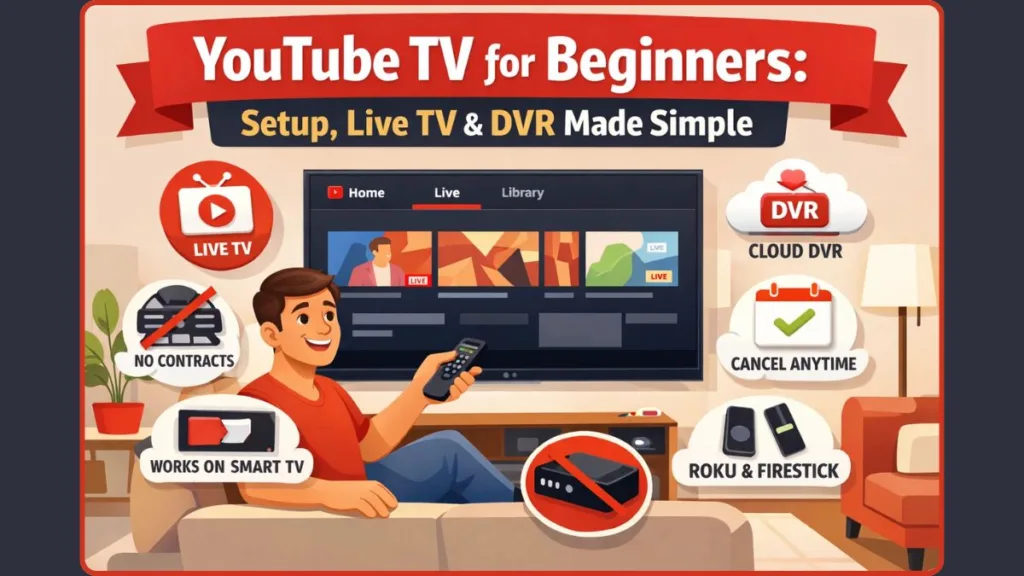
You still get what matters—live TV, local channels, news, sports, and entertainment—but without the baggage. It runs on a monthly subscription, so you can pause or cancel whenever life changes. No “hidden fees” quietly inflating your bill. No guessing what you’re paying for.
This is why so many people describe YouTube TV as cutting the cord without cutting comfort.
Here’s the mindset shift that helps most beginners:
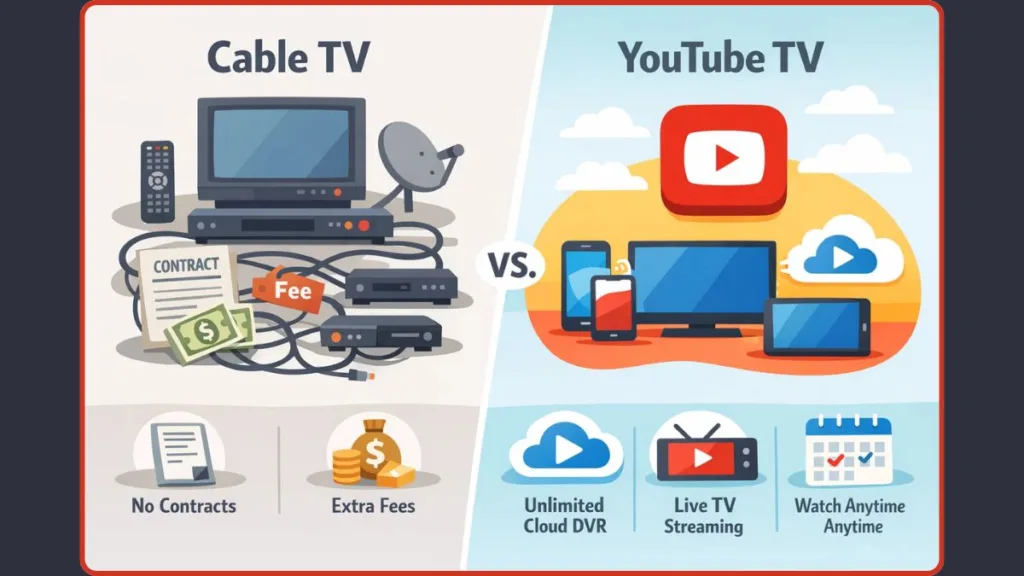
- Cable TV is heavy: contracts, hardware, limits
- YouTube TV is light: apps, cloud features, flexibility
And the best part? If you already know how to use regular YouTube, you’re not starting from scratch. The layout feels familiar, the controls are simple, and the learning curve is gentle—even for seniors or anyone who doesn’t consider themselves “techy.”
By the end of your first weekend, most new users have the same reaction:
“Wait… that’s it? Why did cable make this feel so complicated?”
What You Need Before Setting Up YouTube TV (No Tech Skills Required)
A Simple Reset Before You Start
This is the part where most people expect a long checklist—and then feel their shoulders tense up. Good news: setting up YouTube TV doesn’t require a tech degree, a toolbox, or a service appointment. If you can stream a video online, you already have most of what you need.
Let’s keep this simple and light.
A YouTube TV Account (No Contracts, No Pressure)
First, you’ll need a YouTube TV account. That’s it. No cable contract, no bundle negotiations, no surprise “activation” charges. Everything runs on a monthly subscription, which means you’re free to try it, pause it, or walk away if it doesn’t fit your life.
Any Modern TV Will Do
Next, you need a TV—any modern one will do. You don’t need a special model or a branded box. What matters more is how the TV connects to the internet, not who made it.
An Internet Connection (The Invisible Cable Replacement)
You’ll also need a stable internet connection. Nothing fancy—just the same connection you already use for browsing, video calls, or regular YouTube. This is the invisible wire that replaces the old cable line, and once it’s in place, everything else feels smoother.
Streaming Devices You May Already Own
Now for the part people worry about most: devices. Here’s the reassuring truth—you don’t need new hardware if you already use streaming apps.
YouTube TV works through:
- A smart TV app
- Popular streaming devices like Roku, Firestick, or Apple TV
- A mobile app on your phone or tablet (handy for setup and watching on the go)
That’s it. No cable box. No technician showing up late. No extra remotes piling up on the coffee table.
The “This Is Easier Than Cable” Moment
This is the quiet moment in the Cord-Cutter’s First Weekend where things start to feel different. Lighter. You realize you’re not preparing for a complicated install—you’re just getting ready to download an app and relax on the couch.
In the next section, we’ll walk through how to get YouTube TV on your TV, step by step, using the device you already have—no guesswork, no pressure, just forward motion.
How to Get YouTube TV on Your TV (Smart TV, Roku, Firestick & Apple TV)
This is usually the make-or-break moment for first-time cord-cutters. Not because it’s hard—but because cable has trained us to expect installers, boxes, and waiting around.
Here’s the reassuring truth: getting YouTube TV on your TV is just downloading an app. You can watch live TV streaming without extra hardware by using devices you already know—or can set up in minutes.
No tools. No appointments. No pressure.
This is the Saturday morning moment in the Cord-Cutter’s First Weekend, when you realize this switch really is lighter than cable.
Using a Smart TV: The Easiest Setup for Beginners
If your TV already streams Netflix or Prime Video, you’re in great shape. Today, many modern TVs come with app support out of the box—especially Android TVs, Samsung, LG, Vizio SmartCast, and other smart platforms.
Open your TV’s app store and search for YouTube TV. Make sure you choose YouTube TV, not regular YouTube—this is a common first-timer mix-up.Once downloaded, the YouTube TV app lives right alongside your other streaming apps. From here on out, you open YouTube TV the same way you open Netflix or Prime Video.
This is where many beginners have their first “oh… that’s it?” moment.
Using Roku, Firestick, or Apple TV: Simple Devices for Any TV
If your TV doesn’t have apps—or you prefer a simpler, more responsive interface—streaming devices like Roku, Amazon Fire TV, or Apple TV are perfect.
- Roku: Search for YouTube TV in the Streaming Channels or Roku Channel Store and install it.
- Firestick / Fire TV: Use the search feature, type YouTube TV, and select Download.
- Apple TV: Open the App Store, search YouTube TV, then click Get to install.
These streaming players plug into an HDMI port on your TV, connect to Wi-Fi, and give you a focused, responsive home for YouTube TV and other services you love.
A Quick Reality Check (That Saves Frustration)
Here’s the key mindset shift to lock in now:
- You are not installing “TV channels.”
- You are installing one app that contains everything.
That’s the freedom cable never offered. You no longer juggle boxes or complicated signal paths—you open an app and start watching.
The “Light Switch” Moment
At this point, something clicks. You didn’t rewire your living room. You didn’t sign paperwork. You didn’t commit to a contract.
You just added an app—and suddenly, live TV feels flexible and immediate.
In the next section, we’ll cover how to sign in to YouTube TV without typing long passwords on your TV, which is where most people expect friction—and are pleasantly surprised when it never shows up.
How to Sign In to YouTube TV Without Typing Long Passwords
This is the moment where most beginners brace for frustration—slow on-screen keyboards, awkward remotes, and passwords that suddenly feel impossible to spell.
Here’s the good news: YouTube TV was clearly designed to avoid that pain.
Signing in is meant to feel light, not tedious. This is the calm Saturday afternoon step in the Cord-Cutter’s First Weekend, where things stop feeling “technical” and start feeling intentional.
The Stress-Free Way: Sign In with a Google Account on a Web Browser
When you open the YouTube TV app on your TV, it often shows a short activation code on the screen. You don’t type your email and password on the TV itself—instead, you open a browser on your phone, tablet, or computer, go to tv.youtube.com/activate, and enter the code exactly as shown.
This connects your Google account to YouTube TV without long typing.
This method keeps the process fast and less frustrating than using an on-screen keyboard.
Why YouTube TV Uses Codes Instead of Typing Passwords
Cable boxes and old login screens expect you to type everything with a remote. YouTube TV has moved past that by using a browser-based activation flow—the same pattern you’ll see in other modern TV streaming services.
That way:
- Your password never touches the TV
- You use your phone or computer’s keyboard (much faster)
- You avoid typo errors and login frustration
This is part of the Freedom of Choice design: fewer barriers, fewer interruptions, and more time watching.
What to Do If Your TV Asks for a Code Every Time
Some devices might ask for a code again if the app doesn’t store your login properly. This can happen with some streaming sticks or if the app isn’t updated. Plugging the device into a steady power source instead of a USB port can help the app remember your login longer.
The “Okay… I’m In” Moment
Once you enter the code and your Google account connects, the app signs in automatically. You’ll land directly inside the home screen of YouTube TV, ready to explore live TV, Cloud DVR, and your channel lineup without any extra hurdles.
This is usually when first-time users relax — no passwords to remember, no repeated sign-ins, no sense that you missed a step.
In the next section, we’ll take a simple tour of the YouTube TV interface—breaking down the Home, Live, and Library tabs so you always know where you are and what to do next.
Understanding the YouTube TV Interface: Home, Live & Library Explained
This is the point in the Cord-Cutter’s First Weekend where everything finally starts to feel familiar. You’re signed in. The app opens. And instead of a wall of settings or confusing menus, you’re greeted by three clear tabs at the top of the screen—Home, Live, and Library.
No clutter. No guessing. Just Home, Live, and Library—three distinct spaces that help you find your way around YouTube TV’s interface.
Think of this as a guided tour of your new TV house. Once you understand what each room is for, you’ll always know where to go—and more importantly, where not to waste time.
Home Tab Explained: When You Want Ideas, Not Channels
The Home tab is your starting point—the place YouTube TV shows you what’s relevant to you right now. It’s designed to help you discover content rather than force you to hunt through an endless channel list.
Here’s how it helps you:
- Top Picks for You appear first, based on what you watch most often.
- Resume Watching lets you pick up a show or movie where you left off.
- You’ll see curated rows of recommended shows and categories like sports, movies, and news.
Instead of thinking of the Home tab as “a channel lineup,” think of it as your personalized starting point for inspiration—especially great when you’re not sure what to watch. This is the lounge area of your new streaming experience.
Live Tab Explained: The Cable Replacement That Feels Familiar
This is where the transition from cable to streaming really starts to click.
The Live tab functions like the classic channel guide you’re familiar with, but it’s cleaner and more intuitive. When you enter Live, you’ll see:
- A list of channels and what they’re showing right now.
- What’s on next—scroll right to peek ahead.
- Thumbnails and brief show descriptions right in the guide.
YouTube TV’s design philosophy here is user-focused: the live guide isn’t cluttered with tiny text or confusing menus. Instead, you can move up and down to pick channels and left and right to see what’s coming later—just like traditional TV, but without the heaviness of cable boxes.
If you have ever wished your cable guide was easier to read, this tab is your “aha!” moment.
Library Tab Explained: Your Unlimited Cloud DVR (The Superpower)
Now we get to one of YouTube TV’s biggest benefits: the Library tab. This isn’t just a place to store recordings—it’s your personal content vault.
Instead of dealing with limited storage like old cable DVRs, YouTube TV offers unlimited cloud DVR, with recordings saved for several months.
Inside the Library:
- You’ll find everything you’ve saved or recorded.
- Content is organized into categories like “Most Recent,” “Scheduled,” and “New for You.”
- You can search directly for shows, movies, or teams and add them to your library in seconds.
The key difference from traditional DVR: once you save something, it just stays there—no conflicts, no limits, and no stress. That’s the Freedom of Choice at work: you decide what to watch and when.
How These Three Tabs Work Together
Here’s the simple mental map that keeps everything clear:
- Home > “Give me ideas and recommendations.”
- Live > “What’s on right now?”
- Library > “Watch later, on my schedule.”
You don’t need to memorize every setting. You just need to remember where you are and what you want to do next.
This clean separation is part of the YouTube TV design philosophy—helping you watch TV your way, without the frustration of old-school cable menus.
In the next section, we’ll slow down and focus on the feature that wins most people over completely: how recording works on YouTube TV, and why the Cloud DVR changes what it means to save a show.
How to Record Shows on YouTube TV (Unlimited Cloud DVR Explained)
This is the moment that quietly wins people over. Not the channel lineup. Not the interface.
This is the Sunday morning “wait… seriously?” moment of the Cord-Cutter’s First Weekend—when you realize recording TV no longer requires planning your life around it.
With YouTube TV, recording isn’t something you babysit. It’s built into how the service works.
First, Forget Everything Cable Taught You About DVRs
Cable DVRs trained us to think in limits:
- Storage caps you constantly checked
- Recording conflicts when shows overlapped
- Manual timers that failed if a game ran long
- Missed episodes because life happened
YouTube TV intentionally breaks that model.
Instead of managing recordings, you get unlimited Cloud DVR storage. Instead of setting timers, you save interests. Instead of worrying about space, everything lives safely in the cloud.
This is the Freedom of Choice in action: TV bends to your schedule, not the other way around.
There’s No “Record” Button—and That’s a Good Thing
This is where beginners pause for a second.
You won’t see a traditional Record button anywhere.
What you’ll see is a ➕ Plus icon, usually labeled Add to Library.
That single button replaces every DVR decision you used to make.
When you tap ➕ Add to Library:
- TV shows > every episode (past and future airings) is recorded automatically
- Movies > each time the movie airs, a recording is saved
- Sports > recordings can follow teams, entire leagues, or specific events
You don’t pick dates.
You don’t choose time slots.
You don’t worry about overlapping games or finales.
You just say, “I want this,” and move on.
What “Unlimited Cloud DVR” Actually Means in Daily Use
Unlimited doesn’t mean “a lot.”
It means no storage limit at all.
In practical terms, that means:
- You can record multiple channels at the same time
- Entire seasons can sit untouched until you’re ready
- Sports games can overlap without conflict
- You never see a “storage full” warning
Recordings are stored for up to nine months, which is long enough that most people forget what they saved—until a quiet evening reminds them it’s there.
Because everything lives in the cloud:
- Your TV doesn’t slow down
- Your streaming device doesn’t fill up
- You can access recordings from any device using your account
This is why many users stop being selective. They don’t ask, “Should I record this?”
They simply add everything and decide later.
DVR vs VOD: The One Choice That Actually Matters
Here’s an important distinction that saves frustration—and ads.
When you click on a recorded show, you may see two options:
- DVR
- VOD (Video on Demand)
The rule is simple but powerful:
- DVR > your recording > commercials can be skipped
- VOD > network version > ads are unskippable
Always choose DVR when it’s available.
This isn’t a trick or a loophole—it’s how streaming rights work. Knowing this one detail instantly makes YouTube TV feel smarter than cable ever did.
Why Sports Fans Notice the Difference First
Sports are where cable DVRs failed the hardest—and where YouTube TV shines.
Games run long. Overtime happens. Schedules change.
With YouTube TV’s DVR:
- Games automatically extend past scheduled end times
- Recording by team or league captures every game
- You can start watching mid-game and rewind instantly
- You never miss the end because the DVR “stopped early”
This is why many people say sports feel less stressful on YouTube TV.
How This Changes Your Relationship With TV
Cable DVRs forced you to plan ahead.
YouTube TV lets you relax.
You don’t rush home.
You don’t check listings constantly.
You don’t miss shows because dinner ran late.
TV waits for you.
By the time Sunday afternoon rolls around, most new users realize something subtle but important has shifted:
TV no longer controls your time—you control it.
In the next section, we’ll look at how to watch and control live TV on YouTube TV—including pausing live broadcasts, switching channels quickly, and making live viewing feel smoother than cable ever managed to be.
How to Watch and Control Live TV on YouTube TV Like Cable
This is the Sunday afternoon test—the moment you settle into the couch, turn on a live channel, and quietly ask yourself: “Will this actually feel like cable?”
For most first-time users, the answer comes faster than expected: yes—and with more control than cable ever allowed.
Watching live TV on YouTube TV is intentionally familiar. Channels start instantly, the guide makes sense, and the remote behaves the way your hands expect it to. But layered on top of that familiarity is something cable never quite delivered: flexibility.
This is where the switch stops feeling like an experiment and starts feeling permanent.
Starting Live TV Feels Instant (Because It Is)
When you select a channel from the Live tab, the broadcast starts right away. There’s no maze of confirmations or hidden menus. News, sports, and live events load with the same urgency cable once had—just without the delays caused by aging boxes or overloaded hardware.
This immediacy matters. Live TV moments don’t wait, and YouTube TV treats them that way.
Once the channel is playing, everything you need is already there—quietly waiting for you to press a button.
Pause, Rewind, and Fast-Forward Live TV (The First Real Upgrade)
This is often the first moment people smile.
While watching a live channel, press down once on your remote and a timeline bar appears. From here, you can:
Pause live TV when the phone rings
Rewind to hear something you missed
Fast-forward back to the live point when you’re ready
This works because YouTube TV automatically buffers live broadcasts in the background. You’re not “recording” yet—you’re simply benefiting from the stream being held temporarily for you.
Cable made pausing live TV feel fragile. Here, it feels expected.
Join Live Shows Late—Without Missing the Beginning
Life doesn’t run on broadcast schedules.
With YouTube TV, you can tune into a show or game that’s already in progress and rewind immediately. No setup. No warning screens. No missed opening moments.
This is especially helpful for:
- Live sports
- Breaking news
- Award shows or special events
Live TV stops punishing you for being a few minutes late.
Channel Surfing Without Leaving What You’re Watching
Here’s where YouTube TV quietly outperforms traditional cable.
Press down again on your remote and you’ll see a mini guide. This lets you browse other live channels while your current channel keeps playing in the background.
You can:
- Check what else is on
- Preview channels without committing
- Switch instantly when something catches your eye
Cable forced you to abandon what you were watching just to look around.
YouTube TV lets you browse without losing context.
Flip Between Channels Like the Old “Last Channel” Button
Long-time cable users don’t realize how much they miss this—until it’s back.
When you switch between channels, you can press and hold the OK or Select button on your remote to jump back to the previous channel. Press and hold again, and it flips back.
This is incredibly useful for:
- Watching two live games
- Jumping between news channels
- Avoiding commercials
It’s a small feature with a big comfort payoff.
Live TV That Adapts to Your Pace
Here’s where the Freedom of Choice theme shows up in real life.
With YouTube TV, you can:
- Pause live TV and resume when you’re ready
- Rewind during a live broadcast without planning ahead
- Switch channels without losing your place
- Start watching something while it’s still airing
Cable trained us to follow its schedule.
YouTube TV lets live TV bend around your life instead.
Why This Feels Better Than Cable—Even When Doing the Same Thing
You’re still watching live TV.
You’re still using a remote.
You’re still flipping channels.
But the experience feels calmer.
There’s no fear of pressing the wrong button. No anxiety about missing something. No sense that the system is fragile.
By this point in the Cord-Cutter’s First Weekend, most users stop comparing YouTube TV to cable—and start trusting it. Live TV becomes something you use, not something you manage.
In the next section, we’ll zoom out and look at YouTube TV’s cost, plans, and add-ons—so you know exactly what’s included, what’s optional, and how to keep your bill as light as the experience itself.
YouTube TV Cost, Plans & Add-Ons Explained (No Hidden Fees)
This is often the moment where cord-cutters take a deep breath and ask, “Exactly how much am I paying?”
The good news? YouTube TV keeps things transparent and flexible, which is a big part of the Freedom of Choice design.
Your Base Plan: What You Get and What It Costs
In 2026, the YouTube TV base plan typically runs about $82.99 per month. That price gets you more than what most traditional cable plans offered, including:
- 100+ live TV channels (sports, news, entertainment, and local networks)
- Unlimited Cloud DVR storage with recordings kept for up to nine months
- Access on multiple devices — from your smart TV to your phone
- Up to three simultaneous streams at once without extra cost
Sometimes, YouTube TV runs promotional pricing (like $72.99 per month for new subscribers for a limited time), which makes trying it even easier without long-term commitment. And because this is a monthly subscription, you can cancel or pause it anytime — no cable-style contracts keeping you locked in.
This is the simplicity that lets you focus on watching, not worrying about confusing pricing structures.
Add-Ons Are Extras — Not Mandatory
YouTube TV’s base plan is complete on its own — but if you want to expand your lineup, there are optional add-ons you can choose, such as:
- 4K Plus add-on — Adds 4K streaming when available, unlimited concurrent streams at home, and the ability to download recordings for offline viewing on supported devices
- Spanish Plus — Adds more than 25 Spanish-language channels
- Entertainment Plus — Includes networks like HBO Max, STARZ, and Paramount+ with SHOWTIME
- Sports add-ons like NFL RedZone with Sports Plus for expanded sports coverage
You’re free to mix and match these add-ons based on what you want to watch — and if you decide later that you don’t need them, you can remove them without penalty. That’s freedom in practice: you pick what matters, and you skip what doesn’t.
NFL Sunday Ticket: A Premium Option for Football Fans
If you’re a big NFL fan, YouTube TV offers NFL Sunday Ticket as a premium package you can add to your base plan. This gives you access to out-of-market Sunday games that your regular live channel lineup might not carry.
Pricing for NFL Sunday Ticket varies depending on the season and promotions, and because it’s a premium add-on, it’s separate from the base plan. Some users bundle it with the base YouTube TV plan to keep all their football in one place — and you can share this content with family members if they’re part of your household group.
YouTube TV Family Sharing, Profiles & Senior-Friendly Settings
Once you’ve tackled pricing and setup, the next question for many households is: “Can more than one person use this?” The answer is a confident yes — because YouTube TV is designed for real family use, not just one viewer on a couch.
Invite Your Household: Family Sharing Made Easy
With family sharing, the primary account holder (called the “family manager”) can invite up to five other people to share the YouTube TV subscription — without paying extra for separate accounts.
Each member:
- Uses their own Google account
- Gets personalized recommendations
- Keeps their own Cloud DVR library and preferences
This means no fighting over what to watch, no mixed-up suggestions, and no playback history overlaps. Everyone just uses the service their way.
Profiles That Feel Personal
Instead of one shared recommendation stream, YouTube TV lets you create individual profiles. That’s huge for homes where:
- Some people watch sports
- Others prefer movies
- Seniors prefer simpler navigation
Each profile learns what that person likes without stepping on anyone else’s choices — a subtle but powerful freedom.
Senior-Friendly by Design
For seniors or anyone who prefers a straightforward viewing experience:
- The interface stays clean with large text and clear choices
- Navigation stays simple with Home, Live, and Library
- No maze of complicated settings greets you after signing in
There’s nothing here that forces you to be “techy” to feel comfortable — and if someone never wants to tweak settings, that’s fine too.
Simple Viewing Controls Without Confusion
For households with kids or seniors who want fewer surprises:
- YouTube TV offers content filters to limit shows by rating
- It avoids over-complex parental controls that require separate apps or passwords
You still get the power to tailor what appears — but without the complexity that cable boxes once had.
The Household “This Actually Works” Moment
By this stage in the Cord-Cutter’s First Weekend, most users feel a shift:
- The cost is clear
- The family setup makes sense
- Everyone has their own way to watch
- Nothing feels imposed or confusing
This isn’t just cheaper than cable.
It’s calmer, cleaner, and truly built for how real families live and watch today.
In the next section, we’ll look at how YouTube TV works on mobile and on the go, so you’re never far from what you love—no matter where your weekend takes you.
YouTube TV vs Cable in 2026: Is Cutting the Cord Worth It?
This is the Sunday evening reflection in the Cord-Cutter’s First Weekend. The TV’s been on all day. A game was paused. A movie was saved for later. Everyone watched what they wanted—without negotiating the remote.
Now comes the honest question: “Did this actually make life better?”
For most people in 2026, the answer isn’t dramatic. It’s quieter—and more convincing.
Yes, cutting the cord is worth it. Not because cable stopped working, but because YouTube TV works around your life instead of against it.
YouTube TV vs Cable: The Real-World Comparison (2026)
| Category | Traditional Cable TV | YouTube TV |
|---|---|---|
| Monthly Cost | Often $120+ per month after fees | Around $82.99/month for the base plan |
| Contracts | Long-term contracts are common | No contracts – cancel or pause anytime |
| Hidden Fees | Broadcast fees, regional fees, box rentals | No hidden fees |
| Setup | Technician visits, cable boxes | App-based setup on your TV |
| Hardware | Set-top boxes, extra remotes | Smart TVs, Roku, Firestick, Apple TV |
| Live TV Control | Limited pause/rewind | Pause, rewind, fast-forward live TV |
| DVR Storage | Limited, conflicts common | Unlimited Cloud DVR storage |
| Recording Conflicts | Yes | None |
| Watching Anywhere | Mostly tied to the TV | TV, phone, tablet, web |
| Household Experience | One DVR, shared preferences | Profiles + family sharing |
This table is usually where things click. On paper, the difference is obvious. In daily use, it feels even bigger.
Cost: Predictable vs. Punishing
Cable pricing still feels heavy in 2026. Bills creep upward over time, often crossing $120 a month once equipment rentals and regional fees are added.
With YouTube TV, the pricing model is intentionally simple:
- One monthly subscription
- No long-term contracts
- No surprise broadcast fees
That predictability is a relief—especially for households that want to budget without constantly checking the bill.
Control: Cable Schedules vs Your Schedule
Cable expects you to plan your life around programming.
YouTube TV assumes real life happens:
- You can pause live TV
- Rewind shows already airing
- Record everything automatically
- Watch when it fits your day
This shift—from broadcast control to viewer control—is one of the biggest emotional wins of cutting the cord.
Hardware: Boxes vs Apps
Cable is still built around physical infrastructure:
- Cable boxes
- Install appointments
- Equipment failures
YouTube TV is built around apps, not hardware. If something feels off, it’s usually fixed with a quick update—not a service call.
That alone removes a surprising amount of friction from everyday TV watching.
DVR: Managing Space vs Forgetting About It
Cable DVRs force you to manage storage and conflicts.
YouTube TV’s unlimited Cloud DVR removes that mental load entirely. You record freely, knowing nothing will overwrite something else—and you can watch recordings from any device.
This is where many people realize they’ve stopped managing TV and started enjoying it.
So… Is Cutting the Cord Worth It in 2026?
If “worth it” means:
- Clear monthly pricing
- No contracts
- Unlimited recording
- Live TV that bends to your schedule
- Less stress and fewer surprises
Then yes—cutting the cord with YouTube TV is worth it.
By the end of the weekend, most people don’t talk about features. They talk about how it felt:
- Easier
- Calmer
- More flexible
- Less demanding
Cable didn’t suddenly fail. It simply became unnecessary once TV started waiting for you.
Common YouTube TV Questions Beginners Always Ask (Answered Simply)
This is the Sunday-night reassurance moment of the Cord-Cutter’s First Weekend.
You’ve watched live TV. You’ve recorded shows. Everything works.
But a few practical questions still linger—and that’s completely normal.
Let’s clear them up simply, calmly, and without tech jargon, so you can relax knowing there are no surprises waiting later.
What’s the Difference Between YouTube and YouTube TV?
This is the most common beginner question—and for good reason.
- YouTube: Free platform for short videos, creators, and clips
- YouTube TV: A subscription live TV streaming service with 100+ major broadcast and cable networks, plus unlimited Cloud DVR storage and profiles for everyone in your household.
Think of YouTube TV as the live TV you love, without cable boxes and long contracts—it brings channels, sports, and news together in one flexible app.
Does YouTube TV Have a Contract?
No—and this is a big emotional shift for cable users.
YouTube TV runs on a monthly subscription, not a long-term contract. You can:
- Cancel anytime
- Pause your membership without fees
- Restart when you want
There are no hidden cancellation penalties or confusing lock-in periods, which makes switching feel safer and calmer than traditional cable.
Can You Skip Commercials on YouTube TV?
Here’s the practical breakdown:
Live TV ads cannot be skipped because they’re part of network agreements—just like cable.
On DVR recordings, you can fast-forward through ads after the show has aired live.
Video on Demand content typically does not let you skip ads—so choosing DVR over on-demand is often better if you want control.
This is a little nuance that feels foreign at first, but once you understand why ads exist, it feels less like a flaw and more like a familiar part of live TV.
How Many Devices Can Watch YouTube TV at the Same Time?
YouTube TV’s base plan lets you stream on up to three devices simultaneously.
That means:
- One person can watch live news on TV
- Another can stream a recorded show on a tablet
- Someone else can use the mobile app
If your household needs more screens at once, there are optional upgrades—but most families find three streams plenty.
How Do I Find My Local Channels on YouTube TV?
YouTube TV includes local broadcast networks (like CBS, NBC, ABC, FOX and more) based on where you live, and they show up right in the Live tab by default.
You don’t have to set anything special. Local news, sports, and network shows appear automatically alongside cable-style channels.
This seamless inclusion of local content is one of the reasons many people feel YouTube TV really replaces cable without missing “the channels that matter.”
Is YouTube TV Easy for Seniors to Use?
Yes—and that’s intentional.
YouTube TV’s layout is:
- Simple and intuitive
- Large, readable menus
- Just three main tabs: Home, Live, Library
- Easy playback controls like pause and rewind
Because the interface avoids clutter and keeps choices clear, many seniors treat YouTube TV just like traditional television—without the overwhelm that often comes with new tech.
Is YouTube TV Worth It in 2026?
By this point in your weekend, you’re probably already leaning toward yes.
People find YouTube TV worth it because:
- Predictable monthly cost
- Unlimited DVR
- Live TV that adapts to your schedule
- No contracts or hidden fees
- Household profiles for personalized viewing
It doesn’t demand attention. It fits your life.
The Quiet Confidence Moment
By Sunday night, most beginners stop asking, “What if something goes wrong?”
And start thinking, “Why was this ever hard?”
That’s the real winner of cutting the cord.
In the next section, we’ll wrap up with what long-term life with YouTube TV feels like, so you can decide not just what works today, but what works for you forever.
How to Cancel or Pause Your YouTube TV Subscription Anytime
This is the final safety-net moment of the Cord-Cutter’s First Weekend.
You’re enjoying the experience—but a practical thought pops up: “What if I need to stop later?”
That question matters. And this is where YouTube TV quietly earns even more trust—because you’re always in control of your subscription, not the other way around.
Canceling YouTube TV Is Straightforward (And Drama-Free)
If you ever decide YouTube TV isn’t right for you, canceling your subscription is simple and entirely online—no phone calls, no scripts, no stress.
Here’s how it works:
- Visit tv.youtube.com in a web browser on your phone, tablet, or computer.
- Click your profile photo in the top right corner.
- Go to Settings > Membership.
- Select Manage, then Cancel membership.
- Follow the on-screen prompts to confirm.
And here’s the reassuring part: You don’t lose access immediately. Once you cancel, YouTube TV keeps working for you until the end of your current billing cycle—so you still get to watch what you paid for.
What Happens After You Cancel
Once your billing period ends:
- Live TV access stops.
- Recorded programs in your Library typically remain available for a short time (e.g., up to ~21 days after cancellation).
- Your account settings and preferences may be saved in case you decide to come back later.
This is actually helpful: it gives you a small window to watch any last recordings before everything disappears (as opposed to immediate loss right after canceling).
Pausing Your Subscription: A Flexible Alternative
Maybe you love YouTube TV, but your favorite shows are between seasons. Maybe you’re traveling. Or maybe you just want to reduce your monthly bill for a bit. That’s where the pause option shines.
YouTube TV lets you pause your membership for a chosen period, typically between 4 weeks and 6 months.
To do that:
- Go to Settings > Membership in the YouTube TV app or website.
- Click Manage.
- Choose Pause membership and use the slider to set how long you want the pause to last.
Here’s what you get:
- Billing stops after your current payment period ends.
- Your Cloud DVR recordings and settings stay intact while you’re paused.
- You can resume anytime before the scheduled restart.
This is a true break—not a full goodbye.
Pause vs Cancel: What’s the Difference?
| Action | Billing | Access | Recordings & Settings |
|---|---|---|---|
| Cancel | Stops at next billing date | Ends after billing period | Saved briefly (e.g., ~21 days) but then removed |
| Pause | Stops after billing period | Disabled until pause ends | Saved and intact until you resume |
Pause feels like putting your subscription on hold so you can pick it up later without losing what you’ve already built — especially your DVR library and preferences.
Why This Feels Different From Cable
Cable taught us to think cancellation equals confrontation—long hold times, retention calls, and wrestling with hidden terms.
YouTube TV treats stopping or pausing your subscription as just another easy choice you make. That’s the heart of the Freedom of Choice vibe:
You stay because it works, not because you’re trapped.
The Quiet Confidence Ending
By the time you reach this point in the weekend, something important usually settles in.
You’re not worried about:
- Losing access unexpectedly
- Being stuck in a contract
- Jumping through hoops to stop service
You’re relaxed because everything is transparent and respectful—just the way modern streaming should be.
And that’s how you know cutting the cord with YouTube TV wasn’t just worth trying—it was worth keeping.
Ready for the final wrap-up on what long-term life with YouTube TV feels like? Let’s move on.
Final Thoughts: Your First Weekend Using YouTube TV (What to Expect)
By now, the weekend is winding down. The TV’s been on and off all day. A game was paused. A show was added to your Library without thinking twice. Someone watched on the big screen while someone else used the mobile app.
And without realizing it, you stopped testing YouTube TV and started using it.
That’s usually the clearest sign the switch worked.
Your first weekend with YouTube TV isn’t about mastering every feature. It’s about noticing what didn’t happen:
- You didn’t rush home to catch a show
- You didn’t argue over recordings
- You didn’t check storage limits
- You didn’t worry about contracts or fees
Instead, TV quietly adjusted to you. YouTube TV gives you 100+ live channels, national and local networks, and unlimited Cloud DVR storage without worrying about space — so you can record and watch on your schedule.
What Most Beginners Feel by Sunday Night
This is the emotional checkpoint many people didn’t expect.
You feel:
Calmer, because nothing feels fragile
Confident, because the interface makes sense
In control, because live TV waits when you need it to
Relieved, because your bill and choices are clear
That’s the Freedom of Choice in practice — not just a concept but a lived experience.
And remember, your base plan already includes:
- A broad mix of news, sports, and entertainment
- Local channels where available
- Six household accounts under one membership
- Up to three simultaneous streams
All without equipment rentals or installation appointments.
You Don’t Need to Know Everything (And You Never Will)
Here’s something reassuring: you never reach a moment where you’ve “learned all of YouTube TV.”
And that’s a good thing.
Most people keep it simple:
- Home for ideas
- Live for current programming
- Library for what matters later
Everything else reveals itself slowly, naturally, when it’s useful. There’s no pressure to explore. No penalty for staying comfortable.
That’s part of what makes YouTube TV feel accessible for beginners, families, and seniors alike. Many people find it easier to navigate than legacy cable guides, with clear menus and a familiar remote experience.
The Real Upgrade Isn’t Technical
Yes, YouTube TV gives you:
- Live TV streaming from major networks
- Unlimited Cloud DVR with multi-device access
- Flexibility to watch on phones, tablets, computers, and TVs
But that’s not the part people talk about weeks later.
What sticks is how it felt:
- TV no longer interrupts your life
- Recording doesn’t require planning ahead
- Canceling or pausing doesn’t feel risky
- Watching feels lighter than it used to
The experience becomes less like owning cable infrastructure and more like enjoying TV on your terms.
What to Expect Going Forward
After the first weekend, most users settle into a comfortable routine:
- Record more without hesitation
- Watch less urgently
- Think about TV less often
And that’s the quiet win.
YouTube TV doesn’t ask for your attention — it earns your trust.
You stay not because you have to, but because it keeps doing what you hoped it would.
Whether you’re catching up on shows, tuning into live sports, or flipping between news and entertainment, YouTube TV continues to feel like TV redesigned for your life — not the other way around.
Visit Our Post Page: Blog Page