
I replaced nearly $1,000 in annual software subscriptions with free open-source tools. Here’s what I switched to, what worked, and the trade-offs you should know.
About a year ago, I sat down and actually added up what I was paying just to use my own computer. Adobe Creative Cloud. Microsoft 365. A video converter. A compression tool. A note-taking app. The number that stared back at me was somewhere between $600 and $1,000 — and that was before accounting for the tools I had quietly stopped using but kept paying for anyway.
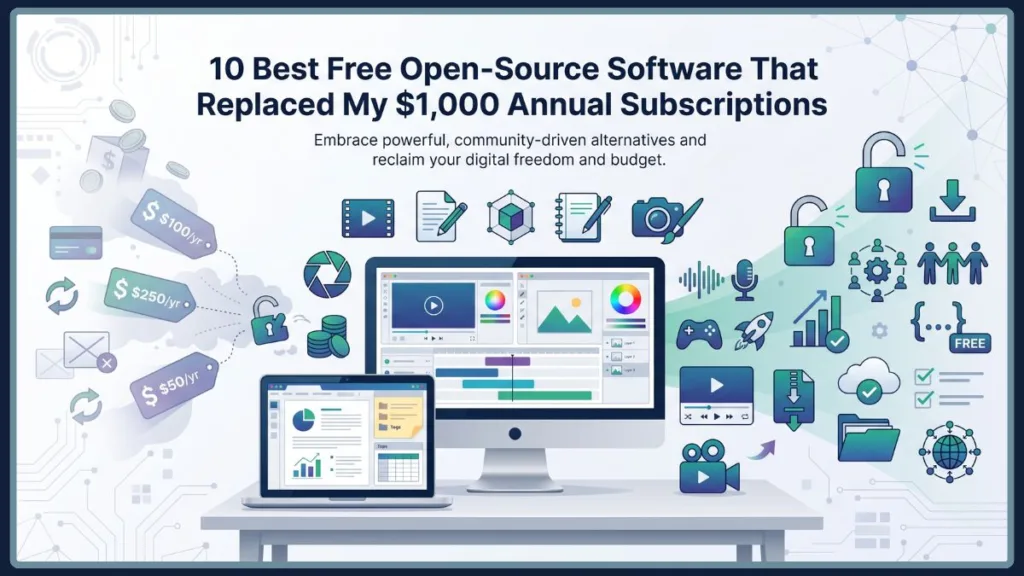
So I did something about it. Over the past year, I replaced every single one of those subscriptions with free, open-source alternatives. Not budget compromises. Not hobbyist toys. Actual professional-grade software used by filmmakers, game studios, governments, and developers worldwide.
Here is everything I switched to, what the experience was actually like, and where each tool still has rough edges worth knowing about.
What “Open-Source” Actually Means for You
Before getting into the list, it’s worth understanding why open-source software is different from “freemium” apps or tools with free tiers. Open-source software gives you access to the underlying code, meaning a global community of developers can inspect it, improve it, and fix it. Nobody can quietly remove a feature to push you toward a paid tier. Nobody can shut it down without the community forking it and continuing independently.
That distinction matters more than it sounds. When you use a subscription tool, you’re renting access to your own workflow. When you use open-source software, you genuinely own it.
1. DaVinci Resolve — Professional Video Editing Without the Adobe Tax
Replaces: Adobe Premiere Pro (~$263/year on Creative Cloud)
The first thing I noticed after switching from Premiere Pro to DaVinci Resolve was how much of what I thought I needed Premiere for was actually available for free in Resolve — and done better.
Resolve is built by Blackmagic Design and is genuinely free, not “free with a watermark” free. The free version covers video editing, motion graphics through its Fusion tab, professional audio mixing via Fairlight, and the color grading tools that Hollywood productions actually use. Films like La La Land, John Wick, and Deadpool were color graded in Resolve. That isn’t marketing copy — it’s just what professionals use.
The honest trade-off: Resolve is GPU-hungry. If your machine is a few years old and running on integrated graphics, you will feel it. The interface also has a steeper learning curve than Premiere — the workspace is divided into dedicated pages for editing, color, audio, and effects, and it takes time to develop muscle memory across all of them. Budget a few weeks before you feel genuinely comfortable.
2. VLC Media Player — The Only Media Player You’ll Ever Need
Replaces: Paid media apps, format converters (~$30–$80/year)
I have used VLC for so long that I genuinely forgot it counts as a recommendation. It plays every format I have ever thrown at it — MKV, FLAC, OGG, obscure codecs from a decade ago — without complaining or asking me to install additional plugins.
What most people miss is that VLC is quietly a full utility toolkit. You can convert video and audio formats without a separate app, record your screen for tutorials, stream media over your local network, and manually sync subtitles frame by frame for those MKV files where the dialogue is always half a second off.
The entire application weighs under 50MB. It runs on hardware that is genuinely struggling to stay relevant. And it will almost certainly outlive every streaming platform currently asking for your credit card details.
The honest trade-off: The interface looks like it was designed in 2005 because, in many ways, it was. That said, VLC’s development team releases updates regularly, and the functionality more than compensates for the visual age.
3. LibreOffice — Microsoft Office Without the Subscription
Replaces: Microsoft 365 Personal (~$70/year)
Switching from Microsoft 365 to LibreOffice felt like the most obvious move in hindsight. Writer handles Word documents. Calc handles spreadsheets. Impress handles presentations. The compatibility with .docx, .xlsx, and .pptx formats is genuinely solid for most day-to-day work.
What I didn’t expect to appreciate as much as I do is that LibreOffice works entirely offline and requires no account. There is no telemetry quietly running in the background. No sign-in screen when you just want to open a spreadsheet. It is software that respects the fact that your documents belong to you, not a platform. That philosophy is apparently compelling enough that the French military and Italy’s defense ministry have both moved to LibreOffice at an institutional level.
The honest trade-off: If you regularly collaborate with people using Microsoft 365 and exchange heavily formatted documents — complex tables, embedded macros, intricate layouts — you will occasionally run into formatting inconsistencies. For most writing, data work, and presentations, it’s a non-issue. For complex corporate templates, test before fully committing.
4. Blender — Professional 3D Without the Maya Price Tag
Replaces: Autodesk Maya or ZBrush (can cost $250–$1,700/year)
Blender has one of the more unusual origin stories in software history. In 2002, the community crowdfunded €100,000 specifically to release it as open-source after its original studio closed. That community-rescue moment set the tone for everything that followed.
Today, Blender is a complete 3D production pipeline — modelling, rigging, animation, rendering, compositing, and video editing all in one application. It was used for specific shots in Spider-Man: Across the Spider-Verse and served as the primary production tool for Netflix’s Next Gen. It is no longer a hobbyist alternative; it is a legitimate professional tool.
I’ll be direct about the learning curve: opening Blender for the first time is disorienting. The interface is dense, the keyboard shortcuts are non-negotiable, and the workflow is unlike anything else. Plan for a significant time investment before producing results that match what you could do in a simpler tool.
The honest trade-off: The time cost to get productive in Blender is real. If you need 3D capabilities occasionally and have no prior background, factor in weeks of learning before it becomes useful rather than frustrating.
5. Obsidian — Your Notes Actually Belong to You
Replaces: Notion, Evernote, or Roam Research (~$96–$180/year)
The thing that pushed me away from Notion wasn’t the price — it was the realization that my notes existed inside their servers, formatted in their proprietary system, accessible only as long as I kept paying. Obsidian stores everything as plain Markdown files on your own hard drive. Open them in any text editor. Back them up anywhere. They’ll be readable in twenty years regardless of whether Obsidian exists.
The bidirectional linking and graph view — which visualizes your notes as a connected web of ideas — genuinely changed how I take notes. Seeing relationships between topics I wrote about months apart is the kind of thing that sounds like a feature no one actually uses until you start using it.
For free cloud sync, you can manage backups through iCloud, Dropbox, or any folder-based sync tool. The paid Obsidian Sync service exists for those who want a one-click solution, but it’s entirely optional.
The honest trade-off: Obsidian has no real-time collaboration. If you’re working in a team environment where multiple people edit shared notes simultaneously, it isn’t the right fit. For personal knowledge management and solo work, it’s hard to beat.
6. OBS Studio — Broadcast-Grade Recording and Streaming
Replaces: Camtasia, Streamlabs Ultra (~$60–$300/year)
OBS Studio is what you’re looking at behind most quality livestreams and screen-recorded tutorials on the internet, whether you know it or not. It uses a scene-based system where you build different layouts — one for just your screen, one with your camera, one with overlays — and switch between them in real time.
The plugin ecosystem is enormous. Anything OBS doesn’t do out of the box, someone has almost certainly built an extension for. The community support is active and thorough, and the quality ceiling is genuinely as high as professional broadcast tools.
The honest trade-off: Initial setup requires more configuration than consumer-friendly tools like Camtasia. Encoding settings, bitrate, output format — you’ll need to spend time understanding these before your recordings look and sound the way you want. The payoff is full control over every aspect of your output.
7. Godot — Game Development You Actually Own
Replaces: Unity Pro or Unreal Engine royalties (variable, but significant at scale)
The 2023 Unity pricing controversy — where the company announced runtime fees that would apply retroactively to existing games — reminded a lot of developers why licensing dependency is a real risk. Godot operates under the MIT license, which means no royalties, no revenue share, no surprise fee changes at any stage of development.
It supports both 2D and 3D game development. The scripting language, GDScript, is readable and Python-like, which lowers the barrier for people coming from non-engine backgrounds. The engine itself is lightweight compared to Unreal and doesn’t require a high-end machine to run comfortably.
The honest trade-off: Godot’s 3D capabilities, while genuinely functional, are not at parity with Unreal Engine for large-scale, photorealistic productions. For indie projects, 2D games, and mid-scale 3D work, it is more than capable. For AAA-level rendering ambitions, that gap is still real.
8. HandBrake — Video Compression That Actually Works
Replaces: Movavi Video Converter, other paid converters (~$50–$80/year)
HandBrake solves a specific problem cleanly: you have a large video file and you need it smaller without it looking terrible. Whether you’re compressing footage for a YouTube upload, archiving recordings, or converting formats for compatibility, HandBrake handles it reliably.
The presets are sensible enough that you can get good results without understanding every encoding parameter. If you do want to go deeper — adjusting codecs, bitrate, resolution, audio tracks — those controls are all available.
The honest trade-off: HandBrake is a conversion and compression tool, not a full video editing suite. If you need to trim, cut, or edit before compressing, you’ll want to combine it with something like DaVinci Resolve.
9. 7-Zip — The End of Archive Trialware
Replaces: WinZip, WinRAR (~$30–$40/year)
If you’ve used WinRAR for years while clicking past the “your trial has expired” dialog, 7-Zip is the application you should have been using the whole time. It handles ZIP, RAR, 7z, TAR, ISO, and most other archive formats without a trial period, a nag screen, or a guilt-inducing pop-up.
It is small, fast, and does exactly what it says. There is not much more to say about a compression utility, and that simplicity is the point.
The honest trade-off: The interface is utilitarian to the point of feeling dated. If visual polish matters, there are front-ends built on top of 7-Zip’s engine. For most people, the default interface is fine once you stop comparing it to a paid product.
10. GIMP and Audacity — The Creative Veterans
GIMP — Image Editing Without the Photoshop Subscription
Replaces: Adobe Photoshop (~$263/year)
GIMP has been around since 1996, and it shows — both in the depth of its feature set and, honestly, in parts of its interface. Layers, masks, curves, paths, batch processing, custom brushes — the core capabilities that professional image editing requires are all present.
The interface is the legitimate criticism. It doesn’t look or feel like modern software, and the workflow for certain tasks (non-destructive editing, in particular) is less intuitive than Photoshop. If you’re switching from years of Photoshop muscle memory, expect a genuine adjustment period.
That said, for photo retouching, graphic creation, and most image editing work, GIMP gets the job done at a price that’s hard to argue with.
Audacity — Audio Cleanup for Everyone
Replaces: Adobe Audition (~$263/year)
Audacity has been the accessible standard for audio editing for 25 years. Noise reduction, normalization, cutting, EQ — the tools most content creators actually need are present and functional.
In 2021, a controversy around proposed telemetry and data collection created significant concern in the community. The backlash was substantial enough that the changes were largely walked back. Audacity remains independently maintained, and the privacy situation has stabilized to a reasonable degree — though it’s worth reviewing the current privacy policy if that matters to your workflow.
The honest trade-off: Audacity’s non-destructive editing experience is limited compared to professional DAWs. For basic cleanup, narration recording, and podcast editing, it’s entirely capable. For complex multi-track music production, you’ll want to look further.
The Real Cost: Time, Not Money
The software stack above replaced somewhere between $600 and $1,000 in annual subscriptions for me. The price tag on all of it combined is exactly $0.
But I want to be straight with you about the actual trade-off, because glossing over it would make this article less useful. Open-source software asks for your time instead of your money. The learning curves are real. The interfaces are sometimes rough. The onboarding experience is rarely as polished as a product that’s paying a UX team to make the first 10 minutes frictionless.
What you get in return is ownership. These tools don’t disappear when a company pivots. They don’t lock your files in proprietary formats. They don’t raise prices mid-year and call it a “value update.” You learn them once, and they’re yours.
If you’re spending $600+ a year on software subscriptions, it’s worth asking which of those costs you’re genuinely comfortable with and which ones you’re just paying because switching felt like too much work. For me, the answer turned out to be most of them.
Start with one tool from this list—whichever replaces your most expensive or most frustrating subscription. Give it a few weeks of honest effort. The learning curve front-loads the difficulty, but once it flattens out, you’ll find it hard to justify going back.
For more of my personal insights, hands-on software recommendations, and practical tech guides, check out Izoate Tech, where I regularly share real-world experiences to help you make smarter technology choices.
Visit Our Post Page: Blog Page
Discover more from Izoate
Subscribe to get the latest posts sent to your email.