
Which SD cards are actually the highest rated in 2026? Compare SanDisk, Samsung, Kingston, Lexar, and Sony for real-world speed, durability, counterfeit risk, and value.
Buying an SD card ought to be a five-minute job. Somehow, it rarely is.
You open a product listing and see a 4.8-star rating, a string of unfamiliar labels—UHS-I, U3, V30, A2—a headline claim of “up to 200 MB/s,” and a price that can differ dramatically between two cards that look almost identical. Then you find a review from someone whose card supposedly stopped working after a month.
That is the catch: star ratings tell you whether buyers are generally satisfied, but they do not prove that a card can maintain a steady write speed throughout a 40-minute 4K recording, withstand a wet hiking trip, or even be genuine.
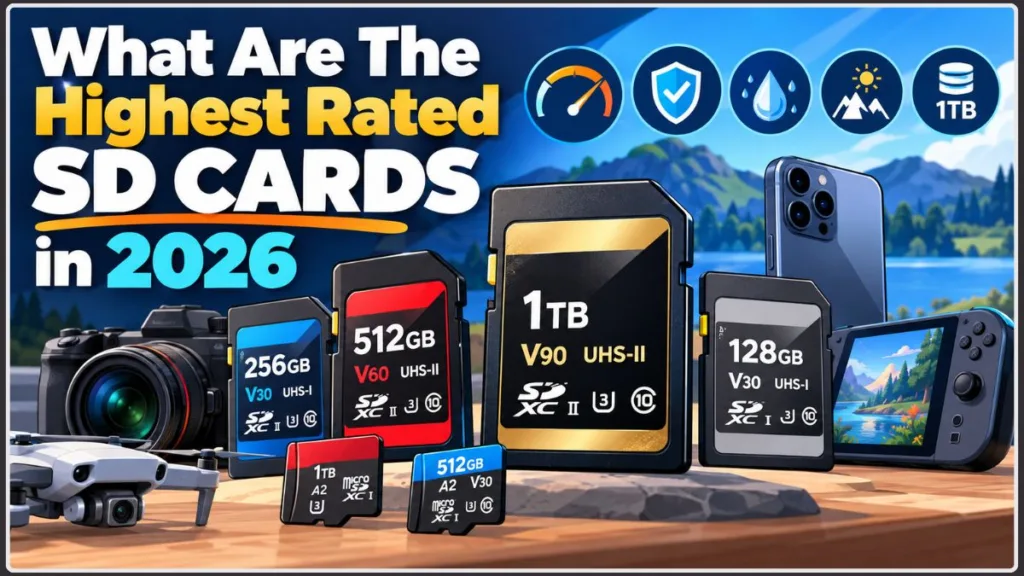
This guide is about closing the gap between a card that looks highly rated and one that actually suits your needs.
What Are the Highest-Rated SD Cards in 2026?
Let’s start with the main recommendations.
For most buyers, the SanDisk Extreme PRO is the safest all-round SD or microSD choice. It has a long record of use, strong sustained performance, and a large body of customer reviews pointing in the same direction.
It is not the only worthwhile option. Samsung comes close for less money, Kingston is especially appealing when a card must hold its speed under a heavy workload, and specialist cards are available for conditions that could be too demanding for a standard model.
The picks below are organized around what you shoot, play, and record—so you can choose for your actual workload instead of guessing what “best” means.
Highest-Rated SD Cards at a Glance: A Pick for Every Buyer
For a quick answer, use this shortlist:
- Best overall: SanDisk Extreme PRO SDXC UHS-I (V30). A fast, rugged, widely used option with a strong track record.
- Best value: Samsung PRO Plus or EVO Select. They deliver similar real-world performance for less money and come with a long limited warranty.
- Best for professional video and fast bursts: Kingston Canvas React Plus or SanDisk Extreme PRO UHS-II (V90). Both are designed for demanding sustained-write workloads.
- Best budget option: Lexar Professional 1066x microSD (V30). It meets the V30 baseline for 4K video without the premium price.
- Best for Nintendo Switch 2: a microSD Express (EX) card. Standard microSD cards are not suitable for Switch 2 game storage.
- Best for harsh conditions: Sony TOUGH or Angelbird AV Pro. These focus on durability in situations involving drops, water, vibration, or heat.
Different buyers need different cards. The rest of this guide explains which choice makes sense for each one.
SD Card Labels Explained: What the Symbols Really Mean
Before comparing models, it helps to understand the labels printed on the packaging. The SD Association maintains several classification systems at the same time, which is one reason memory-card shopping can feel more complicated than it should. Its speed-class guide provides the official definitions.
| Label | Meaning | Minimum sustained write speed |
|---|---|---|
| Class 10 (C10) | Older speed class | 10 MB/s |
| U1 | UHS Speed Class 1 | 10 MB/s |
| U3 | UHS Speed Class 3 | 30 MB/s |
| V30 | Video Speed Class 30 | 30 MB/s |
| V60 | Video Speed Class 60 | 60 MB/s |
| V90 | Video Speed Class 90 | 90 MB/s |
| A1 / A2 | Application Performance Class | Random read/write performance for app use |
Three ideas explain most of the important differences.
First, U3 and V30 both guarantee a minimum sustained write speed of 30 MB/s. A card with either label meets that particular speed requirement.
Second, the bus interface sets the maximum transfer ceiling: UHS-I reaches about 104 MB/s in theory, while UHS-II can reach about 312 MB/s. The V rating, by contrast, identifies the guaranteed minimum sustained write speed. A V30 card can use either UHS-I or UHS-II.
Third, A2 is meant for apps and small-file activity, not video quality. It can make app loading and browsing feel more responsive on phones and some cameras, but it will not improve recorded footage.
Tip: V30 is a sensible starting point for ordinary 4K recording. Consider V60 or V90 for high-bitrate 4K, RAW video, or 8K only when your camera supports and requires that class.
Once you recognize the UHS, V, and A labels, most product listings become much easier to compare.
What We Evaluated—and What We Did Not
This guide brings together SD Association definitions and formatting advice, manufacturer specifications, Nintendo’s official support material, independent camera-review testing, retailer ratings, community feedback, and a June 2026 retail-price survey. We did not conduct our own laboratory tests, so speed figures should be understood as published specifications or results reported by other reviewers.
Review Counts Matter as Much as Star Ratings
A 4.9-star average based on 50 reviews is a less convincing reliability signal than a 4.7-star average based on 50,000. A large review pool has a better chance of exposing isolated failures, problematic batches, and counterfeit listings that a small sample might miss.
Sustained Write Speed Matters More Than a Headline Read Figure
The biggest speed number printed on a card is usually its read speed, which primarily affects how quickly files transfer to a computer. When recording, the important question is whether the card can continue writing without interruption. Its V rating specifies the minimum sustained write speed.
Independent tests often record sustained write speeds below the advertised peak. Cards can deliver a fast initial burst and then settle to a lower rate over a longer recording session.
Check Whether Your Device Supports the Interface
A UHS-II card placed in a UHS-I device runs at UHS-I speeds. In that situation, you’re paying for performance the camera cannot use. The opposite mismatch can be frustrating too: pairing a fast camera with a slow card can cause the buffer to stall or remain busy.
Consider Durability, Warranty, and Authenticity
Water, shock, X-ray, and temperature resistance become more important when a card travels with you or operates outdoors. Warranty length can offer a useful indication of a manufacturer’s support policy. Authenticity matters even more than any specification: a counterfeit card can fail despite impressive claims on its label.
Why Prices Need a Fresh Check in 2026
A NAND flash shortage has pushed many prices above late-2025 levels, so today’s budget choice may not remain the cheapest for long. Compare the price per gigabyte when you’re ready to buy.
Star ratings help create a shortlist. Sustained performance, device compatibility, and a genuine product are what ultimately matter.
The Highest-Rated SD Cards Compared Side by Side
| Card | Interface / class | Published maximum speed | Best use |
|---|---|---|---|
| SanDisk Extreme PRO (SD) | UHS-I, V30 | Up to 200 MB/s read; up to 90 MB/s write for 64–128GB, or 140 MB/s for 256GB–1TB | Best all-rounder |
| SanDisk Extreme PRO (microSD) | UHS-I, V30, A2 | Up to 200 MB/s read, 140 MB/s write | Action cameras and drones |
| Samsung PRO Plus (microSD) | UHS-I, V30, A2 | Up to 180 MB/s read, 130 MB/s write | Value and phones |
| Samsung EVO Select (microSD) | UHS-I, V30, A2 | Up to 160 MB/s read | Affordable higher-capacity storage |
| Kingston Canvas Go! Plus (microSD) | UHS-I, V30, A2 | Up to 200 MB/s read, 160 MB/s write | Sustained recording |
| Kingston Canvas React Plus (SD) | UHS-II, V90 | Up to 300 MB/s read, 260 MB/s write | Professional video and 8K |
| SanDisk Extreme PRO (SD) | UHS-II, V90 | Up to 300 MB/s read, 260 MB/s write | Professional photography and bursts |
| Lexar Professional 1667x (SD) | UHS-II, V60 | Up to 250 MB/s read, 120 MB/s write | Lower-cost entry to UHS-II |
| Sony TOUGH SF-G (SD) | UHS-II, V90 | Up to 300 MB/s read, 299 MB/s write | Maximum durability |
These are manufacturer “up to” figures. Treat them as maximum claims, not speeds you are guaranteed to achieve in every device.
Ratings and Review Volumes in the Research Snapshot
Retailer scores can change, so check the current product listing before purchasing. The following figures are approximate values from this guide’s research snapshot.
| Card | Approximate rating | Review volume / availability note |
|---|---|---|
| SanDisk Extreme PRO (microSD) | 4.8 stars | About 45,000 reviews |
| Samsung EVO Select (microSD) | 4.6 stars | About 32,000 reviews |
| Kingston Canvas Go! Plus (microSD) | 4.9 stars | Smaller sample |
| Lexar Professional 1066x (microSD) | 4.4 stars | Widely available |
Use these tables to narrow the options, then read the sections below to see which card best suits your needs.
SanDisk Extreme PRO: Our Top Pick—and How It Compares With Samsung
The Extreme PRO stands out because its performance addresses the needs most users notice in everyday photography and video recording.
The full-size UHS-I model is rated for read speeds of up to 200 MB/s. Its stated write speed reaches up to 90 MB/s on 64GB and 128GB cards, and up to 140 MB/s on 256GB through 1TB versions. U3 and V30 ratings make it suitable for almost any standard 4K workflow, and capacities go as high as 1TB. SanDisk lists a lifetime limited warranty. The card is also designed to resist water, shock, extreme temperatures, and X-rays—useful protection once your gear regularly leaves the house.
Independent camera reviewers repeatedly select it for its consistency. Their reported experience points to fewer interruptions during bursts and recording sessions. In this guide’s research snapshot, it also holds a rating of roughly 4.8 stars across tens of thousands of reviews. That volume is a reassuring sign, although no rating can guarantee that an individual card will never fail.
Where the SanDisk Extreme PRO Falls Short
Its UHS-I interface is the main limitation. If your camera supports UHS-II and you shoot long bursts, a UHS-II card can clear the camera’s buffer more quickly.
Warning: Some listings still sell an older 170 MB/s version of the Extreme PRO. It can be confused with the current 200 MB/s model, so check the specific listed read speed before paying.
The 200 MB/s read figure also depends on a compatible reader or device, because it exceeds the standard UHS-I ceiling of about 104 MB/s. With a basic reader, expect ordinary UHS-I transfer speeds. See the reader advice in the professional-card section below.
SanDisk vs. Samsung: What Is the Practical Difference?
Choose the SanDisk Extreme PRO if you want a well-established all-rounder and slightly higher advertised peak speeds. Some testers also report that it copes somewhat better in very hot conditions.
Choose the Samsung PRO Plus or EVO Select if getting more value for your money is the priority. Their V30 and A2 ratings are suitable for 4K/60 recording, their “six-proof” durability claims offer protection for everyday travel, and Samsung lists a ten-year limited warranty for the PRO Plus. These cards are often less expensive. One difference to note: the Samsung microSD models covered here top out at V30, so buyers who specifically require V60 or V90 microSD should look elsewhere.
For most photos and everyday 4K footage, the practical gap between SanDisk and Samsung is small. SanDisk is the more conservative all-round recommendation; Samsung is often the better-value purchase.
Best SD Cards for Professionals: UHS-II, V60, V90, and 8K
If you shoot RAW bursts, high-bitrate 4K, or 8K, a UHS-I card may become the bottleneck.
UHS-II adds a second row of pins and raises the theoretical ceiling to around 312 MB/s. To benefit, however, both your camera and your card reader must support UHS-II.
Kingston Canvas React Plus (V90)
The Canvas React Plus is rated for up to 300 MB/s read and 260 MB/s write. Review testing reported stable write performance even when the card was nearly full—a useful trait for long 4K/120fps sessions and high-bitrate recording. It generally costs more than comparable cards and may be harder to find, but reviewers consistently describe its performance as dependable. Available capacities range from 32GB to 256GB, and it comes with a lifetime limited warranty.
SanDisk Extreme PRO UHS-II (V90)
This card is a strong choice for photographers who need fast burst shooting and quicker file offloads. Its published figures reach 300 MB/s read and 260 MB/s write. It is among the most expensive options, however, and it is unnecessary unless your camera can use UHS-II speeds.
Lexar Professional UHS-II V60 (1667x and Newer Models)
The Lexar Professional 1667x offers a lower-cost way into UHS-II. It is listed at roughly 250 MB/s read and 120 MB/s write, helping speed up transfers and buffer clearing on compatible cameras. Lexar has since introduced newer V60 models, so compare the current specifications before buying. Because this card is V60 rather than V90, some of the most demanding recording formats may call for a V90 card instead.
Don’t Overlook the Card Reader
Tip: A UHS-II card used in a UHS-I reader is limited to roughly 100 MB/s. Many laptop card slots support only UHS-I. Check your reader’s specifications and consider a dedicated UHS-II reader if you regularly transfer large files.
What About 8K Recording?
For 8K and demanding professional formats, V60 is the starting point and V90 is the safer choice. The SD Association‘s speed-class guide identifies V60 for 4K UHD through 8K and V90 for 8K. Follow your camera manual as well, because some models specify an exact card class for particular recording modes.
Warning: A V90 card is not a sensible upgrade for a camera that supports only UHS-I. The card will operate at UHS-I speeds, so you could pay much more without gaining the performance you expected.
If both your camera and reader support UHS-II, it can be worth buying. If not, save your money.
Best microSD Cards for Action Cameras, Drones, and Phones
Small cards often face demanding conditions: vibration, heat, extended recording sessions, and rough handling.
For action cameras and drones, prioritize V30, U3, and A2, alongside water- and shock-resistance ratings. The SanDisk Extreme PRO microSD—rated for up to 200 MB/s read and 140 MB/s write—and Samsung PRO Plus are the safer mainstream picks. The SanDisk Extreme microSD, with read speeds of up to 190 MB/s, is another option that may cost less.
For longer flights or continuous recording, the Kingston Canvas Go! Plus is worth considering because of its reported steady write performance.
For phones and tablets, A2 is the relevant feature for faster app loading and gallery browsing. Pair it with V30 for video recording and consider 128GB to 512GB of capacity.
SD, microSD, and Adapters: What’s the Difference?
Full-size SD and microSD cards use the same underlying technology in different physical sizes. The speed-class labels mean the same thing on both formats. An adapter allows a microSD card to fit into a full-size SD slot, but it does not increase the card’s own speed or turn it into a UHS-II card. For a camera that records heavily, a native full-size SD card is usually the simpler option.
Tip: If your device records directly to the card, prioritize its sustained write capability instead of choosing based only on the read speed printed on the label.
For compact devices, stable write performance and durability matter more than the biggest number on the box.
Best Budget SD Card in 2026: Avoid Paying for Speed You Don’t Need
When money is tight, the goal is straightforward: meet the V30 baseline when your workload requires it, and avoid products with obvious authenticity or reliability risks.
The Lexar Professional 1066x microSD offers V30 at a more accessible price and has generally favorable reviews. Its construction feels lighter, however, and some long-term users have reported occasional speed variation. It makes more sense for backups, secondary storage, and casual video than for the most demanding jobs.
The Samsung EVO Select may be the better step up if a small price difference buys you A2 performance and a stronger warranty.
The SanDisk Ultra is a reasonable option for ordinary phone storage, although it is not intended for demanding video workloads.
Generic store-brand cards can be tempting because of their price. Some perform adequately, but quality can vary across batches. Buy from a trusted seller, and reserve uncertain budget models for non-critical storage.
Spend a little more when it secures a warranty and a stronger track record. Do not spend extra for speed your device cannot use.
Best SD Card for Gaming: The Nintendo Switch 2 Exception
Gaming is one area where it is easy to spend money on a card that will not work for the intended purpose.
The Nintendo Switch 2 requires microSD Express cards for game storage. Standard UHS-I microSD cards—even premium ones—cannot be used to store Switch 2 games. Check for the EX logo before buying.
This is a different technology. microSD Express uses a PCIe/NVMe interface with theoretical speeds of around 985 MB/s, compared with about 104 MB/s for UHS-I, and it typically costs more per gigabyte.
For other devices, things are simpler. The Steam Deck and several Windows handhelds have UHS-I slots. A microSD Express card can work in those systems but will not run any faster there, so a dependable UHS-I card from SanDisk, Samsung, or Kingston is usually the sensible choice. Storage capacity matters more than extreme speed in this case. The original Nintendo Switch follows the same basic approach.
Warning: On Switch 2, an older Switch microSD card can be used to copy screenshots and videos. It cannot store Switch 2 games.
How to Set Up a microSD Express Card on Switch 2
Before you begin: Make sure the card is marked EX. Nintendo says any microSD Express card up to 2TB is supported, and its compatibility guide explains which card types work with each console.
- Check the card and packaging for the EX logo. What to expect: a clear EX mark. If the logo is missing, the card will not store Switch 2 games, so return it.
- Power off the console and open the adjustable stand. Hold the POWER button for at least three seconds, select Power Options, then Power Off. Gently swing the stand open to access the card slot. Insert the card with its label facing away from the console, then push gently until it clicks. What to expect: an audible or tactile click and a card sitting flush. To remove it later, power off, open the stand, and push the card gently until it clicks before sliding it out. Nintendo’s insert-and-remove guide covers both directions.
- Turn the console back on and download games as usual. What to expect: when a microSD Express card is inserted, it becomes the default save location for downloadable software. It can also store update data, DLC, screenshots, and videos. Game save data remains in the console’s system memory. Use Nintendo’s software-transfer guide to move games already stored on the console.
- Import older screenshots and videos if needed. Insert your original Switch microSD card and choose Import From a Nintendo Switch microSD Card. What to expect: the files are copied into the console’s system memory. This is the only role an old microSD card can serve on Switch 2.
Warning: Nintendo recommends using one microSD Express card per console. Software downloaded to a card for one console will not play on a different console.
How to Move Your Data to a Larger Card
These steps follow Nintendo’s official transfer process. You need two microSD Express cards and a computer with a card slot or microSD reader.
- Check that the new card is formatted according to Nintendo’s recommendations. Leave the original card untouched for now.
- Power down the console and remove the original card.
- Insert the original card into your reader and copy its contents to your computer. What to expect: the card’s files appear in a folder on the computer’s drive.
- Eject the original card, insert the new card, and copy the files onto it.
- Put the new card into the console and launch one or two games. What to expect: the games and data load normally.
- Only erase or retire the old card after you have confirmed that the new one works correctly.
For the complete compatibility rules, consult Nintendo’s microSD Express card FAQ.
Own a Switch 2? Buy Express. Using another device? A trusted UHS-I card is generally enough.
Best SD Cards for Extreme Conditions and 24/7 Recording
Some memory cards have to handle far more than an occasional weekend shoot.
The Sony TOUGH range is designed for serious physical durability. It carries an IP68 rating; Sony says it can withstand immersion in 5 metres of water for up to 72 hours and drops of up to 5 metres. The card has no write-protect switch or fragile ribs that can break. In a UHS-II camera, V90 models can reach up to 300 MB/s read and 299 MB/s write. In a UHS-I device, speeds fall to about 95/90 MB/s. Sony also provides a free SD Scan Utility that checks card wear, which can be helpful for people who shoot frequently. The price is high: in a June 2026 retail survey, a 128GB card was listed for several hundred dollars.
The Angelbird AV Pro line is aimed at users working in environments with substantial vibration and temperature changes. It emphasizes consistent writing and includes a data-recovery service. Its read speed is lower than that of the fastest cards, and it costs more.
For dash cameras, security cameras, and drones that record continuously, a high-endurance card such as Samsung PRO Endurance is better suited to the job. It is not the fastest option, but it is designed to withstand substantially more write cycles than a standard card. It also matters for warranty coverage: Samsung says the PRO Plus warranty does not cover dashcams, CCTV, surveillance, or other write-intensive use.
If your card won’t face these demanding conditions, a mainstream premium model should be sufficient.
How Much Storage Capacity Do You Need?
A bigger card is not automatically the best card.
For photography, 64GB to 256GB is enough for many users. RAW shooters and event photographers may prefer 512GB or more. For 4K video, 128GB is a practical starting point, while 256GB to 512GB provides more room for long shoots. Gamers generally benefit from larger cards because modern games take up substantial storage.
Are 1TB SD Cards Worth It?
The SanDisk Extreme PRO and Samsung PRO Plus are the recommended safer choices at 1TB. Counterfeit risk is especially relevant at this capacity, so check the seller carefully and test the card as soon as it arrives.
A single large card also concentrates your photos and videos in one place. Many photographers prefer several medium-capacity cards so that one failure does not put every file at risk.
Tip: Two habits help protect a card: avoid filling it completely, and format it in the device where you plan to use it.
Choose the amount of storage you will genuinely use, and spread the risk where practical.
How to Avoid Fake SD Cards and Test a New Purchase
Counterfeit cards are one of the biggest practical risks in this category, particularly high-capacity models offered at unusually low prices. A fake card may report more storage than it physically has, then overwrite or corrupt files after the real capacity is exceeded.
How to Buy More Safely
- Buy from the manufacturer, an authorized retailer, or an Amazon listing marked “sold and shipped by Amazon.”
- Treat any 512GB or 1TB card priced far below competing products with suspicion.
- Inspect the packaging and print quality, and keep your receipt in case you need warranty support.
Tip: Test the card as soon as it arrives, while the seller’s return window is still open.
How to Test a New Card for Counterfeits on Windows
Before you start: The test writes data across all available space, so begin with an empty card. Testing a large-capacity card can take several hours; plan accordingly. You will need a card reader or slot and H2testw, a free Windows utility that writes test data across the card and reads it back to verify the reported capacity. Harald Bögeholz of c’t magazine created the tool, which is hosted on heise’s download page. That page is in German, but the download is the original tool. One caveat from heise: on very large drives, H2testw can report an error at the end of the write phase. For a 1TB-class card, confirm a failure with F3 (described below) before concluding that the card is faulty.
- Back up anything on the card, then format it to empty it. Heise recommends starting with an empty card for meaningful results; the formatting instructions are in the next section. Insert the card. What to expect: a drive letter appears, and the card looks empty.
- Open H2testw and select English if needed.
- Click “Select target” and choose the card’s drive. Double-check the drive letter. What to expect: the displayed path points to your card, not your computer’s hard drive.
- Leave the data-volume setting on all available space.
- Select “Write + Verify” and allow the test to finish. Do not remove the card during the process. What to expect: the program writes test files and then reads them back.
- Review the result. A genuine, healthy card should show no errors, with the tested capacity matching the card’s usable capacity, which is slightly less than the printed label. If the tool reports errors or lost data, the card may be counterfeit or defective. Do not trust it with real files; return it.
- Delete the test files, which end in
.h2w, and format the card again.
How to Test a New Card for Counterfeits on Mac and Linux
Before you start: The card must be empty here too. F3, short for Fight Flash Fraud, is a free, open-source alternative to H2testw for macOS and Linux. Its project page lists installation options. On a Mac, the command below uses Homebrew, a free package manager; install Homebrew first if necessary. The package currently supports macOS Sequoia 15 and newer. On Debian and Ubuntu, F3 is available through the distribution’s
aptrepository.
- Install F3. On macOS, run
brew install f3. On Debian or Ubuntu, runsudo apt install f3. - Insert the empty card and note its mount path. For example, a Mac may show
/Volumes/CARDNAME, while Linux may show/media/username/CARDNAME. - Run
f3write /Volumes/CARDNAME, replacing the example path with your own. What to expect: the program creates numbered test files until the card is full. - Eject and reinsert the card. This helps ensure the next step does not read cached data from the computer.
- Run
f3read /Volumes/CARDNAME, using your own path. A genuine card should show “Data OK” for its full usable capacity and “Data LOST: 0.00 Byte.” The report also gives average write and read speeds. - Delete the
.h2wtest files and format the card.
Warning: Keep backups of important files. Even a genuine memory card can fail.
A few hours spent testing a new card can help prevent the loss of footage from a future shoot.
Format and Speed-Test Your New SD Card
Even a genuine memory card benefits from two quick checks before it is used for important work.
How to Format an SD Card Correctly
Warning: Formatting erases the contents of the card. Copy anything you want to keep to another location before proceeding.
- Format the card using the device that will use it. Open that device’s menu and choose the option often named Format or Initialize. What to expect: the card appears empty and its full usable capacity is reported. The device also creates the folder structure it expects.
- Use the SD Association’s free SD Memory Card Formatter if the device cannot format the card or errors persist. The tool follows the official SD file-system specification, and the association recommends it over built-in operating-system formatters, which may not be optimized for SD cards and can reduce performance. Download it from
sdcard.org; the association says its site hosts the only genuine copy. Check the download page for supported Windows, macOS, and Linux versions. A card encrypted with BitLocker To Go must be unlocked before this tool can format it. The official formatter FAQ has additional answers. - Open the formatter, accept the licence, and select your card. Verify the selected drive carefully.
- Choose Quick Format for normal setup. It is the default. Use Overwrite Format only if the card is having problems or you need to erase sensitive data; it takes much longer.
- Click Format and confirm. What to expect: a quick format completes in moments and the card displays its usable capacity afterward. Cards of 64GB and above normally use exFAT, while 32GB cards use FAT32.
Warning: Quick Format removes the file listing but does not overwrite all underlying data. If you are selling or giving the card away, use Overwrite Format.
How to Check an SD Card’s Real Speed
Before you start: Use a reader that matches the card’s interface—such as a UHS-II reader for a UHS-II card—and connect it to a USB 3 port. Otherwise, the test may measure the reader’s limitations rather than the card’s speed.
- Format the card and close other programs using it.
- Install a free speed-testing tool from its developer. For Windows, use CrystalDiskMark, an open-source benchmark downloaded from the developer’s site rather than a third-party mirror. On Mac, use Blackmagic Disk Speed Test from Blackmagic Design on the Mac App Store; it is free and requires macOS 10.13 or later. On Android, A1 SD Bench is free and ad-supported. Its last update was in 2021, so it may not detect cards on every newer phone.
- Run the test. In CrystalDiskMark, select the number of runs and test size, choose the card’s drive letter in the drive menu, and click All. In Blackmagic Disk Speed Test, select the card as the target disk using the settings button, then click Start. In A1 SD Bench, open the app and tap SD Card. On Android, run the benchmark several times because caching can make a single result look faster than it really is.
- Check the sequential read and write results. In CrystalDiskMark, look at the SEQ1M rows. Read speeds may approach the published figure, while write speeds often fall below the “up to” number. That is normal.
- Run a real recording test too. Record a clip for several minutes at your camera’s highest bitrate, then play it back. What to expect: a clean file without dropped frames. A short benchmark cannot prove that write speed will remain steady for an extended session; a long recording is a better practical check.
SD Card Troubleshooting: Solutions to Common Problems
When a card starts acting up, the order of your troubleshooting steps matters.
Warning: Do not format the card until your files are safe. Formatting a card that still contains recoverable photos or videos can make recovery more difficult.
The SD Card Is Not Detected or Shows a “Card Error”
- Remove the card and insert it again, then check the lock switch. What to expect: correcting a lock switch that has slipped out of position may resolve the issue.
- Try another reader, port, or device. Not every reader supports every card type. Testing another setup can help distinguish a faulty reader from a faulty card.
- If the device asks to format the card, choose No. A card that is detected but triggers a format prompt may still contain recoverable files.
- Scan it with free recovery software. PhotoRec, from CGSecurity, can work around a damaged file system and reads in read-only mode, helping avoid additional changes to the card. Download it with TestDisk from CGSecurity’s download page and follow the step-by-step guide. Save recovered files to your computer or another drive—never back onto the same card, because CGSecurity warns that doing so can overwrite the data you are trying to recover. What to expect: some photos and videos may be recovered, often with generic file names. If the card keeps disconnecting, stop using it and consider professional recovery.
- Format only after your files are safe. Use the procedure above. What to expect: the card may return to working order. If it fails again or cannot be formatted, treat it as failed and make a warranty claim. SanDisk and Kingston offer lifetime limited warranties on the cards discussed here.
The SD Card Is Locked or Write-Protected
- Check the lock switch on a full-size SD card. It is on the left edge; slide it to the unlocked position. If a microSD card is in an adapter, check the adapter’s switch as well. What to expect: copying, deleting, and writing should be available again.
- If the switch is loose or stuck, move it back and forth a few times and try another reader.
- If the card remains locked even when the switch is unlocked, copy off your files and then format it. Corruption or an improper ejection can cause write-protection problems.
Tip: Eject the card properly by using Eject or Safely Remove Hardware before removing it from a computer. SanDisk’s support guidance lists improper ejection as one potential cause of write-protected errors.
Recording Stops, Frames Drop, or the Camera Says “Card Too Slow”
- Check the camera manual to find the required card class for your chosen recording mode, then compare it with the card’s V rating.
- Format the card in the camera.
- Try reducing the resolution or bitrate. What to expect: if recording works normally after that change, the card may be the limiting factor rather than the camera.
- Check whether the card is overheating or nearly full, as both can reduce write speed.
- If a genuine card that meets the required class still fails, test another suitable card before assuming the camera is faulty.
Files Transfer Slowly
- If you expect UHS-II performance, confirm that both the card and reader support UHS-II. A UHS-II card in a UHS-I reader is limited to around 100 MB/s.
- Connect the reader directly to a USB 3 port.
- Run the speed test described above. What to expect: results near the reader’s limit suggest that the card is functioning as expected and the reader is the bottleneck.
The Card Shows Less Capacity Than Advertised
A formatted card always reports slightly less usable space than the number printed on its label. A substantial difference—for example, a 32GB card appearing as only 16GB—is a warning sign. Run the counterfeit-card test above before trusting the card with important data.
The Nintendo Switch 2 Does Not Recognize the Card
Before you begin: Confirm that the card has the EX logo. A standard microSD card cannot store Switch 2 games and will not work for that purpose.
- Power off the console, open the stand, and remove the card. What to expect: press the card gently until it clicks, then slide it out.
- Inspect the slot and card connectors for dirt or debris, and clear anything you find.
- Reinsert the card with the label facing away from the console. Push gently until it clicks into place.
- If the console still cannot read it, format the card using Nintendo’s troubleshooting instructions. Nintendo’s guide links to the required formatting steps. Formatting erases the card, so copy off anything you need first if possible.
- If multiple cards fail in the same console, the console may need service. Nintendo identifies repeated card failures as a possible sign of a console problem. What to expect: these checks should either restore card access or help establish that the console, rather than the card, needs attention.
FAQ: Answers About the Highest-Rated SD Cards
What Is the Best SD Card in 2026?
For most people, the SanDisk Extreme PRO is the leading all-round choice. For value, consider the Samsung PRO Plus or EVO Select. For maximum performance, choose a UHS-II V90 card only if your device supports it.
What Is the Best SD Card for 4K Video?
V30 is the baseline for most 4K recording. The SanDisk Extreme PRO or Samsung PRO Plus will suit many cameras. Move to V60 or V90 only for high-bitrate 4K or 8K workloads and only when the camera supports those cards.
Is V30 Fast Enough for 4K Recording?
For most cameras, yes. V30 guarantees a minimum sustained write speed of 30 MB/s. Check your camera manual, because some high-bitrate formats require V60 or V90.
Is It Worth Buying a V60 or V90 Card?
These classes make sense for professional, high-bitrate, or 8K video, or when your camera specifically requires them. For casual 4K recording, they are usually unnecessary extra expense.
Is UHS-II Better Than UHS-I?
UHS-II is faster when used with a UHS-II-compatible camera and reader. In a UHS-I device, the card falls back to UHS-I performance.
What Is the Difference Between U3 and V30?
For minimum sustained write speed, there is no practical difference: both guarantee 30 MB/s. They belong to separate rating systems.
Is A2 Better Than A1?
A2 provides stronger random-read and random-write performance. That can make apps and galleries feel quicker on phones, tablets, and handheld devices, but it does not improve ordinary video recording.
Which SD Card Works With Nintendo Switch 2?
Only microSD Express cards bearing the EX mark can store Switch 2 games. Standard microSD cards cannot be used for that purpose. Consult Nintendo’s microSD Express FAQ for the details.
How Long Should an SD Card Last?
A good-quality card can last for many years with ordinary use, but flash memory has a finite number of write cycles. Continuous recording wears cards more quickly, which is why high-endurance models are available.
Should I Format a Brand-New SD Card?
Yes. Format it in the device that will use it. If that does not work, use the SD Association‘s formatter. This is a quick way to reduce unusual compatibility problems.
Why Is My SD Card Slower Than the Advertised Speed?
The reader, port, or device is often the limiting factor. “Up to” speeds require compatible hardware, and UHS-II performance needs an appropriate reader and device. If your setup is compatible but the card still performs below its rated class, test it for faults or counterfeiting.
Final Recommendation: Which Highest-Rated SD Card Should You Buy?
- Best overall SD card: SanDisk Extreme PRO (UHS-I, V30).
- Best value with little practical compromise: Samsung PRO Plus or EVO Select.
- Best for professional video or fast bursts with a UHS-II camera: Kingston Canvas React Plus or SanDisk Extreme PRO UHS-II.
- Best for Nintendo Switch 2: a microSD Express card marked EX.
- Best for punishing conditions: Sony TOUGH or Angelbird; for continuous recording, choose a high-endurance card.
The bottom line is simple: choose a card your device can actually use, and buy it from a seller you trust.
Match the card to your device, purchase from a reliable source, and storage can go back to being something you barely have to think about.
Visit Our Post Page: Blog Page
Discover more from Izoate
Subscribe to get the latest posts sent to your email.