
Getting kicked out of Diablo 4 while playing and seeing Error 316719? Learn why it happens and what you can do to reconnect and fix Diablo 4 Error 316719.
Diablo 4 is an always-online game. Every dungeon run, boss fight, and even a trip to town depends on a steady connection between your device and Blizzard’s game service. When that connection breaks, the game has to decide what to do with your session—and that’s when the error messages start.
One of the most frustrating is Diablo 4 Error 316719. It usually shows up right after you’ve been kicked out of a session, when all you want is to get back into the game. Instead, you see “There was an error. (Code 316719)” whenever you try again.
Players have reported the error since the 2023 beta on both PC and consoles, and it was still appearing on Blizzard’s official forums in January 2026.
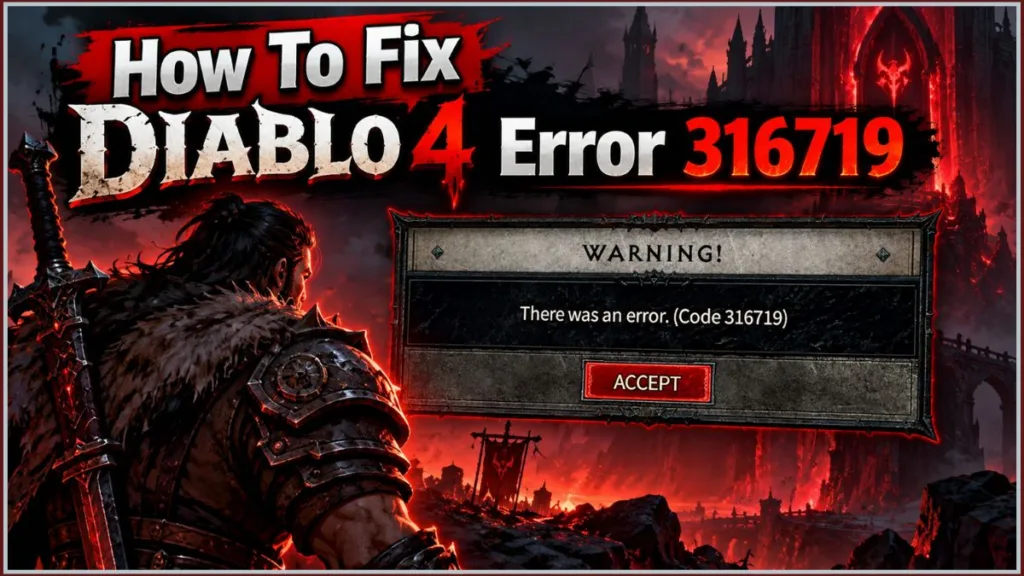
In this guide, we’ll explain what Diablo 4 Error 316719 means, why it can keep blocking you after a disconnect, and how to fix it step by step on PC, PlayStation, and Xbox. We’ll also cover ways to reduce how often it happens.
The guide draws on Blizzard’s support pages, explanations from Blizzard’s Diablo IV forums, and player reports. Where something is a community observation rather than a confirmed fact, we’ll make that clear.
What Is Diablo 4 Error 316719?
Error 316719 is not an ordinary login failure. It is a connection error that appears after you’ve already been disconnected from the game.
A reply on Blizzard’s official Diablo IV forums explains that the code indicates your game client lost its connection to the game service.
There’s another important detail: after you disconnect, your character may remain in the game world for up to about ten minutes while the server realizes you’re no longer connected and clears the session. If you try to log back in to that character during this window, you can get the same error again.
Important: The old session can remain active for several minutes after a disconnect, so repeatedly trying to rejoin can trigger Error 316719 again.
That’s the confusing part of Error 316719.
The game doesn’t just fail once. It can fail, then continue rejecting your attempt to return even after whatever caused the original disconnect has already passed.
What Happens When 316719 Appears?
Players describe a similar pattern again and again:
- You’re kicked out mid-session. This can happen in a dungeon, in the open world, or while farming.
- You land on the character select screen. The game appears to be working, and your characters are still there.
- Pressing Start Game brings up 316719. Choosing another character can produce the same result, which is why many players describe it as a login error.
- A full restart is what gets you back in. In most reports, waiting on the character screen and pressing Play doesn’t work. Players end up closing the game and joining the login queue again.
A Blizzard forum thread from January 2026 shows exactly how this can play out on PC. One player described getting booted, trying to log back in, and seeing the error several times in around two hours.
Another player said it happened with roughly thirty sigils on the ground after killing Azmodan.
It isn’t limited to PC, either.
A September 2025 forum post from a PlayStation player described being kicked partway through a mission and having to restart the game to sign back in. PS5 and Xbox players described the same pattern in 2023.
What Can Cause Error 316719?
There is no single confirmed cause.
Blizzard’s explanation points to a lost connection, and there are several things that can break that connection. Four possibilities come up most often.
A Temporary Blizzard Service Problem
A brief problem on Blizzard’s side can cut the link between your client and the game service.
Some players on the forums suspect server trouble, but that is a community guess and has not been confirmed in the threads.
What to do: Check the service status in Fix 2 below. If a wider problem is reported, waiting is usually the only option.
A Drop in Your Own Connection
The same Blizzard forum reply notes that the original disconnect could be a one-off service issue, a problem with your system or network, or a problem with the wider internet.
A short stutter on your connection can be enough to end a game session, even if nothing else you do online seems affected.
It’s easy to assume your connection is fine because videos play and pages load. Those activities can survive small interruptions that a live game session cannot.
What to do: Power cycle your network devices with Fix 3, then follow the PC or console steps for your platform.
The Old Session Hasn’t Cleared Yet
As mentioned earlier, the game world may still treat you as connected for several minutes after you’ve dropped.
Trying to log back in during that window can bring up the error again, and repeated attempts don’t shorten the wait.
What to do: Close the game fully and give it a few minutes before relaunching with Fix 1.
A Problem Specific to Your Setup
Some players on the forums said they were the only person in their group who kept getting the error.
One player compared two PCs, with one running fine and the other disconnecting regularly.
That doesn’t prove a hardware fault, but it suggests local factors can play a part for some players.
What to do: Work through the PC repair steps in Fixes 4 to 8 or follow the console steps. Contact Blizzard Support if the error persists.
How to Fix 316719 and Get Back Into Diablo 4
The fixes below move from the simplest to the most involved, so start at the top and stop as soon as you’re back in the game.
Fixes 1 to 3 apply to everyone. After that, follow the section for your platform.
Blizzard’s current support area includes a Diablo IV Technical Troubleshooting resource for technical issues that do not have their own dedicated support article.
Important: If the cause is on Blizzard’s side, nothing on your end will fix it until the service recovers. That’s why Fix 2 comes early.
Start With These Fixes on Any Platform
Fix 1: Restart Diablo 4 Completely and Give It a Few Minutes
Before you start: You’ll go back into the login queue, so choose a moment when you can wait.
Don’t keep pressing Start Game on the character screen or switching between characters. Players report that this doesn’t get them back in, and it can add failed attempts on top of a session the server hasn’t cleared yet.
- Close the game completely.
- PC: Exit Diablo 4 to your desktop. If the window is stuck, press Ctrl + Shift + Esc, select Diablo IV in Task Manager, and choose End task.
- PlayStation: Highlight Diablo IV on the home screen, press the Options button, and choose Close Game.
- Xbox: Highlight Diablo IV, press the Menu button, and choose Quit.
- Wait about two minutes. This gives the server time to notice you’ve gone.
- Relaunch the game and sign in. Expect to wait in the login queue. The length of the wait depends on how busy the servers are.
- Select your character and press Start Game once.
What to expect: After the queue, you should reach the character screen and be able to start normally.
If 316719 appears again straight away, close the game again and wait longer this time, up to around ten minutes, since that’s how long Blizzard’s forum reply says the old session can linger.
Why this works: A restart forces a clean connection to the game service instead of retrying a session the server may still consider active.
Note: Menu wording on consoles can vary slightly between system updates.
Fix 2: Check Whether the Problem Is Affecting Other Players
Before you start: None. This takes a minute and can save you from troubleshooting a problem you can’t fix.
- PC players: Open the Battle.net desktop app and look for a service notice on the Diablo IV page.Battle.net is Blizzard’s desktop launcher for its PC games. It is also the app you’ll use for Scan and Repair later in this guide. If you don’t have it installed, use Blizzard’s official Battle.net download page.
- Check Blizzard Customer Support’s official account on X (formerly Twitter) for posts about outages or maintenance. The official account is Blizzard CS – The Americas.
- Optionally, check Downdetector’s Diablo IV status page. This is a third-party site where players report problems, so treat it as a hint and not a confirmation.
- Browse the Diablo IV Technical Support forums for recent posts about 316719.
What to expect: If Blizzard reports an outage or maintenance, wait until it’s resolved and then do Fix 1.
If nothing is reported, keep going.
Limitation: A lack of announcements doesn’t prove the servers are fine. Short disruptions often go unannounced.
Why this works: If many players are affected, no setting on your side will fix it, and you’ll save time by waiting.
Fix 3: Restart Your Modem and Router
Before you start: This disconnects everyone in your home for a few minutes, so let others know.
If your modem has a battery backup, Blizzard says to remove the battery or use the modem’s reset button.
- Shut down your PC or console, and any other computers connected to the modem or router.
- Power down and unplug the modem and the router if you use one.
- Wait 60 seconds.
- Plug the modem back in and wait until its connection lights hold steady. Then plug in and turn on the router.
- Turn your PC or console back on and let it start fully.
- Relaunch Diablo 4 and try again.
What to expect: A few minutes without internet, then a normal reconnection. Your connection may feel snappier afterward, but this won’t guarantee the error disappears.
While you’re at it: If you can, use a wired Ethernet connection instead of Wi-Fi, and pause large downloads, streams, or cloud backups while you play.
Why this works: Power cycling lets your modem and router reset and re-establish their connection to your internet provider, which can clear problems that only show up in a live game session.
PC Fixes to Try Next
Restart Windows and Close Unneeded Programs
Before you start: Save any open work.
- Quit Diablo 4 and the Battle.net desktop app.
- Restart your computer.
- Before launching anything, close programs you don’t need, such as extra browser windows, streams, cloud backups, and downloads.
- Open Battle.net and launch Diablo 4.
What to expect: A clean start with fewer programs competing for your connection and system resources.
It may not change anything on its own, but it’s the first step Blizzard’s own disconnect guidance lists.
Why this works: Restarting clears temporary conflicts, and closing other programs frees up resources and bandwidth.
Check Diablo 4 for Damaged Files
Before you start: Close the game. You’ll need to stay in the Battle.net app until the scan finishes.
- Open the Battle.net desktop app.
- Click the Diablo IV icon in the game list.
- Click the gear (settings) icon near the Play button, then choose Scan and Repair.
- Click Begin Scan.
- Wait for the repair to finish before launching the game.
What to expect: The scan time varies, and the app may download replacement files if it finds damage. When it’s done, the normal Play button returns.
Limitation: This only helps if damaged files are part of the problem.
One player in a 2023 Reddit discussion reported a much longer stable session after running it, but that’s a single experience. If the scan gets stuck repeating, skip ahead to the reinstall step.
Why this works: It replaces corrupted or missing game files that might be causing instability.
Refresh Your IP and DNS Settings
Before you start: Close Diablo 4 and Battle.net. Your internet will drop for a moment during this process.
Blizzard also maintains guidance for IP release, renewal, and DNS flushing, which is the same basic process used here.
Blizzard notes that if you’re not comfortable using the command line, restarting your computer may produce similar effects.
- Press the Windows key, type
cmd, and press Enter to open Command Prompt. - Type
ipconfig /releaseand press Enter. Wait for a message that the IP address has been released. - Type
ipconfig /renewand press Enter. Wait for a message that the address has been re-established. - Type
ipconfig /flushdnsand press Enter. - Close the window, reopen Battle.net, and launch Diablo 4.
What to expect: Your internet is briefly unavailable between steps 2 and 3, then returns.
If it doesn’t come back, restart your PC or repeat Fix 3.
Why this works: These commands refresh how your PC connects to your network and clear cached address information, which can resolve network conflicts.
Update Windows, Drivers, and Security Permissions
- Open Settings, go to Windows Update, and check for updates. Install anything pending, then restart.Microsoft currently recommends using Settings > Windows Update > Check for updates to manually check for Windows updates. You can view Microsoft’s official Windows Update instructions here.
- Update your network adapter and graphics drivers through Windows Update or the hardware maker’s website.
- Relaunch Diablo 4.
What to expect: Nothing visible, usually, but it rules out compatibility problems. Blizzard lists updated drivers and operating systems among its steps for Diablo IV connection errors.
For graphics drivers, use the official source that matches your hardware. NVIDIA provides its current official driver download page, while AMD provides its official drivers and support page. Intel provides its official Download Center for drivers and software.
For network adapter drivers, use your PC, laptop, motherboard, or adapter manufacturer’s official support page rather than a third-party driver-download site.
A note on security software: If you use a firewall or antivirus program besides Windows’ built-in tools, make sure it isn’t blocking Battle.net or Diablo 4. Add them as allowed programs instead of turning your protection off completely.
Menus differ by product, so check its help pages.
Reinstall Diablo 4 Only as a Last Resort
Before you start: This is a big download, so make sure you have the time, disk space, and a steady connection.
Blizzard’s current uninstall guidance says player data is saved on Blizzard’s servers and is available from any computer with the game installed. You can view Blizzard’s official Battle.net uninstall guide here.
- Close Diablo 4.
- Open Battle.net and select Diablo IV. Open the gear menu or the drop-down arrow beside the Play button, depending on the app version, and choose Uninstall.
- Restart your PC.
- Open Battle.net, select the Diablo IV tab, and click Install.
- Launch the game once the download finishes.
What to expect: A fresh install, then the usual login queue and character select.
Blizzard’s support site also covers manual uninstalling if the normal method fails.
Limitation: Only a few players reported this fixing the error, so don’t start here.
Why this works: A fresh install clears lingering file or configuration problems that a repair scan may have missed.
PlayStation and Xbox: Check Your Console Connection
Blizzard’s console advice is to reset your network devices, improve a wireless connection, check your network configuration, and run the console’s built-in connection test.
Start with the power cycle in Fix 3, then try this.
Test the Internet Connection on Your Console
Before you start: Make sure your console is connected to your network.
- PlayStation 5: Open Settings, go to Network, then Connection Status, and select Test Internet Connection.
- Xbox Series X|S: Press the Xbox button, go to Profile & system, then Settings, General, Network settings, and select Test network connection.
- Read the result.
For PlayStation users, Sony’s current connectivity guide documents the network settings and connection-testing workflow for PS5 and PS4. It also provides instructions for wired and wireless connections and links to the PlayStation Status page. See the official PlayStation connectivity guide here.
For Xbox users, Xbox’s official network-connection support page is the relevant Microsoft source for console network troubleshooting.
What to expect: A pass or fail with details.
If it fails, repeat Fix 3 and switch to a wired connection if possible.
If it passes but the error keeps returning, the problem may be on Blizzard’s side or intermittent.
Limitation: Menu paths vary on older consoles such as the PS4 and Xbox One, though they have built-in tests too.
Router firewall or port settings differ by device, so check your router maker’s or provider’s help pages.
Why this works: It tells you whether the console can reach the internet properly, which separates a local connection problem from a service one.
Still Getting 316719? Here’s What to Do Next
Give Blizzard Support the Details They Need
- Write down your platform and region.
- Note when the disconnects happen and what you were doing, such as a dungeon run or farming.
- List what you’ve already tried, including how long you waited before logging back in.
- Contact Blizzard Support or post in the Diablo IV Technical Support forum for your platform.
Blizzard Support is the official place to search for troubleshooting resources and get help with Blizzard games.
What to expect: Specific details make it easier for support and other players to tell whether you’re seeing a wider service issue or a problem tied to your setup.
How to Reduce the Chances of Seeing 316719
You can’t prevent every disconnect, but a few habits can lower how often this one disrupts you.
Keep Your Connection Stable While You Play
A wired connection and a router you restart occasionally can cut down on drops.
If other people at home stream or download heavily during your sessions, ask them to pause during long runs.
Why it helps: The error begins with a lost connection, so any improvement in stability reduces the chance of that first drop.
Keep Diablo 4 and Battle.net Updated
Install pending Diablo 4 and Battle.net updates, or your console’s updates, before you start playing.
Why it helps: Outdated software can cause avoidable problems, and updating takes the guesswork out of troubleshooting later.
Be Careful With Runs You Can’t Easily Repeat
Some players reported being disconnected in the middle of dungeons or farming sessions.
Before starting something long or hard to repeat, check that your connection is steady.
Why it helps: A disconnect costs the most when it interrupts something you can’t easily redo.
Don’t Keep Hammering the Login Screen
When the error does appear, a full restart plus a short wait is usually less frustrating than repeated attempts.
Why it helps: It avoids stacking failed login attempts on top of a session the server hasn’t cleared yet.
Is Error 316719 Dangerous?
Nothing in Blizzard’s forum explanation or in the player reports suggests that the error is a sign of malware, a damaged account, or a fault with your device.
It points to a connection problem.
What you may lose is whatever you were in the middle of when the disconnect hit, such as a dungeon run, a boss fight, or a farming session.
That’s annoying, but it’s a different issue from your account or computer being at risk.
Diablo 4 Error 316719: Common Questions
What does error code 316719 mean in Diablo 4?
It means your game client lost its connection to the game service.
The message usually appears after you’ve been disconnected and try to rejoin.
Because the character can linger in the world for several minutes, you may keep seeing the error during that window even if your internet has recovered.
In practice, it’s a “disconnected and can’t get back in yet” message and not a problem with your account.
Is error 316719 a server problem or a problem on my end?
It can be either.
Blizzard’s forum explanation says the original disconnect could come from the game service, your own system or network, or the wider internet.
Some players suspect server trouble, but that hasn’t been confirmed in the threads.
If many players report the error at once, a service issue is more likely. If only you are affected, your connection or setup is worth checking.
Are the Diablo 4 servers down when I get this error?
Not necessarily.
The error means your connection to the game service was lost, which can happen even when the servers are running normally.
Checking the Battle.net app, Blizzard’s official support account, and the Diablo IV forums will tell you whether a wider problem has been reported.
If nothing is posted, focus on restarting the game and checking your own connection.
How long should I wait before logging back in?
Start with about two minutes after fully closing the game.
If the error comes back immediately, wait longer, up to around ten minutes, since a Blizzard forum reply says that’s how long your old session may linger.
Tip: Pressing Start Game repeatedly in the meantime doesn’t help.
Do I need to restart Diablo 4 to get rid of the error?
Many players report that waiting at the character screen and pressing Start Game doesn’t work, and that a full restart plus re-queuing is what gets them back in.
A small number say they got back in without closing the game after waiting a while.
So restarting is the most dependable option, but it isn’t a guarantee in every case.
Can I get back in without waiting in the queue again?
Most reports describe being placed back in the login queue after a restart.
How long that takes depends on how busy the servers are when you try.
If you restart and still get the error, give it a few more minutes before trying again so you don’t add extra failed attempts.
Does error 316719 happen on PlayStation and Xbox too?
Yes.
Players on PS5 and Xbox reported it in 2023, and a PlayStation player described it again in September 2025.
The core fix—fully closing the game and rejoining—is the same, and the console section above covers the connection test and network steps.
Why does Diablo 4 keep kicking me out?
Repeated disconnects can come from an unstable connection, a temporary service issue, or something specific to your setup.
A Blizzard forum thread from January 2026 shows players still reporting repeated kicks, so it isn’t limited to launch week.
If it keeps happening, work through the fixes above and contact Blizzard Support with details.
Does Scan and Repair fix error 316719?
Some players say it helped, but results vary and it isn’t a guaranteed fix.
It’s a reasonable step on PC if the error keeps returning because it checks for damaged game files without removing the game.
Will I lose my characters if I reinstall Diablo 4?
According to Blizzard’s uninstall guide, player data is saved on Blizzard’s servers and is available from any computer that has the game client installed.
Reinstalling shouldn’t remove your characters, but it’s a large download and only a last resort for this error.
Is there an official Blizzard fix for error 316719?
We couldn’t find a dedicated Blizzard support page for this code.
Blizzard’s general guidance for Diablo IV disconnects covers restarting your computer, improving your connection, and repairing game files, which is why those steps appear in this guide.
Can I avoid error 316719 completely?
Not entirely, since part of the cause may be outside your control.
A stable connection, updated software, and a patient approach to reconnecting can reduce how often it affects you.
Final Thoughts
Diablo error 316719 can feel baffling because it shows up after a disconnect and then blocks you from coming back.
In simple terms, your game lost its connection to the game service, and your old session can linger long enough to cause repeated errors when you try to rejoin.
The most reliable advice from players and guides is to close the game completely, wait a few minutes, relaunch, and re-queue.
If it keeps happening, check for wider service problems, power cycle your network, and then work through the PC or console steps above.
Contact Blizzard Support with details if nothing helps.
There’s no guaranteed permanent fix, but knowing what’s happening and following the steps in order will get you back into the action faster.
Visit Our Post Page: Blog Page
Discover more from Izoate
Subscribe to get the latest posts sent to your email.