
Stuck in the wrong Facebook language? Discover how to change Facebook language quickly and fix automatic language changes on mobile or PC in just a few steps.
Opened Facebook and suddenly everything is in a different language? Can’t navigate your settings because you don’t understand a single word of the text on your screen?
Millions of users experience this frustrating bug every year, particularly when traveling, updating their devices, or linking accounts through the new Meta Account Center.
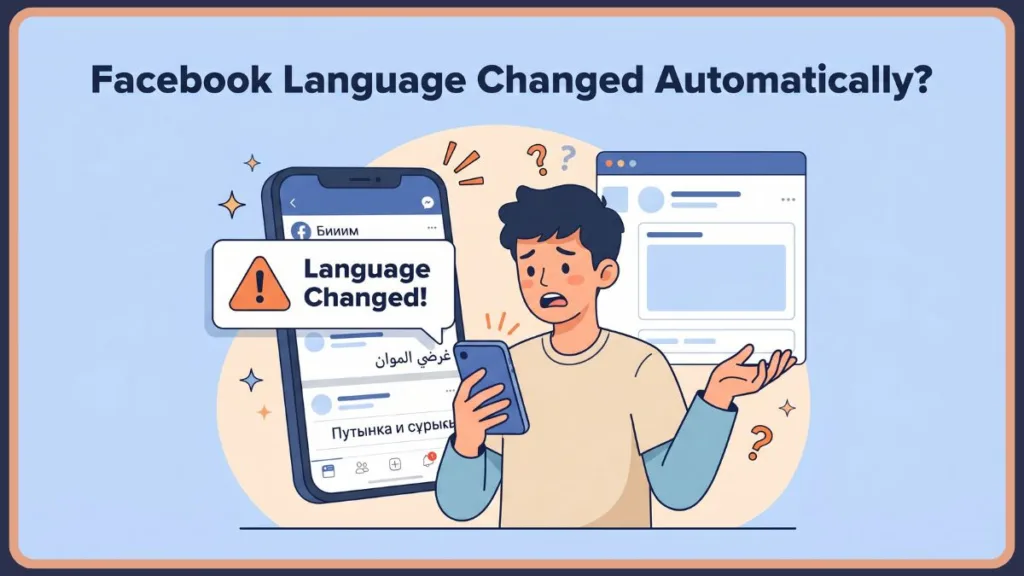
If you are wondering how to change language in Facebook after a sudden glitch, this is a common issue—and it can happen without warning across mobile apps, desktop browsers, or shared devices.
Because Facebook’s algorithm constantly tries to personalize your experience based on geolocation and device signals, it sometimes guesses your preferred language incorrectly.
Important Tip: The good news is it’s easy to fix. Even if the interface is completely unreadable right now, learning how to change Facebook language settings takes less than 10 seconds once you know which icons to look for. You do not need to be tech-savvy to resolve this, and it rarely indicates that your account has been compromised.
Facebook Language Not Changing or Stuck? Here’s What’s Happening
Try changing the language manually—but if it doesn’t stick, or the language switches randomly making the interface unusable, use the fixes below.
Often, this “stuck” feeling happens because a setting in the background (like your phone’s operating system) is actively fighting against the manual changes you are making inside the app.
To fix this properly (and stop it from happening again), let’s quickly look at what’s causing it. Understanding the “why” will save you from having to repeat these troubleshooting steps next week.
Why Did My Facebook Language Change Automatically?
Here are the six most common reasons your Facebook language settings went rogue. Many of these are tied to how Meta connects data across its platforms:
- Login from a Different Location or Device: Facebook adapts to your IP address and region. Traveling or using a VPN forces an automatic switch. If you recently connected to a server in Spain or Japan via ExpressVPN or NordVPN, Facebook assumes you want local content.
- Device Language Sync Override: The app follows your phone’s system language. If your phone updates its primary language, Facebook changes automatically without notice. This is incredibly common after major iOS or Android system updates where language defaults might get refreshed.
- Facebook App Bugs or Updates: Routine app updates can clear your cache or fail to save preferences, forcing a reset. Developers frequently roll out background patches that can temporarily disrupt personalized UI settings.
- Shared Devices or Multiple Users: On public computers or shared iPads, another user may have changed the browser settings. Furthermore, if you recently linked an Instagram account to your Facebook via the Meta Account Center, conflicting settings from the other profile might have synced over.
- Browser Translation or Cache Conflict: Auto-translate tools interfere with text. Also, a foreign locale tag can get stuck in your URL (e.g.,
www.facebook.com/?locale=es_LA). Browser extensions like Google Translate or grammar checkers can also falsely trigger foreign text displays. - Incorrect Language Settings: You may have a misconfigured fallback language in your account preferences. If Facebook cannot load English due to a server error, it will load the secondary language you accidentally selected years ago.
How to Change Language in Facebook: Step-by-Step Guide
If you are looking for exactly how to change language in Facebook, follow the steps below for your specific device.
Pro Tip: If the text is unreadable, don’t worry—just follow the icons. Facebook’s layout stays the same in every language, meaning the structural menus do not move regardless of whether the text is reading left-to-right or right-to-left.
1. Change Facebook Language Manually (Universal Quick Fix)
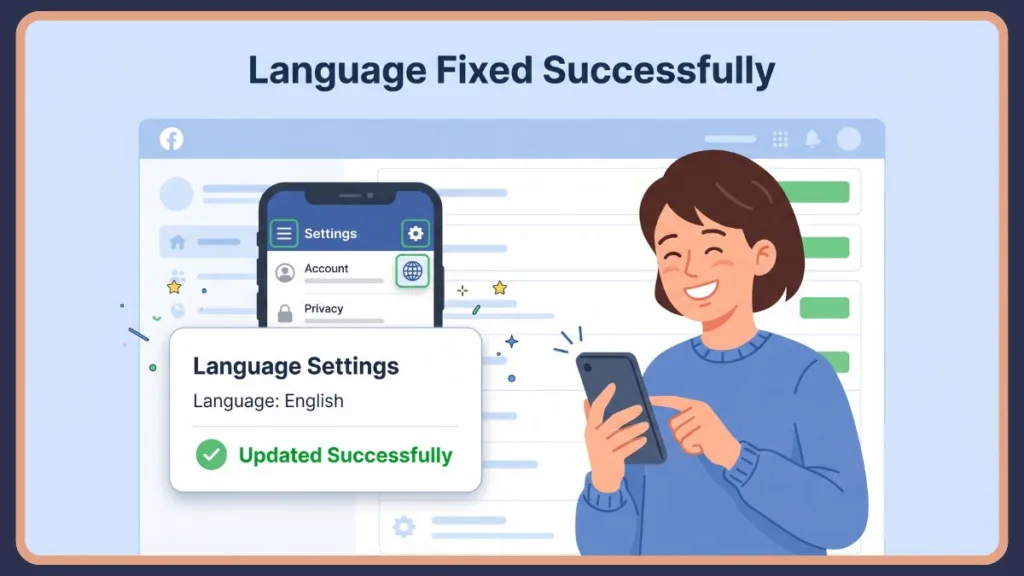
If you need a rapid reset on any device, follow this icon path. This works even if the text is unreadable and is the fastest method to override temporary interface glitches.
- Tap the Menu icon—this opens your main settings panel.
- Scroll down to the Settings gear icon.
- Look for the Globe icon—that’s your language setting no matter what language Facebook is showing.
- Choose English (or your preferred language) and save.
How to Change Facebook Language on Android
Here is exactly how to change language in Facebook on your Android mobile device. You only need to do this once.
Important Tip: Ensure you are disconnected from any active VPNs before starting these steps so the system saves your choice accurately.
- Open the Android app and tap the Menu (top right)—this opens your main settings panel.
- Scroll to the bottom and tap the Settings gear icon (Settings & Privacy).
- Tap the first option in that dropdown (Settings).
- Scroll until you see the Globe icon—that’s your language setting no matter what language Facebook is showing (Language and Region).
- Tap the first option to select your preferred device language.
How to Change Facebook Language on iPhone
The steps for iOS are very similar. If you need to know how to change language in Facebook on your iPhone, follow these steps. Unlike Android, the iOS menu navigation usually starts at the bottom of your screen.
- Open the iOS app and tap the Menu (bottom right)—this opens your main settings panel.
- Tap the Settings gear icon (Settings & Privacy) at the bottom.
- Select the first option (Settings).
- Find and tap the Globe icon—that’s your language setting no matter what language Facebook is showing (Language and Region).
- Choose your preferred language from the list to save.
How to Change Facebook Language on Desktop
To change Facebook language on desktop browsers, follow these quick clicks. This takes less than 10 seconds.
Pro Tip: Doing this on a desktop browser often syncs the correction across your Meta Account Center faster than the mobile app.
- Click your Profile Picture in the top right corner.
- Click the Settings & Privacy.
- Click the Settings.
- In the left-hand menu, look for the Globe icon—that’s your language setting no matter what language Facebook is showing (Language & Region).
- Click “Edit” next to the Facebook language option.
- Choose your language and click the blue button to Save.
Advanced Fix: When Facebook Language Keeps Changing
If you followed the steps above and your Facebook language is still stuck, use the targeted troubleshooting methods below. These steps are designed to clear deep-rooted conflicts in your device’s memory.
The URL Glitch Fix & Hidden Shortcut
- The URL Fix: Check your web address bar. If it says
facebook.com/?locale=es_LA, delete everything after.com/and hit enter. These “locale tags” are often accidentally clicked via Google Search results or shared links from international friends. - The Shortcut: On the desktop login screen, scroll to the very bottom footer. Click your preferred language from the list to switch instantly. This overrides any cookies currently active in your browser session.
Restart Facebook App or Browser
Force-close the Facebook app on your phone or completely restart your web browser on your computer to clear temporary visual bugs.
Tip: On iPhone, swipe up and hold to clear the app; on Android, use the multi-task button to swipe the app away.
Clear Cache (Android)
Corrupted temporary files can trap your app. Clear them out to reset the display.
Important Tip: Clearing the cache will not delete your photos, messages, or log you out; it simply deletes temporary background data.
- Go to Settings → Apps → Facebook → Storage → Clear Cache.
Check Device System Language Settings
Check your phone’s system language. If your iPhone or Android is set to a different language, the app sync will continually override your manual changes.
Go into your iPhone’s “General” settings or your Android’s “System” settings to verify English is set as the absolute primary language.
Update or Reinstall Facebook
Check the App Store or Google Play Store for an update, or delete the app and reinstall it to completely reset all settings.
Reinstalling forces your device to download the newest, bug-free software package directly from Meta’s servers.
Log Out and Log Back In
Logging out forces Facebook to refresh your account sync with their servers, pulling the correct language data back down.
Make sure you know your password or have your Two-Factor Authentication (2FA) device handy before doing this.
Ultimate Fallback Fix
- Disable your VPN: Ensure your VPN isn’t tricking Facebook into thinking you are in another country.
Pro Tip: If you must use a VPN, utilize “split tunneling” to allow Facebook to bypass the VPN connection.
- Switch platforms: Try logging in via a mobile browser instead of the app to see if the issue is localized to your device. If it works on Chrome but not the Facebook app, you know the app itself is the problem.
How to Change Facebook Language Back to English (Summary)
If everything looks unfamiliar right now, don’t worry—the layout hasn’t changed, just the language. Follow the Globe and the Gear.
Navigate to the Menu, find the Settings icon, then click the Globe icon to bring up the language list. “English” will usually be written in English, making it easy to spot and select regardless of the current interface language.
Important Tip: Committing this icon sequence to memory is the best way to regain control of your account instantly.
How to Prevent Facebook Language from Changing Again
To keep your dashboard stable, follow these best practices. Taking 60 seconds to implement these will save you major headaches in the future:
- Avoid shared devices: Log out of your profile when you are done. Never check “Remember Me” on a computer that does not belong to you.
- Keep device language consistent: Ensure your phone’s OS matches your preferred Facebook language.
- Disable random VPN usage: Turn off background VPNs set to international servers so Facebook stops trying to adapt. If you travel frequently, explicitly set your Meta Account Center language preferences to “English” rather than “Automatic.”
FAQ: Facebook Language Issues Explained
How do I change my Facebook back to English?
Select Settings & Privacy → Language → English and save.
Tip: If the text is unreadable, use the universal icons. Tap the Menu, click the Settings gear icon, then click the Globe icon to find the English option. You can also search for the word “English” as it remains un-translated in most language selection menus.
Where is the language setting on Facebook?
Go to Settings & Privacy → Language & Region (look for the globe icon).
On desktop, this is accessed via your profile picture. On mobile, it is accessed via the Menu. With recent updates to Meta Account Center, some users may find these preferences grouped under their broader Meta identity settings.
Why did my Facebook language change automatically?
This is caused by device language syncs, active VPNs altering your location, or background app glitches.
Facebook tries to adapt to your physical location and phone settings, which can sometimes trigger an unwanted automatic switch. Clicking a localized link (like a .fr or .es Facebook URL) can also force this change.
Why is my Facebook in another language?
Your account is mirroring your phone’s system settings, your IP address location, or a previous user’s browser cache.
This is especially common if you share a device or leave a VPN running. Browser extensions that auto-translate web pages can also artificially make it look like Facebook’s settings have changed.
How do I change the language on the Facebook mobile app versus desktop?
Mobile: Tap Menu → Settings & Privacy → Language. Desktop: Click Profile Picture → Settings & Privacy → Settings → Language & Region.
Both platforms use the gear and globe icons, making it easy to navigate even if the text is foreign. Desktop changes usually propagate to mobile faster than mobile changes propagate to desktop.
How do you change the language on Facebook without logging in?
Scroll to the very bottom footer of the Facebook desktop login screen and click your language.
Important Tip: Simply select your preferred language from the list provided at the bottom of the page. This is a highly effective way to fix the issue before you even enter your password.
How do I stop Facebook from translating posts?
Go to Language & Region settings and disable “Language you’d like to have posts translated into.”
Look for the setting and flip the automatic toggle off. You can also add specific languages to a “Never translate” list.
How do I change the language for posts only?
Adjust your post translations in the Language & Region settings without altering your whole dashboard.
Changing this specific preference controls how posts from international friends appear while keeping your main interface in your native language. This is perfect for bilingual users who want to read content in its original form.
Final Thoughts on Fixing Facebook Language Issues
A sudden language change can feel confusing—but in most cases, it’s a simple settings issue, not a serious problem. While seeing a foreign alphabet on your screen can cause brief panic, your personal data and account security are usually perfectly safe.
By following the universal icons (Menu, Settings, Globe), learning how to change language in Facebook takes less than two minutes.
Final Tip: Once you correct your region and ensure your device language matches your preference, your interface should remain perfectly stable. Bookmark this guide just in case the Meta algorithm ever accidentally flips your settings again!
Visit Our Post Page: Blog Page
Discover more from Izoate
Subscribe to get the latest posts sent to your email.