
Seeing “An unexpected error with Vanguard has occured” with code VAN 7003? Discover why your client is suddenly closing mid-match and how to fix it quickly.
There is nothing quite as frustrating as grinding your competitive ranks, securing a lead, and suddenly suffering a mid-match crash. In early November 2026, a wave of players began reporting a brand-new, completely undocumented error code: VAN 7003. This sudden disconnect forces you out of the game with an abrupt prompt stating, “you need to turn Vanguard on to play.”
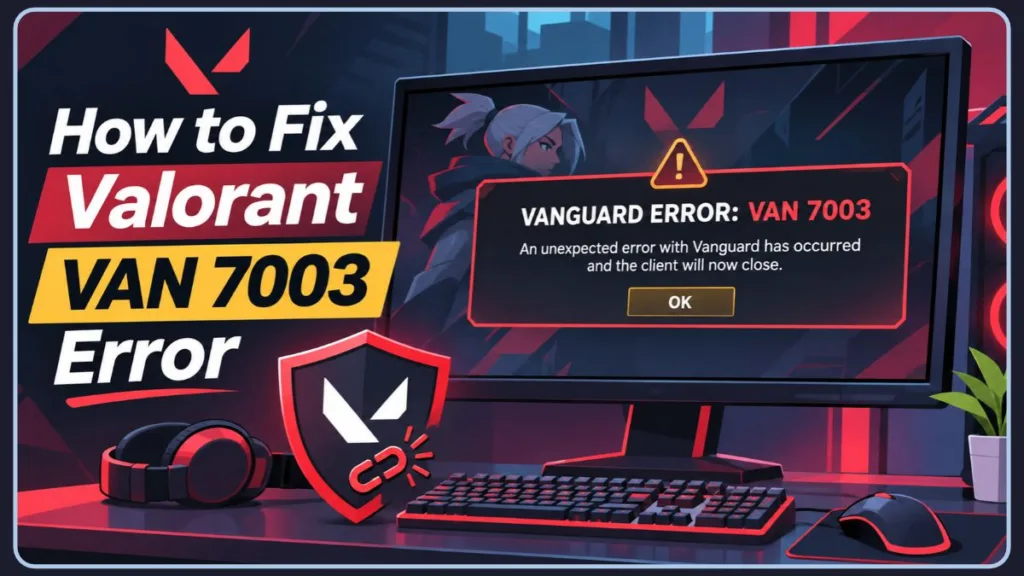
If you are dealing with this unexpected Riot Vanguard bug, you are not alone. Because Riot has not yet added VAN 7003 to their official troubleshooting directory, the community is currently relying on universal kernel-level fixes. Below, we break down what is happening under the hood, how to bypass current glitches in the Riot Games support portal, and provide step-by-step tutorials to get your client stabilized.
What Causes the VAN 7003 Valorant Error Code Mid-Match?
The VAN 7003 code points to a sudden, fatal communication failure between the Valorant game client and the Riot Vanguard anti-cheat system. Because Vanguard operates as a kernel-level driver (meaning it runs deep within your Windows operating system to prevent hardware spoofing), any minor interruption in its background process causes Valorant to panic and terminate the match.
Important Note: While players on the r/riotgames subreddit have noted the sheer lack of documentation for this specific code, it behaves exactly like other severe Vanguard disconnects. It is a client-side software glitch, completely different from a ban, account flag, or hardware suspension. Your account is entirely safe; your software simply dropped its connection.
How to Bypass the Riot Support Ticket Bug for VAN 7003
Currently, the community’s biggest hurdle is actually reporting the issue. Because the VAN 7003 code just surfaced in November 2026 and remains undocumented, it is completely missing from the official dropdown menu on the Riot Games support page. Worse, manually typing this specific code often causes the website to return an error or reject the submission entirely.
Submitting a Glitch-Free Support Request
- Navigate to the official Valorant Support Ticket Page and log in.
- Click Submit a Ticket and select the “Technical Issues: Install, Patch, Lag, or Crashes” category.
- In the dropdown asking for the specific error, purposely select the “Unknown” error category.
- In the main description box, explicitly state: “Experiencing the undocumented VAN 7003 Vanguard error mid-match.”
- Crucial Addition: Link to recent active community threads (like those on Reddit) to prove to the support agent that this is an emerging, widespread November 2026 bug, not an isolated issue on your PC.
Pro Tip: Before submitting your ticket, always check the official Riot Games Server Status page to ensure the login servers aren’t currently down for emergency maintenance, which can sometimes trigger false VAN codes.
Generate Crash Logs with the Riot Repair Tool (RRT)
To help support agents diagnose the crash faster, include your system logs. Riot provides a lightweight diagnostic software called the Riot Repair Tool (RRT) specifically for this.
- Download the Riot Repair Tool from the official support site.
- Run the executable as an administrator.
- Select Valorant from the game list and click Start.
- The tool will generate a
.zipfile containing your Vanguard and game client logs on your desktop. Attach this file to your support ticket.
Proven Workarounds: Universal Solutions for Vanguard Error 7003
Because Riot’s official Vanguard error directory does not yet recognize VAN 7003, there is no official, targeted patch. However, since the error behaves exactly like other severe kernel-level disconnects, you can apply these proven, high-success-rate workarounds to stabilize your client.
Fix 1: Force Quit Riot Client and Vanguard via Task Manager
Simply closing the game is not enough. You need to use Windows Task Manager to kill the background processes that might be hanging and dropping the connection.
- Press Ctrl + Shift + Esc to open the Task Manager.
- Navigate to the Processes tab.
- Locate Riot Client, right-click it, and select End Task.
- Scroll down, locate Vanguard tray notification (
vgtray.exe), right-click, and select End Task. - Relaunch the Riot Client by right-clicking its desktop shortcut and selecting Run as Administrator.
Fix 2: Perform a Clean Reinstall of Riot Vanguard (Corrupt File Fix)
Corrupted anti-cheat registry files are the most likely culprit for sudden Vanguard disconnects. You do not need to uninstall the massive 40GB Valorant game file—only the anti-cheat software.
- Right-click the red Vanguard icon in your Windows system tray (bottom right corner) and select Exit Vanguard.
- Press the Windows Key, type Add or remove programs, and hit Enter.
- Search for Riot Vanguard in the app list, click the three dots, and select Uninstall.
- Crucial Step: Open your File Explorer, navigate to
C:\Program Files\, and completely delete the Riot Vanguard folder if it is still there to remove leftover cache files. - Restart your PC.
- Launch Valorant. The Riot Client will automatically prompt a fresh, clean anti-cheat installation. Restart your PC one last time when prompted.
Hardware Warning: Do not use third-party uninstaller tools (like Revo Uninstaller) to remove Vanguard, as they can accidentally wipe essential Windows registry keys required for the game client to function.
Fix 3: Optimize Windows 11 TPM 2.0 & Secure Boot for Vanguard
Vanguard compatibility drops instantly if your motherboard settings glitch. As outlined in Microsoft’s official security documentation, Windows 11 requires both TPM 2.0 and Secure Boot to be actively running for kernel-level software to remain stable.
Tutorial: Checking System Security Status
- Press Windows Key + R to open the Run dialog box.
- Type
tpm.mscand press Enter. Ensure the status says “The TPM is ready for use” and the Specification Version is 2.0. - Next, press Windows Key + R again, type
msinfo32, and press Enter. - Look for Secure Boot State on the right panel. It must say On. If it says Off or Unsupported, you will need to restart your PC, enter your BIOS/UEFI settings, and enable Secure Boot manually.
Fix 4: Disable Overlays and Conflicting Background Apps
Certain hardware monitoring software and driver updaters can occasionally interrupt Vanguard’s kernel access. If you use OEM utilities like the MyASUS app, MSI Afterburner, Razer Cortex, or overlay software like Overwolf, ensure they are fully updated or temporarily disabled. Outdated driver software can trigger Vanguard false positives, leading directly to a crash.
VAN 7003 Vanguard Crash: Frequently Asked Questions
Will I lose RR (Ranked Rating) due to a VAN 7003 disconnect?
Unfortunately, yes. The automated Vanguard system treats this exactly like a standard AFK or power outage disconnect. This means Ranked Rating loss and temporary queue penalties will apply, which is why we recommend testing your game in Deathmatch after applying fixes.
Does the Vanguard 7003 crash affect Windows 10 players?
While the majority of VAN 7003 reports come from Windows 11 users (due to the strict TPM requirements), Windows 10 users with corrupted Vanguard files have also reported the issue. The clean reinstall method applies equally to both operating systems.
Final Thoughts on Patching the Valorant 7003 Bug
Until an official hotfix rolls out, a clean Vanguard reinstall combined with verifying your Windows 11 BIOS settings remains the most reliable way to clear the VAN 7003 error. Bookmark this page for updates, and if a specific fix worked for you, share it with your duo so your lobbies stay intact.
Visit Our Post Page: Blog Page
Discover more from Izoate
Subscribe to get the latest posts sent to your email.