
Seeing Gmail Error 2005? Learn what “Oops, the system encountered a problem (#2005)” means and follow easy fixes for Gmail not loading or refreshing.
Seeing “Oops… the system encountered a problem (#2005)” when you open Gmail can be incredibly frustrating, especially when your inbox keeps refreshing or stops responding right when you need to send an urgent message.
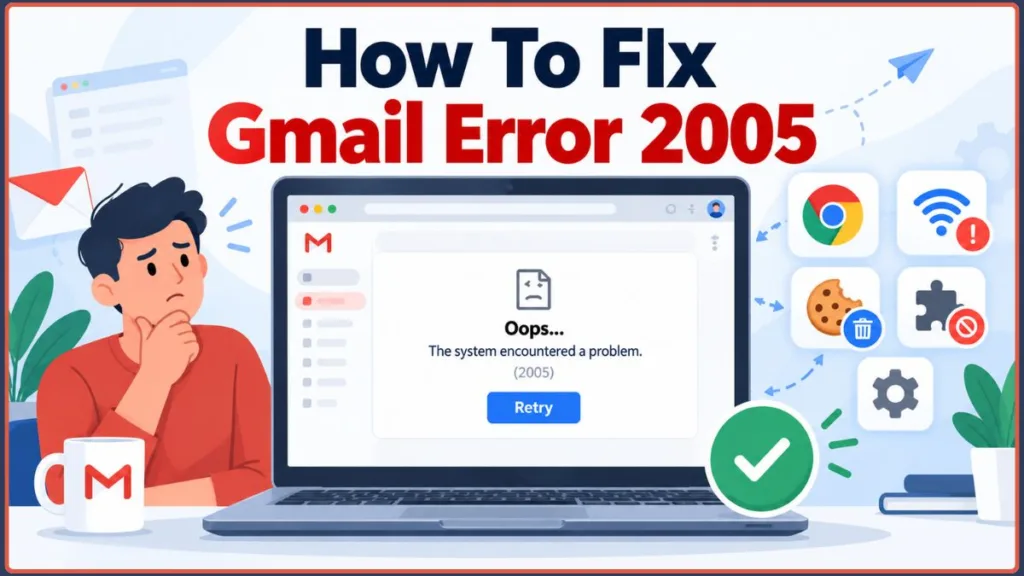
The good news is that you don’t need to panic. Seeing Gmail Error 2005 by itself is not evidence that your account is compromised or that your emails are lost. This error can sometimes be a temporary communication glitch between your computer and Google’s servers, though persistent cases may also involve your browser, active session, extensions, or cached data. Before you start changing deep system settings, let’s walk through some practical, step-by-step fixes to get your inbox back up and running.
What Does Gmail Error 2005 Actually Mean?
Google has not publicly provided a detailed technical explanation of the specific #2005 code, so it is better described as a Gmail loading or session problem rather than claiming a single confirmed cause.
The original Google Community report for this issue involved Gmail repeatedly reloading and becoming impossible to interact with, sometimes following a “session expired” message. Current reports often focus on the desktop web browser version of the platform—particularly Google Chrome on Windows—rather than mobile apps.
Why Does the Gmail 2005 Error Happen?
Rather than a single massive failure, this issue may be related to a few common scenarios:
- Temporary server hiccups: If you just set up a new account or Google Workspace is experiencing a brief syncing delay, you might experience a temporary block.
- Browser-level conflicts: Problematic background data, stale session cookies, or browser add-ons can sometimes interfere with Gmail.
- Security software interference: Sometimes, third-party antivirus programs or strict firewalls mistakenly block perfectly safe web traffic, which may be associated with the Gmail Error 2005 not loading issue.
How to Fix Gmail Error 2005 (Step-by-Step)
When your Gmail system encountered a problem #2005, put the least disruptive fixes first. Try these troubleshooting steps in order.
1. Give It 15 Minutes (The “Wait It Out” Method)
According to an early Google Community report for the exact #2005 error, the problem actually resolved itself after about 15 minutes. While this does not mean every Gmail error #2005 case will disappear after exactly 15 minutes, waiting briefly is a sensible first troubleshooting step before making any changes.
2. Sign Out, Close Duplicate Tabs, and Sign Back In
Community discussion supports trying a basic browser refresh or session restart. Having multiple Gmail tabs open across different windows can sometimes confuse your active session.
How to restart your session:
- Click your profile picture in the top right corner of your Gmail screen.
- Select Sign out (or “Sign out of all accounts” if you have multiple linked).
- Close all open Gmail tabs across your browser windows.
- Open a completely new tab, navigate to Gmail, and sign back in fresh.
3. Test Your Inbox in Incognito or Private Mode
Using Incognito mode is a helpful diagnostic test. Opening a private window bypasses your saved cookies and temporarily disables most extensions. If your inbox loads perfectly in an incognito window, it points toward something in your normal browsing session—such as an extension, cookie, or cached data—causing the problem.
How to test in a private window:
- In Google Chrome or Microsoft Edge, press Ctrl + Shift + N (Windows) or Cmd + Shift + N (Mac). If you use Firefox, press Ctrl + Shift + P (Windows) or Cmd + Shift + P (Mac).
- Type
mail.google.cominto the address bar and press Enter. - Enter your login credentials and see if the inbox loads without the error.
4. Try an Alternative Web Browser
Another user report noted that while they saw the error in one browser, their email worked fine in another. Trying another browser serves as a useful diagnostic test indicating the issue is likely isolated to your primary browser.
How to run a browser test:
- Leave your current browser open, but minimize it.
- Open a completely different web browser installed on your computer (e.g., if you normally use Chrome, open Microsoft Edge, Mozilla Firefox, Apple Safari, or Brave).
- Navigate to Gmail and sign in to check if your messages load correctly.
5. Disable Your Browser Extensions
Ad-blockers, privacy shields, and grammar tools are great, but they can sometimes block Google’s background scripts. Disabling extensions is a useful diagnostic step, especially if Gmail worked in Incognito.
How to disable extensions in Google Chrome:
- Click the puzzle piece icon in the top right corner of your Chrome toolbar.
- Select Manage extensions from the drop-down menu.
- Click the toggle switch next to every active extension to temporarily turn them off.
- Refresh your Gmail inbox. If the error disappears, turn your extensions back on one by one to identify the possible conflict.
6. Clear Cache and Cookies for Gmail
If an incognito window fixed the problem, problematic, stale, or outdated stored browser data can sometimes interfere with Gmail. Keep in mind that clearing your browsing data can sign you out of other helpful websites you use daily, so you will need your passwords handy.
How to clear your browsing data in Chrome:
- Click the three vertical dots in the top right corner of your browser.
- Select Settings, then click on Privacy and security on the left-hand menu.
- Click Clear browsing data.
- Set the time range to All time.
- Check the boxes for Cookies and other site data and Cached images and files.
- Click Clear data, restart your browser, and log back into your email.
7. Temporarily Pause Third-Party Security Software
Occasionally, security software can be a little too strict. Temporarily testing a security feature by briefly pausing your antivirus web shield can help identify a possible conflict.
How to test your security settings:
- Locate your antivirus software icon in your computer’s system tray (usually the bottom right corner on Windows).
- Right-click the icon and look for an option like Pause protection, Disable web shield, or Stop temporarily.
- Choose a short duration, such as 10 minutes.
- Refresh your Gmail inbox to see if it loads properly.
- Important: Always remember to re-enable your protection immediately after testing!
Troubleshooting Gmail Error 2005 on Google Chrome
Since community reports frequently mention Gmail Error 2005 Chrome issues on Windows, there is a specific check you can run for this browser. Running an outdated version of Chrome can trigger compatibility issues.
How to check for Chrome updates:
- Click the three vertical dots in the top right corner of Chrome.
- Hover over Help at the bottom of the menu.
- Click About Google Chrome.
- The browser will automatically check for updates and install them. Once finished, click the Relaunch button to apply the update.
What to Do If the Gmail Oops Error Keeps Coming Back
While some Error 2005 reports were temporary, other users have reported persistent or repeating problems. If Gmail Error 2005 keeps appearing, it justifies deeper browser or session troubleshooting.
You can check the official Google Workspace Status Dashboard to see if there is a known global outage. Trying another browser also helps determine whether the problem is browser-specific. If you are in a rush and need immediate access to your messages, try opening the Gmail mobile app on your smartphone, or link your Google account to a native desktop email client like Apple Mail or Microsoft Outlook.
A quick security note: Do not trust phone numbers posted in random forums claiming to offer immediate tech support, and never give your passwords or verification codes to strangers. Always use official Google support and help resources.
Frequently Asked Questions (FAQs)
Will clearing my cache delete my saved emails? No. Your emails, contacts, and attachments live safely on Google’s cloud servers, not on your local computer’s hard drive. However, clearing browser data removes locally stored browsing information and may sign you out of websites you regularly use.
Can a slow internet connection cause Gmail error 2005? An unstable or slow internet connection can certainly interfere with Gmail loading properly, though the supplied community evidence does not establish poor internet connectivity as the specific cause of #2005.
Is my account hacked if I see this error? Error 2005 by itself is not evidence that your account has been hacked. It is a technical loading or session glitch. However, if you notice unfamiliar account activity separately, you should review your Google Account security settings.
Share Your Troubleshooting Experience
Working through a Gmail Error 2005 fix can be a headache, but a little patience and some basic browser hygiene are usually all it takes to clear the screen and get back to your day.
Did one of these steps fix your inbox? Or did you discover a completely different trick that worked for you? Drop a comment below and share your experience—your quick tip might be exactly what another frustrated reader needs to solve their problem today!
Visit Our Post Page: Blog Page
Discover more from Izoate
Subscribe to get the latest posts sent to your email.