
Want to use the latest GPT-Live in ChatGPT? Learn how to enable ChatGPT Voice on Android, iPhone, and the web, verify GPT-Live is active, and fix Voice Mode if it’s not showing.
Typing every question to ChatGPT gets old fast, especially when you’re juggling a phone in one hand and life with the other. That’s exactly why ChatGPT Voice exists: you talk, ChatGPT listens, and it talks back — no typing required.
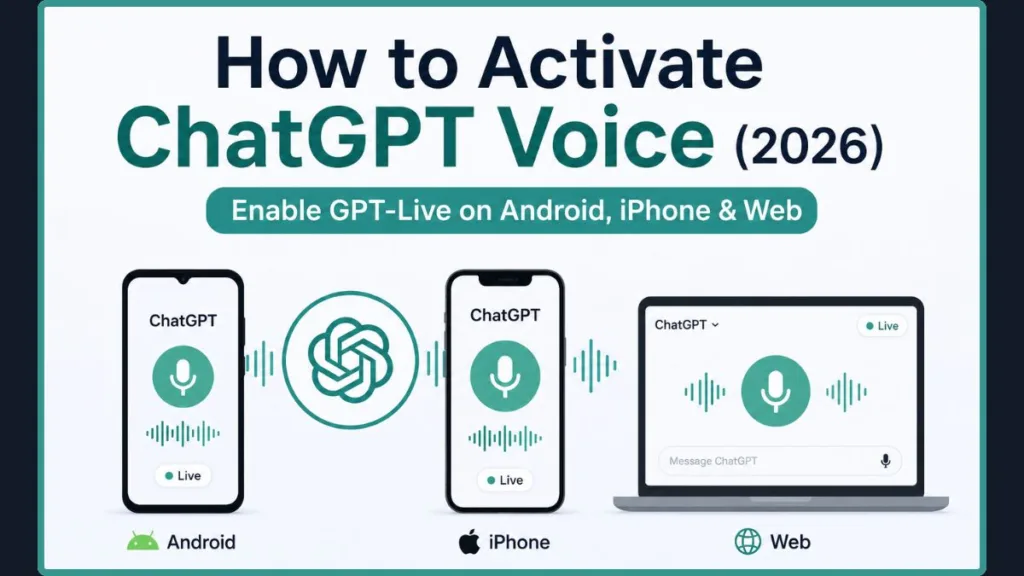
In July 2026, OpenAI rolled out its biggest voice upgrade yet, called GPT-Live (you might also see it called ChatGPT Live). It’s a new engine behind ChatGPT Voice that makes conversations feel far more natural than before, and if you’ve tried voice mode in the past and found it clunky, this update is worth a second look.
What Is ChatGPT Voice?
ChatGPT Voice lets you speak to ChatGPT out loud instead of typing, and hear a spoken response back. Instead of reading a wall of text, you get a real conversation — ask a question, get an answer, ask a follow-up, all without touching your keyboard.
Behind the scenes, this feature has changed names and technology a few times. If you’ve read older guides, you may have seen it called Advanced Voice Mode. That system has now been replaced by GPT-Live, OpenAI’s newest voice model. The basic idea is the same — you still tap a voice icon and start talking — but what happens after you tap it is noticeably smarter and smoother.
Note: If an article or forum post mentions “Advanced Voice Mode,” it’s describing the older system. GPT-Live is what powers ChatGPT Voice now.
Who Can Use ChatGPT Voice?
Almost everyone with a ChatGPT account can use voice mode, but which version of GPT-Live you get depends on your plan:
| Plan | Voice Model |
|---|---|
| Free | GPT-Live-1 mini |
| Go | GPT-Live-1 |
| Plus | GPT-Live-1 |
| Pro | GPT-Live-1 |
Free accounts get the lighter GPT-Live-1 mini model, while Go, Plus, and Pro accounts get the full GPT-Live-1 model. Both versions use the same full-duplex technology described below — the difference is mainly in response quality and how much reasoning power is available behind the scenes.
A few things worth knowing about availability:
- Business, Enterprise, and Edu accounts don’t have GPT-Live yet. OpenAI has said it’s coming to these workspaces after the initial consumer rollout.
- GPT-Live currently isn’t available inside Codex, Temporary Chats, or custom GPTs.
- GPT-Live is not yet available in the native ChatGPT desktop app. When this guide talks about using voice “on the web,” it means chatgpt.com in your browser — not the downloadable desktop app.
Tip: OpenAI is rolling GPT-Live out gradually. If a friend already has it and you don’t, that’s normal — it doesn’t mean anything is wrong with your account.
What You Need Before You Activate ChatGPT Voice
Before you dive into the steps below, make sure you have:
- The latest version of the ChatGPT app, or an up-to-date browser if you’re using the web
- An active ChatGPT account you’re logged into
- A stable internet connection
- Your device’s microphone permission ready to grant when prompted
Important: If you follow every step below and still don’t see a voice icon anywhere, it’s most likely because GPT-Live hasn’t reached your account yet, not because you’ve done something wrong. Skip ahead to the troubleshooting section for more on this.
How to Activate ChatGPT Voice on Android
Getting voice mode running on an Android phone takes less than a minute:
- Open the ChatGPT app and start a new chat, or open an existing one.
- Tap the voice icon (it looks like a waveform) in the bottom-right corner of the message box.
- When prompted, tap Allow to grant microphone permission.
- Start speaking naturally — you don’t need to hold anything down, just talk.
- Look for the Live label near the top of the screen. If you see it, you’re using GPT-Live.
That’s it. ChatGPT will respond out loud, and you can keep the conversation going hands-free.
Tip: If you don’t see a voice icon at all, update the ChatGPT app from the Play Store before troubleshooting anything else. An outdated app version is the most common reason the icon goes missing.
How to Activate ChatGPT Voice on iPhone
The process on iPhone is nearly identical to Android, with one extra step around permissions:
- Open the ChatGPT app and open a chat.
- Tap the voice icon in the message bar.
- If this is your first time, iOS will ask for microphone access. Tap OK to allow it.
- If you accidentally deny permission, go to Settings → Privacy & Security → Microphone, find ChatGPT in the list, and toggle it on.
- Start talking, and check for the Live label to confirm you’re on GPT-Live.
Once permission is granted, you shouldn’t need to repeat these steps — ChatGPT remembers your settings the next time you open the app.
How to Activate ChatGPT Voice on the Web
You can also use ChatGPT Voice right from your browser, no app required. Just remember: this means using chatgpt.com in a browser like Chrome or Safari, not the separate ChatGPT desktop app, which doesn’t have GPT-Live yet.
- Go to chatgpt.com and log in.
- Click the voice icon on the right side of the message box.
- Your browser will ask for microphone permission — click Allow.
- Start speaking once the microphone activates.
- Check for the Live label behind the model name at the top of the chat to confirm GPT-Live is active.
Note: If your browser blocked the microphone permission by mistake, click the lock icon next to the website address, find Microphone, and set it to Allow. Then refresh the page and try again.
How to Check If You Have GPT-Live (and Switch Back)
Since GPT-Live is rolling out gradually, it’s worth knowing exactly how to confirm which version you’re using.
The fast way: Look for the word Live at the top of a voice conversation on mobile, or tucked behind the model dropdown on the web. If it’s there, you have GPT-Live.
The detailed way:
- On mobile: tap the menu button in the top-left, then your settings icon (the gear on Android, your profile picture on iPhone), then go to Voice → Model.
- On the web: click your profile icon in the bottom-left, then Settings → Voice → Model.
Either path will show you whether you’re on GPT-Live-1, GPT-Live-1 mini, or the older voice system.
You can also switch back to the previous voice mode at any time by tapping that same Live label. This is worth knowing because GPT-Live doesn’t yet support video or screen sharing during a voice chat — if you need those features, switch back to the older mode for now.
What’s New in GPT-Live
GPT-Live isn’t just a new name — it changes how a voice conversation with ChatGPT actually feels. Here’s what’s different.
Full-Duplex Conversations
The biggest change is what’s called full-duplex audio, meaning ChatGPT can listen and talk at the same time instead of waiting its turn. In practice, that means you can interrupt it mid-sentence and it’ll adjust immediately, or pause to gather your thoughts without it jumping in too early.
If you go quiet for a moment, you can say “Hey Chat” to bring its attention back without restarting the whole conversation.
Real-Time Translation
GPT-Live can translate what you’re saying as you say it, rather than waiting for you to finish a sentence first. This is handy for quick multilingual conversations, though pronunciation and accent in less common languages can still be a little rough — more on that below.
Visual Cards
Some answers now come with a visual card on-screen alongside the spoken response. You’ll see this for things like:
- Weather forecasts
- Maps and nearby places
- Sports scores
- Stock prices
Intelligence Levels
You can now choose how much “thinking” GPT-Live does before it answers, using Instant, Medium, or High intelligence. Instant is best for quick back-and-forth chat, while High suits more complex questions where accuracy matters more than speed.
Smarter Responses
For harder questions — ones that need a current web search or multi-step reasoning — GPT-Live quietly hands the request off to a more powerful model behind the scenes (GPT-5.5 at launch) and keeps the conversation going while it works. You’ll often hear a natural bridge like “let me check that for you” while it fetches the answer.
Early Known Issues
GPT-Live is brand new, and OpenAI has already acknowledged a couple of rough edges:
- Memory doesn’t always carry over reliably into voice conversations yet.
- Pronunciation during real-time translation can sound off in some languages and accents.
Both are known issues OpenAI is actively working on, not something you’ve done wrong on your end.
Here’s how GPT-Live stacks up against the voice mode it replaced:
| Feature | GPT-Live | Older Voice Mode |
|---|---|---|
| Continuous listening | ✓ | Limited |
| Interrupt naturally | ✓ | No |
| Real-time translation | ✓ | No |
| Visual cards | ✓ | No |
| Screen sharing | No | Yes |
| Video sharing | No | Yes |
What to Try First After Activating GPT-Live
Once you’ve got GPT-Live running, here are a few things worth trying right away:
- Interrupt it mid-sentence and watch it adjust without losing the thread.
- Ask for a live translation of a sentence in another language.
- Ask a question with a visual answer, like what the weather looks like this weekend.
- Say “Hey Chat” after pausing to see how it picks the conversation back up.
- Switch voices or intelligence levels to see which combination feels most natural to you.
These small tests are the fastest way to see what’s actually different about GPT-Live, rather than just taking OpenAI’s word for it.
How to Change the Voice or Intelligence Level
Inside any voice conversation, tap the sliders icon in the top-right corner. From there, you can:
- Pick a different voice — the same set of voice options from before GPT-Live is still available
- Choose between Instant, Medium, and High intelligence
If you mostly use voice mode for quick questions on the go, Instant keeps things fast. If you’re asking something more involved, Medium or High usually gives you a more thoughtful answer, at the cost of a slightly longer pause before it responds.
How to Fix ChatGPT Voice Not Working
If you’ve followed the steps above and voice mode still isn’t cooperating, work through these common causes first. This section covers issues that stop you from activating voice mode in the first place — for problems that happen after it’s already running, see the note at the end of this section.
Voice Icon Missing
Update the ChatGPT app, or refresh your browser, to the latest version. An outdated version is the single most common reason the icon disappears.
Live Label Missing
If you can start a voice conversation but never see the Live label, GPT-Live likely hasn’t reached your account yet. You’re still on the older voice system, and there’s nothing to fix on your end — just check back in a few days.
Microphone Permission Denied
- Android: Go to Settings → Apps → ChatGPT → Permissions and make sure Microphone is allowed.
- iPhone: Go to Settings → Privacy & Security → Microphone and toggle ChatGPT on.
- Browser: Click the lock icon next to the address bar, find Microphone, and set it to Allow.
Feature Unavailable
If you’re on a Business, Enterprise, or Edu account, GPT-Live isn’t available to you yet. That’s expected, not a bug.
Rollout Delay
Because GPT-Live is rolling out gradually, some accounts simply haven’t received it yet, even with an updated app. There’s no setting to force it early.
For issues that happen after voice mode is already working — like dropped connections, memory not carrying over, or audio cutting out — check our separate troubleshooting guide dedicated to ChatGPT Voice problems.
Frequently Asked Questions
Is ChatGPT Voice free? Yes. Free accounts can use ChatGPT Voice, though they get the lighter GPT-Live-1 mini model rather than the full GPT-Live-1 experience on paid plans.
What’s the difference between GPT-Live-1 and GPT-Live-1 mini?
GPT-Live-1 is the full model available on Go, Plus, and Pro plans. GPT-Live-1 mini is a lighter version for free accounts. Both use the same full-duplex technology, but the full model generally handles more complex requests better.
How do I know if I already have GPT-Live?
Look for the Live label at the top of a voice conversation, or check Settings → Voice → Model for the exact model name.
Can I switch back to the old voice mode?
Yes. Tap the Live label during a voice chat to switch back, which is useful if you need video or screen sharing, since GPT-Live doesn’t support those yet.
Why can’t I find the Voice icon?
Usually an outdated app version. Update ChatGPT from the App Store or Play Store, and make sure you’re logged in.
Does ChatGPT Voice work in the desktop app?
Not yet. GPT-Live is currently limited to the iOS app, the Android app, and the web at chatgpt.com.
Can GPT-Live share video or my screen?
Not at launch. If you need those features, switch back to the older voice mode for now.
Why are some translated words pronounced strangely?
This is a known early issue with GPT-Live’s real-time translation, especially with less common languages or accents. OpenAI is aware of it and working on improvements.
How do I change the voice?
Open the sliders icon during a voice conversation and pick a different voice from the list.
How do I change the intelligence level?
In that same sliders menu, choose Instant, Medium, or High, depending on whether you want speed or more thoughtful answers.
Conclusion
Turning on ChatGPT Voice takes less than a minute on Android, iPhone, or the web, and with GPT-Live now rolling out, it’s a genuinely different experience than voice mode used to be. If you tried it before and weren’t impressed, this is a good time to give it another shot — the interruptions, real-time translation, and visual cards make it feel a lot less like talking to a machine.
And if GPT-Live hasn’t shown up on your account yet, don’t worry. The rollout is still ongoing, so keep your app updated and check back soon.
Got stuck somewhere along the way, or found a feature working differently for you? Let us know in the comments below — we’re keeping this guide updated as OpenAI continues rolling GPT-Live out.
Visit Our Post Page: Blog Page
Discover more from Izoate
Subscribe to get the latest posts sent to your email.