
Can’t find your Facebook nickname settings? Learn how to add, change, or remove a nickname using Other Names on Android, iPhone, and desktop.
Have you ever searched for how to change nickname in Facebook, only to end up in your account’s main Name settings instead?
You’re not alone.
Most people assume a nickname works the same way as their profile name — so they head straight there expecting to edit it, only to realize that changing their official name isn’t what they actually wanted.
Maybe your friends call you Sam instead of Samantha, Alex instead of Alexander, or you go by a gaming handle everyone already recognizes. You don’t need to touch your legal name on Facebook — you just want that nickname to show up on your profile.
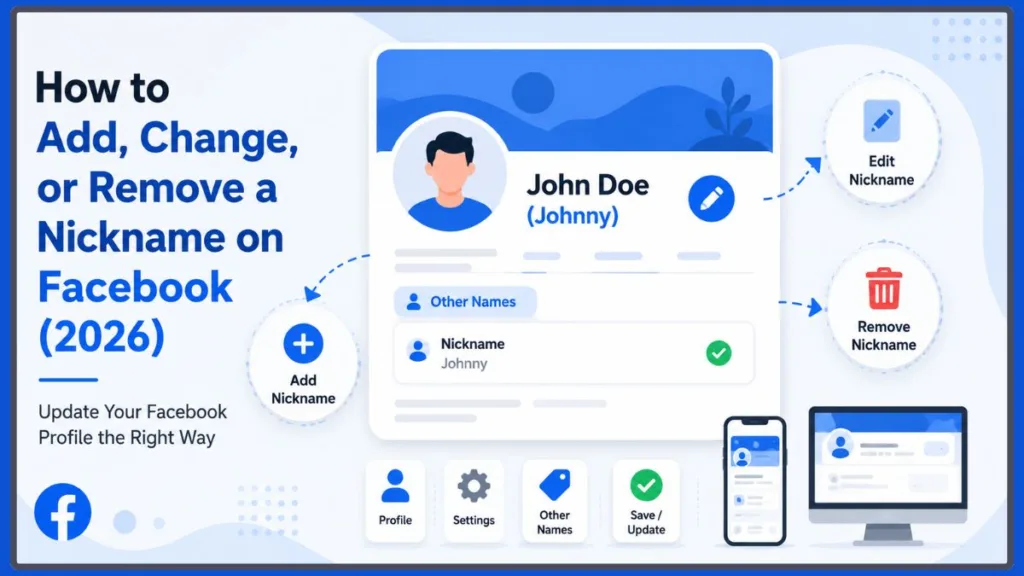
The good news: Facebook has a built-in feature for exactly this, tucked inside Accounts Center under what it calls Other Names. You can add, edit, or remove a nickname without ever touching your official profile name.
What Is a Nickname on Facebook?
The biggest reason people struggle with this is that Facebook treats nicknames and profile names as two entirely separate settings.
Your Facebook profile name is your primary identity on the platform. It’s what people use to find you in search, send friend requests, tag you in posts, and recognize your account. Because it represents your identity, Facebook enforces name standards requiring it to reflect the name you use in everyday life — no symbols, titles, or made-up words.
A Facebook nickname, on the other hand, is an additional name attached to your profile. It’s meant for names people already know you by, such as:
- A shortened first name
- A childhood or family nickname
- A professional or stage name
- A gaming alias
- A maiden name or former name
Instead of replacing your official name, a nickname complements it. Your profile could display as:
Jonathan Smith (John)
or
Samantha Brown (Sam)
This helps friends, classmates, or coworkers recognize you without altering your official identity on Facebook.
Your nickname is managed through the Other Names section — not the main Name field — which is exactly why so many people searching for “change nickname Facebook” land in the wrong place.
Good to know: Even though nicknames are far more flexible than your official name, they still have to follow Facebook’s Community Standards. Offensive language, impersonation attempts, or misleading names can get an Other Name removed even if your main profile name is untouched.
Nickname vs. Your Official Facebook Name
| Feature | Official Facebook Name | Facebook Nickname |
|---|---|---|
| Represents your primary identity | ✔ | ✘ |
| Used for login and account identity | ✔ | ✘ |
| Managed under Accounts Center → Name | ✔ | ✘ |
| Managed under Other Names | ✘ | ✔ |
| Limited to one change every 60 days | ✔ | ✘ |
| Can help friends recognize you | ✔ | ✔ |
| Intended for alternate or familiar names | ✘ | ✔ |
That last row matters more than people realize: your official name can only be changed once every 60 days, but your nickname isn’t bound by that same restriction. If you’re locked out of changing your legal name because you edited it recently, adding or updating a nickname is a perfectly valid workaround in the meantime.
Common Reasons to Add a Nickname on Facebook
People don’t usually search “how to change nickname in Facebook” because they want a different account name — they’re trying to make their profile feel more personal or easier for others to recognize.
Friends Know You by a Different Name
This is the most common reason. Maybe your official name is Christopher, but almost everyone calls you Chris. Adding a nickname bridges that gap so people searching for you see the name they actually use.
Tip: A nickname people already associate with you does far more for helping them find your profile than a stylized or decorative version of your name would.
You Have a Gaming or Online Alias
Gamers, streamers, and creators are often better known by their usernames than their real names. Adding that alias to your profile helps online friends confirm they’ve found the right account.
You Use a Professional or Stage Name
Writers, musicians, and freelancers sometimes go by a professional name different from their legal one. Rather than changing your entire display name, add it as a nickname so clients and followers can identify you.
You Recently Changed Schools or Workplaces
New environments mean new connections. Listing the name people already call you helps classmates or coworkers find the right profile without confusion.
Your Family Uses a Different Name
Relatives rarely use official first names. A childhood nickname or traditional family name added to your profile helps them recognize your account faster.
You Simply Prefer a Shorter Name
Sometimes it’s just about comfort. Common examples:
- Matthew → Matt
- Benjamin → Ben
- Katherine → Kate
- Jennifer → Jen
A nickname lets you keep your official name intact while still showing the version you actually go by.
Is a Facebook Nickname Private?
It’s easy to assume a nickname is a low-key, semi-private detail — but that’s not quite accurate.
Once you add a name under Other Names, it becomes visible in your About section and in Facebook search results by default, regardless of any other settings. If you also enable Show at top of profile, that nickname will additionally appear in parentheses next to your official name at the top of your profile — visible to anyone who can view it.
So while a nickname can genuinely help former classmates, colleagues, or clients recognize you (for example, if people know you as “Jenny” but your profile says “Jennifer”), it is not a privacy feature. Before saving one, think about whether you’re comfortable with that alternate name being publicly searchable.
If your real goal is limiting who sees your profile altogether, that’s a job for your Facebook privacy settings — not the nickname feature.
Fact: Other Names are included in Facebook’s people search and, if your profile is public, can also surface in outside search engines. Treat them as public information rather than a private label.
Facebook Nickname vs. Messenger Nickname vs. Group Nickname
One more source of confusion worth clearing up: Facebook actually has three different “nickname” features, and they don’t overlap.
- Profile nickname (Other Names): what this guide covers — a permanent alternate name attached to your account, visible in your About section and search.
- Messenger nickname: set per conversation from inside a chat’s settings. It only changes how a name displays within that specific Messenger thread and has no effect on your public profile.
- Facebook Groups nickname: a newer, group-specific option (where enabled by admins) that lets you post under a nickname and custom avatar instead of your real profile inside that particular group. It can only be changed roughly once every two days, and using it restricts certain features like video and private messaging within that context.
If you were actually looking for the Messenger or Groups version, the steps below won’t apply — but the logic of “separate name, same account” is the same across all three.
Fact: A Messenger nickname is only visible to people inside that specific chat. Friends outside the conversation — and anyone viewing your public profile — will never see it.
How to Add a Nickname on Facebook (Step-by-Step)
Now that you know the difference between your Facebook name and a nickname, here’s how to actually add one.
Facebook has gradually moved most name management into Accounts Center (sometimes labeled Meta account settings, depending on your rollout). If your app looks slightly different from the steps below, look for either Accounts Center or the older About > Details About You path — both lead to the same Other Names section.
Tip: Make sure you’re signed in to the correct account before starting, especially if you manage a linked Instagram or Meta profile.
On Android
- Open the Facebook app and tap your profile picture.
- Tap the menu icon, then go to Settings & Privacy → Settings.
- Tap Accounts Center, then select Profiles and choose your account.
- Tap Name, then scroll to Other Names.
- Tap Add a nickname, a birth name…
- Choose Nickname from the name-type dropdown.
- Enter the nickname you want to use.
- Toggle Show at top of profile if you want it displayed publicly next to your name.
- Tap Save.
If the change doesn’t appear right away, give it a few minutes and refresh the app.
On iPhone
- Launch the Facebook app and open your profile.
- Tap the menu icon > Settings & Privacy > Settings.
- Tap Accounts Center > Profiles, then select your account.
- Tap Name, then find Other Names.
- Tap Add a nickname, a birth name…
- Select Nickname as the name type.
- Type your preferred nickname.
- Choose whether to display it at the top of your profile.
- Tap Save.
Return to your profile afterward to confirm it saved correctly.
On a Computer (Desktop Browser)
- Sign in to Facebook and click your profile picture in the top-right corner.
- Select Settings & Privacy > Settings.
- Click Accounts Center, then Profiles, and choose your account.
- Click Name, then locate Other Names.
- Click Add Other Name.
- Select Nickname.
- Enter the nickname you’d like to use.
- Enable Show at top of profile if you want it publicly visible.
- Click Save.
Once saved, the nickname links to your profile without touching your official Facebook name.
Tip: If you manage a linked Instagram profile through Accounts Center, note that adding an Other Name on Facebook doesn’t automatically carry over to Instagram. Each app manages its own nickname and display settings separately.
How to Change an Existing Nickname on Facebook
Already have a nickname but need to update it — maybe you fixed a typo or just started going by something new?
- Open your profile and go to Accounts Center → Name → Other Names.
- Find your current nickname.
- Select Edit.
- Replace the old nickname with the new one.
- Save your changes.
Unlike your official name, editing a nickname isn’t restricted by the 60-day change limit, so you can update it as often as you genuinely need to. If you don’t see an Edit option on your version of the app, remove the existing nickname first and add a new one instead.
Fact: Facebook doesn’t publish a hard cap on how many times you can update Other Names, but changing it repeatedly in a short window can trigger a temporary review to guard against spam or impersonation.
How to Remove Your Facebook Nickname
Sometimes a nickname just doesn’t fit anymore — an old gaming handle, a childhood name, or something you’d rather not have displayed.
- Go to Accounts Center → Name → Other Names.
- Locate the nickname you want to remove.
- Select Edit or Delete, depending on your app version.
- Confirm the removal.
- Save your changes.
Once removed, only your official name remains visible. You can always add a new nickname later.
Nickname or Official Name: Which Setting Should You Update?
Before making any change, ask yourself one question: are you updating your legal name, or just adding a name people already call you?
If you’re changing your legal name — after marriage, for example, or a formal name change — you need to edit the main Name field in Accounts Center, which follows Facebook’s real-name policy and may require ID verification. That change is also capped at once every 60 days.
If you just want “Sam,” “Alex,” or “Jen” to appear without touching your legal identity, Other Names is the correct — and far less restrictive — path.
Tip: If Facebook flags your legal name change and asks for ID verification, you can still add the name you want to go by as a nickname in the meantime while that review is pending.
What Happens After You Save Your Nickname?
Facebook typically updates your profile right away, though it can occasionally take a few minutes to reflect everywhere. Once saved, your nickname may:
- Appear in parentheses beside your official name (if you enabled “Show at top of profile”)
- Show up in your profile’s About section
- Surface in Facebook search results, helping people recognize your account faster
Facebook periodically updates its interface, so the exact appearance can shift slightly over time — but the underlying Other Names feature has remained stable for years.
Tips Before Changing Your Facebook Nickname
Choose a Nickname People Already Know You By
The feature works best for names people already associate with you — a shortened first name, a family nickname, or a long-used professional name. A random or unrelated nickname can actually make it harder for people to find you.
Don’t Confuse a Nickname With Your Official Name
If your real goal is a legal name update, use the main Name setting instead. Save the Other Names field for anything that isn’t meant to replace your legal identity.
Check Where Your Nickname Will Be Visible
Remember that Other Names show up in your About section and search results by default — and at the top of your profile if you opt in. Decide in advance whether you’re comfortable with that level of visibility.
Keep Your Nickname Consistent Across Platforms
If you use the same nickname on Instagram, X, or professional profiles elsewhere, matching it on Facebook makes you easier to recognize across platforms and reduces confusion for anyone searching for you online.
Frequently Asked Questions
How do I add a nickname on Facebook?
Go to Accounts Center → Name → Other Names, tap Add a nickname, a birth name…, choose Nickname, enter the name, and save. This adds an alternate name without touching your official Facebook name.
How do I edit an existing nickname?
Open Other Names, select Edit next to your current nickname, update the text, and save. If your app doesn’t show an edit option, delete the old nickname and add a new one.
Can I remove my nickname later?
Yes. Return to Other Names at any point and delete it — there’s no limit on how often you can remove or re-add one.
Will my nickname appear next to my Facebook name?
Only if you enable Show at top of profile while adding or editing it. Otherwise, it still appears in your About section and in search results, just not at the top.
Is a Facebook nickname different from my display name?
Yes. Your display name (official name) identifies your account and is used for login and recognition. A nickname is a separate, additional name stored under Other Names — it never replaces your primary identity.
Can I change my nickname without changing my official Facebook name?
Absolutely — that’s the entire purpose of the Other Names feature. You can add, edit, or remove a nickname while your official name stays exactly the same.
Does the 60-day name-change limit apply to nicknames too?
No. The 60-day restriction applies only to your official Facebook name. Nicknames under Other Names can be added, edited, or removed without waiting out that window.
Why can’t I find the nickname option on Facebook?
Try updating the Facebook app, switching to a desktop browser, or checking whether your account has migrated to Accounts Center. Some accounts still see the older About → Details About You path — both lead to the same Other Names section.
Final Thoughts
Searching for how to change nickname in Facebook often leads people to the wrong setting simply because Facebook keeps your official name and your nickname in two separate places.
If all you want is to show the name your friends, classmates, or colleagues already call you, there’s no need to touch your primary profile name at all. The Other Names feature under Accounts Center lets you add, edit, or remove a nickname freely — without the restrictions, review requirements, or waiting periods that come with changing your legal name on Facebook.
We hope this guide helped you understand not just how to update your Facebook nickname, but when it makes more sense to use one instead of changing your official name altogether.
Remember: Your official name change is capped at once every 60 days — your nickname isn’t. When you’re unsure which setting to update, that difference is the easiest way to decide.
Visit Our Post Page: Blog Page
Discover more from Izoate
Subscribe to get the latest posts sent to your email.