
You open Amazon to check a delivery, find something in your order history, or buy a product you’ve been meaning to get. Instead of the familiar English menus, you see Mi cuenta, Mis pedidos, and Configuración.
You haven’t necessarily changed your account, and you don’t need to start resetting things at random. The first step is to find out whether Amazon’s language setting is Spanish, you’re using a different Amazon store, or your browser is translating the page.
For most readers, the fix starts in Amazon’s language settings. Open the website or app where Spanish appears, choose your intended Amazon store, and select English from the available languages.
The important detail is that Amazon’s desktop and mobile app language preferences don’t automatically synchronize. Its language-preference instructions also explain that available languages depend on the selected store.
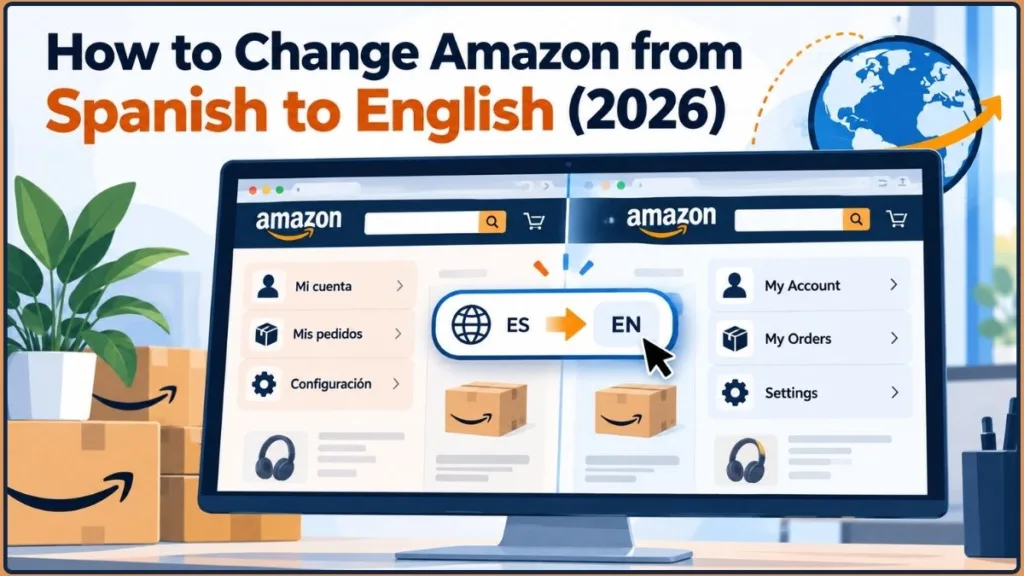
This guide helps you change Amazon from Spanish to English without unnecessarily changing your shopping region, disturbing a working device, or transferring your account to another country.
Quick Fix: Change Amazon from Spanish Back to English
Start with the place where you’re seeing Spanish. You don’t need to change every device or reset your account.
- Open the Amazon website or app showing Spanish.
- Find the account settings or language selector.
- Open the flag or language control and locate the Country/Region options, if shown.
- Select the Amazon store you actually want to shop on.
- Choose English from the languages available for that store.
- Confirm your selection if prompted, then refresh the page or reopen the app.
Amazon’s current help instructions describe selecting the account settings control, opening the flag icon, choosing a store under Country/Region, and then selecting an available language.
If English is missing, don’t immediately switch countries. First confirm which Amazon store you’re using and whether you’re changing the website or app.
Quick tip: If you normally shop on Amazon.com, keep that store selected while changing its language. Amazon.com supports both English-US and Spanish-US language preferences, so a Spanish interface doesn’t necessarily mean you’ve landed on the wrong website. You can verify the supported US locale options in Amazon’s marketplace documentation.
Change Amazon’s Website from Spanish to English on a Computer
If Amazon.com is showing Spanish on your computer, focus on Amazon’s website settings first. Changing your Windows language or reinstalling Chrome is unnecessary unless you’ve identified a separate problem with those settings.
Step 1: Find Amazon’s Language Selector
Open the Amazon website you normally use.
Look for the flag, globe, or language control in the navigation area. Depending on the current layout, the language options may also be accessible through the account settings menu.
If the labels are unfamiliar, these Spanish words can help you recognize the relevant controls:
| Spanish label | English meaning |
|---|---|
| Idioma | Language |
| País/Región | Country/Region |
| Inglés | English |
| Configuración | Settings |
| Guardar cambios | Save Changes |
| Hecho | Done |
| Mi cuenta | My Account |
| Mis pedidos | My Orders |
The labels and their placement can vary. If you cannot find the selector, compare your screen with Amazon’s language-preference instructions.
Step 2: Select English and Save Your Preference
Open the language options and select English, provided it’s available for your chosen store.
If Amazon asks you to save or confirm the choice, complete that step. Then return to the shopping page and check the account menu and navigation.
Don’t judge the result by one product description alone. If the menus are English but an individual product listing remains Spanish, the website’s language preference may already be correct.
Practical tip: Test the same page after saving, then open another page on the same Amazon website. Keeping the store and browser unchanged helps you confirm whether the language preference itself has been corrected.
Step 3: Confirm You’re Using the Amazon Store You Intended
If English isn’t listed, check the selected store before changing anything else.
For example, if you normally shop on Amazon.com, verify that you haven’t opened Amazon.es by mistake. If you normally use Amazon.co.uk or Amazon.ca, check that marketplace instead.
Language availability depends on the selected store. Some website features and communications may also remain unavailable in the preferred language.
Don’t change marketplaces just to force English to appear. A different Amazon storefront can change the products, prices, delivery options, and shopping experience you see.
Once you’ve confirmed the right store and saved an available English option, refresh the page and check the result.
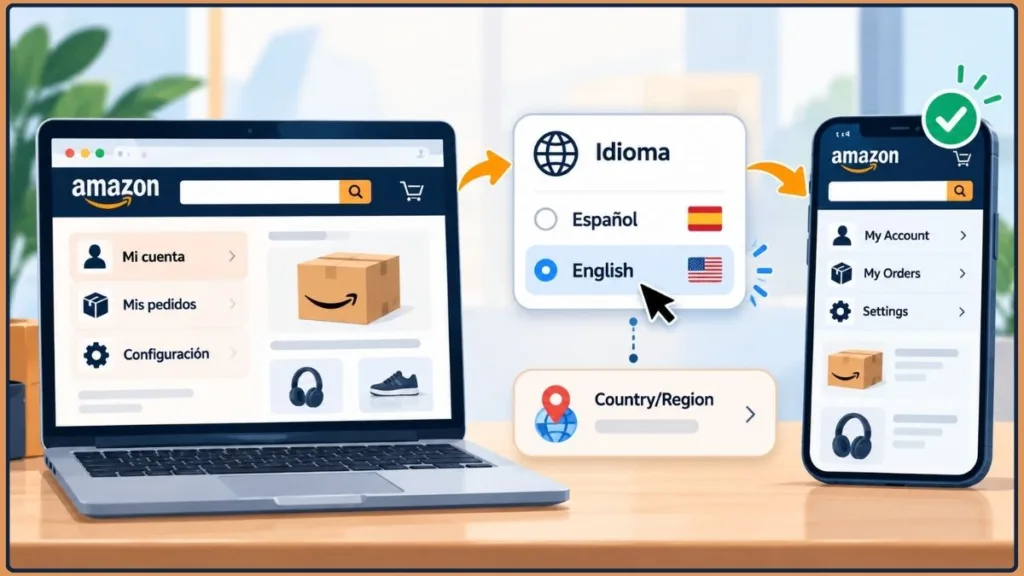
Change Amazon from Spanish to English on Your Phone
Before following any mobile instructions, establish how you opened Amazon. The Amazon Shopping app and the website in Chrome or Safari use different settings, so the fix depends on which one is displaying Spanish.
Change Amazon’s Language in a Mobile Browser
If you’re using Chrome, Safari, or another mobile browser:
- Open Amazon in your browser.
- Open the account settings or language selector.
- Find the language and Country/Region options.
- Select the store you intend to use.
- Choose English if it’s available.
- Confirm the selection and revisit the page.
The controls may appear in a different location on a smaller screen. Amazon’s language-preference guide is useful if the selector isn’t obvious.
If Amazon is English in your mobile browser but Spanish in the installed shopping app, leave the working website setting alone. You’ll need to change the app’s preference separately.
Mobile tip: If tapping an Amazon link opens the shopping app automatically, check which environment you’re actually using. Browser instructions may not match the controls inside the app.
Change Amazon’s Language in the iPhone App
Open the Amazon Shopping app and go to the account or user tab.
Depending on your app version, you may find a flag icon or a Country & Language option in the account or settings area.
- Open the Amazon Shopping app.
- Open the account or user tab.
- Find the country flag, language selector, or Country & Language option.
- Select the Amazon store you intend to use.
- Choose English from the available languages.
- Confirm the selection if prompted.
- Return to the shopping screen and check the result.
Amazon’s app country-selection guide describes using the user tab and flag icon to access country, language, and currency choices. The exact menu placement can vary between versions and marketplaces.
If the screen looks different, look for the equivalent country or language control instead of following an outdated screenshot.
Don’t change your iPhone’s primary language just to fix Amazon. Apple’s iPhone language instructions explain how to change the device language through Settings → General → Language & Region. That affects your wider device experience, while the problem may be limited to one shopping app.
Change Amazon’s Language in the Android App
On Android, begin with the Amazon Shopping app’s own settings.
- Open the app and go to the account or user section.
- Find the language selector or Country & Language controls.
- Select your intended Amazon store.
- Choose English if it’s available.
- Confirm the change and check the shopping screen again.
If the app remains in Spanish, close and reopen it before trying more disruptive fixes.
Use Android’s Per-App Language Setting if Available
Android also supports individual app-language settings on compatible devices. This is separate from the phone’s overall language.
Google’s Android app-language guide explains that some steps require Android 14 or later and that only apps supporting language selection appear in the app-language list.
If your phone supports the feature, open Settings → System → Languages → App Languages, select Amazon if it appears, and choose English.
If Amazon isn’t listed, that doesn’t automatically mean something is wrong. The app may not expose its language through Android’s per-app settings, so use Amazon’s own language controls instead.
Google recommends updating the app, restarting it, and checking the network connection if a supported app-language change doesn’t take effect.
Android tip: If your other apps are already in English and only Amazon is showing Spanish, start with Amazon’s settings. Changing your phone’s global language is a broader solution for a problem that may be limited to one app.
Why Is Amazon Suddenly in Spanish?
If you didn’t deliberately change the language, it’s reasonable to wonder why the interface looks different. But the language alone doesn’t tell you what caused the change.
Check what you can observe before attempting a fix.
Amazon’s Language Preference Is Set to Spanish
Open Amazon’s native language settings and check the selected option.
If Spanish is selected, choose English if it’s available and confirm the change. You don’t need to change unrelated account details simply because the interface language is wrong.
One useful detail: Amazon’s US marketplace supports a Spanish-language shopping experience as well as English. Its US marketplace locale reference lists English-US (en_US) and Spanish-US (es_US) as valid preferences.
So, if the address bar already shows Amazon.com, don’t assume you’ve landed on a different country’s website. The saved language preference may simply need correcting.
You’re Using a Different Amazon Marketplace
Check the website address and selected store.
Amazon operates separate regional marketplaces, and available languages can vary. A Spanish interface alone doesn’t prove that you’re on the wrong store, but checking the website can rule out an accidental marketplace change.
For example, if you intended to shop on Amazon.com but opened Amazon.es, returning to the US store may be the right action. If you’re already on Amazon.com, inspect its language settings first.
Language and marketplace are separate choices. Don’t give up the products, prices, and delivery options you expect just to restore English.
The Website Is English but the App Is Spanish
Imagine that you changed Amazon on your computer and the website now looks right. You open the shopping app on your phone, however, and the menus are still Spanish.
This doesn’t necessarily mean the first change failed. Amazon confirms that desktop and mobile app language preferences do not automatically synchronize.
If the website is correct, leave its setting alone and change the app’s language directly.
Chrome Is Translating the Amazon Page
If Amazon’s own language preference is English but the page appears Spanish, check whether Chrome is translating it.
On a computer:
- Open the affected Amazon page.
- Select Chrome’s Translate control next to the address bar, if available.
- Check the translation target.
- Return to the original page or choose English as the target language if needed.
Google’s Chrome translation guide explains how to translate webpages and change translation settings.
Don’t assume browser preferences caused the language switch. First establish whether translation is active.
Only One Product Listing Is in Spanish
If Amazon’s navigation and account menu are English but one product description is Spanish, the main language preference may already be working.
Product titles, seller-written descriptions, packaging information, and customer reviews can use a different language from the interface.
For example, you might browse Amazon in English but open a listing where the seller describes Spanish-language packaging. Changing the website’s language won’t necessarily translate every piece of product content.
Open another product page and check the account menu. If those remain English, don’t keep resetting Amazon’s language because of one listing.
Amazon Emails or Notifications Are Still in Spanish
If the website and app are in English but certain communications remain Spanish, the problem may be limited to those messages.
Amazon notes that some website features and communications may not be available in the preferred language.
Check the relevant account and marketplace preferences. If only particular emails or notifications are affected, keep an example and contact Amazon support rather than repeatedly changing the website language.
Amazon Is Still in Spanish After You Selected English
If you’ve already selected English and the page hasn’t changed, repeating the same steps may not help. Use the symptom that matches what you’re seeing.
| What you see | What to check first |
|---|---|
| The entire website is still Spanish | Saved language preference and selected store |
| The website is English but the app is Spanish | App-specific language settings |
| Amazon is Spanish only in Chrome | Browser translation |
| One product listing is Spanish | Product-specific content |
| English is missing from the language list | Available languages for the selected store |
| Only some emails remain Spanish | Account preferences and communication availability |
English Is Selected, but Amazon Still Shows Spanish
Check three details:
- Was the preference saved? Complete any required confirmation step.
- Are you using the same Amazon website? Amazon advises checking that you’re signed in to the marketplace where you set the preference.
- Did you change the affected environment? The desktop setting doesn’t automatically update the app.
Refresh the page after checking these details.
Troubleshooting tip: Change one relevant setting at a time. If you change the language, switch marketplaces, clear browser data, and reinstall the app at once, you won’t know which action fixed the problem.
English Works on Desktop but Not in the App
Leave the working desktop setting alone.
Open the Amazon Shopping app, check its own language or Country & Language controls, and select English where available. Confirm the intended store, then reopen the app.
This targets the environment where the problem actually appears.
Amazon Is Spanish in One Browser Only
Check whether the browser is translating the page.
Open the same Amazon URL in another browser and compare the result. If the second browser displays English, investigate the translation settings in the first browser rather than resetting your Amazon account.
Keep the URL and marketplace the same during the test. Otherwise, you may be comparing two different Amazon stores instead of testing whether the browser explains the difference.
English Is Missing From Amazon’s Language Options
Amazon’s language-preference instructions say available languages depend on the selected store.
Check the marketplace and available languages before making a regional change. If English isn’t listed, consult Amazon’s language-preference guide or customer support.
Don’t switch countries simply to obtain English unless you actually intend to shop on another Amazon marketplace.
Amazon Keeps Switching Back to Spanish
If the language appears to revert, use this sequence:
- Confirm that English remains selected in Amazon’s settings.
- Verify the marketplace you’re browsing.
- Check the app independently if the problem occurs there.
- Inspect browser translation if the issue is limited to one browser.
- Refresh the page or reopen the app and test again.
If the problem continues, contact Amazon support and explain where Spanish appears, which store you use, and what you’ve already checked.
Avoid clearing all cookies or reinstalling the app as your first response. Those steps may remove saved data or require another sign-in without resolving the actual language mismatch.
Amazon Language vs. Country and Region Settings
If you’re worried about changing the wrong setting, this distinction matters.
- Language preference controls the preferred language for supported parts of Amazon’s interface.
- Store or marketplace selection determines which regional Amazon storefront you browse or shop on.
- Account-country transfer is a separate process that moves the country or region associated with your Amazon account and can affect digital content and account services.
Amazon’s guide to changing country in the Amazon app explains that selecting another storefront lets you browse and shop there while your account remains linked to its original country. A formal account transfer is different.
Can You Change Amazon to English Without Changing Your Country?
Yes, if English is available for your intended marketplace.
If you normally shop on Amazon.com and the interface is Spanish, select English in its language settings. You don’t need to switch to Amazon.co.uk or another store simply to restore English.
How to Change Amazon Mexico from Spanish to English
If you use Amazon Mexico and want English, open the store’s language options and check whether English is available.
If it is, select it and confirm the change. If it isn’t available, browser translation can help you read the page while you check the supported language options.
If you genuinely need to browse another Amazon storefront, Izoate’s guide to changing country in the Amazon app explains how storefront selection differs from account migration.
Why You Shouldn’t Transfer Your Amazon Account Just to Change the Language
Changing an account’s country is a much bigger step than changing a display preference.
Amazon’s account-country transfer instructions explain the process and its consequences. Its account-country transfer limitations detail restrictions that can affect purchases and services.
Depending on your account and destination marketplace:
- Gift-card balances and promotional credits do not transfer to the new marketplace; they remain available in the original marketplace.
- You’ll need to enter billing details and payment methods for the new marketplace.
- Pending digital orders may be cancelled during the transfer process.
- Digital purchases, subscriptions, and account services can be subject to country-specific rules.
Those consequences are significant for a problem that may require only selecting English.
Important warning: Don’t transfer your Amazon account to another country just to test whether it fixes the language. Review Amazon’s official transfer requirements before making a genuine country change, especially if you have digital purchases, gift-card balances, or active subscriptions.
Translate an Amazon Page Into English With Chrome
If Amazon’s own language options don’t solve your immediate problem, browser translation can help you understand an unfamiliar page.
Remember the distinction: browser translation changes how the page is displayed in that browser; Amazon’s language preference is a separate setting.
Translate an Amazon Page in Chrome on a Computer
Chrome provides a Translate control beside the address bar when translation is available. You can also use the right-click menu.
- Open the Amazon page in Chrome.
- Select the Translate control beside the address bar, if it appears.
- Choose English as the target language.
- Alternatively, right-click the page and select the available translation option.
- If translation doesn’t work, refresh the page and try again.
Google’s Chrome translation guide explains how to translate pages and manage the translation target.
Translate an Amazon Page in Chrome on Android
Open the Amazon page in Chrome and look for a translation prompt near the top of the screen.
If it doesn’t appear:
- Tap the three-dot menu beside the address bar.
- Choose Translate, if available.
- Select English as the target language.
For more options, use Google’s Chrome translation guide for Android.
Translate an Amazon Page in Chrome on iPhone
On an iPhone, open the Amazon page in Chrome and select the language control at the top if it appears.
If there is no translation prompt:
- Tap the three-dot More menu.
- Select Translate, if available.
- Choose English as the target language.
- If Chrome doesn’t offer translation, refresh the page and check again.
Google’s Chrome translation guide for iPhone and iPad explains how to request translations and manage translation preferences.
Does Browser Translation Change Amazon’s Saved Language?
No, not necessarily.
Browser translation changes how a webpage appears in that browser. Amazon’s saved language preference is a separate setting.
If Amazon itself is set to Spanish, changing Chrome’s translation target doesn’t necessarily update Amazon’s preference. Conversely, if Amazon is already set to English but Chrome is translating the page, change the browser’s translation settings rather than changing Amazon again.
Amazon Is in English, but Prime Video Is Still in Spanish
If the shopping website is working correctly but Prime Video is still in Spanish, you need a separate fix. Prime Video’s interface language, a movie’s audio, and its subtitles are different settings.
Change Prime Video’s Interface Language
If the Prime Video menus are Spanish, check Prime Video’s own interface-language settings.
Don’t keep changing the Amazon Shopping language if the shopping interface already works in English.
Change a Movie’s Audio or Subtitle Language
If the menus are English but a film plays in Spanish, open the playback controls.
Amazon’s alternative-audio instructions for Prime Video explain how to open Audio & Languages during playback on supported devices and select an available track. For subtitles, use the subtitle or caption controls and choose English if offered.
Not every title includes every audio or subtitle language, and the available controls depend on the device. Amazon’s subtitles and captions guide explains the available options.
If English audio or subtitles aren’t listed, changing the shopping interface won’t add them. Check the options available for the particular title you’re watching.
Frequently Asked Questions
How Do I Change My Language on Amazon?
Open Amazon’s language settings, confirm your intended store, and choose English from the available languages. Confirm the selection if prompted.
How Do I Fix Amazon in Spanish?
Start with Amazon’s native language settings. If the website remains Spanish, verify the saved preference and selected marketplace. If only the app is Spanish, change the app’s preference separately.
Why Does Amazon Switch to Spanish?
Check whether the saved language preference is Spanish, whether you’re browsing a different marketplace, or whether your browser is translating the page. Identify where Spanish appears before changing additional settings.
Why Is My Amazon App in Spanish When the Website Is in English?
Amazon’s desktop and mobile app language preferences don’t automatically synchronize. Open the Amazon Shopping app and check its own language and store settings.
How Do I Keep Amazon in English?
Choose English for the Amazon environment you use and verify the correct store is selected. If you use both the website and app, check the preference in each one.
Why Is Amazon Still in Spanish After I Changed the Language?
Confirm that the preference was saved, you’re using the intended Amazon website, and the browser isn’t translating the page. If only the app is affected, check its own preference.
Why Are My Amazon Emails Still in Spanish?
Amazon notes that some communications may not be available in the preferred language. Review the relevant account and marketplace settings and contact Amazon support if the problem continues.
Can I Change Amazon Mexico from Spanish to English?
Check whether English is available for your intended Amazon Mexico store. If it is, choose it. If it isn’t, browser translation can help you read the page while you review the available options.
How Do I Change Amazon Prime Video from Spanish to English?
Use Prime Video’s own interface-language settings. If the menus are English but a film’s audio or subtitles are Spanish, use the playback controls to select an available English option.
Get Amazon Back to English Without Changing the Wrong Setting
If Amazon suddenly appears in Spanish, you don’t need to overhaul your account. Start with the language setting in the environment where the problem appears.
If the website is Spanish, check the website’s language preference. If the website is English but the app isn’t, fix the app separately. If English is missing, confirm your intended marketplace. If only one browser shows Spanish, inspect its translation settings. If product details or emails remain Spanish, investigate those specific elements instead of resetting the whole interface.
The right fix starts with one question: where exactly is Amazon showing Spanish? Once you know that, you can change the setting that controls it, verify the result, and avoid unnecessary account or country changes.
For more help with Amazon’s language controls, start with its language-preference instructions.
Visit Our Post Page: Blog Page
Discover more from Izoate
Subscribe to get the latest posts sent to your email.