
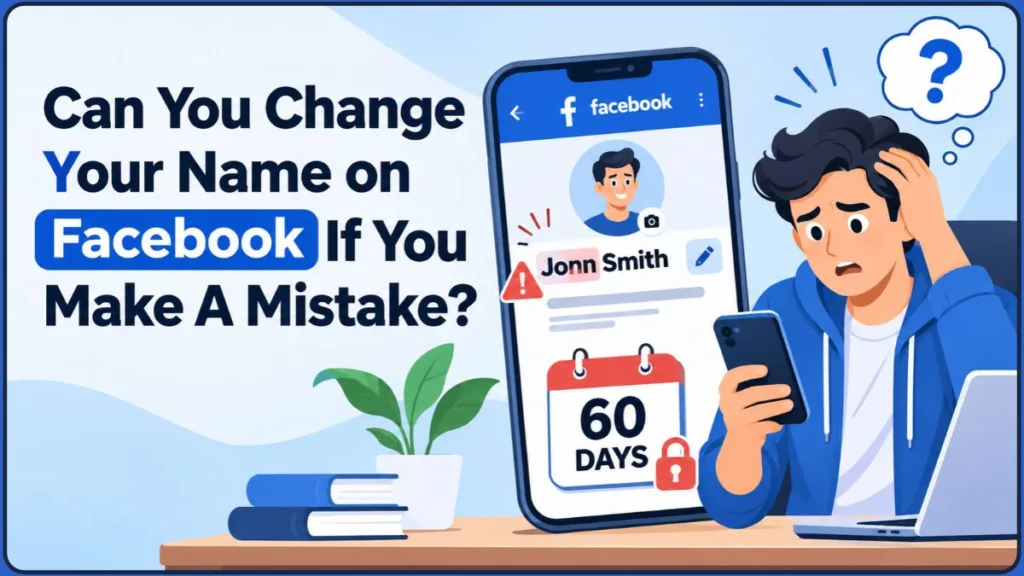
Changed your Facebook name by mistake? That tiny typo can feel like a big problem, especially when Facebook says to wait 60 days. Don’t panic just yet.
You change your Facebook name, tap Save, and then notice something is wrong. Maybe a letter is missing, the spelling is incorrect, or you entered the wrong last name. Now you’re frantically searching, “Can you change your name on Facebook if you make a mistake?”
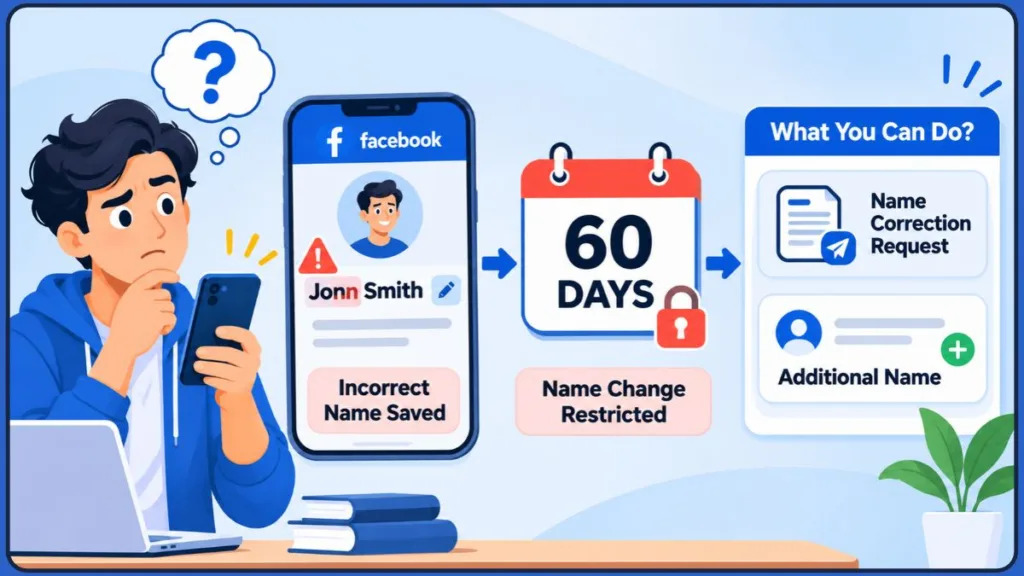
Let’s answer that right away: yes, you can correct a Facebook name mistake, but not always immediately. After changing your name, Facebook generally prevents another change for 60 days. So, if you’ve just saved an incorrect name, you may have to wait until that restriction expires before editing it again.
The good news is that you have options to explore. You can check Facebook’s name-change settings, request help through its official contact form, and use additional name features while waiting. However, submitting a correction request doesn’t guarantee that Facebook will remove the 60-day restriction.
This guide walks you through how to change your name on Facebook if you make a mistake, how to edit your profile name on mobile and desktop, what to do if Facebook won’t accept your name, how to contact Facebook about a name problem, and how to handle special situations such as marriage or a legal name change.
Can You Correct a Facebook Name Mistake?
Yes, you can correct a mistake in your Facebook name, but whether you can do it immediately depends on when you last changed it.
If you haven’t changed your name within the previous 60 days, you can generally edit it again through your profile settings.
However, if you’ve already saved an incorrect name within that period, Facebook will normally block another change until the 60-day restriction ends. Its Name settings display a warning about this restriction before you submit a change.
That means even a small spelling mistake can remain visible on your profile for up to two months. It’s frustrating, particularly when you notice the error immediately after saving, but it doesn’t mean your account is permanently stuck with the incorrect name.
You can still check whether Facebook offers a name-review or correction request for your situation. Just remember that an early correction isn’t guaranteed.
How Long Do You Have to Wait Between Facebook Name Changes?
Facebook generally allows you to change your profile name once every 60 days. After saving a change, you cannot normally change it again until that waiting period ends.
This restriction is part of Facebook’s broader approach to maintaining authentic profiles and reducing identity misrepresentation. Meta requires people to use the name they go by in everyday life so that others can recognize who they’re connecting with. Its naming standards also help prevent impersonation.
You can read Meta’s official Facebook name policy for more information about the names allowed on the platform.
Tip: Treat the Save button as final. Read your name carefully before confirming the change, including the spelling of your first, middle, and last names.
Why Facebook Won’t Let You Change Your Name
If the Name option is greyed out or Facebook displays an error when you try to edit your profile, several things could be causing the problem.
The most common reasons include:
- You changed your name within the last 60 days. This is one of the most common reasons Facebook prevents another name change.
- Your new name doesn’t follow Facebook’s name rules. Facebook restricts certain symbols, numbers, unusual capitalization, titles, and other name formats.
- Your account needs verification. Facebook may ask you to confirm your name before allowing you to continue.
- A temporary app or browser glitch. The settings page might not be loading or saving correctly. Trying another device or the desktop version can help identify the problem.
If you’re also asking, “Why can’t I change my username on Facebook?”, remember that your display name and username are two different things.
Your display name is the name people see on your Facebook profile, while your username is used in your profile URL. They have separate settings, so changing your display name won’t automatically change your username.
How to Correct Your Facebook Name: Step-by-Step
Facebook is transitioning Accounts Center to a new interface called Meta Account. Meta announced this change on April 23, 2026, and confirmed that the rollout would happen gradually over the following year.
As a result, you might still see Accounts Center or see the newer Meta Account label, depending on whether your account has received the update. Some Meta Account layouts also place the profile settings behind an account or profile card.
The exact menu wording can vary slightly depending on your app version and device. Look for Accounts Center or Meta Account when following the instructions below.
2026 Meta update: Meta says Accounts Center will automatically transition to Meta Account through a gradual rollout over the following year. Your connected apps and devices will carry over automatically, and Meta says the change won’t alter your usual day-to-day app experience. You don’t need to create a separate account just because the settings interface receives the new name.
Change Your Facebook Name on iPhone and Android
You can access your Facebook profile name settings through the mobile app. Follow these steps:
- Open the Facebook app on your iPhone or Android device.
- Tap the menu (your profile picture or the three-line menu icon).
- Tap Settings & privacy, then select Settings.
- Open See more in Accounts Center or Meta Account, depending on which option appears.
- If Meta Account opens a separate account overview, tap the account or profile card to access your connected profiles.
- Tap Profiles and select your Facebook profile.
- Tap Name.
- Edit your first, middle, or last name as needed.
- Tap Review change, check the preview, and select Save changes.
Tip: If the Name option is greyed out or Facebook displays a message about the 60-day limit, your previous name change may still be restricted. Check the date of your last change before trying again.
Change Your Facebook Name on a Desktop
You can also update your Facebook profile name using a desktop browser. Follow these instructions:
- Open Facebook and click your profile picture in the top-right corner.
- Go to Settings & privacy > Settings.
- Click See more in Accounts Center or open Meta Account, depending on the interface available to you.
- If Meta Account displays an account overview, select the relevant account or profile card.
- Choose Profiles, then select your Facebook profile.
- Click Name.
- Enter the corrected name and select Review change.
- Check the preview and choose how your name should appear.
- Enter your password if Facebook asks for it, then click Save changes.
These instructions follow the general profile-name settings process described in Meta’s Facebook Help Center. The interface can look different during the transition from Accounts Center to Meta Account.
Tip: The desktop version provides a larger preview, which can make spelling mistakes easier to notice before saving your changes.
How to Edit One Part of Your Facebook Name
You don’t have to re-enter your entire name if only one part needs correcting.
Facebook’s Name screen provides separate fields for your first, middle, and last names. This allows you to edit the field containing the mistake while leaving the other information unchanged.
For example, if your first and middle names are correct but your last name contains a spelling error, you can edit just the last-name field.
However, things are slightly different if you’re trying to use Facebook without a last name.
The regular Name screen asks for both a first name and a last name. Facebook provides a separate request process for people who genuinely use only one name, known as a mononym.
If you already have a Facebook account, you can request a one-word name through the “Changing your name” contact form. When the form asks for both a first name and last name, Facebook’s mononym instructions say to enter the same name in both fields and explain that you use a single name.
Facebook will review the request before updating your profile. Entering the same word twice does not automatically guarantee approval.
Why Facebook May Reject Your Name and What to Do
You’ve entered the correct name, reviewed the spelling, and tried to save it. However, Facebook still refuses to accept the change.
This can be one of the most frustrating parts of correcting a Facebook name mistake. Before requesting help, check whether your chosen name follows Facebook’s naming requirements.
Common Reasons Facebook Rejects Profile Names
If you’re seeing messages such as “Facebook not accepting my name” or “Facebook won’t accept my name,” check whether your profile name contains anything that violates Facebook’s standards.
Facebook doesn’t allow symbols, numbers, unusual capitalization, repeating characters or punctuation, characters from multiple languages, titles of any kind, or words and phrases instead of a person’s name. Offensive or suggestive words aren’t allowed either.
Here are some common reasons Facebook may reject a name:
- Symbols, numbers, repeating characters, or unusual punctuation: Your name shouldn’t contain unnecessary special characters or number combinations.
- Odd capitalization: Names written entirely in capital letters or with random capital letters may not meet Facebook’s naming standards.
- Titles of any kind: Professional or religious titles, such as Dr. or Prof., aren’t allowed as part of your profile name.
- Characters from several different languages mixed together: Combining characters from multiple languages within one name may lead to rejection.
- Words or phrases instead of a name: Facebook doesn’t allow phrases or names that represent a business or organization in place of an individual’s personal profile name.
- Offensive or suggestive words: Names containing offensive or inappropriate terms aren’t accepted.
- A recently changed name: Even if your new name follows Facebook’s other requirements, the 60-day restriction may prevent another update.
If Facebook rejects your name, check the reason for the rejection and correct any issue you can identify. Once you’re eligible to make another change, try again. If Facebook asks you to confirm your identity or provides a review option, follow the instructions displayed for your account.
What Facebook’s Name Policy Requires
Facebook expects people to use the name they go by in everyday life. This should generally be the name their friends and family recognize and use when addressing them.
Meta also explains that Facebook allows additional names, such as chosen names, maiden names, nicknames, and professional names. These can be listed separately from your primary profile name.
A nickname can also be used as a first or middle name when it is a variation of your authentic name. For example, someone named Robert may use Bob.
The purpose of these rules is to help people recognize who they’re connecting with and reduce impersonation and identity misrepresentation.
For the complete requirements, check Facebook’s official What names are allowed on Facebook? guidance.
Can You Use a Fake Name on Facebook?
No. Using a fake name that doesn’t reflect the name you go by in everyday life goes against Facebook’s naming standards.
This can result in your name change being rejected or Facebook asking you to confirm your identity.
However, you don’t necessarily have to use only your full legal name in every situation. Facebook provides an additional-name feature for people who want to display another name, such as a nickname, maiden name, or professional name, alongside their primary profile name.
If you want people to recognize you by a different version of your name, using an eligible nickname or additional name is the appropriate option. You can find more information in the section about what to do while you wait.
When Facebook Requests Name Verification or ID
Sometimes Facebook asks you to confirm your name before allowing you to continue using certain account features.
If you see a message requesting name confirmation, you may temporarily be unable to use some Facebook features while the platform reviews your information. Follow the instructions displayed in your account.
Facebook may ask you to upload an identification document or another item from its accepted ID list that shows your name.
A government-issued ID isn’t your only option. According to Meta’s official list of supported identification documents, you may be able to submit:
- One government-issued ID: It must show your name along with either your date of birth or your photograph. Examples include a driving licence, national identity card, passport, or birth certificate.
- Two different non-government IDs: Both documents must show your name, and at least one must also show your date of birth or photograph. Examples include a student card, library card, employment verification, diploma, or loyalty card.
The name on the documents must match the name you want to display on your profile. Meta may also accept other qualifying documents, depending on the verification process.
Tip: Only upload documents through Facebook’s official verification prompts or Meta’s official Help Center. Follow the document requirements shown on your screen and avoid sharing identification with third-party services claiming they can fix your name.
Important ID upload guidance: Meta advises submitting only the documents requested because sending extra documents may delay the review. Do not digitally edit an ID photo to hide or cover information. However, Meta says you can physically cover non-essential information before taking the photo. Make sure the document is clearly readable and photographed straight-on, with all four corners visible.
How to Request a Facebook Name Review or Contact Support
Before submitting a request, it’s important to understand what contacting Facebook can and cannot do.
A name correction request is not a guaranteed way to bypass the 60-day restriction. Facebook may review your situation, but Meta does not promise that submitting a request will shorten the waiting period or approve an immediate correction.
Still, if you’ve made a genuine mistake, such as entering the wrong spelling or saving an incorrect name, you can use Facebook’s available name-change support process to explain the problem.
Also, be careful with anyone claiming they can skip the 60-day limit for you. Third-party sellers cannot change Meta’s rules, and you should never share your Facebook password or verification codes with them.
How to Submit the Facebook Name-Change Request Form
Facebook doesn’t officially call its regular name-related contact option an “appeal form.” It is known as the “Changing your name” contact form.
Meta’s Help Center directs people who are having trouble changing their names to its available name-related support process.
To find and use the form:
- Open Facebook’s official Help Center guidance on changing your name.
- Look for the link that allows you to tell Facebook you’re having trouble changing your name. The wording and location may vary.
- Open the “Changing your name” contact form when the option is available.
- Enter the name you want to display on your account in the new first-name and last-name fields.
- Add your middle name if the form provides an optional field.
- Follow any instructions about identification documents. If Facebook requests an ID or the form requires supporting information, provide the appropriate documents through the official submission process.
- Review your details and submit the request.
- Check your registered email address and Facebook notifications for any response or further instructions.
Facebook may change how its Help Center forms are labelled or accessed. If you can’t find the form through the article, search the Help Center for “Changing your name”.
You can also try the Facebook name-change contact form. You may need to log in to access it, and its availability or requirements can depend on your account and the issue you’re reporting.
Remember that submitting this form doesn’t guarantee approval or an exception to the 60-day restriction.
How to Report a Facebook Name-Settings Problem
If you can’t find the name-change form, you can also use Facebook’s in-app Help & support options to report a technical problem with the name settings.
Follow these steps:
- Open the menu in the Facebook app or click your profile picture on desktop.
- Go to Help & support.
- Look for Report a problem, if that option is available in your interface.
- Describe the problem you’re experiencing with the name settings.
- Add a screenshot showing the error or restriction, if possible.
- Submit the report.
The exact labels and available options can vary depending on your app version and device.
Important: Report a problem is primarily a way to report a technical or interface issue. It isn’t a guaranteed alternative to the dedicated name-change request or identity-verification process.
Tip: Keep your explanation short, polite, and factual. Clearly describe what happened and provide the exact name you want to use. A straightforward explanation makes the issue easier to understand.
What You Can Do While Waiting to Correct Your Name
If Facebook won’t let you correct your name because of the 60-day restriction, you may have to keep the incorrect name on your profile until the waiting period ends.
However, there are a few things you can do in the meantime to reduce confusion.
- Add a nickname or another name: Facebook lets you list an additional name that differs from your primary profile name, such as a maiden name, nickname, chosen name, or professional name. You can select “Show at top of profile” to display it alongside your main name. If you don’t select that option, the additional name can still appear in the About section and search results. Importantly, Meta states that other names are always public, even when they aren’t displayed at the top of your profile. This feature doesn’t replace your primary name.
- Let friends know: Consider publishing a short post or sending a message to your friends explaining the mistake. Something like “Facebook auto-spelled my name wrong, new spelling soon!” can help prevent confusion while you wait.
- Plan the correction: Write down the exact spelling you want to use once the restriction ends. Check every letter and field so you don’t repeat the same mistake.
Facebook Name Changes for Marriage and Legal Name Updates
Not every Facebook name change happens because of a spelling mistake. You might also need to update your profile after getting married or completing a legal name change.
Although the reason for changing your name is different, the regular profile-name settings and 60-day restriction still apply.
How to Update Your Facebook Name After Marriage
If you want to update your Facebook name after marriage, the general process is the same as a regular name change.
Open Accounts Center or Meta Account, select your Facebook profile, go to Name, and enter your new name. Review the changes before saving.
If you’d rather keep both names visible, you can add your maiden name as an additional name so old friends and family can still recognize your profile.
Tip: If you’ve changed your Facebook name recently, remember that the 60-day restriction applies here too. A marriage-related name change doesn’t automatically remove the waiting period.
How to Update Your Legal Name on Facebook
If your legal name has changed, you can update your profile through the same Name settings.
Open Accounts Center or Meta Account, select your Facebook profile, choose Name, and enter your new name.
Facebook may ask you to confirm the updated name with a document from its accepted ID list if it cannot verify the information.
A legal name change is different from correcting an ordinary spelling mistake because your new profile name may need to be supported by a document showing the updated information.
How to Troubleshoot Facebook Name-Change Problems
Sometimes the problem isn’t related to the 60-day restriction or Facebook’s naming standards. You might enter the correct information, but the changes won’t save because the app or browser isn’t working properly.
Try the following troubleshooting steps if your Facebook name update keeps failing.
What to Do When Your Facebook Name Won’t Update
If Facebook won’t save your new name, keeps displaying an error, or the Name settings aren’t loading correctly, try these fixes:
- Update the Facebook app: Check whether you’re using the latest version. An outdated app may cause certain settings to behave unexpectedly.
- Switch devices: If the mobile app isn’t working, try Facebook in a desktop browser. You can also try the mobile app if the desktop version isn’t working.
- Clear your browser cache: If you’re using Facebook in a browser, clear the browser cache or open a private browsing window. If you’re using an Android device, you can also check whether your phone provides an option to clear the Facebook app’s cache.
- Log out and back in: Sign out of Facebook, log in again, and try opening the name settings.
- Check the 60-day limit: If you’ve recently changed your profile name, another edit may remain blocked until the restricted period ends.
These fixes may help resolve temporary technical problems, but they won’t remove Facebook’s 60-day name-change restriction.
How to Avoid Another Facebook Name Mistake
Once Facebook allows you to change your name again, take a moment to check everything before confirming the update.
Keep these precautions in mind:
- Preview your complete name on the Review change screen.
- Check the spelling in every field, including first, middle, and last names.
- Keep nicknames in the Other names section rather than adding them to your primary name.
- Use the name people actually know you by.
Taking a few extra seconds to review your information can help you avoid another accidental name change and another 60-day waiting period.
Frequently Asked Questions About Facebook Name Changes
1. Can you change your name on Facebook if you make a mistake?
Yes, you can correct your Facebook name, but if you’ve changed it within the last 60 days, you’ll generally have to wait until that restriction ends before making another regular change. You can also contact Facebook through its “Changing your name” form to explain the mistake. However, Meta doesn’t guarantee an exception to the waiting period.
2. How often can you change your name on Facebook?
Facebook generally allows you to change your profile name once every 60 days. After saving a new name, you cannot make another regular change until the restriction expires.
3. Why can’t I change my username on Facebook?
Your username is separate from your display name and has its own rules and settings. If you can’t change it, the username may already be taken or may not follow Facebook’s username requirements. Changing your display name won’t automatically update your profile URL.
4. Why is Facebook not accepting my name?
Common reasons include symbols, numbers, unusual capitalization, titles, characters from multiple languages, offensive words, or a recent name change that triggers the 60-day restriction. Facebook may also ask you to confirm your identity before allowing the change.
5. Is there a Facebook name change appeal form?
Facebook doesn’t officially call its regular option an appeal form. Instead, it provides a “Changing your name” contact form for people experiencing problems with their name changes. You can use it to explain the situation, but submitting a request doesn’t guarantee approval or an early correction.
6. Can I change my Facebook name without a last name?
The regular Name screen asks for both a first name and a last name. However, Facebook provides a separate request process for people who genuinely use a single name, also called a mononym. Through its contact form, you can enter the same name in both fields and explain that you use only one name. Approval isn’t guaranteed.
7. How do I change my Facebook name after marriage?
Open Accounts Center or Meta Account, select your Facebook profile, go to Name, and enter your new name. You can also add your maiden name as an additional name so friends and family can still recognize you using your previous name.
8. Can I change only my first name on Facebook?
Yes. Facebook’s Name settings provide separate fields for your first, middle, and last names. You can edit only the first-name field and leave the other fields unchanged. However, the 60-day restriction still applies to another profile-name change.
9. Can I use a fake name on Facebook?
No. Using a fake name that doesn’t reflect the name you use in everyday life goes against Facebook’s naming standards. It can result in a rejected name change or a request to confirm your identity. If you want to display a nickname, use the additional-name feature instead.
10. Does Facebook need ID to approve a name change?
Not every regular name change requires an ID upload. However, Facebook may ask you to confirm your name if it cannot verify your information or if your account requires identity review. Meta accepts one qualifying government-issued ID or two qualifying non-government documents, provided they meet its identification requirements. Only submit documents through Facebook’s official verification prompts.
Conclusion: Correct Your Facebook Name the Right Way
A name mistake on Facebook can be annoying, especially when you realize that the platform may not let you correct it for another 60 days. However, there are still practical steps you can take.
If you’re outside the 60-day restriction, you can edit your profile name directly through Accounts Center or Meta Account. If you’re within the restriction, you can check whether Facebook offers a name-change request for your situation and explain the mistake through its official contact process. While waiting, adding a nickname or another name can help friends recognize your profile.
Remember that Facebook makes the final decision on name correction requests. Submitting a form doesn’t guarantee an immediate change or remove the waiting period. Avoid unofficial shortcuts and services that promise to unlock your profile name.
Tip: Before tapping Save on your next Facebook name change, read the preview twice and check every field. It’s the easiest way to avoid another spelling mistake and potentially waiting another 60 days.
Visit Our Post Page: Blog Page
Discover more from Izoate
Subscribe to get the latest posts sent to your email.