
Wondering how to check your Facebook username? Learn where to find it on your Facebook profile using the mobile app or desktop, and update it if needed.
If you are clicking endlessly through your profile settings trying to figure out how to check your Facebook username, you are definitely not alone! It can be incredibly frustrating when you just need to find a simple link to share, but the app menus feel like a maze.
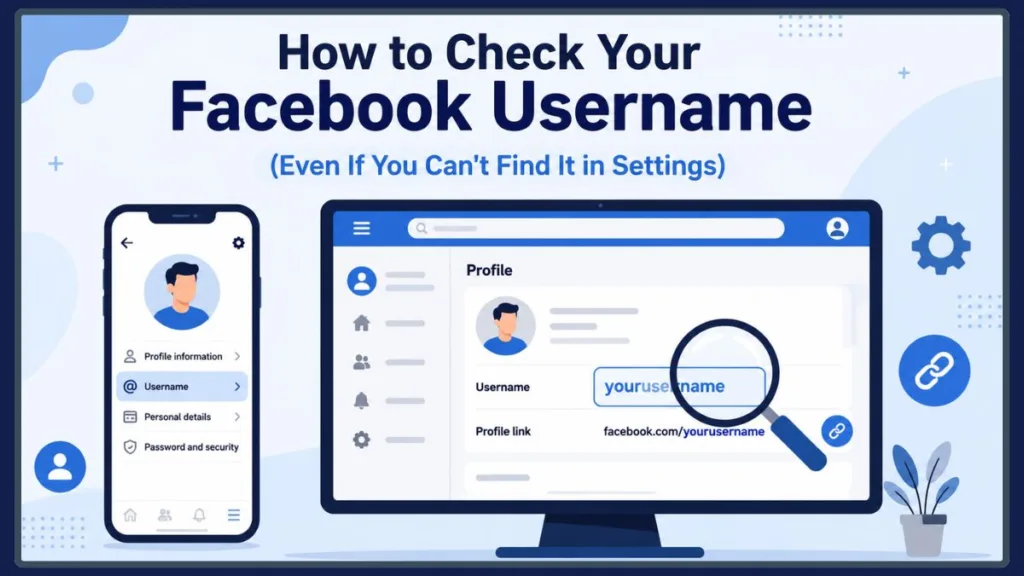
Facebook’s settings have changed over time, and many account details are now managed through Meta Accounts Center. As a result, older tutorials may no longer match what you see on your device. But don’t worry! Finding your unique URL handle is actually quite simple once you know exactly where to look. In this guide, you will learn a lightning-fast shortcut and clear, step-by-step instructions for finding your username on both mobile and desktop.
Why Can’t I Find My Facebook Username?
If you have tried looking through your basic profile settings and came up empty-handed, you aren’t doing anything wrong. The reason you can’t find your Facebook username in the usual spots is because Meta shifted these details into the Meta Accounts Center.
The Accounts Center is where you manage core account details, such as your Facebook username. It primarily manages your Facebook and Instagram accounts, though it may also support certain connected Meta experiences depending on your region and available features.
The Fastest Facebook Username Search Shortcut
People dealing with the same problem often find that manually navigating through layers of settings is a headache. If you are using a computer or a mobile browser, you can skip the confusing menus entirely by using a direct link sourced straight from community troubleshooting forums.
Here is how you can jump straight to your settings:
- Open your favorite web browser on your phone or computer and make sure you are logged into your account.
- Copy and paste this direct URL into your address bar:
https://accountscenter.facebook.com/profiles - Press Enter to bypass the confusing menus completely and open your Meta dashboard.
- Click on your active Facebook profile from the list of linked accounts.
- Click on Username to instantly view your current handle.
How to Find Your Facebook Username on the App (Mobile Guide)
If you prefer navigating through the app yourself, or if you don’t want to use a web browser, here is exactly where your information is hiding.
Check Facebook Username on Mobile
Finding your username on the iOS or Android app only takes a few taps once you know how to reach the Accounts Center:
- Open the Facebook app and tap the Menu icon (this is located at the bottom right for iPhone users, and the top right for Android users).
- Tap the Settings gear icon located at the top of your screen.
- Scroll down slightly and tap on ‘See more in Accounts Center’.
- Select ‘Profiles’ and tap your specific Facebook account name.
- Tap ‘Username’ to view your Facebook username, which appears in your profile URL (for example, facebook.com/yourusername).
Where is My Facebook Username in Settings on a Computer?
If you are working from a laptop and don’t want to use the direct link shortcut we mentioned earlier, you can still find your username directly through your main Facebook dashboard.
Here is how to navigate the desktop layout:
- Click your profile picture in the top right corner of the screen.
- Select ‘Settings & privacy’ from the drop-down menu, then click on ‘Settings’.
- Look at the left sidebar and click ‘See more in Accounts Center’.
- Click ‘Profiles’ and select your active Facebook account.
- Click ‘Username’ to view your exact handle.
How to Change Your Facebook Username
Now that you have finally found it, you might realize it is an old, outdated handle that you made years ago. Fortunately, you can edit the text right inside that exact same Accounts Center menu.
When you tap or click on your current username, you will see a text box where you can type a new one.
Best Practice: It is always a smart practice to keep your handle consistent across Facebook, Instagram, and X (Twitter) so friends, family, or customers can find you easily. If your ideal name is taken, try adding a location, a relevant keyword, or a small variation to help your profile stand out.
If you are running a business, you might also want to read our full guide on setting up a professional facebook business profile to ensure your branding stays consistent across the entire Meta network.
Connecting Your Digital Identity
Knowing your exact Facebook username is incredibly helpful, especially with the direction social media is moving. With recent updates encouraging people to secure digital usernames across different platforms, having a clean, professional handle is more important than ever. It allows you to share your contact information effortlessly.
Important Security Note: While you are already looking around inside the Accounts Center, it is a great time to review your account link status and security. We highly recommend checking your security settings and making sure your two-factor authentication is turned on across all your connected apps!
Conclusion
While the app menus have certainly shifted around recently, checking your Facebook username only takes a few taps once you locate the Meta Accounts Center. Whether you use the direct browser link or tap through the mobile app, you can easily find, copy, or update your handle in just a few seconds.
Were you able to find your handle using the direct link shortcut, or did you navigate through the mobile app settings? Let us know in the comments below, or feel free to share this guide with a friend who might be struggling with those confusing menus!
Visit Our Post Page: Blog Page
Discover more from Izoate
Subscribe to get the latest posts sent to your email.