
Want to clear your Amazon history in 2026? Learn how to delete Amazon browsing history, clear search history, remove viewed items, and stop Amazon from tracking your activity.
Amazon remembers a lot more than you might think. Every time you search for something, open a product page, or scroll past an item twice, that action gets logged somewhere in your Amazon shopping history — the combined record of everything you’ve searched for and everything you’ve viewed. Give it a few months of regular shopping, and your Amazon browsing history and Amazon search history can paint a surprisingly detailed picture of your life, including the birthday gift you’re trying to keep secret.
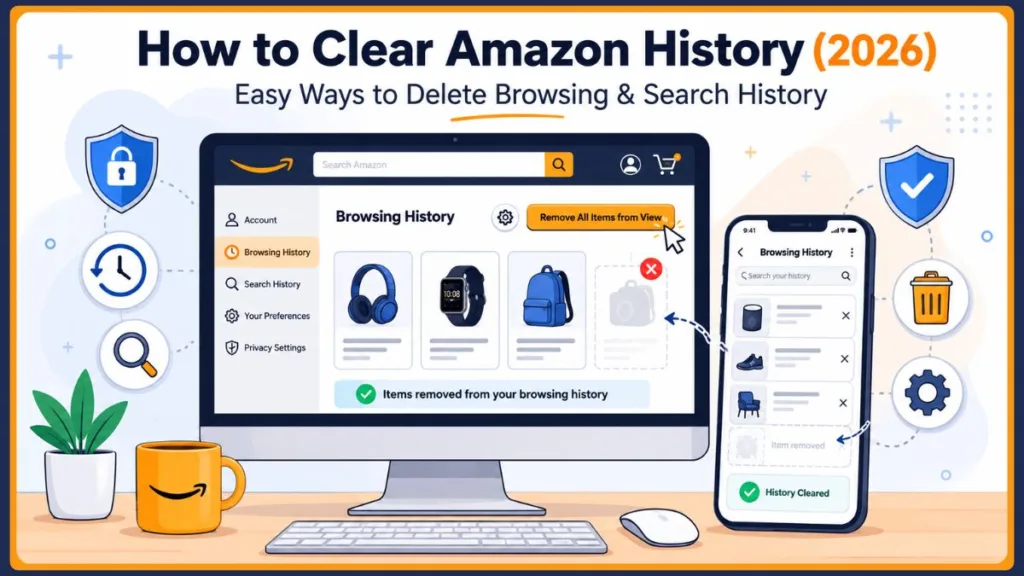
If you’ve ever had a surprise ruined because Amazon plastered “Keep shopping for wireless earbuds” across the homepage the second your partner logged in, you already know why this matters. Learning how to clear Amazon history isn’t just about tidying up — it’s about protecting your privacy, resetting recommendations that no longer make sense, and keeping shared accounts drama-free.
This guide covers all of it: viewing your history before you touch anything, clearing individual items or wiping the slate clean, pausing or turning off tracking for good, and handling newer wrinkles like Amazon Haul. We’ll also break down the differences between the app, desktop, and your phone’s browser, plus what to do when your history refuses to clear.
Why People Clear Their Amazon Browsing and Search History
Not everyone lands here for the same reason. Here’s a quick breakdown of what usually brings people to search for “clear my Amazon history” in the first place:
| Reason | What’s Really Going On |
|---|---|
| Shared accounts | Partners, roommates, or family members log into the same account and can see exactly what you’ve been looking at. |
| Gift surprises | You researched a present, and now Amazon keeps suggesting it right where the recipient can see it. |
| Sensitive searches | Health products, personal items, or anything you’d rather keep private. |
| Cluttered recommendations | Your homepage is full of products you looked at once and never wanted to see again. |
| General privacy | You just don’t like the idea of Amazon logging every click by default. |
Whatever brought you here, the fix mostly lives in one place: your Amazon browsing history settings, plus a few related spots we’ll cover below.
Amazon Search History vs. Browsing History: What’s the Difference?
Before you start clicking things away, it helps to know exactly what you’re dealing with. “Search history” and “browsing history” get used interchangeably, but they’re separate systems inside your Amazon account — and clearing one doesn’t touch the other.
What Counts as Amazon Search History
Your search history is made up of the actual words and phrases you’ve typed into the search bar. It’s what pops up as suggestions the moment you tap or click into the search field, and it’s usually the first thing a family member notices if they use your account.
What Counts as Amazon Browsing History
Your browsing history is different — it tracks the product pages you actually opened, whether you got there from a search, an ad, or a recommendation. Even a quick glance can land an item here, and it’s the main fuel behind sections like Recently Viewed and Keep Shopping For.
Why Both Affect What Amazon Shows You
Amazon blends your search terms and viewed products together to build recommendations, so a single item can show up in multiple places at once: the search bar, your homepage, and your recently viewed list. That’s exactly why clearing just one isn’t enough if real privacy is the goal — you’ll want to work through both.
How to View Your Amazon Browsing History (Before You Delete Anything)
Once you know what you’re working with, it’s worth actually looking at what Amazon has stored before you start deleting. Whether you’d search it as “view my Amazon browsing history,” “view Amazon browsing history,” or just “browse my history Amazon,” it’s the same page every time — and checking it first helps you decide whether you need to remove a few items or wipe the whole thing.
View Your Browsing History on Desktop
- Go to Amazon.com and sign in.
- Hover over Accounts & Lists in the top-right corner.
- Click Browsing History from the dropdown menu.
You’ll see a scrollable grid of everything you’ve recently viewed, most recent first.
View Your Browsing History in the Amazon App
- Open the Amazon app and tap the person icon at the bottom of the screen.
- Tap Account, then scroll down to the Personalized Content section.
- Tap Browsing History.
Amazon shuffles this menu around every so often. If you don’t spot it right away, try typing “browsing history” into the app’s account settings search bar instead of hunting through menus.
How to Clear Amazon Search History (Desktop, App & Mobile Browser)
Once you’ve had a look, you can start clearing things out, beginning with the easiest part: your search history. Clearing search history on Amazon only removes what you’ve typed — not what you’ve viewed. If gift-hiding or privacy is the real goal, come back for the browsing history section right after this one.
Clear Search Suggestions on Desktop
- Click inside the search bar at the top of any Amazon page.
- A dropdown of your recent searches appears automatically.
- Click the X next to any search term you want gone.
Each one disappears the moment you click it, no confirmation needed.
Clear Search History in the Amazon App
- Tap the search bar at the top of the app.
- Give it a second for your recent searches to populate below it.
- Tap the X beside each term you want removed.
Clear Search History Using a Mobile Browser
Shopping through Safari or Chrome on your phone instead of the app? The process matches desktop almost exactly: tap into the search bar, then tap the X next to each suggestion. Some phones default to a simplified mobile layout that hides this dropdown; if that happens, switch your browser to “Desktop site” mode (usually tucked in the browser’s menu), and the full search bar behavior comes back.
How to Clear Amazon Browsing History Step by Step
This is the part most people actually came for: how to remove items from Amazon history you’ve viewed, whether that’s one embarrassing search or your entire account’s worth of activity.
Remove Individual Items From Your Browsing History
On desktop:
- Open your Browsing History page (see the steps above if you need a refresher).
- Find the product you want gone.
- Click Remove from view underneath it.
In the Amazon app:
- Navigate to Browsing History (Account > Personalized Content).
- Find the item.
- Tap Remove from view.
Amazon briefly grays out the image and labels it “Removed” before it disappears completely. That’s normal behavior, not a glitch.
Delete Your Entire Amazon Browsing History
On desktop:
- Open your Browsing History page.
- Click the gear icon in the top-right corner.
- Select Remove all items from view.
- Confirm if Amazon asks you to.
In the Amazon app:
- Go to Browsing History.
- Tap the gear icon (or the three-dot menu, depending on your app version).
- Tap Remove all items from view.
- Confirm when prompted.
Your entire viewed-items list clears in seconds, and Amazon’s homepage starts rebuilding its suggestions from scratch.
Clearing Browsing History From a Mobile Browser
Using your phone’s browser instead of the app? The same Accounts & Lists > Browsing History path works here too, though you may need to switch to Desktop site mode first if your phone loads Amazon’s stripped-down mobile layout.
Quick tip: removing items one at a time works fine for a short list, but it’s slow going on a long history. That’s exactly what “Remove all items from view” under the gear icon is for.
How to Turn Amazon Browsing History On or Off
Clearing your history is a one-time fix. If you’d rather Amazon stop logging anything going forward, pausing or disabling tracking is the better move, and both options work the same way on desktop and in the app.
Pause Your Browsing History Temporarily
Pausing is ideal for a specific window of time, like the two weeks before a birthday.
- Open Browsing History and click or tap the gear icon.
- Under Pause History, choose a length: today, 3 days, 1 week, or 2 weeks.
- Amazon confirms the pause instantly.
Nothing new gets added to your history during this window, and logging picks back up automatically once the time runs out, unless you turn it off completely first.
Turn Off Browsing History Completely
- Open Browsing History and click or tap the gear icon.
- Select More settings.
- Toggle Browsing History off.
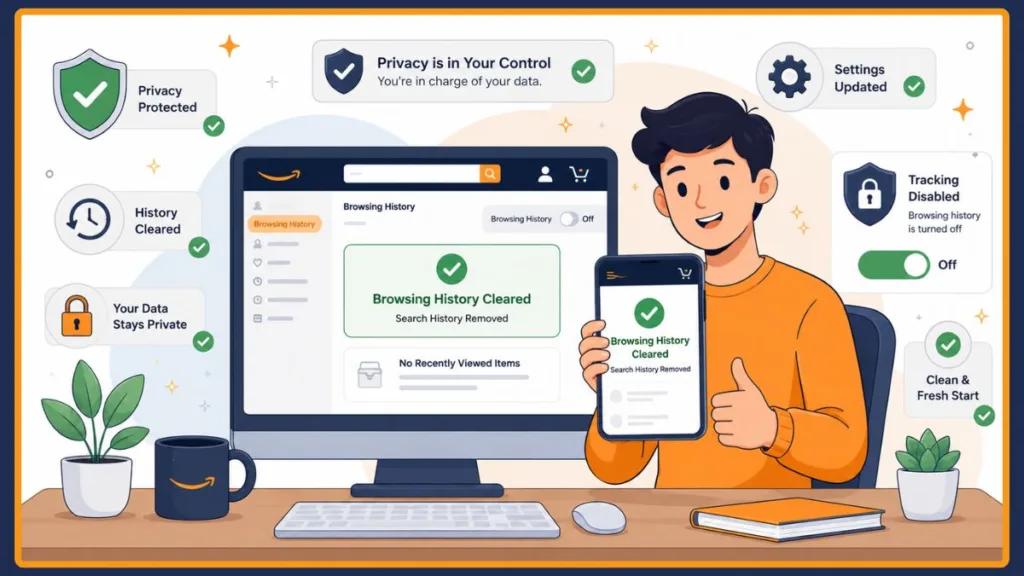
Once it’s off, the toggle switches from a checkmark to a minus sign, and Amazon stops logging new items until you manually flip it back on.
Some people notice this toggle quietly re-enables itself after an account update or app refresh. If a “cleared” history starts filling back up on its own, check this setting again before assuming something’s broken.
Amazon App vs. Desktop vs. Mobile Browser: What Actually Changes
Now that you know every control Amazon offers, here’s how those controls actually differ depending on where you’re accessing your account.
| Desktop | Amazon App | Mobile Browser | |
|---|---|---|---|
| Menu path | Accounts & Lists → Browsing History | Account → Personalized Content → Browsing History | Same as desktop (may need “Desktop site” mode) |
| Remove individual items | Yes | Yes | Yes |
| Remove everything at once | Yes, via gear icon | Yes, via gear icon or menu | Yes, once desktop site is enabled |
| Pause or turn off history | Yes | Yes | Yes, with desktop site enabled |
| Best for | Full control, fastest navigation | Managing things on the go | Backup option when the app isn’t handy |
If you ever get stuck on mobile, switching to desktop site mode in your phone’s browser settings is usually the fastest fix.
Does Amazon Haul Have Its Own Browsing History?
One shopping experience that doesn’t fit neatly into the breakdown above is Amazon Haul, Amazon’s budget storefront for ultra-cheap finds priced at $20 and under. Haul runs on your regular Amazon account, just with its own cart and checkout. That raises a fair question: does browsing Haul create a separate history you need to clear on top of everything else?
As of now, Amazon hasn’t rolled out a dedicated “Manage Haul History” page. Since Haul lives inside your same account, anything you tap into while scrolling through Haul deals still feeds into your regular Browsing History and Keep Shopping For sections, the same ones covered above. In other words, if you want to delete Amazon Haul ideas or hide that you were eyeing a $4 phone case, clearing or turning off your standard browsing history already takes care of it. There’s no extra step hiding somewhere in the Haul tab.
Because Haul is mobile-first, most of your Haul browsing will happen in the app, so if privacy is the goal, the app-based steps above are the ones you’ll lean on most.
How to Clear or Turn Off the “Keep Shopping For” Section
Whether you’re browsing regular Amazon or Haul, one homepage section deserves its own explanation: Keep Shopping For. It groups your recent activity into categories like skincare, gaming gear, or home décor, and it’s often the fastest way for someone to guess what you’ve been shopping for, even after you’ve cleared individual items.
Edit “Keep Shopping For” in the App
- Tap the person icon, then scroll to Keep Shopping For.
- Tap Edit.
- Tap the X on any category tile you want removed.
- Tap Done.
Resetting “Keep Shopping For” on Desktop
Desktop doesn’t offer a direct edit button for this section, but it responds to the same signals you’ve already been managing:
- Clearing your browsing history
- Removing individual product views
- Turning browsing history tracking off
Once those signals disappear, the related categories fade out on their own over the next few page loads.
Troubleshooting: Why Won’t My Amazon Browsing History Clear?
Most of the time, these steps work exactly as described. Occasionally, though, “Remove all items from view” doesn’t seem to stick, or the Browsing History toggle flips back on by itself. Here’s what usually causes it, and how to fix it:
- You’re looking at a cached page. Refresh the browsing history page, or fully close and reopen the app, before assuming the deletion failed.
- Multiple devices are syncing. If you’re logged in on a phone, tablet, and computer, changes can take a minute or two to sync across all of them.
- Your app is outdated. Amazon updates the app’s history controls periodically. Update to the latest version if options look different from what’s described here, or seem to be missing entirely.
- You’re mixing up “Remove from view” with permanent deletion. Removing an item hides it from your visible history; it doesn’t necessarily erase Amazon’s backend record, which can still get used for things like restock suggestions or fraud checks.
- The toggle silently reset. As mentioned above, “Turn Browsing History off” can occasionally revert after an account or app update. Just re-check it.
If none of this works after a day or two, try logging out completely, clearing your browser’s cookies, and logging back in. That resolves most stubborn syncing issues.
Privacy Considerations: What Clearing History Actually Protects
Once your history is actually clearing the way it should, it’s worth zooming out to what these tools do and don’t protect against.
- Incognito or Private browsing stops your device from saving local history, but it does nothing to stop Amazon from logging activity tied to your account once you’re logged in. Stay logged out entirely if true anonymity is what you’re after.
- A VPN hides your Amazon traffic from your internet provider and masks your IP address, but it doesn’t stop Amazon itself from tracking what you do inside your account.
- Alexa voice searches are stored separately from your typed search history. Clear them through the Alexa app under More > Alexa Privacy > Review Voice History.
- Logging out on shared devices stops anyone from casually reopening your account on a family computer or tablet.
- Amazon Family (formerly called Amazon Household) keeps each adult’s browsing, search, and order activity completely separate while still sharing one Prime membership. It’s genuinely the most reliable fix if you regularly share an account with a partner.
- Backend data retention. Amazon may keep some browsing and search data behind the scenes for things like fraud prevention, even after you’ve cleared it from view. Clearing your history removes it from what you and anyone else can see; it isn’t the same as guaranteed permanent deletion.
Common Mistakes People Make When Clearing Amazon History
Even with all of that in place, a few habits trip people up again and again:
- Clearing only the search bar and forgetting Browsing History (or the reverse). These are two separate systems, and real privacy means handling both.
- Assuming Incognito mode hides activity from Amazon. It only hides it from your device, not your account.
- Confusing “Pause” with “Turn Off.” Pausing is temporary and resumes automatically; turning off stays off until you switch it back on yourself.
- Ignoring “Keep Shopping For.” Even a fully cleared browsing history can leave this section intact for a little while afterward.
- Not checking for app updates before assuming a setting is broken or missing entirely.
- Forgetting Alexa. Voice searches don’t disappear when you clear your typed and viewed history. They need to be cleared on their own.
How Clearing Your History Changes Amazon’s Recommendations
Beyond privacy, there’s a practical side-effect worth understanding: what actually happens to your recommendations once you clear everything.
Amazon builds your homepage from a mix of signals, including browsing history, search terms, past orders, reviews, and wish lists. Clearing your browsing and search history removes two of the biggest inputs, so expect your recommendations to go noticeably more generic for a while.
Turning history off entirely has the biggest long-term effect, since Amazon stops collecting new data to work with. Pausing gives you a temporary version of the same effect. Either way, don’t be surprised if a few suggestions linger afterward; those are usually coming from your order history and reviews rather than your browsing activity, which is a separate setting altogether (and one we cover step-by-step in our guide to deleting Amazon order history).
Frequently Asked Questions
How do I clear my Amazon browsing history?
Go to Accounts & Lists > Browsing History, then either remove items one at a time with Remove from view, or click the gear icon and choose Remove all items from view to clear everything at once.
How do I delete my Amazon history?
There isn’t a single button that erases both your search and browsing history at once. You’ll need to clear your typed searches from the search bar and your viewed products from the Browsing History page separately. Doing both, then turning history off, gets you as close to deleting it entirely as Amazon currently allows.
How do I stop Amazon from recording my browsing history?
Open Browsing History, click the gear icon, choose More settings, and toggle Browsing History off. This stops new items from being logged until you manually turn it back on.
How do I remove items from my shopping history on Amazon?
If you mean products you’ve viewed, use Remove from view on the Browsing History page. If you mean actual purchases, that’s your order history, a different setting covered in our order history deletion guide.
Can I view my Amazon browsing history without deleting anything?
Yes. Visiting the Browsing History page just shows you the list. Nothing gets removed unless you click Remove from view or Remove all items from view.
Can I clear my Amazon browsing history offline, without an internet connection?
Not the version stored on Amazon’s servers; that requires an active connection since it’s tied to your account, not your device. What you can do offline is clear your phone or browser’s locally cached data (usually under Settings > Privacy > Clear browsing data), which removes traces from your device but won’t touch what Amazon has recorded on its end.
Does Amazon Haul show up in my browsing or order history?
Yes. Haul runs on the same account, so anything you view or buy there gets folded into your regular Browsing History, Keep Shopping For, and order history. There’s no separate Haul-only log to manage.
Does clearing my browsing history also clear my order history?
No, these are entirely separate systems. Your browsing history tracks what you’ve looked at; your order history tracks what you’ve actually bought, and Amazon retains those records regardless of what you clear elsewhere. If hiding past purchases is your actual goal, our guide on how to delete Amazon order history walks through the current options for that.
Final Thoughts
Managing your Amazon browsing history and search history comes down to a handful of habits: check what’s there, remove or wipe what you don’t want visible, and turn tracking off if you’d rather Amazon stop logging altogether. Add in a quick pass through Keep Shopping For, your Alexa voice history, and a properly set up Amazon Family if you share your account, and you’ve got a genuinely private shopping experience.
None of this takes more than a few minutes once you know where to look, and you can always come back and repeat any of these steps whenever your homepage starts feeling a little too personal.
Got a workaround that’s worked for you, or a step that behaved differently on your account? Drop it in the comments below. Amazon updates these menus often enough that comparing notes actually helps.
Visit Our Post Page: Blog Page
Discover more from Izoate
Subscribe to get the latest posts sent to your email.