
Wondering how to download Outlook Classic? Learn how to install, restore, or switch back to Classic Outlook on Windows with official Microsoft methods.
Introduction
Why Users Are Searching for Outlook Classic Again
If you’re trying to download Outlook Classic, you’re not alone. Many Windows users are noticing that their new computers come with only New Outlook, which makes it seem like the traditional desktop version is no longer available. This situation has caused confusion, especially for Microsoft 365 subscribers and long-time Outlook users who rely on features like PST files, COM add-ins, advanced rules, and offline access.
Understanding the Shift from Classic to New Outlook
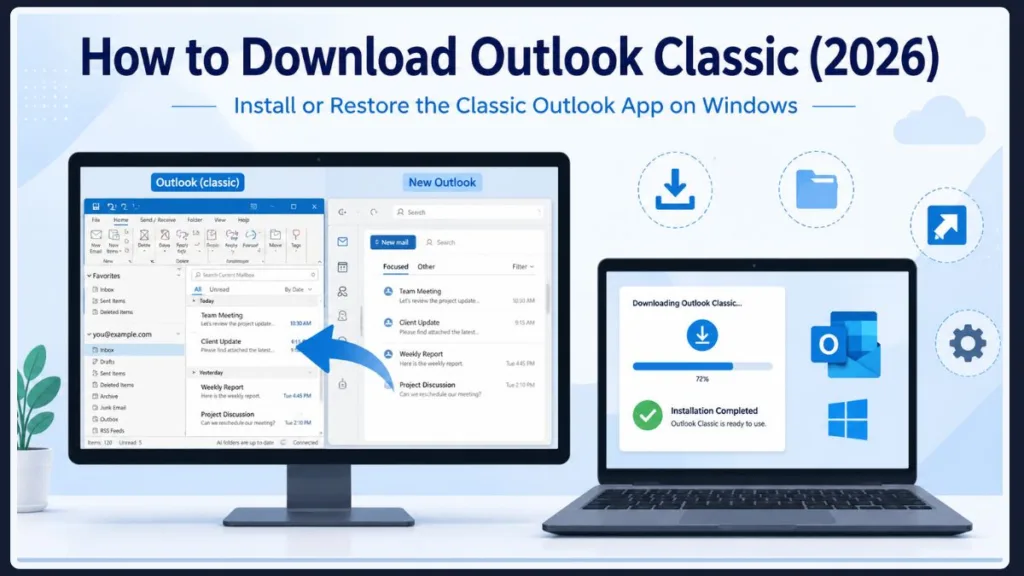
This confusion comes from Microsoft’s gradual transition toward newer applications. After replacing Windows Mail with New Outlook, Microsoft also began shipping many new PCs without Outlook Classic pre-installed. Because of this, searching the Microsoft Store often leads only to the newer app, leaving users unsure whether they can still download Classic Outlook or if it has been discontinued.
The Good News: Classic Outlook Is Still Available
The good news is that Classic Outlook is still available in 2026. If your Microsoft 365 subscription includes desktop apps, you can still install or restore the traditional Outlook experience using official Microsoft methods. In many cases, Outlook Classic may already be installed, but it may not be immediately visible because New Outlook is set as the default.
What This Guide Will Help You Do
This guide explains how to download Outlook Classic, check if it is already installed, restore it if needed, switch back from New Outlook, and resolve common issues. Whether you’re setting up a new Windows 11 PC or returning to the familiar Outlook desktop experience, the steps here will help you do it clearly and efficiently.
Tip: Before downloading anything, check whether Outlook (classic) is already installed on your PC. Many users find that they only need to open the correct application instead of reinstalling Microsoft 365.
What Is Outlook Classic?
A Traditional Desktop Email Experience
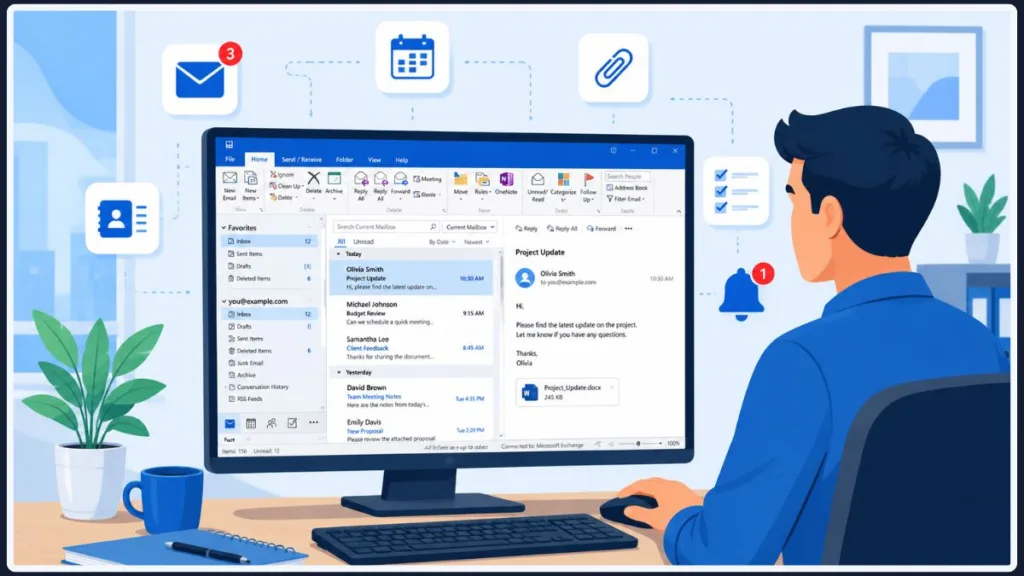
Outlook Classic is the long-established desktop version of Microsoft Outlook included in Microsoft Office and Microsoft 365. Unlike the newer Outlook app, it is a full-featured email client designed for individuals, businesses, and organizations that need advanced email management, scheduling, contacts, tasks, and offline functionality.
Key Features That Define Classic Outlook
If you’ve used Outlook before 2024, you’ve likely used Classic Outlook. It supports:
- Local email storage using PST and OST files, allowing offline access and backups
- Multiple account types including Exchange, Microsoft 365, IMAP, and POP
- Advanced customization options used by professionals
Why Many Users Still Prefer Classic Outlook
Classic Outlook remains widely used because of its compatibility with enterprise-level features. It supports COM add-ins, advanced mailbox rules, shared mailboxes, VBA automation, custom forms, and third-party integrations that are still limited or unavailable in New Outlook. These capabilities make it especially valuable for businesses, IT administrators, and power users.
Microsoft’s Future Plans for Outlook
Microsoft is actively developing New Outlook as its future platform, but Classic Outlook continues to be supported and updated for Microsoft 365 users. The transition to New Outlook is expected to take time as Microsoft continues working toward feature parity.
Important: Classic Outlook and New Outlook are separate applications. Installing one does not remove the other, and both can run on the same PC.
Can You Still Download Outlook Classic?
Availability of Classic Outlook in 2026
Yes, Outlook Classic is still available, and Microsoft continues to provide it for eligible users. Despite the focus on New Outlook, the classic desktop version has not been discontinued and can still be installed if your Microsoft 365 plan includes desktop Office apps.
Why It May Not Be Pre-Installed on New PCs
Many new Windows 11 computers come with only New Outlook because Microsoft now includes it as the default email app. This does not mean Classic Outlook has been removed—it simply is not installed automatically on every device.
How You Can Still Get Classic Outlook
If your subscription includes desktop Office apps, you can:
- Install Classic Outlook using Microsoft’s official Microsoft 365 installer
- Restore it by reinstalling your Office apps
- Use Microsoft’s dedicated installer for systems that shipped without it
Difference Between Classic Outlook and New Outlook Downloads
Downloading Classic Outlook is different from installing the free New Outlook app from the Microsoft Store. Classic Outlook requires a valid Microsoft 365 or Office license, while New Outlook is available as a standalone modern app.
Note: If you’re using a new Windows PC, Classic Outlook has not been permanently removed. You can still install it using official Microsoft methods covered later in this guide.
Before Downloading, Check If Classic Outlook Is Already Installed
Searching for Outlook (Classic) on Your Computer
Before downloading anything, check whether Outlook Classic is already installed. Many users assume it is missing when it is simply not being launched because New Outlook is set as the default.
To check:
- Open the Start menu and search for “Outlook (classic)”
- If it appears, open it and sign in if prompted
- Once confirmed, pin it to your Start menu or taskbar for easy access
You can also verify installation by going to Settings > Apps > Installed apps and checking if Outlook is listed.
Quick Tip: Seeing only New Outlook in your Start menu does not mean Classic Outlook is not installed. Windows may prioritize displaying the newer app.
Manually Launching Outlook.exe If It’s Hidden
If you cannot find it through search, you can try launching the executable directly. This method helps when Classic Outlook is installed but not visible in the Start menu.
Depending on your installation, OUTLOOK.EXE is typically located in:
64-bit Office
C:\Program Files\Microsoft Office\root\Office16\OUTLOOK.EXE32-bit Office
C:\Program Files (x86)\Microsoft Office\root\Office16\OUTLOOK.EXEOpen File Explorer, navigate to the appropriate folder, and double-click OUTLOOK.EXE. If it opens successfully, pin it to your taskbar or Start menu to avoid launching New Outlook accidentally.
If the file is not found, Classic Outlook is likely not installed, and you will need to install it using Microsoft’s official method.
Important: If launching OUTLOOK.EXE opens New Outlook, do not reinstall Office immediately. This is usually a configuration issue that can be resolved by switching back to Classic Outlook, which will be explained later in this guide.
How to Download Outlook Classic
Method 1: Use Microsoft’s Official Classic Outlook Installer
If you’ve confirmed that Outlook Classic is not already installed on your PC, the safest and most reliable solution is to use Microsoft’s official Classic Outlook installer. Microsoft introduced this installer to help users whose computers came with only New Outlook, especially on newer Windows 11 devices where the modern version is preinstalled by default.
Before you begin, make sure your Microsoft 365 subscription includes desktop Office apps. Plans such as Microsoft 365 Personal, Family, Business Standard, and Enterprise typically include the full desktop suite. If you’re using a web-only plan or a limited license, you may not be able to install Classic Outlook.
It’s also recommended to check your system requirements. Ensure your Windows version is up to date and that you have sufficient disk space and administrative permissions to install applications.
To install Outlook Classic:
- Visit Microsoft’s official Install or reinstall Classic Outlook page.
- Sign in with your Microsoft account if prompted.
- Download the installer in your preferred language and version (32-bit or 64-bit).
- Run the downloaded installer file.
- Follow the on-screen installation instructions.
- Wait for the installation to complete.
- Search for Outlook (classic) from the Start menu and launch it.
The installer automatically adds the desktop version of Outlook without requiring you to remove New Outlook. Both versions can run side by side, allowing you to switch between them depending on your needs.
Classic Outlook offers advanced features such as full offline access, PST file support, advanced rules, add-ins, and deeper integration with other Office apps—features that may not yet be fully available in New Outlook.
Important: Always download Outlook Classic from Microsoft’s official website. Avoid third-party sources, as they may provide outdated, unsafe, or modified installers that could harm your system.
Method 2: Reinstall Microsoft 365 to Restore Classic Outlook
If the official installer doesn’t work or Outlook Classic is still missing, reinstalling Microsoft 365 is often an effective solution. This method is especially useful if your installation is corrupted, incomplete, or if Outlook was not installed properly during the initial setup.
Reinstalling ensures that all Office components, including Outlook, are installed correctly and configured properly.
To reinstall Microsoft 365:
- Go to Settings > Apps > Installed apps.
- Locate Microsoft 365 and click Uninstall.
- Follow the prompts to remove the application completely.
- Restart your computer to clear any temporary files or installation remnants.
- Visit the official Microsoft 365 website and sign in to your account.
- Download the latest version of Microsoft 365.
- Run the installer and install the full desktop suite.
- Once installation is complete, search for Outlook (classic) in the Start menu.
After reinstalling, Outlook Classic should appear alongside other Office apps like Word, Excel, and PowerPoint.
This method also helps resolve issues such as missing executables, broken shortcuts, or incorrect configurations caused by switching between New and Classic Outlook.
Tip: Many users and IT professionals report that a clean reinstall resolves persistent issues where Outlook Classic fails to appear or launch correctly.
How to Switch Back from New Outlook to Classic Outlook
Use the New Outlook Toggle to Return to Classic
If you previously switched to New Outlook, you may not need to reinstall anything. In many cases, Classic Outlook is still installed and can be restored simply by turning off the New Outlook experience.
Open New Outlook and locate the New Outlook toggle in the upper-right corner of the window. This toggle controls whether you are using the modern or classic interface.
To switch back:
- Click the New Outlook toggle to turn it Off.
- A confirmation message will appear.
- Select Go to classic Outlook.
- Allow Outlook to restart.
Once restarted, the traditional desktop version of Outlook should open automatically with your existing email accounts, settings, and data intact.
This is the fastest and easiest method to return to Classic Outlook without modifying your installation or system settings.
Best Practice: After switching back, pin Outlook (classic) to your Taskbar or Start menu to ensure you always launch the correct version.
What to Do If the Toggle Option Is Missing
If you don’t see the New Outlook toggle, it usually means something else is preventing the switch.
Common reasons include:
- Classic Outlook is not installed on your system.
- The OUTLOOK.EXE file is missing due to incomplete installation.
- Outlook is configured to always open the new version.
- Your Microsoft 365 installation is corrupted or partially installed.
- Your organization or administrator has disabled switching options.
To troubleshoot:
- Navigate to the Office installation folder (usually in
C:\Program Files\Microsoft Office\root\Office16). - Check if OUTLOOK.EXE exists.
- If it exists, try launching it manually.
- If it does not exist, install Classic Outlook using the official installer or reinstall Microsoft 365.
If Outlook still opens the new version even when launching the executable, the issue is likely configuration-related, which can be fixed using registry changes.
Note: Always verify installation status before reinstalling Microsoft 365, as reinstalling should be your last resort.
How to Restore Classic Outlook If Outlook.exe Opens the New Outlook
Even when OUTLOOK.EXE exists, some users find that launching it still opens New Outlook. This happens because Outlook is configured to prioritize the newer interface.
If the toggle method doesn’t work, you can manually force Outlook to open the classic version by modifying a Windows Registry setting.
Navigate to:
HKEY_CURRENT_USER\Software\Microsoft\Office\16.0\Outlook\PreferencesFind or create the following value:
UseNewOutlookSet its value to:
0This tells Outlook to disable the new experience and launch the classic desktop version instead.
Steps:
- Press Win + R, type
regedit, and press Enter. - Navigate to the path above.
- Locate or create the UseNewOutlook DWORD value.
- Set its value to 0.
- Close Registry Editor.
- Restart Outlook.
After restarting, launching Outlook should open the Classic version.
Warning: Editing the Windows Registry can be risky. Always back up your registry or create a system restore point before making changes.
Alternatively, use Command Prompt:
reg add "HKCU\Software\Microsoft\Office\16.0\Outlook\Preferences" /v UseNewOutlook /t REG_DWORD /d 0 /fThis command automatically applies the required setting.
How to Hide the “Try the New Outlook” Button (Advanced)
For users who want to prevent accidental switching, especially in business environments, you can hide the Try the New Outlook button using a registry setting.
This is useful for organizations that rely on Classic Outlook features such as advanced rules, COM add-ins, or legacy integrations that are not supported in New Outlook.
Navigate to:
HKEY_CURRENT_USER\Software\Microsoft\Office\16.0\Outlook\Options\GeneralCreate or modify:
HideNewOutlookToggleSet its value to:
1Steps:
- Open Registry Editor.
- Navigate to the path above.
- Create a new DWORD value named HideNewOutlookToggle if it doesn’t exist.
- Set the value to 1.
- Restart Outlook.
After applying this change, the toggle button will no longer appear in Classic Outlook.
You can also apply this via Command Prompt:
reg add "HKCU\Software\Microsoft\Office\16.0\Outlook\Options\General" /v HideNewOutlookToggle /t REG_DWORD /d 1 /fThis method is especially helpful for IT administrators managing multiple systems, ensuring users remain on Classic Outlook without confusion.
Important: This setting only hides the toggle—it does not uninstall New Outlook or block future updates from Microsoft.
Can You Use Both Outlook Versions Together?
Running Classic and New Outlook Side by Side
Yes. Microsoft allows you to install and use both Classic Outlook and New Outlook on the same Windows PC. You don’t have to choose one permanently, and installing one version doesn’t automatically remove the other.
This flexibility is especially useful if you’re gradually transitioning to New Outlook or if you rely on features that are still exclusive to the classic desktop application. For example, you might use Classic Outlook for work because it supports COM add-ins, advanced mailbox rules, or PST files, while using New Outlook for its cleaner interface and modern Microsoft 365 integration.
Once both versions are installed, you can pin each application separately to your Start menu or Taskbar. Giving each app a distinct shortcut makes it much easier to launch the correct version without confusion.
Although both applications can coexist, remember that they are separate experiences. Some settings, interface options, and supported features differ, so always verify you’re using the version that best suits your workflow before troubleshooting any Outlook-related issue.
Tip: If you frequently switch between both versions, rename your taskbar shortcuts or pin Outlook (classic) separately to avoid accidentally opening the wrong application.
Frequently Asked Questions
Can I still download Outlook Classic in 2026?
Yes. Outlook Classic is still available for eligible Microsoft 365 and Office users. Microsoft provides an official installer specifically for users who need to install or reinstall the desktop version on Windows.
Is Outlook Classic free?
Outlook Classic is not a standalone free application. It requires a qualifying Microsoft 365 or Microsoft Office license that includes the desktop Office apps. The free New Outlook app available through Windows and the Microsoft Store is a separate product.
Why does my new Windows PC only have New Outlook?
Many new Windows 11 computers ship with New Outlook as the default email application. Microsoft no longer pre-installs Classic Outlook on every device, which is why many users need to install it separately using the official installer.
Can I install Classic Outlook without using Microsoft Store?
Yes. In fact, Classic Outlook is not downloaded through the Microsoft Store. Microsoft recommends using the official Classic Outlook installer or reinstalling Microsoft 365 if your subscription includes the desktop Office apps.
Where is Outlook.exe located?
If Classic Outlook is installed, OUTLOOK.EXE is usually located in one of these folders:
64-bit Office
C:\Program Files\Microsoft Office\root\Office16\OUTLOOK.EXE32-bit Office
C:\Program Files (x86)\Microsoft Office\root\Office16\OUTLOOK.EXEIf the executable is missing, Outlook Classic is likely not installed.
Can I use both Classic Outlook and New Outlook together?
Yes. Microsoft supports running both Outlook versions side by side. You can install both applications, pin each one separately, and switch between them whenever neededWhy is the “New Outlook” toggle missing?
The toggle may disappear if:
- Classic Outlook isn’t installed
- Your Outlook installation is incomplete
- Your organization has disabled switching
- Outlook is configured to always open the new version
Checking your installation and launching OUTLOOK.EXE manually usually helps identify the cause.
Why does Outlook.exe still open New Outlook?
This usually happens because Outlook is configured to prioritize the new experience. You can often resolve this by switching back through the New Outlook toggle or changing the UseNewOutlook Registry value if necessary.
Does Microsoft still support Classic Outlook?
Yes. Microsoft continues to support and update Classic Outlook for Microsoft 365 customers. While Microsoft intends to make New Outlook its primary email client in the future, Classic Outlook remains the recommended choice for many organizations because of its advanced functionality.
Will Microsoft eventually replace Classic Outlook?
Microsoft has stated that New Outlook is its long-term direction. However, Classic Outlook is expected to remain available until the newer application reaches feature parity with the desktop client. There is currently no immediate end-of-support date requiring users to migrate.
Final Thoughts
Although Microsoft is encouraging users to adopt New Outlook, Classic Outlook remains available and continues to be the preferred desktop email client for many professionals and businesses. If your new Windows computer only includes the newer app, it doesn’t necessarily mean the classic version has been discontinued or that you need to change the way you work.
As you’ve seen throughout this guide, the solution often depends on your situation. Sometimes Outlook Classic is already installed and simply needs to be launched. In other cases, you may need to install it using Microsoft’s official installer, reinstall Microsoft 365, or switch back from New Outlook using the built-in toggle. Even advanced issues, such as Outlook.exe opening the wrong version or the Try the New Outlook button appearing repeatedly, can usually be resolved with the right configuration changes.
The most important takeaway is to use Microsoft’s official installation methods and verify whether Classic Outlook is already available before attempting a full reinstall. Doing so can save time, preserve your existing Outlook profile, and help you avoid unnecessary troubleshooting.
Final Tip: After restoring Outlook (classic), pin it to your Taskbar or Start menu. This simple step helps ensure you always open the desktop version you prefer without accidentally launching New Outlook.
Visit Our Post Page: Blog Page
Discover more from Izoate
Subscribe to get the latest posts sent to your email.