
Switching jobs? Learn how to download your EPFO Service History PDF step-by-step for seamless HR onboarding, Form 11, PF transfers, and background verification.
If you are switching jobs, you already know how overwhelming the onboarding process can be. Between submitting endless HR documents, figuring out your PF transfer, and dealing with rigorous background verification (BGV), you have a lot to manage.
Depending on your new employer’s specific onboarding process, you may be asked to provide concrete employment proof to confirm your past work experience and ensure your payroll is set up correctly. One document that often helps simplify this process is your EPFO Service History PDF, which serves as an EPFO-maintained employment record linked to your UAN.
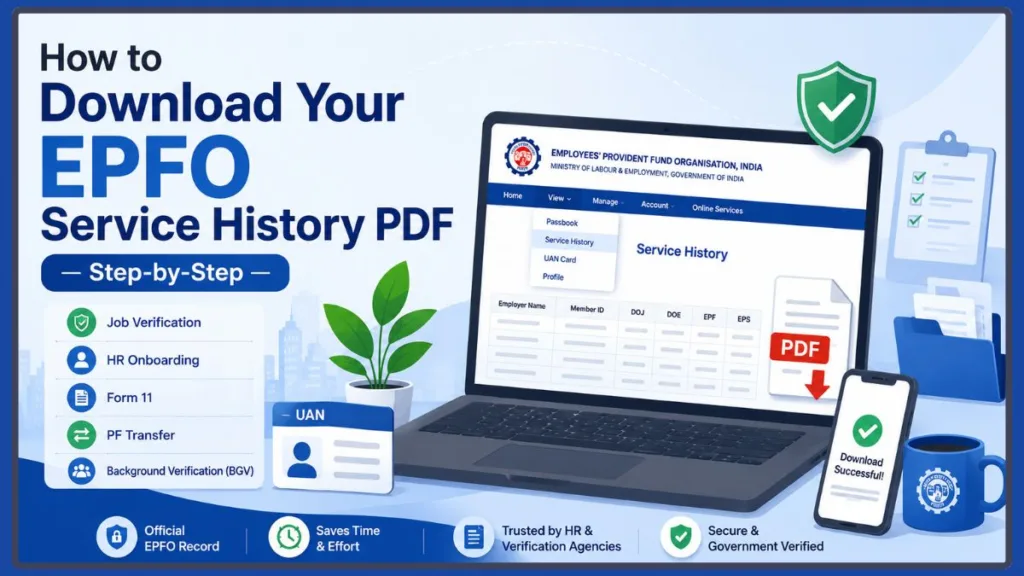
Because the EPFO portal interface may change as new updates are introduced, menu names or download options may vary slightly. If you are wondering how to log in and access your records on the current platform, you are in the right place. Let’s walk through exactly how to access and download your EPFO Service History so you can breeze through your job verification.
Quick Answer: How to Download Your EPFO Service History
If you are short on time, here is a brief summary of the process:
- Log into the EPFO Unified Member Portal (Member e-Sewa) using your UAN and password.
- Complete the OTP verification via your registered mobile number.
- Navigate to the View menu and select Service History.
- Review your employment records on-screen for accuracy.
- Download or save the document as a PDF.
Common Use Cases: Job verification, HR onboarding, filling out Form 11, PF account transfers, and background verification (BGV).
What Is an EPFO Service History and Why Does It Matter?
Before diving into the full steps, it helps to understand exactly what you are downloading. Your EPFO Service History is a consolidated digital record of your career that is tied directly to your UAN (Universal Account Number).
Think of it as an official EPFO record of your employment history. Since it is based on details securely maintained by the government throughout your career, many employers and verification agencies use it as supporting documentation during onboarding, PF transfers, and background verification.
EPFO Service History vs. EPF Passbook: What’s the Difference?
It is incredibly easy to confuse your service history with your passbook, but they serve very different purposes during onboarding. HR may ask for one or both. Here is a quick breakdown to help you tell them apart:
| Feature | EPFO Service History | EPF Passbook |
| Primary Purpose | Serves as an employment record maintained by EPFO. | Shows your EPF contribution history, monthly deposits, and PF account balance. |
| Information Shown | Employer names, Member IDs, DOJ, DOE, EPF/EPS history. | Monthly employer/employee contributions and total accumulated funds. |
| Mainly Used For | Employment verification, background checks, Form 11. | Checking financial balances, confirming recent deposit activity. |
| HR Onboarding Use | Providing employment proof and exact tenure dates for BGV. | Showing proof of active EPF status (often by showing the last 5 contributions). |
Why HR May Ask for Your EPFO Service History PDF
When you join a new company, HR teams and BGV agencies need to verify that the experience on your resume matches reality. Your EPFO Service History PDF is commonly used as supporting documentation for several key processes:
- Background Verification (BGV): It typically shows your exact employment history and tenure, helping agencies verify your past employment dates quickly and accurately.
- Filling Out Form 11: Your new HR team usually needs details from your previous PF accounts to verify your EPF/EPS applicability and integrate you into their payroll system.
- PF Account Transfer: To successfully move your provident fund balance from an old employer to a new one, your old records must be completely accurate.
- Avoiding Onboarding Delays: Providing this official document upfront can often speed up the employment verification process, helping to prevent payroll hiccups.
What You Need Before You Begin Your Download
To make the download process as smooth as possible, gather a few things before you log into the portal:
- Your UAN: Make sure you have your 12-digit Universal Account Number handy.
- Your EPFO Password: You will need your current password to log in. (If you forgot it, you can easily use the Forgot Password option on the login screen).
- Your Registered Mobile Number: The portal requires OTP verification, so keep the phone linked to your Aadhaar/UAN nearby.
- A Stable Internet Connection: The government portal can occasionally time out, so a solid connection helps.
How to Download Your EPFO Service History PDF (Step-by-Step Guide)
Ready to download your records? Follow these steps to navigate the EPFO Unified Member Portal (Member e-Sewa):
- Visit the official portal: Go to the official UAN Member e-Sewa website.
- Log into your account: Enter your UAN number, your password, and type in the CAPTCHA code shown on the screen.
- Verify your identity: Enter the OTP sent to your registered mobile number and click submit.
- Navigate to the View menu: Look at the top navigation bar and click on the View tab.
- Select your records: From the drop-down menu, click on Service History.
- Review the data on-screen: Before you download, look at the table displaying your UAN-linked employment records. Take a quick glance to check for missing employers, duplicate Member IDs, an incorrect Date of Joining, or a missing Date of Exit. Verifying these details before downloading can help you avoid unexpected onboarding, PF transfer, and employment verification issues.
- Save your file: Click the button to initiate your EPFO Service History download. (Note: The EPFO portal interface may change as new updates are introduced. If you do not see a direct “Download PDF” button, you can easily use your browser’s “Print” function and select “Save as PDF” to generate the file).
What Information Should Your EPFO Service History Include?
Once you open your downloaded PDF, you will see a detailed table. Depending on your employment history, it typically includes the following critical fields:
- Employer Names: Every company where you had an active PF account.
- Member IDs: Your specific PF account number linked to each individual employer.
- Date of Joining (DOJ): The exact day your PF contributions started at each company.
- Date of Exit (DOE): The exact day you stopped working for each employer.
- EPF Membership History: Confirms your participation in the Employees’ Provident Fund.
- EPS Membership History: Confirms your participation in the Employees’ Pension Scheme.
Taking a moment to review this information matters. By carefully reviewing your employer names, checking your Member IDs, and verifying that your Date of Joining and Date of Exit are accurate, you can spot missing employment records early. Catching these discrepancies before handing the document to HR can help prevent onboarding delays and avoid frustrating PF transfer issues down the line.
How to Use Your Service History to Fill Out Form 11
Your service history isn’t just for background checks; it is a highly useful tool for correctly filling out Form 11 during HR onboarding. When looking at your downloaded PDF, pay close attention to your Date of Joining (DOJ) to answer the form’s two most common questions:
- The EPF Question: Review your entire employment history. If you see a DOJ listed under the EPF section for any past job, you will typically check Yes when Form 11 asks: “Whether earlier a member of Employees’ Provident Fund Scheme, 1952.”
- The EPS Question: Next, look specifically at your first employer on the list. If there is a DOJ recorded under the EPS section for that initial job, mark Yes when asked: “Whether earlier a member of Employees’ Pension Scheme, 1995.” If that field is blank for your first job, simply select No.
If you are unsure how to answer Form 11, confirm the details with your HR team before submitting the form, especially if your employment history contains missing records or multiple UANs.
What to Check Before Sharing Your EPFO Service History PDF with HR
Before you upload your files to your new company’s HR platform, take two minutes to review the document. A quick check can prevent major headaches later. Prioritize checking the following details:
- Employer Names: Check how the company name is spelled. Companies sometimes register their PF accounts under a parent group name or legal entity name rather than their brand name. You may need to clarify this with your BGV agency so they know it is the same company.
- Member IDs: Ensure every job where you had PF deducted has a corresponding Member ID listed.
- Date of Joining and Date of Exit: Accurate dates are critical. An incorrect or missing Date of Exit may delay or affect your PF transfer until the records are corrected.
- Missing Employment Records: Verify that all your past employers are actually present on the list.
Common Issues & Troubleshooting: What to Do If Your Records Are Wrong
Occasionally, your records might not look exactly as expected. Here is how to handle the most common portal hurdles:
Missing Employer or Missing Service History
If an old job is completely absent from your records, it may mean the employer never linked your Member ID to your current UAN. You can use the government’s E-PRAAPTI platform, which utilizes Aadhaar authentication to help locate forgotten or inactive EPF accounts. However, keep in mind that E-PRAAPTI mainly helps locate accounts—it may not automatically merge them into your service history without a formal transfer request.
Incorrect Date of Exit (DOE)
If your DOE is wrong or missing entirely, you typically cannot fix this directly on your own. Your previous employer will need to update it on their employer portal, or you may need to submit a joint declaration form with them to correct the error.
Multiple UANs
If you discover you have multiple UANs from different jobs, you will need to consolidate them. You can usually do this by submitting a transfer request to move the old accounts into your current, active UAN.
Portal Errors and PDF Download Issues
If the site is down, the page times out, or the PDF doesn’t generate correctly, try clearing your browser cache, opening the portal in an incognito window, or logging in during off-peak hours (like early morning).
When to Raise a Grievance
If a previous employer is unresponsive in fixing your records or updating your Date of Exit, you can raise an official grievance through the EPFiGMS (EPFO Grievance Management System) portal to seek a resolution.
Frequently Asked Questions (FAQs)
Can I Download My EPFO Service History as a PDF?
Yes. While some portal versions include a direct download button, the EPFO portal interface may change as new updates are introduced, so menu names or download options may vary slightly. If you don’t see a dedicated button, you can easily use your browser’s “Print” function and select “Save as PDF” to generate the file.
Is EPFO Service History accepted for background verification?
Many employers and background verification providers accept the EPFO Service History as supporting documentation because it reflects employment details securely maintained by EPFO. However, requirements vary, and employers may also request documents such as relieving letters, salary slips, or experience certificates.
Is EPFO Service History different from the EPF Passbook?
Yes. Your Service History focuses on your employment timeline (employer names, DOJ, DOE, and Member IDs). Your EPF Passbook is a financial ledger that shows your monthly financial contributions and total PF balance.
Can I download EPFO Service History without Aadhaar?
In most cases, you need an active UAN, access to your registered mobile number for OTP verification, and your EPFO login credentials. Aadhaar linkage is commonly required for many EPFO services, including maintaining an active UAN.
Why is my previous employer missing?
A previous employer might be missing if they created a new UAN for you instead of using your existing one, or if they were exempt from EPF contributions. You will generally need to locate the old account and transfer it to your current UAN.
What if my Date of Exit is incorrect?
An incorrect Date of Exit can block your PF transfer. You must contact your previous employer to update it on their portal, or submit a joint declaration form to the EPFO to get it corrected.
Can I use Service History for Form 11?
Absolutely. Your Service History is an excellent tool for filling out Form 11, as it explicitly shows whether you have prior EPF and EPS memberships, which dictates how you answer the form’s primary questions.
Does EPFO Service History show salary?
No. Your Service History PDF only shows employment dates, employer names, and account IDs. It does not display your salary or monthly financial contributions. (Your EPF Passbook shows contributions, which can sometimes be used to estimate basic salary, but not the Service History).
Can I access Service History through UMANG?
Yes! If you prefer using your smartphone, you can download the government’s UMANG app, link your UAN, and view your basic employment history directly on your mobile device.
Final Thoughts: Smoother Onboarding Starts Here
Switching jobs should be an exciting milestone, not a bureaucratic roadblock. By taking just a few minutes to download your EPFO Service History PDF and review it before submitting it to HR, you are setting yourself up for success.
Checking this document allows you to verify your employment history, identify missing employers, and catch Date of Exit issues early on. Fixing these discrepancies before you hand over the paperwork can help you avoid unexpected onboarding delays, support smoother PF transfers, and simplify the background verification process.
With your documents verified and your Form 11 properly filled out, you can confidently clear your employment verification and get back to focusing on what really matters—thriving in your new role!
Visit Our Post Page: Blog Page
Discover more from Izoate
Subscribe to get the latest posts sent to your email.