
Netflix works, but Prime Video shows an HDMI error? Find out why it happens and how to fix Amazon Prime HDMI Connection Error with solutions that actually work.
You settle in on the couch, popcorn ready, fire up your streaming device, and click on the latest Amazon Prime Video release. Instead of your movie, you are greeted with a frustrating message: “HDMI connection try using different HDMI cable.”
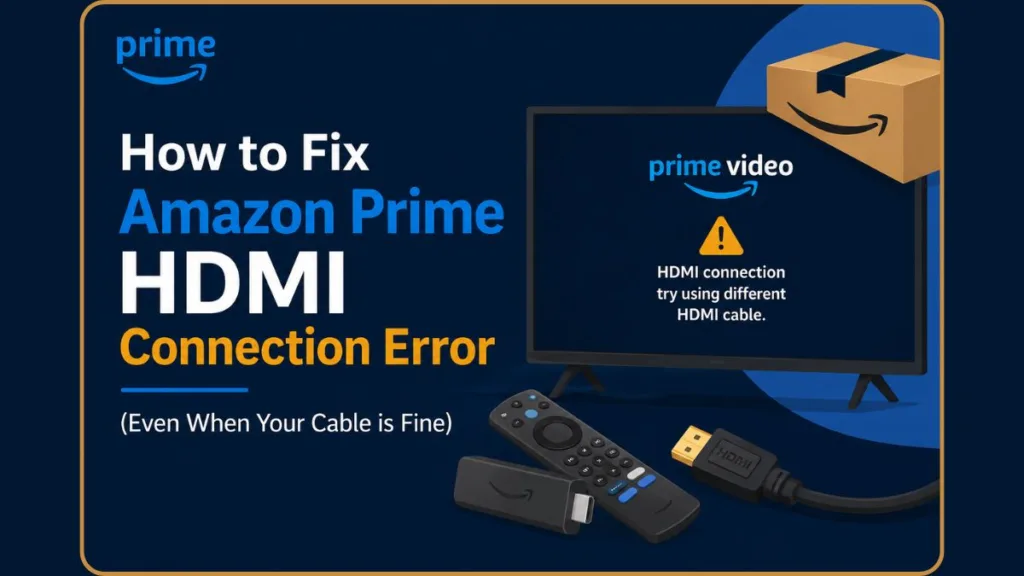
The most maddening part? You know your hardware is perfectly fine because Netflix, Hulu, and YouTube are all streaming flawlessly. It feels like Amazon is blaming your TV setup for a problem they created.
If you are stuck in this loop, you are not alone. This specific HDMI connection error on Prime Video is a widely reported issue, but fortunately, it is rarely an actual hardware failure. Here is a breakdown of exactly what is happening and the community-tested fixes to get your stream back up and running. The fixes below are based on recurring solutions reported by Prime Video users across community forums and support discussions.
What Does the Amazon Prime HDMI Connection Error Mean?
Before pulling cables out of your wall, it helps to understand what the app is actually trying to tell you. This error appears when Prime Video cannot verify a secure connection between your streaming device and your television display.
Usually, this error is directly related to an HDCP (High-bandwidth Digital Content Protection) authentication failure. However, this doesn’t automatically mean your hardware is broken. The “HDMI error” is often a generic catch-all warning that can also be caused by underlying app bugs, corrupted temporary data, outdated device firmware, or device compatibility issues communicating with your specific TV model.
Why Does Prime Video Keep Saying “HDMI Connection Error”?
To understand the fix, you need to understand the invisible digital handshake happening behind your TV screen.
When you stream content, a protocol called High-bandwidth Digital Content Protection (HDCP) goes to work. HDCP is an anti-piracy measure designed to ensure that the video isn’t being intercepted and recorded between your streaming device and your TV.
The problem relates to how different apps handle this security measure. Many users report that Prime Video appears more sensitive to HDCP verification issues than other streaming apps. If there is a micro-second of lag on your network, a minor bug in a recent app update, or a slightly delayed HDCP handshake, the connection may fail to authenticate. If the HDCP verification process fails, Prime Video may block playback and display a generic HDMI connection error.
Why Does Prime Video Show an HDMI Error While Netflix Works?
This is the strongest and most frustrating insight from community troubleshooting: why is Prime Video the only app doing this?
When you launch a streaming device, apps like Netflix and YouTube may continue playing without a hitch because their software handles minor HDCP handshake delays or temporary network fluctuations more gracefully. Prime Video, on the other hand, may fail entirely when HDCP authentication doesn’t complete perfectly and instantly. Because Amazon’s DRM (Digital Rights Management) parameters are reportedly stricter, a minor software glitch that Netflix ignores will cause Prime Video to completely shut down the playback and display the HDMI error.
Common Symptoms of the Prime Video HDMI Bug
Before diving into the fixes, it helps to confirm if you are dealing with this specific software glitch. Users dealing with this bug usually report the following:
- The “Only Prime” Phenomenon: Every other app on your device works perfectly. The HDMI error is isolated strictly to Amazon Prime Video.
- Pre-Error Lag: Right before the error pops up, the Prime app often suffers from infinite buffering, random freezing, or sluggish menu navigation.
- Device Agnostic: This isn’t limited to one brand. The error strikes across Android TV, Roku, Fire TV Sticks, Google dongles, Apple TV, and built-in smart TV interfaces.
Common Causes of Amazon Prime HDMI Connection Error
The error is most commonly caused by:
- HDCP authentication failures preventing Prime Video from verifying a secure connection.
- HDMI handshake problems between your TV and streaming device.
- Corrupted Prime Video cache or app data.
- Outdated TV or streaming device firmware.
- HDMI splitters, receivers, or soundbars interrupting the HDCP chain.
- Unsupported Android TV devices lacking proper DRM certification.
- Older HDMI cables that do not support HDCP 2.2 for 4K playback.
Level 1: Quick Fixes (The Handshake Reset)
Before you delete anything or buy new equipment, try forcing your devices to introduce themselves to each other again.
- Switch to a Different HDMI Port: Many users solved the problem simply by moving their streaming device from one port (like HDMI 1) to another (like HDMI 2). Different ports on your TV often have different HDCP standards or hardware handshakes, and a simple swap can bypass a bugged port.
- Power Cycle Everything: Turn off your TV and your streaming device. Unplug both of them from the wall outlet completely. Wait a full 60 seconds, then plug them back in. This clears out corrupted temporary memory.
- Reseat the Cables: Unplug the HDMI cable from both the TV and the streaming device. Blow out any dust in the ports (dust can cause minor connection blocks), and plug the cable back in firmly. This forces a brand new HDCP handshake.
- Network Reboot: A momentary drop in your Wi-Fi can cause the app to time out during the handshake. Unplug your router for 30 seconds and plug it back in to ensure a stable connection.
Level 2: Software Solutions (The Most Successful Fixes)
If the quick resets didn’t work, it is time to address the app itself. According to community forums, these are the most reliable solutions.
- The Fresh Reinstall (Top Community Fix): Simply restarting the app isn’t always enough to clear a bad update. Completely delete/uninstall the Prime Video app from your device. Restart the streaming device, navigate to your app store, and reinstall Prime Video from scratch.
- Clear App Cache and Data: If you are using an Android TV or Fire Stick, you can go to your system Settings > Apps > Prime Video and select Clear Cache. This wipes out corrupted temporary files causing the app to lag.
- Firmware Updates: Ensure both your streaming device’s operating system and the Prime Video app are updated to the latest versions. Outdated system firmware can conflict with newer app security protocols.
Level 3: Advanced Hardware Adjustments
If you have wiped the software and are still getting the error, your physical setup might actually be interrupting the HDCP chain.
- Bypass Splitters and Soundbars: AV receivers, soundbars, and HDMI switches act as “middlemen.” Sometimes, these devices fail to pass the HDCP signal correctly to the TV. Unplug your streaming device from the receiver and plug it directly into the back of your TV’s HDMI port to see if the stream works.
- Enable HDMI Enhanced Format: On some Sony, Samsung, LG, and Android TVs, open your TV Settings, navigate to HDMI settings, and enable Enhanced Format or HDMI High Speed Mode. Restart Prime Video after making this adjustment.
- Upgrade to a High-Speed Cable: If all else fails, your cable might actually be outdated. To stream 4K UHD and HDR content, you need an HDMI cable that specifically supports HDCP 2.2. Older cables will block high-resolution streams.
Prime Video HDMI Error on Specific Devices
Prime Video HDMI Error on Android TV
Android TV devices, including Google TV dongles, Mi TV Sticks, and Nvidia Shield, frequently encounter this exact error. To fix the Prime Video HDMI error on Android TV, your best first step is to clear the app’s temporary data. Navigate to your system Settings, select Apps, find Prime Video, and hit “Clear Cache.” If this quick software reset doesn’t resolve the issue, a full uninstall and reinstall of the Prime Video app from the Google Play Store is highly recommended by the community. Additionally, ensure your Android TV OS is fully updated, as mismatched firmware can easily trigger HDCP handshake failures.
Prime Video HDMI Error on Roku
When the Prime Video HDMI error appears on a Roku device (like the Roku Express or Roku Ultra), it is often tied to how Roku handles display refresh rates and HDCP 2.2 handshakes. First, perform a full system restart by going to Settings > System > System Restart. If the Prime app continues to throw an HDMI error, try changing your display type. Go to Settings > Display Type and manually select your TV’s resolution rather than leaving it on “Auto Detect,” which can sometimes confuse the Prime Video app’s security checks during playback.
Prime Video HDMI Error on Fire TV Stick
Ironically, Amazon’s own Fire TV Sticks are not immune to the Prime Video HDMI error. Because the Prime Video app is baked into the Fire OS, you cannot completely delete and reinstall it like on other devices. Instead, you must clear the app cache and data. Go to Settings > Applications > Manage Installed Applications > Prime Video, then select both “Clear Cache” and “Clear Data.” If you are plugging your Fire Stick into a soundbar or HDMI splitter, bypass it entirely and plug the stick directly into the TV’s HDMI port to establish a clean connection.
Prime Video HDMI Error on Smart TVs
If you are using a built-in smart TV app (like on a Sony Bravia, Samsung, or LG TV) and receiving an HDMI connection error, when using the built-in Prime Video app on a Smart TV, the issue is often related to app data, firmware, or HDCP communication rather than a faulty external HDMI cable. The fastest fix for Smart TVs is a “hard reset” of the television itself. Unplug the TV directly from the wall socket, wait two full minutes, and plug it back in. If that fails, delete the Prime Video app from your TV’s app hub and reinstall a fresh version to clear out any corrupted background updates.
When to Contact Amazon Support
Contact Amazon support if:
- The error persists after trying all fixes.
- Other users report no similar issues.
- Your device meets HDCP requirements.
- Prime Video is the only app affected after a factory reset.
How to Contact Amazon Support
If you have run through the troubleshooting steps above and the error persists, here are the best ways to get in touch with Amazon for direct assistance:
- Live Chat or Phone Callback: Visit the Amazon Contact Us page, navigate to “Prime Video,” and choose either the live chat option or request a callback from a customer service representative.
- Social Media: Reach out to the official Amazon Help team on X (formerly Twitter) via @AmazonHelp for assistance with ongoing outages or technical glitches.
- Amazon Forums: Post a detailed breakdown of your streaming device setup and the exact error message on the Amazon Digital and Device Forum to get specialized help from official Amazon staff and community experts.
Frequently Asked Questions
Why does Prime Video say HDMI connection error?
This error occurs when the Prime Video app fails to verify a secure, encrypted connection (HDCP) to your display. It is usually caused by HDMI handshake delays, app bugs, or outdated firmware, rather than a broken cable.
What does error 7279 mean on Amazon Prime Video?
Error 7279 is an HDCP failure typically seen when streaming Prime Video on a PC or web browser. It means your computer monitor, graphic drivers, or cables do not meet the content protection standards required for the video.
Why does Prime Video fail only during playback?
In many cases, users can browse the Prime Video interface normally because HDCP verification typically becomes critical when protected video playback begins.
Why does Netflix work but Prime Video doesn’t?
Netflix and YouTube generally handle minor HDCP handshake delays smoothly. Prime Video reportedly has stricter HDCP authentication protocols, meaning a minor network or software glitch will cause Prime to fail while other apps continue playing.
Why does Prime Video work on my laptop but not my external monitor?
External displays and docking stations add links to the HDCP chain. If your monitor or the dock doesn’t support the required HDCP version, Prime Video will block the stream to prevent screen recording, even if the laptop screen plays it perfectly.
Does Prime Video require HDCP 2.2?
Prime Video requires HDCP 2.2 exclusively if you are trying to stream 4K Ultra HD content. If you are only streaming standard High Definition (1080p), older HDCP 1.4 standards are perfectly fine.
Can HDMI splitters cause Prime Video errors?
Yes. HDMI splitters, AV receivers, and soundbars act as middlemen. If these devices fail to pass the HDCP security signal from the streaming device to the TV seamlessly, Prime Video will block the stream.
How do I clear Prime Video cache?
On most Android and Fire TV devices, you can clear the cache by navigating to your system Settings > Applications (or Apps) > Manage Installed Applications > Prime Video, and selecting “Clear Cache.”
Do I need a special HDMI cable for Amazon Prime Video?
You do not need a specific or expensive brand, but you do need the right specifications. For standard HD content, any HDMI cable supporting HDCP 1.4 works. For 4K/UHD streaming, you must use a “High-Speed” HDMI cable that supports HDCP 2.2.
Can a faulty HDMI cable cause Prime Video errors?
Yes, but it is not the most common cause. Most user reports point to HDCP authentication failures, HDMI handshake problems, or software issues. However, damaged or outdated HDMI cables can still prevent secure playback, especially when streaming 4K content that requires HDCP 2.2 support.
Conclusion
In most cases, the Amazon Prime HDMI connection error is not caused by a faulty HDMI cable. Community reports consistently point to HDCP authentication failures, HDMI handshake issues, outdated firmware, app corruption, and compatibility problems as the primary causes. Start with the simple fixes—switching HDMI ports, restarting devices, clearing cache, and reinstalling Prime Video—before moving on to more advanced troubleshooting. If the issue persists, checking HDCP compatibility and contacting Amazon support may help identify device-specific problems.
Visit Our Post Page: Blog Page
Discover more from Izoate
Subscribe to get the latest posts sent to your email.