
Getting the “Error Code 7305” error on McAfee? Don’t panic. Here is the complete 6-step guide to fix it immediately and get back to work.
If you are currently trying to download your McAfee security software to protect your Windows 11/10 computer and suddenly run into an unexpected roadblock, you are certainly not alone.
Many people report seeing a frustrating notification pop up on their screen:
“Unable to Continue Installation”
“We’re having trouble completing your McAfee software installation because of this error: 12152”
(or “Something went wrong with the installation. Contact McAfee Support and mention problem code 7305.”)
You might also simply see a “Download cannot continue” error message, or notice that the download takes too long to even start. This specific McAfee download error code 7305 often strikes completely out of nowhere. It can appear even when your internet connection seems perfectly fine and other websites like Google or YouTube load without a hitch.
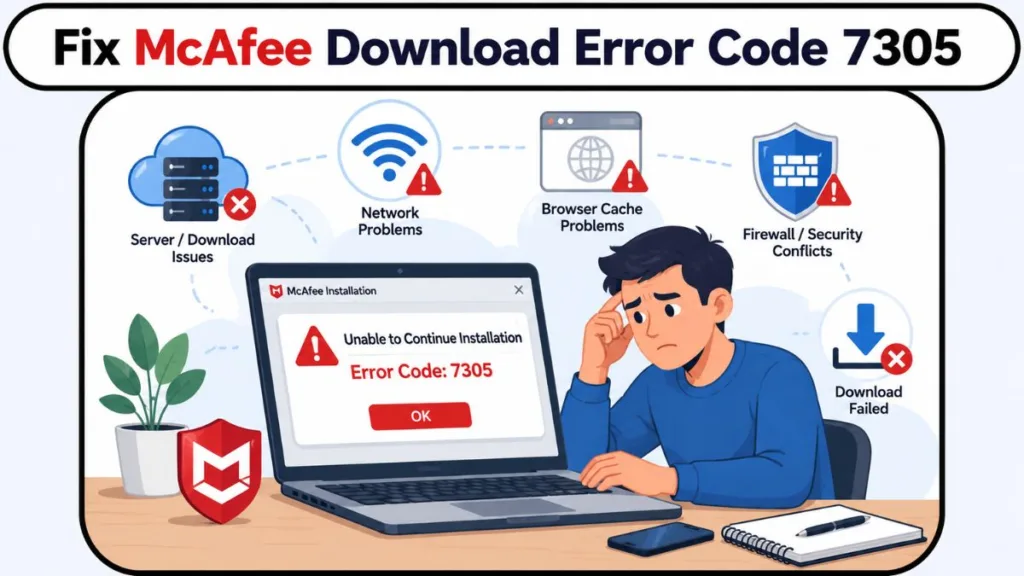
While it disrupts your day and leaves your device temporarily unprotected, the good news is that this problem is almost always temporary. It rarely points to a serious computer failure or a deep malware infection, so you haven’t broken anything.
In this comprehensive guide, we will walk you through what this error means, why your McAfee LiveSafe download fails, and the exact step-by-step solutions you can use to get your antivirus installed quickly.
What Does “McAfee Error Code 7305” Mean?
To get to the bottom of the issue, it helps to understand what your computer is actually trying to tell you.
When you see McAfee error 7305, it means the installation wizard could not establish a clean, uninterrupted connection to download the required setup files. These errors indicate general network problems that can cause your product download to disconnect or fail. It does not mean your license is invalid or that your operating system is incompatible.
Think of it like calling a busy customer support phone line: the line itself is working, but every operator is tied up at that exact second. In most situations, the error points to one of three common bottlenecks:
- A temporary service interruption: The McAfee download servers are momentarily overloaded with customers trying to download product updates.
- A browser session issue: Outdated temporary files or cache in your browser are sending scrambled session tokens when you open the McAfee homepage.
- A blocked connection: Your local Windows Firewall restrictions or third-party security tools are mistakenly flagging the download package as suspicious.
You might experience this McAfee 7305 installation error right after clicking the download button in your online dashboard, or the installer might start running normally only to freeze and fail halfway through.
Why This Error Happens
Based on real-world troubleshooting and system logs, this error generally stems from one or more of the specific causes below:
- Server Capacity and Peak Traffic: When McAfee rolls out major product updates, thousands of customers attempt to pull files simultaneously. Even if your home connection is blazing fast, server-side traffic jams can cause your download package to time out and trigger the issue at the McAfee end.
- Corrupted Browser Data: When you open myaccount.mcafee.com using Google Chrome, Microsoft Edge, or Mozilla Firefox, your web browser might try to use outdated cookies. If those temporary files are corrupted, the portal fails to hand off the installer file properly.
- Network and Security Protocol Mismatches: Windows relies on specific secure connection standards (like modern TLS protocols) to download sensitive software files. If older SSL options are misconfigured in your system settings, the transfer fails.
- Antivirus and Firewall Conflicts: If you already have Windows Defender active or an older trial version of another third-party antivirus or firewall running in the background, they can actively block the McAfee installer from completing its background tasks.
- Leftover Broken Installation Files: If an earlier download attempt was interrupted midway, corrupted temporary files stored in your Windows temp directory can prevent any new installer from launching.
Quick Checks Before You Try Fixes
Before diving into advanced settings, run through this quick diagnostic checklist to save yourself time:
- Try a different browser: Does the download start if you switch from Chrome to Edge or Firefox?
- Test your connection: Does the same issue occur if you connect your laptop to a mobile hotspot instead of your home Wi-Fi?
- Check other sites: Can you browse the web and stream media smoothly without any random disconnects?
- Note the timing: Did the McAfee download stuck problem begin right after a recent Windows update or network change?
If you answered “yes” to these questions, the issue is almost certainly a temporary network hiccup or a browser session conflict rather than a deeper operating system fault. It is imperative to note that your computer and your internet connection are the least likely to cause these errors.
How to Fix McAfee “Unable to Continue Installation”: 6-Step Guide
To resolve this issue efficiently on your Windows 11/10 PC, work through these recommended proven fixes in order. We recommend starting with the simplest fixes first.
Step 1: Wait a Few Minutes and Retry the Download
Because McAfee download server errors are frequently caused by momentary server overloads, the easiest fix is simply giving the system a short break.
- Close your web browser and all open installer windows.
- Wait a few minutes to an hour or two for server traffic to clear.
- Log back into the McAfee Protection Center or open the My Account homepage (myaccount.mcafee.com) and attempt the download again.
Step 2: Restart Your PC and Power-Cycle Your Internet Device
A quick reboot can clear up any temporary glitch that might be the culprit in this case, refreshing your local IP address assignment.
- Save any open documents and restart your computer.
- Unplug your internet device (Wi-Fi router or modem) from the power outlet. Depending on your internet device, you can refer to the instructions manual or search online for instructions on how to power-cycle your modem or router.
- Wait at least 30 seconds to allow the internal capacitors to discharge fully.
- Plug the modem and router back in, wait for all status lights to turn solid green.
- Verify your internet connection by ensuring that both www.mcafee.com and www.google.com can be accessed without any delays, then retry your download. If there are connectivity issues, run the built-in Windows Internet Connections Troubleshooter to fix network and internet problems on your PC.
Step 3: Clear Your Browsing Data
If your web browser tries to use outdated temporary files when you open myaccount.mcafee.com, clearing this data will force a fresh connection.
- For Google Chrome: Press Ctrl + Shift + Delete, set the time range to All time, check Cookies and other site data and Cached images and files, then click Clear data.
- For Microsoft Edge: Press Ctrl + Shift + Delete, select All time, check Cookies and other site data and Cached data and files, and click Clear now.
- For Mozilla Firefox: Open Settings > Privacy & Security > Cookies and Site Data, then click Clear Data.
Once cleared, close and reopen your browser, sign back into your McAfee account, and start the download.
Step 4: Adjust Your Windows Internet Options
Misconfigured internet security protocols can stop your PC from negotiating a secure handshake with McAfee’s download servers. If there are no issues with your internet connection, reset Internet Options to default or do the following:
- Press the Windows Key, type Internet Options, and press Enter.
- Click on the Advanced tab in the top-right corner.
- Scroll down to the Security section near the bottom of the list.
- Deselect the following: Use SSL 2.0 and Use SSL 3.0.
- Select the following: Use TLS 1.0, Use TLS 1.1 (if it exists), and Use TLS 1.2 (if it exists).
- Ensure that Check for server certificate revocation is also checked.
- Click Apply, click OK, and restart your computer to see if you can successfully download the McAfee product.
Step 5: Temporarily Disable Firewalls and Conflicting Antivirus Tools
Running two real-time security programs simultaneously can create severe software conflicts.
- Uninstall any other third-party firewalls or security software applications that you have installed on your Windows 11/10 computer via Settings > Apps > Installed apps.
- Open Windows Security by searching for it in the Start menu.
- Select Firewall & network protection.
- Click on your active network (Private or Public) and toggle the firewall off temporarily while you run the installer. (Remember to turn your firewall back on as soon as your setup is complete).
- Bonus Tip: If you already have McAfee installed but it is blocking another app download, open your McAfee security product (like LiveSafe or Total Protection), open Internet Connections for Programs, look for the blocked app in the list, and select Edit (or click Add if it isn’t listed) to allow it.
Step 6: Use the McAfee Pre-Install Tool and MCPR
If the suggestions above don’t resolve your issue, you might need to run tools that prepare your computer for the installation of McAfee software.
- Run the McAfee Pre-Install Tool: Download the official McAfee Pre-Install Tool directly from McAfee. Double-click the downloaded executable file to launch the utility, click the Start button on the home page, and follow the prompts. Restart your PC once the procedure completes. On boot, try downloading the McAfee product and see if that completes without throwing any error code.
- Use the MCPR Tool (For Stubborn Errors): If you still cannot install or you are getting the McAfee Installation Incomplete error or Error Code 0, download the McAfee Consumer Product Removal (MCPR) Tool. Run the utility to completely purge leftover files from older versions, reboot your computer, and run the fresh installer from your account portal.
Are McAfee Servers Down Right Now? How to Tell
Sometimes McAfee experiences partial service disruptions where the main website functions normally, but backend delivery servers fail to distribute file packages.
Look for these telltale signs of a broader server issue:
- The download fails across multiple devices on different networks (e.g., both your laptop on home Wi-Fi and your desktop at the office).
- None of the browser cache or network adjustments make any difference.
- The error persists consistently for more than two hours.
Note: Official status dashboards often track primary server health rather than regional content delivery networks (CDNs). That is why a portal might show “All Systems Operational” even if local download servers are struggling with traffic spikes.
Can This Error Affect Other McAfee Products?
Yes. Whether you are installing McAfee LiveSafe, McAfee Total Protection, or standalone tools like McAfee Safe Connect VPN, error codes 7305, 12152, 12001, and 12156 all share the same network communication roots.
The exact same troubleshooting steps—resetting browser caches, checking TLS protocols, and using the MCPR tool—apply across the entire product lineup on both Windows 10 and Windows 11.
How to Prevent This Error in the Future
While you cannot control server maintenance schedules, you can minimize local installation hiccups with a few simple practices:
- Remove old security suites first: Always fully uninstall previous antivirus applications before installing a new suite to avoid real-time protection clashes.
- Maintain a stable connection: Use a reliable Wi-Fi or wired Ethernet connection instead of metered or fluctuating mobile data when downloading large application packages.
- Keep Windows updated: Regular Windows updates ensure your device has the latest security certificates and network protocols needed to talk to modern cloud servers.
Frequently Asked Questions
Why does McAfee keep saying “Unable to Continue Installation”?
This message appears when the installer loses its connection to the host server during the file transfer. It is most often caused by temporary server overloads, dropped network packets, or local firewall interference.
Is McAfee error 7305 related to error 12152?
Yes. Error 7305 and error 12152 are practically identical in function. Both indicate a network timeout between your device and the McAfee content delivery servers.
Does clearing my browser cache actually fix error 7305?
Yes. If the error occurs when you click the initial download link inside your account dashboard, stale cookies and cached scripts can prevent the download link from generating properly.
How long does this download error usually last?
If the root cause is server congestion, it typically clears up within a few minutes to an hour or two. If the issue is caused by local network options or file conflicts, you will need to follow the troubleshooting steps above to clear it.
Can the MCPR tool fix McAfee error 7305?
Yes. If an incomplete or corrupted installation from a previous attempt is blocking the new installer from writing files, the MCPR tool will cleanly remove those remnants.
What to Do If Nothing Works
If you have completed every troubleshooting step—including running the Pre-Install and MCPR utilities—and the download still refuses to complete, you can consider downloading and installing an alternative AV solution on your PC in the unlikely event none of these fixes works for you.
However, before you give up, the best move is to pause and try again later. Rapidly restarting the installer during an active server outage can lead to further rate-limiting.
If the problem persists when you try to reaccess the McAfee homepage, reach out directly to McAfee Customer Support for additional assistance. Be sure to mention that you are seeing error code 7305 / 12152, provide them with any exact error messages that you noted down, and let them know you have already cleared your cache, updated your TLS settings, and run the Pre-Install Tool. This will help the support team bypass basic questions and escalate your ticket right away.
Have you encountered error 7305 while setting up your security software? Which step helped you get your installation back on track? Drop a comment below with your experience or any questions—your feedback might help someone else solve the exact same problem!
Visit Our Post Page: Blog Page
Discover more from Izoate
Subscribe to get the latest posts sent to your email.