
Getting a Forza Horizon 6 Error Code? Don’t Panic. Here is the Complete 6-Step Guide to Fix It Immediately
If you are currently trying to launch Forza Horizon 6 and find yourself staring at a frustrating error code instead of the starting grid, take a deep breath—you are definitely not alone. Since the game’s recent release, plenty of players have run into these little roadblocks.
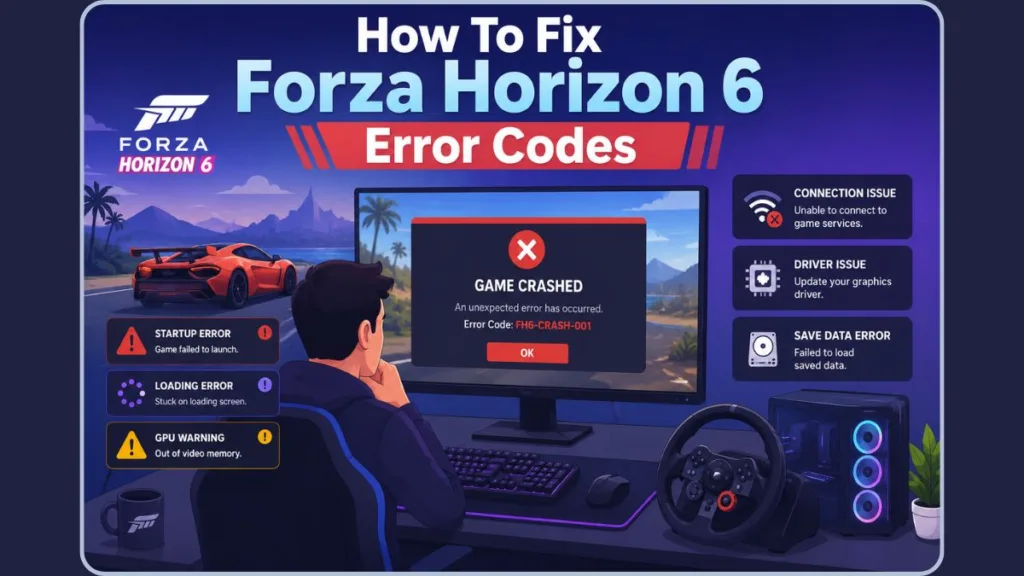
While seeing a message like “Load Failed” or an error code like E:0-e9 or FHE01 can really put a damper on your racing plans, the good news is that these issues are usually temporary. You haven’t broken your PC, and your setup is likely just fine. This guide is here to help you understand what’s happening and walk you through the practical steps to fix these issues so you can get back to the open road.
What Do These Error Codes Mean?
Think of error codes as the game’s way of asking for help. They usually follow a simple prefix system that tells us where the hiccup is occurring:
- FHC: These typically point to video card crash issues, often related to your graphics drivers or hardware compatibility.
- FHD/FHF: These are usually linked to memory, signaling that your system or GPU is struggling with RAM or VRAM allocation.
- FHE: This is a general game crash indicator, often popping up due to background service sync errors or authentication problems.
- E:0-XX: You will often see these when a save file failed to sync with the cloud.
Tip: Think of it like calling a busy office—sometimes the line is overwhelmed, and the system needs a quick reset to get everything talking to each other again. You can always check for official updates on the Forza Support Portal to see if your error is part of a known trend.
Why These Errors Happen
Usually, when you run into these Forza Horizon 6 troubleshooting hurdles, it comes down to a few common culprits:
- Partial Service Outages: Sometimes the servers are just having a busy day, leading to temporary connection interruptions.
- Gaming Services Lag: Since this is a modern title, the “Gaming Services” component in Windows needs to be happy and updated to launch the game correctly.
- GPU Driver Mismatches: FH6 is packed with high-end visuals, so keeping your drivers updated for your specific card is a big part of Forza Horizon 6 optimization. You can download the latest drivers directly from the NVIDIA or AMD websites.
- Background Conflicts: Sometimes, helpful tools like MSI Afterburner or Discord overlays can accidentally interfere with the game’s startup sequence.
Quick Diagnostics Before You Dig Deep
Before we jump into the technical steps, let’s rule out the easy stuff. These quick checks often save everyone a lot of time:
- Is the error happening every time, or was it a one-time thing?
- Do you have any overlays active (like Discord or GeForce Experience)? Try turning them off temporarily.
- Is your Windows time set to “Automatic“? It sounds small, but server authentication relies on it!
- Are you using a VPN? Sometimes those routes can be blocked, so try toggling it off.
Solve Forza Horizon 6 Errors: 6-Step Fix Guide
We’ve put together this step-by-step guide to help you troubleshoot. Please try them in order—the simplest fixes are often the most effective!
Step 1: The “Clean Launch” Refresh
Sometimes, a background process gets stuck or fails to terminate correctly, creating a conflict when you try to open the game again. Open your Task Manager (Ctrl + Shift + Esc) and navigate to the “Processes” tab. Look for any active instances of ForzaHorizon6.exe, ForzaHorizon6_Steam.exe, or any related Xbox-heavy background tasks. Select them and click “End Task.” Furthermore, if you are using an automatic startup manager, ensure no “Game Launchers” are attempting to hook into the game process simultaneously.
Important: After clearing these, wait about five minutes—this allows the local cache and server-handshake processes to time out completely—before attempting a fresh launch.
Step 2: Repair Gaming Services
The “Gaming Services” app is the bridge between your Windows account and the game’s backend. If this component is corrupted, even a perfectly installed game will fail to launch. To perform a deep repair, navigate to Settings > Apps > Installed Apps. Search for “Gaming Services,” click the three dots, select Advanced Options, and click Repair. If that doesn’t work, follow up with the Reset button. For a more aggressive fix, download the official Xbox Gaming Services Repair Tool from Microsoft’s support page.
Step 3: Verify File Integrity
Even a single missing or misaligned byte can lead to a crash during the loading screen.
- Steam users: Right-click Forza Horizon 6 in your Library, select Properties, head to the Installed Files tab, and click Verify integrity of game files. Steam will compare your local data to the master server and automatically replace any corrupted files.
- Xbox app users: Click the three dots (…) on the game page in your library, select Manage, click the Files tab, and then choose Verify and Repair. This process checks for file version mismatches and restores missing executable binaries that might have been quarantined by over-sensitive antivirus software.
Step 4: Perform a Clean GPU Driver Install
If you are seeing an FHC error, your graphics driver might have “ghost” settings remaining from a previous version, causing conflicts with Forza Horizon 6.
Don’t just update; perform a clean install. Download the latest drivers from NVIDIA, AMD, or Intel. During the installation process, look for the “Custom Installation” option and check the box labeled “Perform a clean installation.” This deletes old configuration files that often cause Forza Horizon 6 performance issues.
Safety Note: Additionally, if you have recently overclocked your GPU, reset it to factory clock speeds temporarily to ensure the driver is not crashing under load.
Step 5: Disable Hardware Accelerated GPU Scheduling (HAGS)
Hardware Accelerated GPU Scheduling is a Windows feature intended to reduce latency, but it often conflicts with the memory-heavy engine of Forza Horizon 6.
To toggle it off, navigate to Windows Settings > System > Display > Graphics. Click on the Change default graphics settings link at the top. Toggle Hardware-accelerated GPU scheduling to Off. Once toggled, you must restart your computer for the change to take effect. This often stabilizes the frame buffer and prevents the memory allocation errors that trigger the FHD prefix codes.
Step 6: Sync Your Save Data
For E:0-e9 errors, the local cache of your game save is likely out of sync with the cloud.
To fix this, you need to clear the local “stuck” data so the game fetches a fresh copy from the cloud. Navigate to your Windows Settings > Apps > Installed Apps, search for Forza Horizon 6, click the three dots, and select Advanced Options. Scroll down and click Reset.
Caution: This will clear the local app data, including the problematic save-sync cache. When you relaunch the game, it will prompt you to “Sync from Cloud”—choose this option and remain patient, as it may take several minutes to pull your progress back down to your machine.
Is Forza Horizon 6 Down Right Now?
If you’ve tried the steps above and are still stuck, you might want to check if there is a wider issue. A quick peek at the official Forza Support Twitter or the Forza Support Portal will tell you if the developers are aware of any server-side outages. Third-party sites like DownDetector are also great for seeing if other racers are in the same boat.
FAQs
Why does my game keep crashing on the splash screen?
This is often a security conflict. Try a “Clean Boot” of your computer to make sure no third-party apps are stopping the game from opening.
Is it safe to delete local save files?
Yes, it is! As long as your account has synced with the cloud, the game will automatically recover your data once you restart.
What do I do if my GPU is “not supported”?
First, check the Forza Horizon 6 system requirements. If your hardware is below the minimum specs, the game might struggle to run, which can lead to these types of errors.
What to Do If Nothing Works
If you have tried every step in this guide and the error is still there, please don’t keep trying the same thing over and over. Sometimes, it’s best to step away and wait for a patch. Your best move is to submit a support ticket via the Forza Feedback Portal. The team there is excellent at investigating these issues to roll out fixes for everyone.
Be patient with the process—the team is working hard to stabilize the experience. Keep your drivers updated, stay tuned to official channels, and soon enough, you’ll be back on the track!
Visit Our Post Page: Blog Page
Discover more from Izoate
Subscribe to get the latest posts sent to your email.