
Getting PS4 error CE-30005-8? Find out why your games won’t install or launch and get your console working again with practical troubleshooting.
Is your PS4 refusing to start a game and displaying the message “Cannot start the application (CE-30005-8)”? Maybe you inserted a game disc and the installation failed. Perhaps a digital game that worked perfectly before suddenly stopped launching. Either way, your console displays an error code without explaining exactly what’s wrong.
The PS4 CE-30005-8 error occurs when the console has trouble accessing its Hard Disk Drive (HDD) or Blu-ray/DVD drive. It can appear during physical game installations, when launching downloaded games, or when accessing games stored on external storage.
Don’t worry — you can try several troubleshooting methods before considering a hardware repair. The good news? You don’t necessarily need to replace your PS4 hard drive or purchase another game disc to resolve this problem.
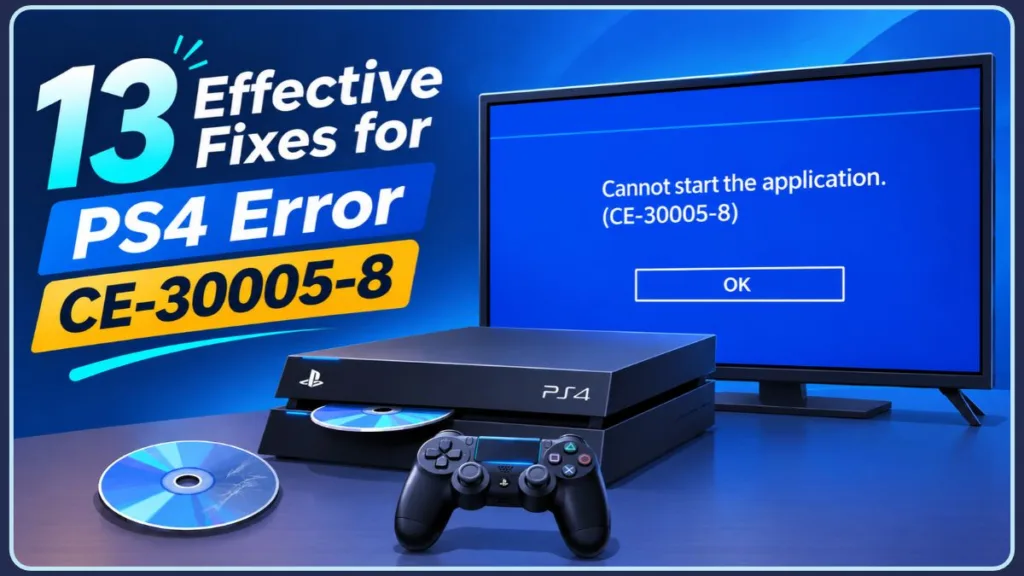
In this guide, we’ll walk you through what CE-30005-8 means, why it happens, and how to fix it using practical troubleshooting methods. We’ll also cover what to do when rebuilding the database doesn’t help, so you can get back to playing without unnecessary guesswork.
The short version: Start by checking your game disc, restarting the console, and testing another disc. If you’re playing a digital game, restore your licences and check its storage location. Next, rebuild the PS4 database, reinstall the affected game if necessary, and investigate possible HDD or Blu-ray drive problems. Back up your saved data before attempting any initialization or system software reinstallation.
What Does Error CE-30005-8 Mean on PS4?
According to PlayStation Support, CE-30005-8 means the console encountered a problem accessing its Hard Disk Drive (HDD) or Blu-ray/DVD drive.
In simple terms, your PS4 attempted to read information from one of its drives but couldn’t complete the operation.
This doesn’t automatically mean your hard drive or disc drive is permanently damaged. A dirty or damaged game disc, an inaccessible external storage device, or a problem with game files can also be involved.
Although Sony’s official error description identifies the HDD and Blu-ray/DVD drive, digital games can also encounter related launch problems. This is why it’s important to identify when the error appears before choosing a fix.
When Does the CE-30005-8 Error Appear?
The error can appear in several situations:
- Installing a physical game: The installation fails or stops partway through, even when the disc looks clean.
- Launching an installed game: The game begins loading, but the console displays the Cannot Start the Application message.
- Playing a digital game: A downloaded game from PlayStation Store fails to launch.
- Using external storage: A game installed on an external hard drive becomes inaccessible or refuses to start.
- Installing and updating simultaneously: Some players report that a physical game installation stalls while its update downloads in the background.
Identifying which situation matches your problem can help you avoid unnecessary troubleshooting.
Which CE-30005-8 Problem Are You Experiencing?
Before trying the solutions, identify what you were doing when the error appeared.
If you’re using a physical game disc: Start by cleaning the disc and testing another game. These checks help determine whether the problem follows the disc or stays with the console.
If you’re playing a digital game: Focus on restoring licences, checking storage, and reinstalling the affected game if necessary.
If your game is installed on an external hard drive: Check the USB connection and try moving the affected game to internal system storage.
If several different games are affected: Investigate the database, internal storage, and possible hardware problems.
The following solutions cover each situation, starting with simpler checks and moving towards more involved recovery options.
Why Does CE-30005-8 Keep Appearing on PS4?
Understanding the possible causes can make troubleshooting much easier.
Can a Dirty or Damaged Disc Cause CE-30005-8?
Yes. A scratched, smudged, dirty, or damaged game disc can prevent the PS4 from reading its contents correctly.
However, a disc doesn’t necessarily need visible scratches to have reading problems. Small defects or manufacturing issues may not be obvious.
What to Do: Clean the disc and test another physical game to determine whether the problem is disc-related. PlayStation’s official disc troubleshooting guide recommends these checks before moving to database troubleshooting.
Can Database Problems Cause PS4 Reading Errors?
The PS4 maintains a database that tracks content stored on the console.
If you’re experiencing database-related issues, rebuilding the database can help resolve certain system and content-management problems. Sony specifically recommends this operation when troubleshooting CE-30005-8.
What to Do: Rebuild the database using Safe Mode Option 5.
Can Incomplete Game Files Trigger CE-30005-8?
Yes. If a game installation is interrupted or its files become corrupted, the console may have trouble accessing the affected content.
This can happen with physical and digital games.
Some installations also repeatedly stop at the same point, such as around 12 GB.
What to Do: Back up your saved data and reinstall the affected game using a fresh installation.
Can Game Updates Interfere With Disc Installation?
Some players have reported physical game installations stalling while the corresponding update downloads in the background.
This may be worth investigating when a disc installation repeatedly stops at a particular point.
What to Do: Try pausing the update download while allowing the main disc installation to continue. See the dedicated installation workaround below.
Can an External HDD Cause CE-30005-8?
An external hard drive adds another storage connection that your PS4 needs to access.
A loose cable, an unsupported USB connection, or a drive that was removed incorrectly can prevent the console from reading installed games.
What to Do: Check the connection and test the affected game on internal storage.
Can a Failing Internal HDD or Disc Drive Cause This Error?
Yes. If the console repeatedly fails to access its internal hard drive or disc drive, a hardware problem may be responsible.
This becomes more concerning when several different games are affected and ordinary troubleshooting doesn’t help.
What to Do: Back up your saved data, complete the appropriate software checks, and contact PlayStation Support if the error continues.
How to Fix CE-30005-8 on PS4?
Now that you understand the possible causes, let’s walk you through the solutions.
Try these methods in order, but prioritize the steps relevant to your situation. The disc checks and database rebuild follow Sony’s CE-30005-8 and disc-troubleshooting instructions. The remaining methods draw on Sony’s general PS4 game-launch, storage, and system software guidance.
1. Clean and Inspect the PS4 Game Disc
If you’re using a physical game, start by checking the disc.
PlayStation recommends cleaning the disc with a soft, clean cloth to remove dirt and fingerprints.
Before You Start: Get a soft, lint-free cloth, preferably one designed for cleaning Blu-ray discs or DVDs.
Follow these steps:
- Eject the game disc from your PS4.
- Hold it by the edges and inspect both sides under good lighting.
- Look for fingerprints, dust, scratches, cracks, or visible damage.
- Gently wipe the disc using the cleaning cloth.
- Move the cloth in straight lines from the center towards the outer edge rather than wiping in circles.
- Reinsert the disc and try launching or installing the game again.
What to Expect: If dirt or fingerprints were preventing the console from reading the disc, cleaning may resolve the issue. If the disc is cracked or badly damaged, cleaning won’t repair it.
Why It Helps: This rules out a simple disc-reading problem before you move on to more involved troubleshooting.
Warning: PS4 consoles cannot play burned discs or audio CDs. Use a supported game or media disc.
2. Fully Restart Your PS4 Console
A full restart is another simple troubleshooting step worth trying.
It can clear temporary system glitches that interfere with game installations or drive access.
Before You Start: Save your progress and close any running games.
- Press and hold the PS button on your controller.
- Open Power from the Quick Menu.
- Select Restart PS4.
- Allow the console to restart completely.
- Launch the affected game again.
If the error persists, you can also try a complete power cycle.
- Select Power > Turn Off PS4.
- Wait until the console’s power indicator goes out completely.
- Disconnect the power cable.
- Wait approximately five minutes.
- Reconnect the power cable.
- Turn on the console and test the game again.
PlayStation documents a similar five-minute power-disconnection procedure for certain disc-related problems, although it isn’t listed as a specific CE-30005-8 fix.
What to Expect: The console should restart normally. If a temporary system issue was responsible, the game may launch without displaying the error again.
Why It Helps: Restarting clears temporary system states and can resolve minor issues affecting the console’s operation.
3. Test Another PS4 Game Disc
If cleaning the disc didn’t help, try another physical game.
This is an important diagnostic step because it helps you determine whether the problem is associated with one particular disc or the console’s disc-reading hardware.
- Eject the disc displaying the error.
- Insert another supported PS4 game disc.
- Wait for the console to recognize it.
- Try launching or installing the second game.
- Compare the results.
What to Expect:
- The second disc works: Your original game disc may be defective, even if it looks perfectly clean.
- The second disc also fails: The problem may involve the Blu-ray drive, database, or another storage-related issue.
If only one disc fails, consider exchanging or replacing that copy before attempting deeper console repairs.
Why It Helps: Testing another disc helps isolate the problem without changing your console settings.
4. Rebuild the PS4 Database Using Safe Mode
Rebuilding the database is one of Sony’s specifically recommended troubleshooting steps for CE-30005-8.
The operation scans the console’s drive and creates a new database of the content stored on your PS4.
Before You Start: Keep your PS4 controller and a USB cable nearby. You’ll need a wired connection to navigate Safe Mode.
Follow these steps:
- Turn off your PS4 completely.
- Press and hold the console’s power button.
- Release the button after hearing the second beep. The second beep occurs approximately seven seconds after the first.
- Connect your controller using a USB cable.
- Press the PS button.
- Select 5. Rebuild Database.
- Confirm your selection and wait for the process to finish.
Don’t turn off the console while the database is rebuilding.
What to Expect: The PS4 restarts after completing the operation. Depending on the amount of stored content and the condition of the drive, the process may take some time.
Try launching the affected game again once the console returns to its normal home screen.
Why It Helps: Rebuilding creates a fresh database of the console’s content and can resolve certain database-related problems.
Does Rebuilding the Database Delete Saved Games?
No. Rebuild Database (Safe Mode Option 5) scans the drive and creates a new database. It isn’t the same as initializing the console, which deletes user data.
However, backing up important saved data is always a sensible precaution before attempting more advanced recovery procedures.
5. Restore Licences for Digital Games on PS4
If you’re experiencing CE-30005-8 with a digital game, try restoring your PlayStation Store licences.
Sony recommends licence restoration as part of its general PS4 game-launch troubleshooting process. It can help when a game crashes, displays a padlock icon, or cannot be accessed because of a licence issue.
Before You Start: Sign in to the PlayStation Network account that owns the affected game.
- Open Settings on your PS4.
- Select Account Management.
- Choose Restore Licences.
- Select Restore.
- Wait for the process to finish.
- Return to the home screen and try launching the game.
What to Expect: Your console will attempt to restore the licences associated with your account. Once the process finishes, test the affected game again.
Why It Helps: It can resolve certain digital-content access problems without requiring you to delete and reinstall the game.
If restoring licences doesn’t help, check that you’re signed in to the account used to purchase the game. For PlayStation Plus games, also confirm that your subscription is active and the game remains available to your account.
6. Check Your PS4 External Hard Drive
If the affected game is installed on an external hard drive, investigate the storage connection.
According to PlayStation, PS4 USB extended storage requires:
- A compatible external HDD.
- USB 3.0 or later (SuperSpeed USB 5 Gbps or faster).
- A capacity between 250 GB and 8 TB.
- A direct connection to the console rather than a USB hub.
Before You Start: Make sure your PS4 is completely turned off before reconnecting the external drive.
- Disconnect the external hard drive.
- Check its USB cable for visible damage.
- Reconnect the drive firmly to a USB port on the PS4.
- Turn on the console.
- Check whether the external drive appears under Settings > Storage.
- If the console displays a repair prompt, follow the on-screen instructions.
If the affected game still doesn’t work, try moving it to internal system storage.
- Open Settings.
- Select Storage.
- Choose Extended Storage.
- Select Applications.
- Press the OPTIONS button.
- Choose Move to System Storage.
- Select the affected game.
- Choose Move and wait for the transfer to finish.
- Launch the game from internal storage.
What to Expect: If the game works from internal storage, the external drive or its connection may be involved. If the error continues, the game files or console storage may need further investigation.
Why It Helps: Moving the game to internal storage helps isolate the external drive from the troubleshooting process.
Important: Never disconnect an external drive while the PS4 is actively using it. Select Stop Using This Extended Storage under Settings > Devices > USB Storage Devices before removing it.
You can also change where new games are installed by going to Settings > Storage, pressing OPTIONS, and selecting Application Install Location > System Storage. You cannot change the installation location while a download is in progress.
7. Fix CE-30005-8 When a Game Installation Gets Stuck
Does your PS4 game installation repeatedly stop at a particular point?
Some players have reported that physical game installations stalled while the corresponding update downloaded in the background.
One unofficial workaround involves pausing the update download while allowing the main disc installation to continue.
Before You Start: Keep the game disc inserted and make sure your PS4 has an active internet connection.
- Insert the game disc into your PS4.
- Allow the main game installation to begin.
- Press up on the controller to open the function area.
- Select Notifications.
- Open Downloads.
- Find the game’s update download.
- Highlight the update and select Pause. Depending on your system software, you may need to press the OPTIONS button first.
- Allow the main disc installation to finish.
- Once the game is installed, return to Downloads.
- Resume the update download.
Keep the disc inserted while completing the installation if the game requires it.
What to Expect: Some players have reported that pausing the update allowed their disc installation to complete. However, this workaround isn’t guaranteed to resolve every installation failure.
If the installation still stops at the same point: Open Notifications > Downloads, select the stalled update, and use OPTIONS > Delete if you need to remove the incomplete update download. Then retry the installation. If it fails at the same point, test another disc because the original copy may be faulty.
Why It Helps: Pausing the background update separates the main disc installation from the update download. This is a practical workaround worth trying when an installation repeatedly stalls, although the exact cause of individual installation failures can vary.
8. Back Up Your Saved Data, Then Reinstall the Affected Game
If the error only affects one game, its installation files may be damaged or incomplete.
Reinstalling the game replaces the existing installation with a fresh copy.
However, protect your saved progress before deleting anything.
Before You Start: Back Up Your Saved Data
You can use either PlayStation Plus cloud storage or a USB drive.
Option A: PlayStation Plus Cloud Storage
- Open Settings.
- Select Application Saved Data Management.
- Choose Saved Data in System Storage.
- Select Upload to Online Storage.
- Choose the affected game.
- Upload the saved data.
This option requires an active PlayStation Plus subscription. Sony currently provides up to 100 GB of cloud storage for PS4 and PS5 saved data, with a limit of 1,000 PS4 saved-data files.
Option B: USB Storage
- Connect a compatible USB drive formatted as FAT32 or exFAT.
- Open Settings.
- Select Application Saved Data Management.
- Choose Saved Data in System Storage.
- Select Copy to USB Storage Device.
- Choose the game and copy its saved data.
Once your progress is backed up, reinstall the game.
For Physical Games:
- Highlight the affected game on the home screen.
- Press the OPTIONS button.
- Select Delete.
- Confirm your selection.
- Reinsert the game disc.
- Allow the game to install again.
For Digital Games:
- Highlight the affected game.
- Press the OPTIONS button.
- Select Delete.
- Open Library.
- Select Purchased.
- Find the affected game.
- Choose Download.
Wait for the installation to finish before launching the game.
What to Expect: The PS4 installs a fresh copy of the game. Your saved progress should remain available if it was backed up separately and hasn’t been deleted.
Why It Helps: Reinstalling replaces damaged or incomplete game files that may be preventing the console from launching the application.
9. Free Up Storage Space on Your PS4
A nearly full storage drive can complicate game installations and updates.
Sony identifies insufficient HDD space as a separate cause of PS4 download cancellation. Although it doesn’t specify a particular amount of free space required to resolve CE-30005-8, checking available storage is a useful troubleshooting step.
How to Free Up PS4 Storage Space
- Open Settings.
- Select Storage.
- Choose System Storage.
- Check how much free space is available.
- Return to the home screen.
- Highlight an unwanted game.
- Press the OPTIONS button.
- Select Delete.
- Confirm the deletion.
Deleting a game application normally doesn’t delete its separately stored saved data. You can redownload purchased games from your Library.
Once you’ve freed up enough space, retry the affected installation.
What to Expect: The available storage figure should increase after the deletion finishes. You can then attempt the installation or update again.
Why It Helps: Installations and updates need sufficient available storage. Checking this also rules out a separate space-related installation problem.
10. Update the PS4 System Software
Keeping your console updated can help avoid software-related problems.
PlayStation recommends using the latest available system software when troubleshooting games that won’t start.
Before You Start: Connect your PS4 to the internet. Don’t turn off the console during an update.
- Open Settings.
- Select System Software Update.
- Allow the console to check for available updates.
- If an update is available, follow the on-screen instructions.
- Wait for the installation and restart to finish.
What to Expect: Your PS4 restarts using the installed system software version. If the console is already up to date, it will tell you that no update is available.
If the Update Gets Stuck:
Sony recommends restarting the update download.
- Open Notifications.
- Highlight the system software update file.
- Press the OPTIONS button.
- Select Delete.
- Return to Settings > System Software Update.
- Try downloading the update again.
If Updates Keep Failing, Use a USB Drive
Sony also provides a manual update method using a PC or Mac.
- Connect a USB drive to your computer.
- Format it as FAT32 or exFAT. Formatting erases the existing contents, so back up anything important first.
- Create a folder named PS4.
- Inside it, create another folder named UPDATE.
- Visit Sony’s official PS4 system software page.
- Download the regular PS4 console update file.
- Save it inside the UPDATE folder as PS4UPDATE.PUP.
- Connect the USB drive to your PS4.
- Start the console in Safe Mode.
- Select 3. Update System Software.
- Choose Update from USB Storage Device > OK.
If your PS4 doesn’t recognize the file, check the folder names and file name. Sony requires the names to use uppercase letters.
Warning: Only download update files from Sony’s official website. Using unofficial files or interrupting the installation can cause further problems.
Why It Helps: Installing the latest system software removes outdated system software as one possible source of compatibility or installation problems.
11. CE-30005-8 After Rebuilding the Database: What Should You Try Next?
If the database rebuild finishes but CE-30005-8 returns, don’t keep repeating the same operation.
Instead, revisit the troubleshooting steps based on the games and storage devices affected.
Here are the next steps to try:
- Test another disc (Fix 3): Determine whether the problem follows one particular game disc or affects the PS4 disc drive.
- Restore licences (Fix 5): Try this if the error appears while launching a digital game.
- Move the game to internal storage (Fix 6): Check whether an external hard drive or its connection is causing the problem.
- Reinstall the affected game (Fix 8): Replace potentially damaged or incomplete installation files.
- Pause the game update (Fix 7): Try this when a physical game installation repeatedly stalls.
If the error appears across several different games, whether physical or digital, the internal storage or console hardware may need further investigation.
Back up your saved data before moving on to the stronger recovery options.
12. Last Resort: Restore Default Settings, Initialize PS4, or Reinstall System Software
If the previous solutions haven’t resolved the problem, you can consider the stronger recovery options available in PS4 Safe Mode.
These options have different effects, so don’t select one without understanding what it does.
Before You Start: Back Up Your PS4 Data
It’s particularly important to protect your saved games before initializing the console or reinstalling its system software.
You can back up your console through a USB storage device.
- Sync your trophies by opening Trophies from the function screen.
- Press the OPTIONS button and select Sync Trophies.
- Connect a USB drive formatted as FAT32 or exFAT.
- Open Settings > System > Back Up and Restore.
- Select Back Up.
- Choose the data you want to include.
- Confirm the backup name and select Back Up.
- Wait until the backup finishes before disconnecting the USB drive.
Sony recommends using a USB drive with at least twice the free storage space of the backup file.
You can also back up individual saved games through Settings > Application Saved Data Management.
Don’t turn off the console while the backup is running.
Step A: Restore Default Settings (Safe Mode Option 4)
Start with Restore Default Settings because it doesn’t delete your installed games, applications, screenshots, video clips, or saved data.
- Turn off the PS4 completely.
- Enter Safe Mode by holding the power button until you hear the second beep.
- Connect your controller using a USB cable.
- Press the PS button.
- Select 4. Restore Default Settings.
- Confirm your selection.
- Wait for the console to restart.
What to Expect: Your PS4 returns to its default system settings, but your existing content remains on the console.
Why It Helps: This can help resolve problems caused by incorrect or problematic system settings without requiring a complete console reset.
Step B: Initialize PS4 (Safe Mode Option 6)
If restoring default settings doesn’t help, you can consider initializing the console.
Warning: Initialize PS4 deletes all user data. Back up your saved games and other important information before continuing.
- Turn off the PS4 completely.
- Start the console in Safe Mode.
- Connect your controller using a USB cable.
- Press the PS button.
- Select 6. Initialize PS4.
- Follow the on-screen instructions.
- Wait for initialization to finish.
- Set up the console again.
- Restore your backed-up data and reinstall your games.
What to Expect: The PS4 erases user data and returns to its initial state. You’ll need to sign in again and download or reinstall your games.
Why It Helps: Initialization removes existing user data and software content, giving you a fresh console setup. However, it won’t repair a physically failing hard drive or disc drive.
Step C: Initialize PS4 (Reinstall System Software – Safe Mode Option 7)
This is the most extensive recovery option. It erases all user data and removes the existing PS4 system software.
Before You Start: You’ll need a computer and a USB drive formatted as FAT32 or exFAT.
Follow these steps:
- Connect the USB drive to your PC or Mac.
- Create a folder named PS4.
- Inside it, create another folder named UPDATE.
- Visit Sony’s official PS4 system software page.
- Find the Reinstall System Software section.
- Download the PS4 console reinstallation file, not the regular update file.
- Save the file inside the UPDATE folder as PS4UPDATE.PUP.
- Connect the USB drive to your PS4.
- Start the console in Safe Mode.
- Connect your controller using a USB cable.
- Select 7. Initialize PS4 (Reinstall System Software).
- Follow the on-screen instructions.
- Wait for the reinstallation to finish without turning off the console.
If your PS4 doesn’t recognize the file, check the folder names and file name. Both folder names and the update file name must use uppercase letters.
What to Expect: Your console restarts and takes you through the initial setup process. You’ll need to connect to the internet, sign in, restore your saved data, and reinstall your games.
Why It Helps: Reinstalling system software provides a clean software installation when less destructive troubleshooting methods haven’t resolved the issue.
Important: The regular system update file and the reinstallation file are different. Make sure you download the correct file from Sony. Interrupting the installation can damage the console.
Sony identifies Option 7 as a destructive recovery operation and recommends PlayStation Repairs when disc troubleshooting doesn’t resolve the problem. Consider professional support before repeatedly resetting a console that may have a hardware fault.
13. Contact PlayStation Support
If CE-30005-8 continues after the appropriate troubleshooting steps, your PS4 may have a hardware problem.
A failing internal HDD or damaged Blu-ray/DVD drive can prevent the console from accessing games correctly.
Before requesting a repair, make a note of:
- Whether the error affects physical or digital games.
- Whether multiple game discs fail.
- Whether games work from internal storage.
- Whether rebuilding the database resolved anything.
- Which troubleshooting methods you’ve already attempted.
Visit the PlayStation Repairs diagnostic tool to check the available repair options.
What to Expect: PlayStation Support can help determine whether your console needs professional inspection or repair. Depending on the diagnosis, the repair may involve checking or replacing a faulty component.
Why It Helps: If the problem is caused by faulty hardware, additional software troubleshooting may not resolve it.
Is CE-30005-8 Dangerous for Your PS4?
No, seeing CE-30005-8 doesn’t automatically mean your PS4 is permanently damaged.
The error indicates that the console encountered a problem accessing its HDD or Blu-ray/DVD drive.
Sometimes the cause is relatively simple, such as a dirty disc or an incomplete game installation. However, recurring errors involving several different games may indicate a deeper storage or hardware problem.
If the error keeps appearing, back up your saved data before attempting more advanced troubleshooting. This is particularly important if you suspect that the internal hard drive is becoming unreliable.
How Can You Prevent CE-30005-8 From Returning?
You can’t prevent every storage or disc-reading problem, but a few habits can reduce the chances of encountering similar issues.
How Can You Protect Your PS4 Game Discs?
- Hold discs by their edges.
- Return them to their cases after use.
- Keep them away from dust, moisture, and excessive heat.
- Avoid placing discs on rough surfaces.
Why It Helps: Proper disc handling reduces fingerprints, scratches, and other damage that can interfere with reading.
How Much Free Storage Should You Keep on PS4?
Avoid filling your internal hard drive to its maximum capacity.
Delete games you no longer play or move applications to compatible external storage.
Why It Helps: Installations and updates need sufficient available storage. Leaving some room also makes it easier to manage new downloads and game updates.
Should You Interrupt PS4 Game Installations?
Avoid switching off or unplugging the console while games are installing or updating.
If you need to stop a download, pause it through Notifications > Downloads instead.
Why It Helps: Properly completing installations reduces the risk of incomplete or damaged game files.
How Should You Disconnect an External Hard Drive?
Always disconnect external storage safely.
- Open Settings.
- Select Devices.
- Choose USB Storage Devices.
- Select the connected external drive.
- Choose Stop Using This Extended Storage.
- Disconnect the drive after the console confirms that it’s safe.
Why It Helps: Safe removal reduces the risk of storage disconnection problems, data corruption, and repair prompts.
Should You Back Up Your PS4 Saved Data?
Yes. Keep important game saves backed up using PlayStation Plus cloud storage or a compatible USB drive.
You can also use Settings > System > Back Up and Restore to back up supported console data.
If you have PlayStation Plus, you can enable automatic uploads through Settings > Application Data Management > Auto-Upload. For automatic uploads during Rest Mode, enable Stay Connected to the Internet under Settings > Power Saving Settings > Set Features Available in Rest Mode.
Why It Helps: Having a backup protects your progress if you eventually need to initialize the PS4, reinstall system software, or arrange a repair.
FAQs About the CE-30005-8 Error on PS4
What Does CE-30005-8 Mean on PS4?
CE-30005-8 means your PS4 encountered a problem accessing its hard disk drive or Blu-ray/DVD drive. The problem may involve a game disc, storage access, or the console’s hardware. Start by checking the disc and rebuilding the database before considering more advanced troubleshooting.
Can CE-30005-8 Happen With Digital Games?
Yes. Although Sony’s error definition identifies HDD and Blu-ray/DVD drive access, digital games can also experience related launch problems. When this happens, check the game’s storage location, restore your licences, and consider reinstalling the affected application. If the game is installed on an external hard drive, test it using internal storage.
Why Does My PS4 Game Disc Fail to Install Even When It Looks Clean?
A disc can have defects that aren’t visible to the naked eye. The Blu-ray drive may also be the problem rather than the disc itself. Try another physical game disc, as Sony recommends, to determine whether the problem follows one particular disc or affects multiple discs.
Why Does My PS4 Installation Keep Stopping at 12 GB?
An installation that repeatedly stops at the same point may involve a faulty disc, incomplete game files, or another installation problem. Some players have reported resolving this issue by pausing the background update download while allowing the main disc installation to finish. This isn’t a guaranteed fix, but it’s a low-risk workaround worth trying.
Will Rebuilding the PS4 Database Delete My Games or Saved Data?
No. Rebuild Database (Safe Mode Option 5) scans the drive and creates a new database of the content stored on the system. It isn’t the same as initializing the console. However, always back up your important data before attempting stronger recovery options.
What Should I Do If CE-30005-8 Continues After Rebuilding the Database?
Don’t keep repeating the same operation. Instead, test another disc, restore digital game licences if relevant, check external storage, and reinstall the affected game if necessary. If several games continue displaying the error, investigate possible HDD or Blu-ray drive problems and contact PlayStation Support.
Does CE-30005-8 Mean My PS4 Hard Drive Is Broken?
Not necessarily. The error can also involve the Blu-ray/DVD drive or other storage-access problems. A failing hard drive becomes a stronger possibility when multiple games are affected and the error continues after software troubleshooting. Back up your saved data and arrange a professional inspection if necessary.
Should I Move My Game to Internal Storage if It’s Installed on an External Drive?
Yes, testing the affected game on internal storage is a useful diagnostic step. If it works normally after being moved, the external drive or its connection may be involved. If the error continues, investigate the game installation and the console’s internal storage.
When Should I Contact PlayStation Support?
Contact PlayStation Support when the error continues after checking the disc, testing another one, rebuilding the database, checking storage, and trying the relevant software fixes. If the console cannot reliably access its HDD or Blu-ray/DVD drive, professional repair may be necessary.
Where Can I Download Official PS4 System Software?
Download the regular update file or system software reinstallation file directly from Sony’s official PS4 system software page.
Use the regular update file for a manual system update and the reinstallation file only when performing Initialize PS4 (Reinstall System Software) through Safe Mode Option 7.
Both files must be saved as PS4UPDATE.PUP inside a folder named UPDATE, within a folder named PS4, on a FAT32 or exFAT USB drive.
Conclusion
The CE-30005-8 error on PS4 can be frustrating because it may appear during game installations, when launching digital games, or while accessing physical discs and external storage.
However, it doesn’t automatically mean your console needs a new hard drive or Blu-ray drive.
Start with the simpler solutions, including cleaning the game disc, restarting the console, and testing another disc. If you’re playing a digital game, restore your licences and check its storage location. You can then rebuild the database, reinstall the affected game, and investigate possible storage problems.
Save initialization and system software reinstallation for last, and always back up your saved data before attempting these stronger recovery methods.
If none of the troubleshooting steps resolves the issue, contact PlayStation Support to investigate a possible hardware fault.
Visit Our Post Page: Blog Page
Discover more from Izoate
Subscribe to get the latest posts sent to your email.