
Are you getting a SQL error while logging in to EPFO or resetting your password? Learn how to fix SQL Error Code 0 and resolve connection issues.
Seeing a SQL Error Code 0 in EPFO when you try to log in to your UAN account? You may encounter a message such as “ERR_SQE[0] Unable to get the connection” or “Error Occurred. SQL Error Code: 0.” This can prevent you from accessing your EPF account, resetting your password, or completing an online request.
The first thing to know is that this error does not automatically mean your UAN is blocked or your password is incorrect. It may indicate a problem processing your request, but the exact cause cannot be determined from the error message alone.
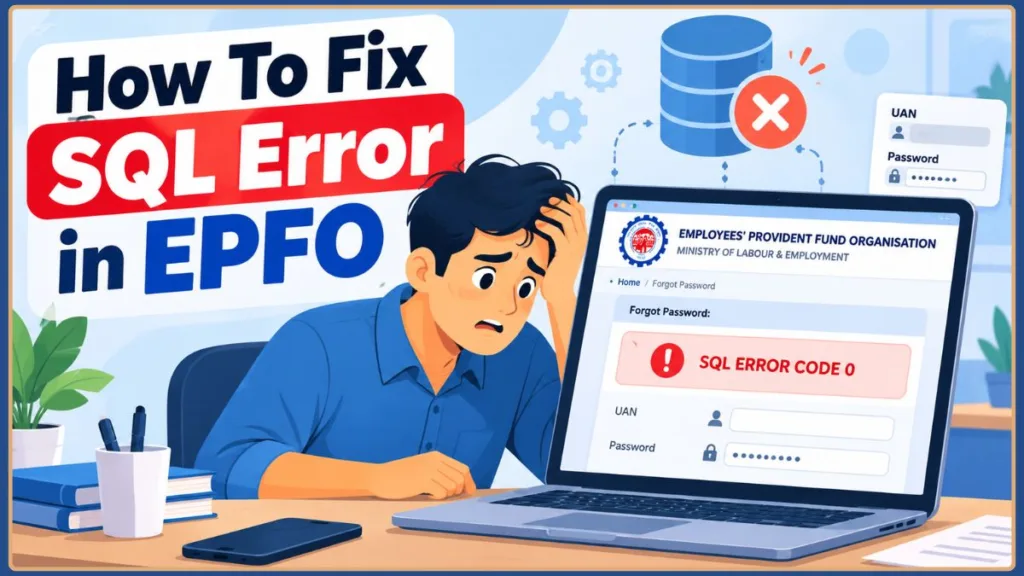
Start by checking your internet connection and opening a fresh session in the official EPFO member portal. If the error appears after you enter an OTP and submit a new password, pause before repeating the reset process. You need to establish whether the previous attempt succeeded before making unnecessary changes.
Practical tip: Before trying any fix, note exactly when the error appears. An error during login, after OTP verification, and after submitting a form can require different next steps. Identifying the failed stage helps you avoid repeating unrelated troubleshooting steps.
Quick Fixes for SQL Error Code 0 in EPFO
Try these steps before changing your account details or repeatedly submitting the same request.
- Wait and try again. A temporary service problem may resolve without any action on your side.
- Check your internet connection. Open another website, then try switching between Wi-Fi and mobile data.
- Open the official EPFO member portal in a fresh session. Close duplicate EPFO tabs and visit the UAN Member Portal.
- Check your browser settings. The official portal requires JavaScript for login.
- Try a private window or another browser. This can help identify a browser-session problem.
- Clear cached files and cookies if necessary. This may help if the problem is related to browser data, but it will not resolve a server-side failure.
- Avoid repeated submissions. If the error appears after a password reset or form submission, verify the outcome before trying again.
- Contact EPFO if the problem persists. Use the official EPFO website or EPFiGMS grievance portal.
Expert recommendation: Start with the simplest checks: retry the portal, test your connection, and open a fresh browser session. If the error persists across different browsers and networks, stop repeating the same basic fixes and focus on checking the service status or contacting EPFO.
A practical approach is to wait around 30–60 minutes before making another attempt if the service appears to be failing. This is a troubleshooting suggestion, not an official EPFO resolution time. If you have an urgent deadline, prepare your error details and contact support rather than relying on repeated attempts.
Important: The suggested waiting period is not a guaranteed recovery time. If you have a time-sensitive claim or submission, document the error and seek official guidance instead of assuming the portal will recover within a particular period.
What Does SQL Error Code 0 in EPFO Mean?
SQL stands for Structured Query Language, which is used to interact with databases. Websites and applications may display SQL-related errors when they cannot complete a database operation or communicate with a required service.
In EPFO-related reports, the message “ERR_SQE[0] Unable to get the connection” is associated with failed attempts to use the portal.
However, the number 0 alone is not enough to establish the underlying cause. The message does not prove that EPFO’s database is down, that your password is incorrect, or that your UAN has been blocked.
The most useful clues are where the error appears and what you were doing when it happened. An error before login may need a different response from one displayed after submitting a new password or a PF claim.
Key takeaway: Treat SQL Error Code 0 as a technical error message, not as a diagnosis. Do not conclude that your UAN is blocked, your password is wrong, or your PF claim has failed unless you receive separate information confirming that outcome.
Why Does SQL Error in EPFO Occur?
Several issues may explain the error. These are possible causes, not confirmed explanations for every incident.
1. A temporary problem with an EPFO service
A service may temporarily fail to process your request because a required application or connection is unavailable.
If the same error appears across different browsers and networks, a portal-side problem becomes more plausible. It still does not prove that EPFO is experiencing a system-wide outage.
What to do: Check the official EPFO website for relevant notices, wait, and retry once. Do not spend time repeatedly clearing your browser cache if the same error occurs everywhere.
Practical insight: If the same error continues after you switch browsers and networks, further browser cleanup is unlikely to be the most useful next action. Check for official announcements and record the error details so you can report the issue clearly.
2. An unstable internet connection
An interrupted connection may prevent your browser from completing a request.
What to do: Open another website to test your internet access. If necessary, switch networks or restart your router. Then return to the official EPFO portal.
If EPFO continues to display the same error on multiple connections, avoid repeatedly resetting your network without other evidence that it is responsible.
Troubleshooting tip: Changing networks is a diagnostic test, not a guaranteed fix. If EPFO works on mobile data but not on your usual Wi-Fi, investigate the original connection. If the error occurs on both, move on to the next check rather than repeatedly restarting your router.
3. An expired or conflicting browser session
A stale login session or multiple open portal tabs can complicate access.
The official UAN Member Portal can display a separate warning that your session is active in another window, browser, or system. If you see this message, follow the options shown on the portal rather than treating it as the same error as SQL Error Code 0.
What to do: Close duplicate EPFO tabs and open a fresh session. Follow the portal’s instructions if it displays an active-session warning.
Practical tip: If the portal displays a specific session warning, follow that message’s instructions. Do not treat every EPFO access problem as SQL Error Code 0; the exact message should determine which troubleshooting path you use.
4. Browser cache, cookies, or compatibility problems
Cached files and cookies can sometimes interfere with a website’s current session. An outdated browser or disabled JavaScript can also cause functionality problems.
What to do: Update your browser, enable JavaScript, and try a private browsing window. Clear the relevant site data if the error continues.
If another browser works while your usual browser fails, investigate the original browser’s settings, extensions, and cached data.
Expert recommendation: Test a private window before clearing all your browsing data. If the portal works in the private window, the issue may relate to your normal browser session or its settings. Clear relevant site data only if necessary, and avoid disabling browser security protections.
5. A problem with the particular EPFO service
A login failure is not necessarily the same as a password-reset, registration, claim-status, or form-submission failure.
For example, a SQL error after submitting a form can leave you unsure whether the request was recorded.
What to do: Note the exact page and action that triggered the error. If you already submitted an important request, check its status before submitting it again.
Important: When a form or claim submission returns an error, do not assume that the request failed completely. Check for a confirmation message, reference number, or available status information before submitting the same request again.
How to Fix SQL Error in EPFO: Step-by-Step Solutions
Follow the relevant steps below. Each test is intended to help narrow down the problem rather than assuming that every error has the same cause.
1. Check the Official EPFO Portal
Open the official UAN Member Portal and check the EPFO website for relevant announcements.
A website loading successfully does not guarantee that every service, including login and password resetting, is working correctly.
If you can open the portal but cannot complete an action, record the step where the error occurs and continue with the troubleshooting process.
Do not assume that a current outage exists simply because you see SQL Error Code 0.
Practical tip: Check announcements that are relevant to the particular service you need. A working homepage does not confirm that login, password resetting, or claim-status services are functioning normally.
2. Disconnect and Reconnect to the Internet
A fresh network connection can help rule out local connectivity problems.
- Close the EPFO page.
- Disconnect from Wi-Fi or mobile data.
- Reconnect to the internet.
- Open the official member portal again.
- Try signing in once.
If the error continues, test another connection where possible. If both networks produce the same result, your original internet connection may not be the cause.
Troubleshooting tip: Make one deliberate connection change and test the portal again. Repeatedly disconnecting and reconnecting without observing a different result is unlikely to provide additional information.
3. Refresh Your EPFO Login Session
Try opening a fresh session before changing your password.
- Close duplicate EPFO tabs.
- Open a new browser tab.
- Visit the official UAN Member Portal.
- Enter your UAN, password, and the requested captcha.
- Select Sign in.
If the portal displays a message that a session is active elsewhere, follow the available options on that page. Avoid repeatedly entering your credentials if the same SQL error continues.
Practical recommendation: Make one fresh login attempt after reopening the portal. If the same error returns, move to another relevant check instead of continuously submitting your credentials.
4. Update Your Browser and Enable JavaScript
The official UAN Member Portal explicitly asks users to enable JavaScript for login.
To update Chrome or Microsoft Edge, open the browser menu and navigate to its About section. Check for updates and install any available version. For other browsers, use their built-in update options.
To check JavaScript settings, open your browser’s site settings and find the JavaScript permission. Make sure it is enabled for the official EPFO portal.
If a browser extension appears to interfere with the page, try a private window or a different browser before changing other settings. Avoid disabling your browser’s security protections.
Expert recommendation: Change only the browser setting you need to check. If JavaScript is already enabled and another browser displays the same error, avoid spending time making unrelated browser changes. The cause may not be within your browser.
5. Clear Browser Cache and Cookies
Clearing cached files and cookies is worth trying when the problem appears to be limited to a particular browser session.
- Open your browser’s settings.
- Navigate to Privacy and Security.
- Find Clear browsing data or the equivalent option.
- Select cached images and files.
- Select cookies or site data if necessary.
- Confirm the selection, restart the browser, and open EPFO again.
If your browser allows you to clear data for a specific website, consider removing only the relevant site data instead of deleting all browsing data.
Remember that clearing cookies can sign you out of websites. Make sure you know the login details you need before proceeding.
How to interpret the result: If the portal works after clearing site data, your previous browser session may have contributed to the problem. If the error persists, the cause may lie elsewhere.
Practical tip: Prefer clearing site-specific data when your browser supports it. This avoids unnecessarily signing you out of unrelated websites. If clearing the cache does not help, move on rather than repeating the same cleanup process.
6. Try a Different Browser or Device
Testing another browser is more useful when you use the result to decide what to do next.
For example, suppose EPFO displays SQL Error Code 0 in Chrome on your laptop. Open the official portal in Firefox or Edge, or test it on another device.
- Works in the second browser: Check the original browser’s site data, extensions, and settings.
- Fails in both browsers but works on another network: Your original network or its configuration may be involved.
- Fails across browsers and networks: A portal-side or service-specific problem becomes more plausible.
- Only one particular action fails: Concentrate on that service rather than resetting the entire browser or device.
These results are clues, not definitive diagnoses. Do not reinstall your browser or change unrelated settings without a specific reason.
Key takeaway: Each test should tell you something useful. If changing the browser fixes the error, investigate that browser. If changing the network fixes it, investigate the original connection. If nothing changes, avoid repeating the same tests and consider contacting EPFO.
SQL Error in EPFO While Resetting Password
A password-reset failure needs special attention because an error message does not tell you whether the new password was saved.
What if the SQL error appears after entering an OTP?
A Reddit discussion posted on October 14, 2026, described users encountering an SQL error while resetting their EPFO passwords, including after entering an OTP and submitting a new password. Some commenters later reported that retrying worked, while others were still facing the issue.
This is a real-world example of the problem appearing at a specific step in the reset process. These are community reports, not official confirmation of a portal-wide outage or its technical cause. You can read the discussion on Reddit.
If you encounter the same problem, follow this sequence.
Step 1: Stop repeating the reset.
Do not keep requesting OTPs or submitting the same form while the service is failing.
Step 2: Wait before trying again.
Give the service some time and check the official portal for any relevant announcement. A later attempt may work, but there is no guaranteed resolution time.
Step 3: Return to the official member portal.
Open the UAN Member Portal and use the password-reset option if necessary.
Step 4: Check whether the new password was saved.
If you believe the reset succeeded, try signing in once with the new password. If the login succeeds, you do not need to repeat the reset.
Step 5: Avoid unnecessary additional resets.
If the SQL error returns, pause and contact EPFO if you cannot proceed. Do not cycle through multiple new passwords without establishing whether the previous request succeeded.
Important: A SQL error displayed after submitting a new password does not tell you whether the password change was saved. Verify the result before starting another reset.
Practical recommendation: If one reset attempt returns the SQL error, write down the stage where it failed. After waiting, test whether the new password works before initiating another reset. If you cannot establish the outcome, seek official help instead of continuing to generate OTPs or change passwords.
Is EPFO Down Today?
If you are searching for “EPFO website not working today” or “SQL error in EPFO login today,” you need to establish whether the problem is temporary or specific to your account or browser.
Use this process:
- Open the official EPFO website and UAN Member Portal.
- Check the official website for notices relevant to the affected service.
- Try the member portal in another browser or private window.
- Test another internet connection.
- Note whether the error occurs before login, after password submission, or during another action.
If the same error persists across multiple browsers and connections, a portal-side problem becomes more plausible. However, this does not establish that every EPFO service is unavailable.
If you find a recent community discussion reporting the same problem, treat it as supporting evidence rather than an official service-status announcement. Community reports can help identify a pattern, but they cannot confirm EPFO’s technical diagnosis.
Expert recommendation: Before describing the issue as an EPFO outage, look for an official notice or corroborating reports and check whether the error persists across environments. If you cannot verify an outage, describe it as a possible portal-side problem rather than a confirmed service disruption.
SQL Error in EPFO Registration, Claim Status, or Forms
The same keyword can describe errors occurring in different EPFO services. The correct next step depends on the action you were performing.
SQL Error in EPFO Registration
If the error appears while creating or activating a UAN, first check the current official instructions.
The UAN Member Portal states that UAN activation and new UAN generation are available through the UMANG app using Aadhaar-based face authentication. It also says that direct UAN allotment and portal-based UAN activation have been discontinued.
For the current process, open UMANG, select EPFO Services, and follow the relevant UAN service instructions.
If you encounter SQL Error Code 0 during a registration-related operation, note the exact step and seek official assistance if you cannot proceed.
Practical tip: Follow the registration process currently displayed by EPFO instead of relying on older online walkthroughs. Government portal procedures can change, so check the official instructions before repeating an unsuccessful registration attempt.
SQL Error in EPFO Claim Status
If the error appears while checking your PF claim status, do not assume that your claim has been rejected.
A technical error while retrieving a status is different from an official rejection decision.
Retry the status check later through the appropriate official EPFO service. If you have already submitted a claim, check whether it is recorded before attempting another submission.
Important: A failed status lookup does not establish the outcome of a claim. Check the official status or contact EPFO before making decisions based on an error message.
SQL Error in EPFO Forms
If the error appears after clicking Submit, your immediate concern should be whether the request was recorded.
Before submitting the form again:
- Look for a confirmation message or reference number.
- Check the relevant application or claim status, if available.
- Record the approximate time of the failed attempt.
- Contact EPFO if you cannot establish the outcome.
This is particularly important when the form involves a claim, profile update, or another request that you do not want to submit unnecessarily more than once.
Actionable insight: Treat an error after submitting a form as an unresolved result until you can verify its status. Save any reference number or confirmation you received, and report the approximate submission time if you need help from EPFO.
How to Contact EPFO About SQL Error Code 0
If you have tried the relevant troubleshooting steps and the error continues, contact EPFO rather than repeatedly resetting your browser or password.
You can use these official channels:
- EPFO helpdesk: 14470, listed on the official UAN Member Portal.
- EPFO website: https://www.epfindia.gov.in/
- EPFiGMS grievance portal: https://epfigms.gov.in/
How to Register an EPFO Grievance
EPFiGMS is EPFO’s official grievance-management system. It supports grievance registration, document uploads, status checking, and reminders for pending grievances.
Follow these steps:
- Open the EPFiGMS portal.
- Select Register Grievance.
- Choose the appropriate category. If you have a UAN and are raising the issue as a PF member, select the relevant PF Member option.
- Complete the requested details and explain what happened.
- Include the exact SQL error message, the page where it appeared, and the approximate time of the incident.
- Upload a screenshot if helpful, after removing sensitive information.
- Submit the grievance and save the acknowledgement and registration number.
EPFiGMS provides options to view grievance status, upload supporting documents, and send reminders for pending grievances. Keep your registration number so you can follow up through the same system.
If the UAN member portal itself is inaccessible, you can still visit the separate EPFiGMS website and follow its displayed instructions.
Expert recommendation: Keep the grievance focused on the problem you experienced. Include the exact error, the step that failed, the time of the incident, and the troubleshooting you already tried. Save the acknowledgement number so you can check the status or follow up later.
What Should You Include in Your Complaint?
A specific report is more useful than saying only that the EPFO website is not working.
Include:
- Exact message: For example,
ERR_SQE[0] Unable to get the connection. - Action that failed: Login, password reset, claim status, or form submission.
- Failure point: Before OTP verification, after entering a new password, or after clicking Submit.
- Troubleshooting tried: Another browser, private window, or different network.
- Approximate date and time: When you encountered the error.
Never include your password or OTP in a public post or an unsolicited support message. Remove your UAN, Aadhaar details, bank information, and other sensitive information from screenshots intended to be shared publicly.
EPFO warns members not to share passwords or personal and financial details with people contacting them through calls or messages. Use official websites and support channels only.
Security tip: A person offering to “fix” your EPFO SQL error does not need your password or OTP. Share only the information required through an official support channel, and remove personal details from any screenshot that will be shared publicly.
Frequently Asked Questions
1. What is SQL Error Code 0 in EPFO?
SQL Error Code 0 is a technical message reported by users when an EPFO service fails to complete a request. It may appear with the message “ERR_SQE[0] Unable to get the connection.” The code alone does not identify the exact cause.
2. What does ERR_SQE[0] Unable to Get the Connection mean?
It indicates that the requested operation has failed at a connection or processing stage. A temporary service problem is one possible explanation, but the message does not confirm whether the underlying cause is on EPFO’s side or the user’s side.
3. How do I fix SQL Error in EPFO while logging in?
Start by waiting and retrying the official member portal. Check your internet connection, close duplicate tabs, enable JavaScript, and try another browser or network. If the same error persists across different environments, contact EPFO.
Quick tip: Try one or two relevant checks first. If the error persists across browsers and networks, move to the official support route rather than repeating the same fixes.
4. Does SQL Error Code 0 mean my UAN is blocked?
No. The message alone does not prove that your UAN is blocked or your account is restricted. Check for a specific account-related message or contact EPFO if you cannot access your account.
5. Why does SQL Error in EPFO appear after entering my password?
The portal may have failed to complete the login request. Check your connection and browser session, then retry after some time. Do not assume that your password is incorrect solely because the SQL error appears.
6. What should I do if the error appears after entering an OTP and resetting my password?
Pause before starting another reset. Wait, return to the official portal, and verify whether the new password was saved by trying the normal login page once. If the error continues, contact EPFO.
Remember: The reset result is uncertain until you can verify it. Avoid generating more OTPs or changing passwords repeatedly when the portal is returning the same error.
7. Can clearing browser cache fix SQL Error Code 0?
It may help when cached data or cookies contribute to a browser-session problem. However, clearing cache cannot repair a server-side service failure. Try another browser or network if the error remains.
8. Is EPFO down today?
The error alone does not confirm a portal-wide outage. Check the official EPFO website for relevant announcements and test whether the same problem occurs across browsers and networks.
9. Does SQL Error Code 0 mean my PF claim was rejected?
No. A technical error while checking claim status does not establish that the claim was rejected. Use the official EPFO service to check the status or contact EPFO if you cannot retrieve it.
10. What does EPFO stand for?
EPFO stands for Employees’ Provident Fund Organisation, the organisation responsible for administering India’s Employees’ Provident Fund and related services.
11. Where can I find SQL Error Code 0 in EPFO?
There is no confirmed official error reference in the sources reviewed that establishes a definitive technical explanation for this exact code. Users have reported it during login and password resetting. Record the full message and the step where it appears so you can explain the problem to EPFO.
12. What is the EPFO helpdesk number?
The official UAN Member Portal lists 14470 as the EPFO helpdesk number. You can also raise a grievance through the EPFiGMS portal.
Final support tip: When contacting EPFO, keep your error message, approximate incident time, and troubleshooting results ready. This gives you a clear account of what happened without exposing your password or OTP.
Final Thoughts
The SQL Error in EPFO message can prevent you from logging in, resetting your password, or completing an online PF service. But it does not automatically mean that your UAN is blocked, your password is wrong, or your claim has failed.
Start by identifying where the error appears. Test your connection and browser session, then retry after a reasonable interval if the portal appears to be failing.
If the error occurs after a password reset or form submission, verify the outcome before repeating the request. If it continues across different browsers and networks, contact EPFO through its official support channels and provide the exact error message.
The goal is to identify the next useful action—not to keep repeating the same steps when the problem may be outside your control.
Key takeaway: Identify where the error occurs, try the most relevant diagnostic checks, verify the outcome of any password reset or form submission, and contact EPFO if the problem persists. Do not assume the error proves an account restriction, and never share your password or OTP with someone offering an unofficial fix.
Visit Our Post Page: Blog Page
Discover more from Izoate
Subscribe to get the latest posts sent to your email.