
Getting the “Third-party software is interfering” error on Roblox? Don’t panic. Here is the complete 6-step guide to fix it immediately and get back to the game.
If you are currently trying to jump into your favorite Roblox experience and suddenly encounter a roadblock, you are certainly not alone. Many users report seeing the specific, frustrating message below:
“Third-party software is interfering with Roblox. Please close any interfering programs and try again.”
This specific Roblox interference error often strikes without warning. It can appear even when your internet connection is perfect and you aren’t running any obvious “cheat” software. In fact, as of May 2026, a massive surge of players has encountered this exact popup due to aggressive new updates to Roblox’s anti-cheat and conflicts with newly released titles.
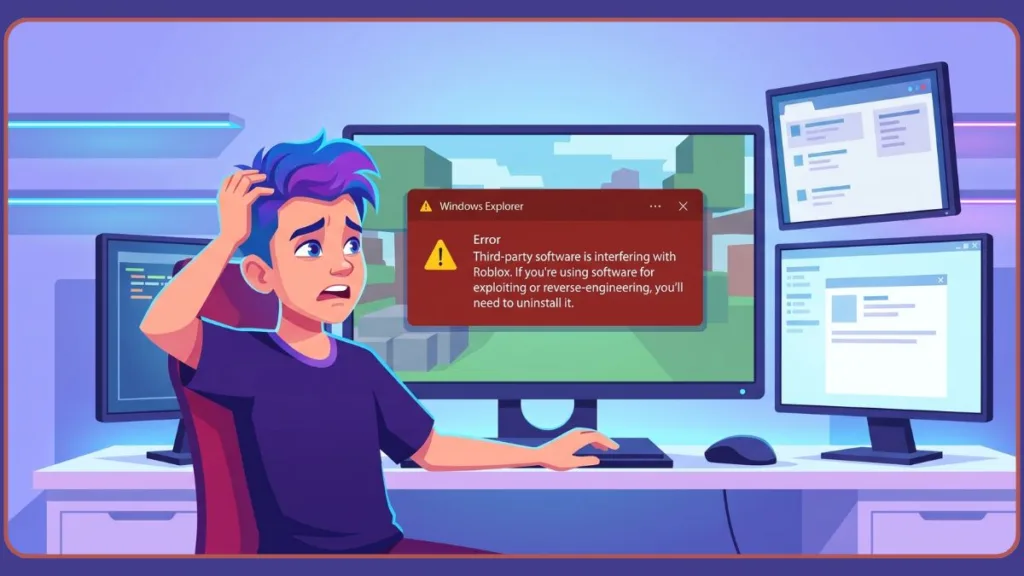
While it disrupts your gameplay, the good news is that this issue is usually temporary and solvable. Furthermore, it rarely results from a “ban,” so you haven’t lost your account. In this comprehensive guide, we will walk you through exactly what this error means, why the Hyperion (Byfron) anti-cheat might be flagging your system, and the specific steps you must take to fix it quickly.
What Does “Third-Party Software is Interfering” Mean in Roblox?
To better understand the problem, we must first define what the error actually signals.
This message means the Roblox anti-cheat system (Hyperion) detected a process running on your computer that it deems “untrustworthy” or “intrusive.” It does not automatically indicate an account ban or that you are being accused of hacking. Hyperion operates on a highly strict “zero-trust” system, meaning any unfamiliar background activity is treated as a threat to the game’s memory.
Think of it like a security scanner at an airport; the machine has flagged an item in your bag that it doesn’t recognize. In most cases, the error points to one of the following specific triggers:
- A Kernel-Level Conflict: Another game’s anti-cheat (like the HtAntiCheatDriver from Neverness To Everness) is running in the background.
- A Background App Collision: A program like Discord, a VPN, or even Windows Phone Link is “hooking” into the game’s memory.
- A Session Corruption: A local file in your Roblox directory has been flagged and needs to be cleared.
- Overly Aggressive Security Tools: Your standard Windows Defender or third-party antivirus might be mistakenly scanning Roblox files as they load.
Why This Error Happens
Based on real usage patterns and community reports from sites like Reddit, this error usually stems from one or more of the specific reasons below.
1. Conflict with Other Game Drivers (The NTE Issue)
The most common cause in 2026 is the HtAntiCheatDriver used by games like Neverness To Everness (NTE). This driver stays active even after you close the other game, causing Roblox to block your access. Because this driver runs at the deepest system level (Ring 0), simply clicking the “X” on the NTE launcher does not terminate the background monitoring process.
2. Aggressive Background Applications
Apps that use “overlays” or monitor system performance can trigger the error. This includes specialized mouse software, FPS unlockers, or screen recording tools that Hyperion views as “tampering.” Additionally, hardware management software—like custom RGB controllers or advanced GPU tuning apps—can inadvertently inject code that trips the alarm.
3. Corrupted Local Settings
Sometimes, the GlobalBasicSettings_13.xml file in your Roblox folder becomes “dirty.” The client keeps reading the old error state, causing the message to repeat even after you’ve closed the conflicting program.
4. Network or VPN Routing
VPNs like NordVPN or ExpressVPN can sometimes route traffic through “dirty” IP addresses that have been rate-limited or flagged by Roblox, mimicking a software interference error. A slow or unstable connection where game assets fail to load properly can also cause the server to misinterpret the lag as unauthorized client manipulation.
Quick Checks Before You Try Fixes
Before you dive deep into technical troubleshooting, run through this diagnostic checklist to save time:
- Does the error happen on every game, or just one specific experience?
- Do you have Neverness To Everness or another kernel-level game installed?
- Does the error persist after a standard Windows restart?
- Did the problem start immediately after a Roblox update?
- Are your system’s graphics drivers completely up to date?
If you answered “yes” to most of these, the issue is likely a driver conflict or a session-related flag.
How to Fix Roblox Third-Party Software Error: 6 Step Guide
To resolve this efficiently, follow these steps in order. We strongly recommend that you do not skip Step 2 or Step 3, as they address the most likely culprits.
Step 1: Perform a “Shift + Shutdown”
Standard restarts often don’t clear deep-level drivers due to Windows “Fast Startup.”
- Hold the Shift key on your keyboard.
- Click Start > Power > Shut Down while still holding Shift.
- Turn your PC back on.
This forces a clean slate for your system drivers. Alternatively, you can press Windows + R, type msconfig, navigate to the Services tab, check “Hide all Microsoft services”, click “Disable All”, and restart to perform a clean boot.
Step 2: Disable the HtAntiCheatDriver (NTE Fix)
If you play Neverness To Everness, you need to manually stop its driver from interfering.
- Open PowerShell as an Administrator.
- Paste this command:
Set-ItemProperty -Path "HKLM:\SYSTEM\CurrentControlSet\Services\HtAntiCheatDriver" -Name "Start" -Value 4 - Press Enter and restart your PC.
Step 3: Clear the Roblox XML Cache
This removes the “flag” that might be stuck in your local files.
- Press Windows + R, type %localappdata%\Roblox, and hit Enter.
- Locate and Delete the file named GlobalBasicSettings_13.xml.
- Relaunch Roblox.
While you are in the AppData folder, deleting the entire Versions and Downloads folders can also effectively clear out corrupted cache files that prevent games from loading.
Step 4: Close Known Interfering Background Apps
Open Task Manager (Ctrl+Shift+Esc) and “End Task” for the following:
- Microsoft Phone Link
- Any FPS Unlockers
- Discord (Temporarily)
- Overwolf or specialized recording overlays
- Any unknown third-party apps that may have been installed alongside recent game downloads.
Step 5: Flush Your DNS
If the interference is network-related, clearing your DNS cache can reset the handshake with Roblox servers.
- Open Command Prompt as Admin.
- Type
ipconfig /flushdnsand press Enter.
If you are playing through a web browser rather than the direct app, switching to a different browser or disabling active extensions can also clear up connection blockages.
Step 6: Check for Windows Updates
Hyperion often requires the latest Windows security patches to function correctly. An outdated OS can lead to “unexpected client behavior” kicks. Similarly, ensure your Nvidia, AMD, or Intel graphics drivers are updated, as outdated display drivers can cause rendering halts that look like software tampering.
Is Roblox Down Right Now? How to Tell
Roblox can experience partial service issues where the anti-cheat servers fail while the rest of the site looks fine. You should check the official Roblox Status Page or DownDetector.
Strong signs of a wider issue include:
- The error appears for everyone on your Discord or social feed at once.
- The error persists even on mobile or other devices in your house.
It is also worth checking the Roblox Developer Forum; if an update accidentally triggers a false-positive ban wave (as seen with permitted anti-cheat testing earlier in 2026), developers will usually report the backend bug there first.
How to Prevent This Error in the Future
While you cannot prevent every anti-cheat conflict, you can maintain good “gamer hygiene” to reduce these interruptions:
- Explicit Log Outs: Don’t leave your Roblox client idling for hours.
- Driver Management: If you play multiple “Live Service” games, be aware of which ones use kernel drivers (NTE, Valorant, etc.).
- Avoid Overlays: Keep your background processes lean when gaming.
- Official Clients Only: Never use third-party “Launchers” for Roblox, as these are almost always flagged by Hyperion.
- Antivirus Exceptions: Add the Roblox executable file to your Windows Defender or primary antivirus exclusions list so legitimate game files aren’t quietly blocked.
FAQs
Why does Roblox say I’m using third-party software when I’m not? It is likely a false positive caused by another game’s anti-cheat (like NTE) or a background utility like Phone Link.
Can I get banned for this error? No. This is a “kick,” not a “ban.” It simply prevents the game from starting until the environment is clean. Error 268 operates as a protective lockout for stability, protecting the session rather than issuing a permanent strike against your hardware ID.
How long does the 268 error kick last? Usually, the lockout lasts between 20 minutes and one hour.
What to Do If Nothing Works
If you have tried every fix listed above and the error still appears, the best option is to stop retrying and wait for at least one hour.
Repeatedly trying to join while the error is active can sometimes extend the “soft-lock” duration. Walk away, let the session reset on the server side, and come back later. In the majority of cases, the error resolves itself once the system cache is fully cleared or the conflicting driver is properly disabled.
If the issue persists for days, completely uninstall Roblox, delete any leftover files in the %localappdata%\Roblox directory, and reinstall a fresh copy directly from the official website as a last resort.
Visit Our Post Page: Blog Page
Discover more from Izoate
Subscribe to get the latest posts sent to your email.