
Struggling with Xbox error code 0x80070520? Learn what this Windows sign-in error means and follow step-by-step guide to fix your Game Pass login today.
You have your snacks ready, your friends are waiting for you in Discord, and you are ready to boot up Microsoft Flight Simulator or your favorite Game Pass title. But instead of loading into the game, you are immediately hit with the frustrating message: “we couldn’t sign you in to xbox live 0x80070520”.
If your Windows PC or Xbox app will not let you sign in right now, do not panic. Microsoft support and community forums frequently highlight this known authentication loop:
This error code usually results from either a sign-in failure, a corrupted User profile, or conflicting account data blocking the Windows and Xbox networks from verifying your licenses.
Whether you are trying to queue up for a new release, sync your Microsoft Store, or just play casually on your Windows 11 PC or Xbox Series X, you can try a few proven workarounds to bypass this screen and get back into the action immediately.
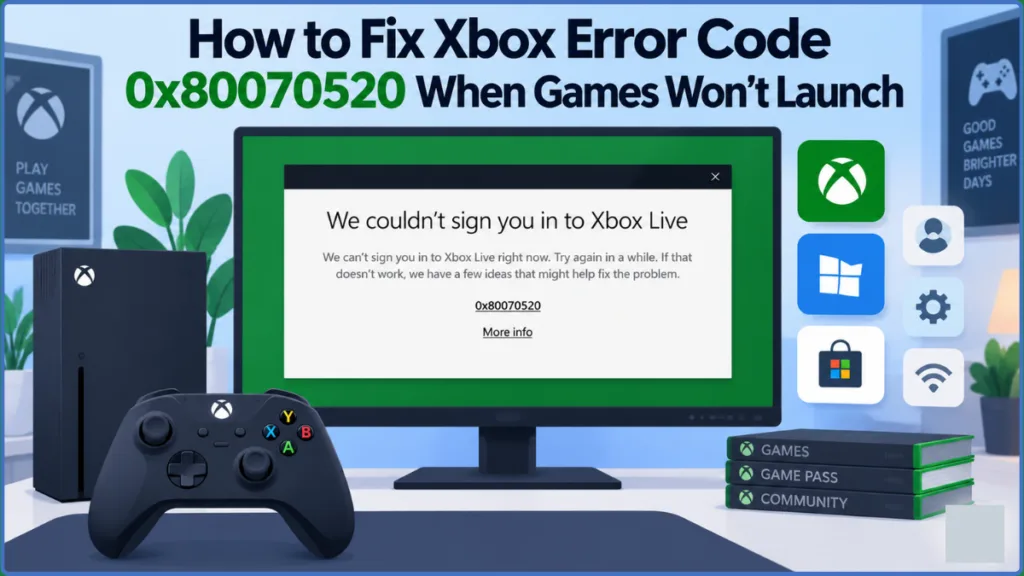
Why Are You Seeing “We Couldn’t Sign You In To Xbox Live 0x80070520”?
Before you start digging into your Windows registry, it helps to know what is actually happening behind the scenes. When you ask yourself why you keep getting the we couldn’t sign you in to xbox live 0x80070520 message, the answer is simple: your system is failing to authenticate your account licenses with the regional Microsoft servers.
While you might think your internet is acting up, people dealing with the same problem often find that it is actually a localized credential conflict. Because this error happens across multiple environments—from the 0x80070520 xbox app pc client to physical Xbox consoles—your troubleshooting steps will focus on clearing out scrambled account tokens so your system can verify who you are.
How to Fix the “We Couldn’t Sign You In To Xbox Live 0x80070520” Error
Here is exactly how to resolve this issue and fix the xbox game pass login error, starting with the fastest solutions.
Quick Fixes for “We Couldn’t Sign You In To Xbox Live 0x80070520”
If you are looking for an msfs 0x80070520 error fix so you can get back to your flight route fast, you can try these official and community-tested tricks before moving on to deeper system resets.
The Reddit “Guest Account” Trick
If you are experiencing this issue on a shared PC or console, players on the r/XboxSupport subreddit have discovered a highly successful profile trick to bypass the error.
- Open your Xbox guide or Xbox App profile menu.
- Check if any secondary profiles, guest accounts, or alternate Local Windows accounts vs. Microsoft credentials are signed in simultaneously.
- Sign out of every single account except your primary Microsoft profile.
- Relaunch your game. Conflicting profiles often block the Xbox Identity Provider update from verifying your main account.
The Official Microsoft Store Sync Workaround
Because the system struggles when credentials mismatch, a simple refresh trick frequently clears the microsoft store error 0x80070520 windows 11 glitch for you.
- Open the Microsoft Store and click your profile icon at the top to sign out completely.
- Open your Xbox App, click your profile picture, and sign out there as well.
- Return to the Microsoft Store and log back in using your primary email.
- Do exactly the same in the Xbox App.
- This quick account swap forces your client to request a fresh connection to the server, which often bypasses the error screen entirely.
Advanced Troubleshooting for Error 0x80070520
If the Xbox Live servers are fully operational but your login keeps failing, your PC or console might just be holding onto corrupted connection data. You can try the following technical steps in order to clear the xbox live sign in error pc block.
Run the wsreset.exe Command Prompt
Sometimes background software glitches or outdated cache files get stuck in your system.
- Close out of your Xbox app and gaming services completely.
- Press the Windows Key + R to open the Run dialog box on your PC.
- Type wsreset.exe command prompt (just type
wsreset.exeinto the box) and hit Enter. - A blank black window will appear. Leave it open until it closes automatically and restarts the Microsoft Store. If this works, you have successfully cleared the corrupted data.
Clear the TokenBroker Cache Folder or Local App Data
If the game is still blocking you, it is time to refresh your local application data.
- Open Windows Settings > Apps > Installed apps.
- Scroll to the Xbox App, click the three dots, and select Advanced options.
- Click Repair to repair gaming services xbox app files. If that fails, click Reset.
- Pro tip: If you are on an Xbox console rather than a PC, press the Menu button on the problematic game, go to Manage game and add-ons, and delete your local saved data (do NOT select “delete from everywhere,” as that wipes cloud saves).
Check Windows Defender and Third-Party Antivirus
If you are still stuck, you can run a quick check to see if your security software is restricting your connection.
- Temporarily disable aggressive Windows Defender and third-party antivirus shields (like Norton or Kaspersky).
- Ensure your firewall is not blocking the Xbox App.
- Try to launch the game again. If it works, you need to add a permanent exclusion for Xbox gaming services in your antivirus settings.
(Note: If the app itself remains fundamentally broken after these steps, advanced users can use a PowerShell remove-appxpackage command to strip the corrupted Xbox app from their system completely, then reinstall it fresh.)
Dealing with authentication bugs is incredibly frustrating when you just want to relax and play. Fortunately, checking for conflicting accounts and using the wsreset.exe or profile-sync tricks will usually get you past the “we couldn’t sign you in to xbox live 0x80070520” screen and back into your Game Pass library without any serious technical tinkering.
Visit Our Post Page: Blog Page
Discover more from Izoate
Subscribe to get the latest posts sent to your email.