
Can’t download your Xbox 360 profile? Learn how to fix Xbox Live error code 8015d000 fast. We provide simple step-by-step solutions to get you back online.
You finally decided to dust off your old Xbox 360 to play a classic game, only to be stopped in your tracks by the xbox live error code 8015d000. Instead of dropping into your favorite lobby, you are staring at a screen telling you that your xbox 360 profile cannot be downloaded right now.
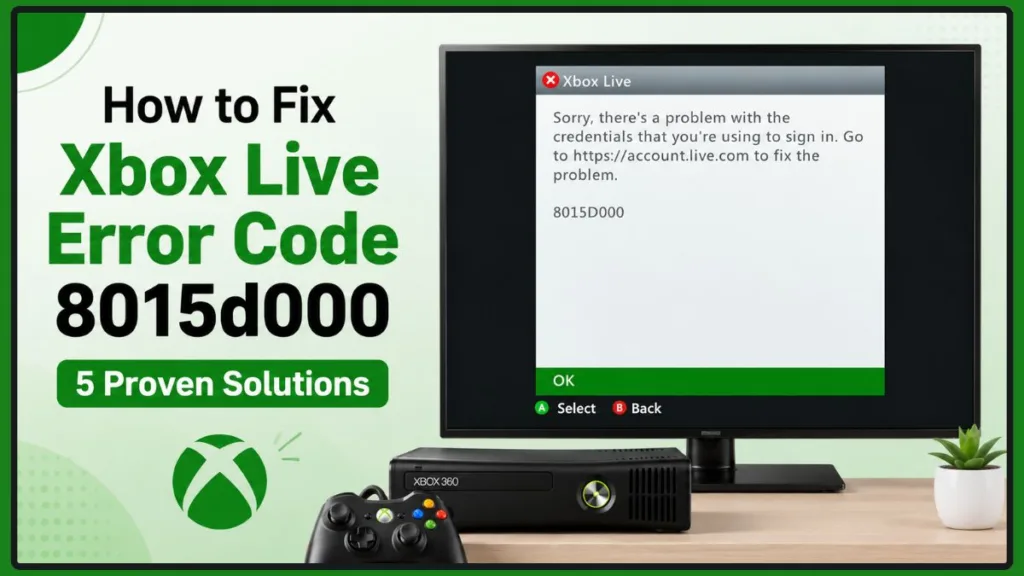
If you’re experiencing this issue, take a deep breath. Your account has not been hacked, and your console isn’t broken. This is a very common glitch that happens when modern security protocols try to talk to aging hardware.
Here is exactly how to fix error code 8015d000 so you can get your profile downloaded and get back to gaming.
Why Am I Getting the Xbox 360 Error 8015d000?
At its core, this error is caused by a communication breakdown between your Microsoft account authentication settings and your Xbox 360 console.
If you own a modern device like an Xbox Series X/S, a Windows PC, or use the Microsoft Authenticator app on your smartphone, your account is likely protected by complex passwords and two-step verification (2FA). Modern platforms handle these security measures seamlessly. However, the Xbox 360 was built long before these features were standard, so when it encounters a 2FA prompt or a highly complex password, it panics and throws the xbox 360 8015d000 2fa error.
How to Fix Error Code 8015d000 (Proven Solutions)
Before you begin, grab your smartphone or sit down at your computer. You will need to access your Microsoft account through a web browser (like Chrome, Safari, or Edge) to apply these fixes.
Solution 1: Remove Special Characters from Your Password (Most Effective)
The Xbox 360 system notoriously struggles to process passwords that contain special characters like “!”, “$”, or “@”. For many people, temporarily simplifying their password is the ultimate xbox error 8015d000 fix.
- Open a web browser and log in to your Microsoft Account Security page.
- Navigate to Advanced security options.
- Temporarily turn off Two-Step Verification (2FA) if you currently have it enabled.
- Change your account password so that it only contains letters and numbers (many find that using entirely lowercase letters works best).
- Turn on your Xbox 360 and attempt to sign in with this new, simple password.
Note: Once your profile safely downloads to your console, you can go back to your browser, turn 2FA back on, and change your password back to something more secure.
Solution 2: Generate a Fresh App Password
If you do not want to disable your 2FA security, your standard password will never work on the 360. You have to use an app password generator, but older app passwords often get stuck in a glitch loop.
- Log in to your Microsoft Account Security page on your phone or PC.
- Go to Advanced security options and scroll down to the App Passwords section.
- Click to Clear existing app passwords to remove any old, corrupted data.
- Click Create a new app password. Microsoft will generate a random string of text.
- Type this exact generated password into your Xbox 360 when it asks for your login credentials.
Solution 3: Register Your Xbox 360 to Your Microsoft Account
Sometimes, your modern Microsoft account blocks your Xbox 360 because it simply doesn’t recognize the outdated hardware. You can bypass this by manually introducing the device.
- Check the back of your Xbox 360 console and write down the Serial Number.
- Log into your Microsoft Account Devices tab via a web browser.
- Select Add a device.
- Enter your console’s serial number to link it directly to your account.
- Restart your Xbox 360 and try logging into Xbox Live again.
Solution 4: Clear Your Windows Hello Data
If you use a Windows PC with modern login features like Windows Hello (which uses a PIN, fingerprint, or facial recognition), this saved data can sometimes corrupt the older login handshakes required by the 360.
- Go to your Microsoft Account Security page.
- Select Advanced security options.
- Find your Windows Hello data or passkeys and delete them.
- Restart your console and try the login process one more time.
The “Brute Force” Secret: Don’t Give Up on the First Try
If you know you have entered the correct app password or simplified password, do not give up if it fails on the first attempt.
Because of the severe server communication issues with older consoles, the correct password might be rejected initially. People dealing with the same problem often find that they have to enter the exact same correct password three to four times in a row before the xbox live sign in error 8015d000 disappears and the profile finally downloads. Keep trying the login button a few times before assuming the fix didn’t work.
Still Struggling? Check These Alternative Fixes
If you are still locked out, you can try a few quick alternative steps:
- Clear your system cache: Go to your Xbox 360’s System Settings > Storage. Highlight your hard drive, press the “Y” button on your controller, and select Clear System Cache. This wipes out corrupted temporary data.
- Check for an Xbox Live status outage: Sometimes the servers are simply down. You can check the official Xbox Status page on your phone to see if Microsoft is performing maintenance on older systems.
- Look out for related errors: If your screen suddenly displays xbox 360 error 8015d021 or xbox 360 error 8015d086, don’t panic. These are highly similar sign-in and credential errors, and the troubleshooting steps outlined above will almost always fix them as well.
Conclusion
Getting hit with the xbox 360 error 8015d000 is frustrating, but it rarely means your account or console is permanently broken. By simply removing special characters from your password, generating a fresh app password, or manually adding your console to your Microsoft devices, you can bypass the modern security roadblocks and get back to playing your classic games.
Did one of these solutions work for you? Or are you still having trouble with your xbox 360 credentials issue? Drop a comment below and share your experience—you might just help out a fellow gamer who is stuck on the exact same screen!
Visit Our Post Page: Blog Page
Discover more from Izoate
Subscribe to get the latest posts sent to your email.