
Want to flash your Samsung device? Learn how to flash Samsung firmware, install the stock ROM, and fix boot loops, logo freezes, and system error in 7 simple steps.
Is your Samsung device stuck on the logo? Are you experiencing an endless bootloop, or dealing with stubborn software issues that a simple factory reset just won’t fix? Don’t worry!
Flashing the stock firmware can resolve most of these severe system problems and bring your phone back to life. This guide will walk you through the safe, beginner-friendly steps on how to flash a ROM on your Samsung device. Whether you need to flash a Samsung Galaxy A series or flash a Samsung Galaxy S series phone, we’ve got you covered.
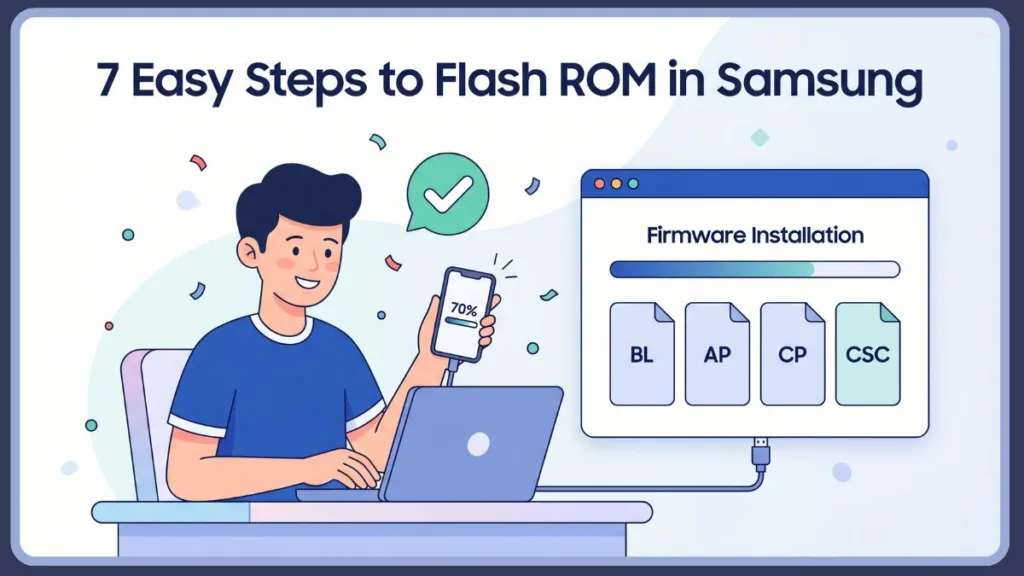
This guide to flash your Samsung with Odin step by step will show you exactly how to answer the question, “How do I flash a ROM on my Samsung Galaxy?” using the official Odin flash tool. Let’s dive in!
Quick Answer: Flashing a ROM on a Samsung device means reinstalling the official stock firmware using a PC program called Odin. This process requires downloading your specific device’s firmware files (BL, AP, CP, and CSC) and installing Samsung USB drivers. Once the phone is placed in Download Mode and connected to the PC, the actual flashing process takes about 5 to 10 minutes.
What Does Flashing ROM Mean in Samsung?
When we talk about flashing firmware on a Samsung device, we are really just referring to the process of manually installing or reinstalling the operating system files.
It is super important to understand the difference between the two main types of ROMs out there:
- Stock ROM (Official Firmware): This is the official operating system developed and released by Samsung itself. It is highly stable, secure, and preserves your device’s warranty. You might want to flash a stock ROM on your Samsung Galaxy to restore it to its original, out-of-the-box state using the official stock firmware for your Samsung Galaxy.
- Custom ROM: This is a modified, third-party version of Android (like LineageOS). While they are great for customization, they can introduce bugs and will almost certainly trip your Samsung Knox warranty. People often ask, “Is flashing a custom ROM safe for Samsung devices?” While you certainly can install a custom ROM on a Samsung Galaxy using custom ROMs designed for the Samsung Galaxy, it always carries more risks than sticking with the official software.
Most Samsung users rely on flashing stock firmware to fix critical device issues or revert their phones to factory conditions.
When Should You Flash Samsung Firmware?
Think of flashing as a powerful troubleshooting step. You should definitely consider using Odin to flash your Samsung firmware if you need to:
- Fix a bootloop or a phone permanently stuck on the Samsung startup logo.
- Unbrick a Samsung phone that simply is not turning on properly.
- Resolve deep software bugs that suddenly appeared after a recent OTA update.
- Downgrade your firmware to an older, more stable Android version that you prefer.
- Remove severe malware or clean out annoying carrier bloatware.
Step 1: Find Your Samsung Model Number
Before you download anything, you absolutely must know your exact device model. Flashing firmware meant for a different model is the fastest way to permanently brick your phone.
- Navigate to Settings on your phone.
- Scroll all the way down and tap About Phone.
- Look for the Model Number (for example, SM-A515F). Write this down exactly as it appears so you can find the correct Samsung firmware for a model like SM-XXXX.
Step 2: Download the Correct Samsung Firmware
Now that you have your model number handy, you need to download the official firmware files from trusted sites for Samsung firmware downloads.
- Visit SamFW.com on your computer.
- Enter your exact model number into the search bar.
- Select your specific country/region code (CSC). Tip: Always match the CSC region code to your device’s original region for the best network compatibility. For instance, you would choose INS if you need to flash Samsung firmware in India.
- Click on the latest firmware version to open the download page.
- Select the “Download from Browser” option for the fastest and most reliable download experience.
Step 3: Install Required Tools
To effectively communicate with your phone, you’ll need to install a few specific tools to flash your Samsung firmware using a PC.
- Samsung USB Driver for Mobile Phones: Go ahead and download the Samsung USB drivers, then install them from the official Samsung Developers site. Without these drivers, Odin will not recognize your phone at all.
- Odin Flash Tool: Download the latest version of Odin to your PC to follow along with this Odin tutorial for Samsung.
- WinRAR: If you happen to be using Windows 10 or older, you will need WinRAR to extract the downloaded firmware files. (If you are on Windows 11, you can just extract them natively).
Extract the downloaded Odin folder and the firmware folder right to your desktop for easy access.
Step 4: Load Firmware Files in Odin
Launch the Odin application. You will now load the extracted firmware files into their corresponding slots in the Odin interface. Each file serves a very specific purpose, which is why having the steps to flash your Samsung, including having the AP, BL, CP, and CSC files explained, is so helpful. If you are wondering, “What files do I need to flash Samsung firmware (AP BL CP CSC)?”, here is the breakdown:
- BL (Bootloader): Click the BL button and select the file starting with
BL_. - AP (System): Click the AP button and select the file starting with
AP_. This is the largest file and may take Odin a minute or two to process. Just hang tight and do not click anything while it loads. - CP (Modem): Click the CP button and select the file starting with
CP_. - CSC: Click the CSC button.
Pro Tip: CSC vs. HOME_CSC
Inside your firmware folder, you will see two CSC files. If you want a perfectly clean installation that wipes all data (which is highly recommended for fixing bootloops), select the standard
CSC_file. If you want to attempt to keep your user data intact during a minor update, use theHOME_CSC_file instead.
Step 5: Prepare Your Device Before Flashing
To prevent getting locked out of your device by Factory Reset Protection (FRP), let’s prepare your phone:
- Remove your Google Account from the device settings.
- Remove any PIN, Password, or Pattern lock.
- Ensure your device is charged to at least 50%.
- Backup your data (if your phone is still functional enough to do so). Creating a solid backup of your device before flashing a Samsung ROM is always a highly recommended step.
- Power off your phone completely.
Step 6: Enter Download Mode in Samsung
Odin can only flash files to your phone if it is actively in Download Mode. If you are looking for a guide on how to use Samsung download mode or are wondering “How do I put my Samsung phone into Download Mode?”, here is exactly how to enter download mode on your Samsung Galaxy:
- Press and hold the Volume Up + Volume Down buttons simultaneously.
- While holding both buttons, plug your phone into your PC using an original or high-quality USB cable.
- A warning screen will appear on your phone. Release the buttons and press Volume Up once to continue into Download Mode.
Note: Look at the Odin software on your PC. In the log section on the left, you should see a friendly message saying “Added!!”. This confirms your PC and Odin successfully recognize the phone.
Step 7: Flash Samsung Firmware Using Odin
- With your phone connected and all files (BL, AP, CP, CSC) loaded up, go to the Options tab in Odin. This is where we configure the best Odin settings for a Samsung flash.
- Ensure the following options are checked: Auto Reboot, Re-Partition, and F. Reset Time.
- Click the Start button at the bottom right.
- Wait patiently and please do not unplug the cable. Once finished, Odin will proudly display a green PASS! message. This is the complete, foolproof method to flash your Samsung firmware with Odin.
Fix Common Odin Flashing Error
If you are currently wondering “How do I unbrick my Samsung after a failed flash?”, or simply need to unbrick a Samsung using Odin, these troubleshooting steps are exactly for you. If you are searching for how to unbrick your Samsung phone after a failed flash, start right here:
Error: “Can’t Open the Specified File (Line 1892)”
If your flash fails and you get this specific line 1892 error, you need to manually load the PIT file. Here is the exact, step-by-step fix:
- Go to your extracted firmware folder and copy the CSC file.
- Rename the copied file’s extension from .md5 to .rar (just delete the
.md5part). - Extract this
.rarfile using WinRAR. - Inside, locate the .PIT file.
- In Odin, click on the PIT tab (located next to the Log and Options tabs) and load this extracted PIT file.
- Go back to the Options tab and make sure Re-Partition, Auto Reboot, and F. Reset Time are all enabled.
- Click Start again.
Odin Not Detecting Device
If Odin doesn’t say “Added!!”, try reinstalling the Samsung USB drivers, restart your PC, and try using a different USB cable or a different USB port directly on your computer’s motherboard.
Flash Failed / Stuck
If the progress bar freezes for a long time or outright fails, force reboot the phone. Re-download the firmware (sometimes the file might just be corrupted), double-check that you definitely have the exact correct model firmware, and try a slightly different version of Odin.
What Happens After Flashing?
Once you see that satisfying “PASS!” message, your device will restart automatically.
- The first boot takes time: It might stay on the Samsung logo for up to 5–10 minutes as it rebuilds the system cache. Just be patient!
- Setup Screen: Eventually, the standard Android welcome setup screen will appear.
- Data Erased: If you used the standard CSC file, your phone will act like it is brand new right out of the box.
CSC vs HOME_CSC: What’s the Difference?
| File Type | Data Impact | Best Use Case |
| CSC | Erases all user data | Fixing major software issues, escaping bootloops, or unbricking your device. |
| HOME_CSC | Keeps user data intact | Performing minor system updates or just routine flashing. |
Is Flashing ROM Safe on Samsung?
Absolutely! Flashing firmware is safe as long as you are using the official stock firmware downloaded from a trusted source. The primary risk really only comes from flashing firmware designed for the wrong device model. Furthermore, flashing official stock ROMs using Odin does not trip Knox and will not void your hardware warranty.
Pro Tips for Success
- Always use exact model firmware: “Close enough” is definitely not good enough here.
- Avoid interrupting flashing: Never unplug the USB cable while Odin is actively working.
- Use the original USB cable: Cheap gas station cables often cause data transfer errors.
- Prefer a laptop: Use a laptop or a PC connected to an uninterruptible power supply (UPS) to avoid soft-bricking your phone during a random power outage.
- Alternative Methods: While this guide focuses strictly on Odin, some advanced users wonder if they can flash a Samsung without using Odin. In some specific cases, you can flash a Samsung via Smart Switch for official emergency recovery, or even flash your Samsung using TWRP (which requires installing TWRP for the Samsung Galaxy) if you are working with CF-Auto-Root for Samsung or using Magisk to root your Samsung setup. However, for most people, Odin remains the absolute safest method for stock firmware.
FAQ
What is Odin and how do I use it to flash Samsung firmware?
Odin is a specialized software utility internally developed by Samsung that is used to communicate with Samsung devices in Download Mode to flash stock firmware, recovery images, and bootloaders. You use it by loading the AP, BL, CP, and CSC firmware files into their designated slots and clicking Start while your phone is connected in Download Mode.
Does flashing ROM delete data?
It depends entirely on the files you choose. If you flash the standard CSC file, all data is permanently wiped. If you use the HOME_CSC file instead, your apps and personal data will remain intact.
How long does flashing take?
The actual flashing process in Odin usually takes between 5 to 10 minutes. However, keep in mind that the first device reboot after a successful flash can take an additional 5 to 10 minutes.
Can I flash a Samsung ROM without a PC?
No. Flashing deep system firmware files via Download Mode fundamentally requires a Windows PC running Odin and proper Samsung USB drivers.
What is Download Mode?
Download Mode (also affectionately known as Odin Mode) is a dedicated pre-boot state on Samsung devices designed specifically for receiving software updates and firmware flashing via a USB connection to a computer.
How do I flash a ROM on my Samsung Galaxy?
You can easily flash a ROM on your Samsung Galaxy by downloading your specific device’s stock firmware, installing the required Samsung USB drivers, and using the Odin flash tool on your PC while the phone is connected in Download Mode.
How do I put my Samsung phone into Download Mode?
Simply power off your device, press and hold the Volume Up and Volume Down buttons simultaneously, and connect the phone to your PC via USB. Press Volume Up when the teal warning screen appears.
Will flashing a ROM void my Samsung warranty or trip Knox?
Flashing official stock firmware using Odin does not void your warranty and will not trip the Knox counter. However, flashing custom ROMs will absolutely trip Knox and void your warranty.
How do I unbrick my Samsung after a failed flash?
To unbrick your Samsung after a failed flash, force restart the device, ensure you have the exact correct firmware model downloaded, reinstall your USB drivers to be safe, and attempt the Odin flash process again from the very beginning.
What files do I need to flash Samsung firmware (AP BL CP CSC)?
You need the Bootloader (BL), System (AP), Modem (CP), and Consumer Software Customization (CSC) files, all of which are handily included when you extract your downloaded official firmware folder.
Is flashing a custom ROM safe for Samsung devices?
While they are popular in the tech community, flashing custom ROMs carries real risks such as introducing frustrating bugs, voiding your Knox warranty, and potentially soft-bricking your device if not done correctly.
Conclusion
Flashing your Samsung firmware is honestly one of the most powerful fixes you can learn. Whether you are dealing with a bootloop, bizarre system errors, or annoying software bugs, reinstalling the stock ROM provides a wonderfully clean slate. As long as you follow these steps carefully, ensure you have the exact correct model files, and use Odin properly, you can safely bring your device back to perfect working order.
Visit Our Post Page: Blog Page
Discover more from Izoate
Subscribe to get the latest posts sent to your email.