
Stuck in a tiny window? Learn how to full screen DELTARUNE on Mac using quick keyboard shortcuts, macOS native workarounds, and simple DELTARUNE mac full screen settings.
When you boot up DELTARUNE to dive into the Dark World, the last thing you want is to be squinting at a tiny box floating in the middle of your desktop. It completely breaks your immersion when you can see your wallpaper and dock right behind the game.
If you are trying to figure out how to full screen deltarune on mac, you aren’t alone. You have probably noticed that Apple’s operating system handles gaming windows and keyboard shortcuts differently than a standard Windows PC. Trying the usual fullscreen shortcuts on a Mac keyboard often just opens your Launchpad or changes your screen brightness, mainly because macOS prioritizes its default top-row function keys.
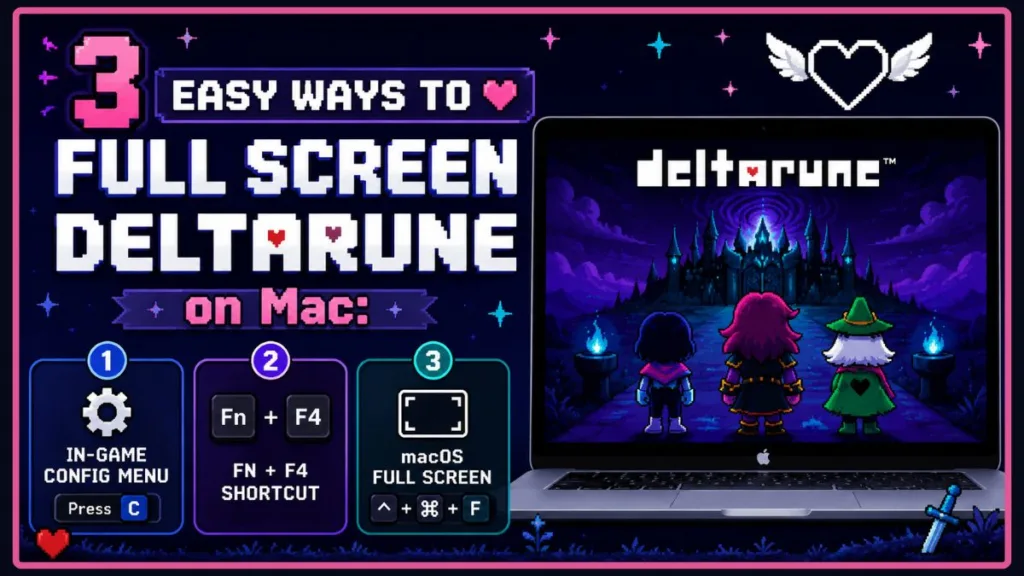
Fortunately, you don’t have to settle for playing in miniature. Getting a proper deltarune mac full screen experience is incredibly simple once you know the correct key combinations or where to look in the in-game menus.
Here are the most reliable ways to expand your game window, along with a few practical troubleshooting tips if your system refuses to cooperate. Let’s get your display fixed so you can get back to playing.
How to Make DELTARUNE Full Screen on a Mac
Here are the best ways to get your game running in full screen, starting with the most foolproof option.
Method 1: Use the In-Game Config Menu (Recommended)
This is the best and most reliable method because it is built directly into DELTARUNE. It completely bypasses your Mac’s keyboard settings, meaning you won’t have to worry about accidentally pausing your music or bringing up the Launchpad while trying to resize your window.
How to turn on full screen from the menu:
- Launch DELTARUNE on your Mac.
- Press the C key on your keyboard to open your in-game menu.
- Use your arrow keys to scroll down and select Config.
- Scroll to the Fullscreen option.
- Press Z (your primary action button) to toggle the setting to ON.
Method 2: Use the Fn + F4 Keyboard Shortcut
If you want a quick deltarune fullscreen shortcut mac fix without pausing to open menus, you can use your keyboard. The official shortcut for most Toby Fox games is F4—in fact, this is the exact same key you use to play UNDERTALE in full screen!
However, because Apple defaults that top row to system controls, pressing F4 alone won’t work on macOS. To make the game register the command, you need to use the Fn + F4 keys together.
How to use the shortcut:
- Hold down the Fn (Function) key, which is usually located in the bottom-left corner of your MacBook or Apple keyboard.
- While holding Fn, press the F4 key to trigger the fullscreen mode.
Pro Tip for Mac users: If macOS is still intercepting the shortcut, you can easily fix it in your system preferences. Go to System Settings > Keyboard > Keyboard Shortcuts > Function Keys and turn on the toggle for “Use F1, F2, etc. keys as standard function keys.” Once this is enabled, the game will recognize your shortcut immediately.
Method 3: Force macOS Native Full Screen
If you don’t want to mess with the in-game settings and the keyboard shortcuts aren’t responding, you can always rely on Apple’s built-in window controls to toggle windowed mode. This forces the game to stretch using your Mac’s operating system rather than the game’s internal code.
You have two easy ways to do this:
- The Apple Shortcut: Press Control + Command + F on your keyboard at the same time to force the window to expand.
- The Mac Menu Bar: Move your mouse cursor to the very top of your screen to reveal the hidden Mac menu bar. Click on View, and then select Enter Full Screen from the drop-down list.
DELTARUNE Full Screen Not Working on Mac? (Troubleshooting)
If you have already tried the methods above and DELTARUNE is still stuck in a small window, don’t worry. In most cases, the problem is something simple, like macOS not recognizing your keyboard shortcut or the game needing a fresh restart.
If you’re still wondering how to full screen DELTARUNE on Mac because nothing seems to work, try these quick fixes to get your display running properly:
- Make sure DELTARUNE is the active window: Your keyboard shortcuts only work when the game is your active application. If you recently clicked your desktop, a browser window, or another app, macOS won’t send the shortcut to the game. Simply click anywhere inside the DELTARUNE window and try the fullscreen shortcut again.
- Restart the game: If you recently changed your Mac’s keyboard settings—like enabling standard function keys so F1–F12 behave as regular keys instead of media controls—the game may not recognize those changes while it’s already running. Close DELTARUNE completely, relaunch it, and then try switching to fullscreen again.
- Check for game and macOS updates: If you are running an older version of DELTARUNE, it is worth checking for updates. The game is actively developed, and newer builds often include fixes for display scaling and compatibility issues. Similarly, installing the latest updates for modern operating systems like macOS Ventura, Sonoma, or Sequoia can resolve system bugs related to window management and graphics rendering.
- Restart your Mac: If nothing else has worked so far, restart your Mac. A quick reboot can clear temporary system glitches, refresh display settings, and resolve window-related issues that prevent the game from entering fullscreen. This is especially helpful if you’ve recently changed display settings like resolution or scaling.
- Don’t be fooled by the Alt + F4 “fix”: If you browse community forums, you might come across people suggesting Alt + F4 as a solution. It’s an old internet joke—not a real fix. On Windows, this shortcut closes the active application. If you are running the game through a Windows partition or compatibility tool (like Boot Camp, Parallels, or CrossOver), you could accidentally close the game and lose your unsaved progress.
If the game still won’t enter fullscreen after trying everything above, the issue may be related to specific Retina display scaling settings or a corrupted game installation. Try reinstalling the game or checking recent community discussions on Steam or Reddit to see if other players on your exact macOS version have uncovered a temporary workaround!
Frequently Asked Questions
How do I put DELTARUNE in full screen on a Mac?
The fastest and most reliable way is to open the in-game Config menu by pressing the C key, scrolling down to Fullscreen, and pressing Z to toggle it on. Alternatively, you can use the Fn + F4 keyboard shortcut to quickly expand the window.
What is the shortcut for full screen in DELTARUNE?
The official shortcut programmed into the game is F4. However, because Apple keyboards reserve the top row for system controls like brightness and volume, Mac users must hold down the Fn key while pressing F4 to make the game register the command.
How do I exit full screen in DELTARUNE on Mac?
If you want to know how to quit deltarune on mac or just get back to your desktop, the easiest way is to press the Fn + F4 keys again to toggle the window size back down. You can also head back into your Config menu and turn the setting off. If you are ever truly stuck, you can press Control + Command + F to force Apple’s native window controls to exit the fullscreen view, or press and hold the ESC key to bring up the Mac menu bar and close the game.
Conclusion
Whether you prefer diving into the in-game menus or bypassing your Apple keyboard settings to use shortcuts, playing in full screen is absolutely the best way to experience everything the Dark World has to offer. No more getting distracted by your desktop wallpaper or dealing with accidental Launchpad pop-ups while you are trying to play deltarune full screen mac!
Which method ended up working for your system? Are you playing on a MacBook laptop or a desktop iMac? Let me know in the comments below, and happy gaming!
Visit Our Post Page: Blog Page
Discover more from Izoate
Subscribe to get the latest posts sent to your email.