
Want to change your reticle in Fortnite on PS4? Discover how to get a custom crosshair on your TV setup using Creative HUD tricks and built-in TV gaming overlays.
If you have ever lost track of your aiming dot during intense box fights, fast shotgun edits, or chaotic endgame storms, you are not alone. Fortnite’s default white reticle expands with weapon bloom and frequently blends into bright daytime skies, snow biomes, and particle effects.
If you have watched PC players run dedicated overlay applications like Crosshair X or Custom Desktop Logo, you might be wondering how to get that same pinpoint accuracy on your console. However, PlayStation 4 operates within a closed system where third-party background software cannot be installed. Furthermore, unlike titles like Valorant, Apex Legends, or Overwatch 2, Epic Games does not provide built-in crosshair color or shape customization sliders inside Fortnite’s Battle Royale settings.
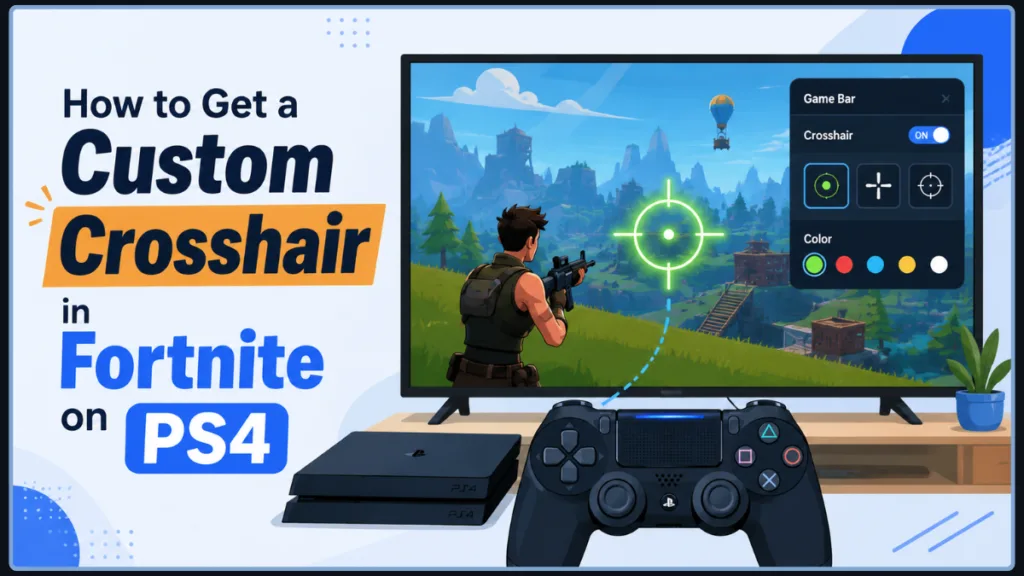
The good news is that you can still get a high-visibility, static reticle on your PS4 while playing on a TV. Whether you want to design a custom reticle for training in Creative mode, unlock your smart TV’s built-in gaming display features, or use a clean hardware setup, you can set up a personalized crosshair using the methods below.
Method 1: The Creative Mode HUD Trick (No Extra Hardware)
If your primary goal is practicing your aim, running warm-ups, or hosting private 1v1 build fights with friends, you can build a custom reticle directly inside Fortnite Creative using built-in island tools.
This trick uses the HUD Message Device to project a permanent text symbol onto the exact center of your screen.
- Launch Fortnite on your PS4, choose Creative, and load into your custom island or 1v1 practice map.
- Open your Creative inventory menu and select the Devices tab.
- Locate the HUD Message Device, place it into your quick bar, and drop it anywhere on your map.
- Interact with the device to open its customization menu, then apply the following settings:
- Message: Enter a single compact symbol (such as a bullet point
•, plus sign+, asterisk*, or a lower-casex). - Message Recipient: Set to All.
- Time From Round Start: Set to Immediately (or
1 Second). - Display Time: Set to Permanent (or set to loop continuously on a timer).
- Text Style: Choose a bold or high-contrast font preset.
- Message Placement: Set to Center of the screen.
- Message: Enter a single compact symbol (such as a bullet point
- Save your device settings, then open your main pause menu and go to Settings > Game UI.
- Locate Reticle under the Reticle & Damage Feedback section and toggle it to Off.
- Start your Creative game to test your new custom symbol reticle.
Note: This workaround functions exclusively inside Creative mode islands that you create or edit. It does not carry over into standard public Battle Royale, Zero Build, or Ranked matchmaking matches.
Method 2: TV Game Bar & Hardware Reticle Overlays (Best for Battle Royale)
If you want a static, high-visibility reticle that works across all public Battle Royale matches, the most effective solution is using your television’s native gaming overlay.
Many modern smart TVs from brands like LG (Game Optimizer), Samsung (Game Bar), Sony Bravia (Game Menu), and TCL / Hisense (Game Master) come equipped with built-in virtual reticles. Because this overlay is generated directly by the TV’s internal processor, it works seamlessly over your PS4 HDMI signal without modifying any game code.
- Ensure your PS4 is connected to a high-speed HDMI port on your TV, and verify that your TV’s picture mode is set to Game Mode.
- Press the dedicated Game / Settings button on your TV remote (or hold the Play/Pause button on newer Samsung remotes) to bring up the Game Dashboard or Game Bar.
- Look for the feature named Crosshair, Aim Point, Virtual Aim, or Target Reticle.
- Select your preferred reticle style (such as a static center dot or fine crosshairs) and choose a high-visibility color like Neon Green, Cyan, or Bright Red.
- Launch Fortnite on your PS4, open Settings > Game UI, and set Reticle to Off.
Turning off the native reticle in Fortnite removes the distracting dynamic blooming lines, leaving only your sharp, static TV-generated crosshair right in the center of the action.
Method 3: Screen-Safe Static Decals (The Budget Hardware Fix)
If you are using an older TV that lacks dedicated Game Bar features, you can achieve the exact same static aim point using removable, screen-safe vinyl static-cling dots (such as HipShotDot or reusable gaming reticle stickers).
- Boot up Fortnite on your PS4 and load into a Creative map or Battle Lab area.
- Pick up an Assault Rifle, Marksman Rifle, or First-Person scoped weapon and aim down sights (ADS) at a flat wall to locate the exact center point of your display.
- Gently apply a small, reusable static-cling dot directly over the center point on your TV screen.
- Open your in-game Settings > Game UI and toggle Reticle to Off.
Because static clings use zero adhesive, they leave no residue on your TV panel and can be adjusted or removed whenever you switch to watching movies or streaming shows.
Reticle Methods for PS4 TV Gaming Compared
| Method | Where It Works | Setup Cost | Input Delay Impact | Visual Options |
| Creative HUD Device | Private Creative Maps Only | Free | None (0 ms) | Any keyboard / unicode symbol |
| TV Game Bar Overlay | All Modes (Battle Royale & Ranked) | Free (Built-in) | None (0 ms) | Presets (Dot, Cross / Red, Green, Cyan) |
| Static Screen Decal | All Modes (Battle Royale & Ranked) | Low ($5–$10) | None (0 ms) | Fixed color/shape per decal |
TV & PS4 Optimization for Better Aiming Clarity
Playing on a large TV screen introduces unique challenges with input latency and screen clutter. Fine-tuning the following display settings will help keep your aim crisp:
- Turn Off Picture Post-Processing: Features like Auto Motion Plus, Motionflow, or TruMotion create artificial frames that introduce severe controller input lag. Always ensure your TV is set strictly to Game Mode.
- Fix Display Scaling & Aspect Ratio: Set your TV’s aspect ratio to Just Scan, Original, or 1:1 Pixel Mapping rather than “16:9” or “Wide”. This prevents the TV from slightly zooming or stretching the picture, ensuring your screen center matches actual bullet trajectory.
- Reduce HUD Scale on Large Screens: On TV screens larger than 40 inches, standard UI elements take up substantial peripheral vision. Open Settings > Game UI and reduce your HUD Scale to 65%–75% to open up sightlines during close-quarters engagements.
Frequently Asked Questions
Can you get banned for using a custom crosshair on PS4?
No. Built-in TV game overlays and static cling markers are purely external hardware solutions. They do not alter game files, run unauthorized background software, or interact with Epic Games’ anti-cheat systems.
Can you install Crosshair X or Custom Desktop Logo on a PS4?
No. PC overlay applications require Windows or macOS environments to run background window layers. The PlayStation 4 operating system does not support third-party software overlays.
Why can’t I change crosshair color directly in Fortnite Battle Royale settings?
Epic Games has not implemented native reticle customization options (such as color pickers or static dot toggles) inside the core Battle Royale game client. Any article claiming there is a hidden in-game color slider in the PS4 menu is outdated or incorrect.
Which method works best with your current setup? If you are having trouble locating the Game Bar or reticle settings on your specific TV model, feel free to drop your TV brand in the comments below!
Visit Our Post Page: Blog Page
Discover more from Izoate
Subscribe to get the latest posts sent to your email.