
Want to know how to get rid of Game Assist in Windows 11? Remove it completely and get back to gaming without unwanted interruptions.
You open Xbox Game Bar while playing a game to look up a walkthrough, check a strategy, or watch a quick video in Microsoft Edge. Once you’ve found what you need, you close the overlay and return to your game. But Game Assist is still sitting in the corner of your screen, covering part of the gameplay. You try closing it, but the window refuses to disappear.
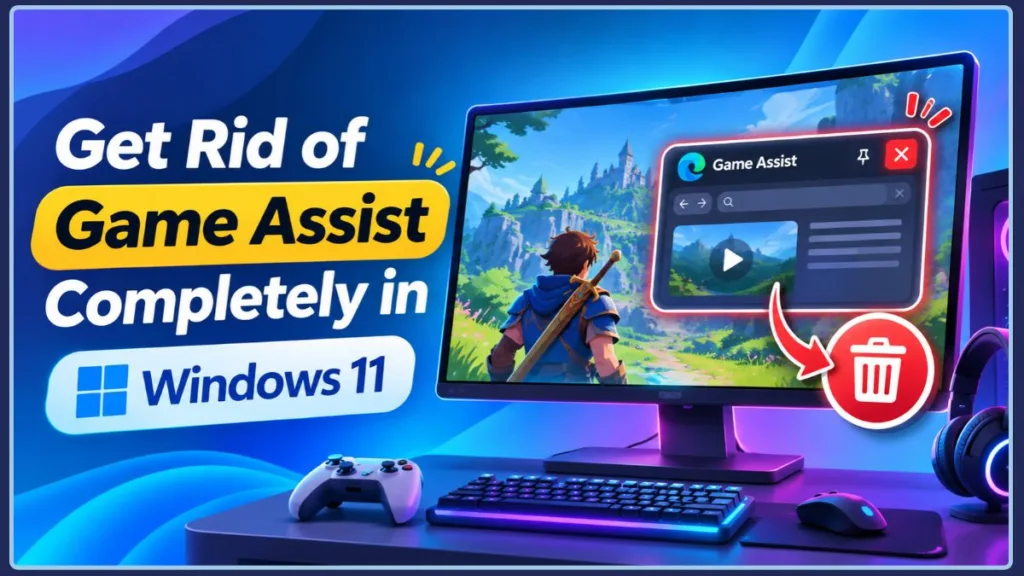
This usually happens when the Game Assist widget is pinned to your screen. Pinning keeps it visible over your game even after you dismiss Xbox Game Bar. While this can be useful when following instructions, it quickly becomes frustrating when you just want to play without another window getting in the way.
Just want Game Assist gone? You don’t have to uninstall Microsoft Edge or remove Xbox Game Bar to get rid of the widget.
You can unpin and close Game Assist to hide it during your gaming session, or uninstall Microsoft Edge Game Assist completely if you no longer use it. In this guide, we’ll show you how to remove it from Windows 11 and what to do when it refuses to close or keeps appearing on your screen.
How to Close Game Assist in Windows 11 (Quick Fix)
So, you’ve closed Xbox Game Bar, but Game Assist is still sitting in the corner of your screen. Instead of restarting your game or digging through Windows settings, you can remove the widget directly from the overlay.
Here’s what to do:
- Open Xbox Game Bar again: Press Windows + G to bring up the gaming overlay.
- Find the Game Assist widget: Locate the window that’s still visible over your game.
- Reveal the title bar: Move your mouse to the top edge of the widget to reveal its title bar. If the controls still don’t appear, try moving the widget slightly away from the top edge of your screen.
- Unpin the widget (if pinned): Look for the Unpin icon next to the X button. Click it to stop Game Assist from remaining visible over your game after you dismiss Xbox Game Bar. If the widget is already unpinned, you can skip this step.
- Close Game Assist: Click the X (Close) button in the upper-right corner of the widget.
- Use the alternative closing option: If you cannot find the Close button, open the Settings and more (…) menu inside Game Assist and select the option to close the widget, if available.
- Dismiss Xbox Game Bar: Press Windows + G again to return to your game without the widget covering the screen.
Important: Clicking the X closes Game Assist, while unpinning prevents it from remaining visible over your game when you dismiss Xbox Game Bar. You don’t need to uninstall Microsoft Edge or disable Xbox Game Bar for this quick fix.
If Game Assist is still visible after following these steps, or keeps appearing whenever you open Xbox Game Bar, the next step is to check whether the widget is pinned.
How to Stop Game Assist From Popping Up on Your Screen
Closing Game Assist doesn’t always solve the problem. If the widget stays visible over your game even after you dismiss Xbox Game Bar, it may still be pinned. This can become annoying when you’re trying to play without a browser window taking up space on your screen.
Simply clicking Close may not be enough when Game Assist is pinned. The pinning feature allows the widget to remain visible over your gameplay, even after you close the Game Bar overlay. To stop this behaviour, you need to unpin it first.
Here’s how to do it:
- Open Xbox Game Bar: Press Windows + G to bring up the gaming overlay.
- Locate Game Assist: Find the widget that’s staying visible over your game.
- Reveal its title bar: Move your mouse to the top edge of the widget if its controls aren’t visible.
- Find the Pin/Unpin icon: Look for the pin icon next to the X (Close) button.
- Unpin Game Assist: If the widget is currently pinned, click the icon to unpin it.
- Dismiss Xbox Game Bar: Close the overlay or press Windows + G again to return to your game.
Once unpinned, Game Assist should disappear when you dismiss Xbox Game Bar instead of remaining on top of your gameplay. You can still open the widget manually whenever you need its in-game browser.
Important: Unpinning Game Assist doesn’t uninstall it or prevent it from opening again. It only stops the widget from staying visible over your game after you dismiss Xbox Game Bar.
So, what if you don’t use the in-game browser at all and don’t want to see it again? Repeatedly closing or unpinning the widget won’t remove it from your PC. In that case, you’ll need to uninstall Microsoft Edge Game Assist from Windows 11.
How to Get Rid of Game Assist Completely in Windows 11
If you don’t use Game Assist and are tired of seeing it whenever you open Xbox Game Bar, there’s no reason to keep closing or unpinning it every time. You can uninstall the Game Assist widget from Windows 11 so it is no longer available in your gaming overlay.
The good thing is that Microsoft Edge Game Assist can be uninstalled separately. You don’t have to remove the regular Microsoft Edge browser, disable Xbox Game Bar, or delete your installed games and saved progress.
There are two ways to remove it. Start with Windows Settings, and check the Start menu or Xbox Game Bar Widget Store if you can’t find Game Assist among your installed apps.
Method 1: Uninstall Game Assist Through Windows Settings
This is the simplest way to remove Game Assist if Windows lists it under Installed apps. Here’s what to do:
- Open Windows Settings: Press Windows + I on your keyboard.
- Go to Installed apps: Select Apps from the left sidebar and click Installed apps.
- Find Game Assist: Type Game Assist in the search field. Look for Microsoft Edge Game Assist in the results.
- Open its options: Click the three-dot menu (…) next to the Game Assist entry.
- Uninstall the widget: Select Uninstall and confirm your choice if Windows asks.
Once the uninstallation finishes, Game Assist should no longer be available in Xbox Game Bar. Your regular Microsoft Edge browser and other installed applications will remain on your PC.
Can’t find Microsoft Edge Game Assist in Installed apps? Don’t assume it’s impossible to remove. You can also check the Start menu:
- Open the Start menu and search for Microsoft Edge Game Assist.
- If it appears in the installed apps list, right-click it.
- Check whether the Uninstall option is available and select it.
If you still can’t find Game Assist or there is no uninstall option, try checking the Xbox Game Bar Widget Store instead.
Method 2: Remove Game Assist Through Xbox Game Bar
If Game Assist doesn’t appear in your installed apps list, check the Widget Store. Xbox Game Bar includes a widget management area that lets you remove supported widgets without uninstalling the entire overlay.
Follow these steps:
- Open Xbox Game Bar: Press Windows + G.
- Open the Widget Store: Select the Widget menu and navigate to Widget Store.
- Find installed widgets: Open the Installed section, if available.
- Locate Game Assist: Look for Microsoft Edge Game Assist in the list.
- Remove the widget: Open its management options and select Uninstall, if the option is available.
The available management options may differ depending on your Xbox Game Bar version, so you might not see exactly the same menu on every Windows 11 PC.
After removing it, Game Assist should no longer appear among your installed Game Bar widgets. You can still use Microsoft Edge normally, and uninstalling the widget won’t delete your games or saved game progress.
Want to Reinstall Game Assist Later?
Changed your mind after uninstalling the widget? You don’t need to reinstall Microsoft Edge. You can look for Game Assist’s installation option directly through the browser.
- Open Microsoft Edge.
- Click the Settings and more (…) menu in the upper-right corner.
- Select Settings.
- Search for Game Assist in the settings search field.
- Look for the available installation option and follow the prompts.
This lets you bring back the Game Assist widget without removing or reinstalling your regular Edge browser.
Why Won’t Game Assist Close? Try These Fixes
You’ve tried closing Game Assist, but the window still refuses to disappear. Perhaps the Close button isn’t responding, or Xbox Game Bar freezes whenever you try to dismiss the widget. This can happen because of a temporary Game Bar issue, an outdated Microsoft Edge installation, or an unresponsive background process.
Whatever the cause, you don’t need to start deleting application files or changing advanced Windows settings. Try these troubleshooting methods to get Microsoft Edge Game Assist working normally again and stop it from getting in the way of your gaming sessions.
1. Restart Xbox Game Bar if Game Assist Is Frozen
If the Game Assist window is frozen or its Close button isn’t responding, restarting Xbox Game Bar can help. You can do this through Task Manager without restarting your entire PC.
Here’s how:
- Press Ctrl + Shift + Esc to open Task Manager.
- Select the Processes tab.
- Look for Xbox Game Bar or Game Bar in the running processes.
- Right-click the process and select End task.
- Wait a few seconds for the process to close.
- If you also see a process specifically identified as Microsoft Edge (Game Assist), right-click it and select End task.
- Press Windows + G to open Xbox Game Bar again.
- Check whether Game Assist is responding and try closing it.
Before ending a task: Save anything important in Xbox Game Bar. Ending its process can interrupt active recordings or other widgets. Also, avoid ending unrelated Microsoft Edge processes, especially if you have other browser windows open.
2. Check for Microsoft Edge Updates
Microsoft Edge Game Assist relies on the Edge browser, so an outdated installation can cause compatibility problems. Updating the browser is worth trying when the widget freezes, behaves unexpectedly, or refuses to close.
Follow these steps:
- Open Microsoft Edge.
- Click the three-dot menu (…) in the upper-right corner.
- Go to Help and feedback and select About Microsoft Edge.
- Allow Edge to check for available updates.
- Install any updates that appear.
- Restart the browser and check whether Game Assist works properly.
You can also enter edge://settings/help in the Edge address bar to open the update page directly.
3. Install the Latest Xbox Game Bar Update
An outdated Xbox Game Bar installation can also cause problems with its widgets. If Edge is already up to date but Game Assist still isn’t closing properly, check for a Game Bar update through Microsoft Store.
Here’s what to do:
- Open Microsoft Store from the Start menu.
- Navigate to Downloads or Library, depending on your Store version.
- Click Check for updates or Get updates.
- Look for Xbox Game Bar in the available updates.
- Install the update if one is available.
- Restart your PC and check whether the problem is resolved.
Keeping both Microsoft Edge and Xbox Game Bar updated can help avoid compatibility issues between the browser widget and its gaming overlay.
4. Repair Xbox Game Bar Before Resetting It
Still having trouble? Xbox Game Bar may have an issue that a regular update doesn’t fix. Windows includes built-in Repair and Reset options that can help resolve problems with the application.
Try Repair first, as it attempts to fix the application without clearing its local settings.
- Press Windows + I to open Settings.
- Select Apps and open Installed apps.
- Search for Xbox Game Bar.
- Click its three-dot menu (…) and select Advanced options, if available.
- Scroll down to the Reset section.
- Click Repair and allow Windows to complete the process.
- Open Xbox Game Bar again using Windows + G and check whether Game Assist closes normally.
If Repair doesn’t solve the problem, you can try Reset from the same section, when available.
Important: Start with Repair and use Reset only if the problem continues. Resetting an app may clear its locally stored settings, so you might need to configure some options again.
5. Restart Your PC to Clear Temporary Issues
Sometimes, the problem isn’t limited to Game Assist. A temporary issue with Xbox Game Bar, Microsoft Edge, or their background processes can prevent the widget from responding properly.
In that case, restarting Windows may clear the issue.
- Save your open work and game progress.
- Open the Start menu.
- Select Power and click Restart.
- Wait for Windows to start again.
- Open your game and check whether Game Assist still appears or refuses to close.
If the widget continues behaving unexpectedly after trying these fixes, you can consider removing and reinstalling Game Assist using the methods covered earlier.
You shouldn’t need to keep fighting with an unresponsive widget every time you play. Once the underlying Game Bar or browser issue is resolved, you can close Game Assist normally or uninstall it altogether if you no longer need it.
Do You Need Xbox Game Bar to Use Game Assist?
Before disabling Xbox Game Bar to get rid of Game Assist, there’s one thing worth knowing: they aren’t the same application. Microsoft Edge Game Assist is a browser widget that runs inside Xbox Game Bar, while Game Bar is the broader Windows gaming overlay that provides several other tools.
For example, Xbox Game Bar lets you take screenshots, record gameplay, adjust audio settings, and monitor gaming performance. Game Assist is simply one of the widgets available through it, allowing you to browse websites, follow walkthroughs, and look up information without leaving your game.
So, do you need Xbox Game Bar to use Game Assist? Yes. Game Assist relies on the Xbox Game Bar environment to open and display its in-game browser. However, that doesn’t mean you have to keep Game Assist installed just because you want to use other Game Bar features.
How to Stop Your Controller From Opening Xbox Game Bar
If Game Bar keeps appearing whenever you press the Xbox button on your controller, you can turn off that particular shortcut without disabling the entire gaming overlay.
Here’s where to find the option:
- Press Windows + I to open Windows Settings.
- Select Gaming from the left sidebar.
- Open Game Bar or Xbox Game Bar, depending on your Windows 11 version.
- Look for the option that allows your controller to open Game Bar.
- Turn that option Off, if available.
This prevents the configured controller shortcut from opening Xbox Game Bar. However, it doesn’t uninstall Game Assist or necessarily disable the Windows + G keyboard shortcut.
How to Disable Xbox Game Bar Completely
Don’t use screenshots, gameplay recording, or other Game Bar features either? In that case, you may prefer to turn off the gaming overlay instead of just disabling its controller shortcut.
Depending on your Windows 11 version, you may find an option to control whether Xbox Game Bar can open:
- Press Windows + I to open Settings.
- Select Gaming and open Xbox Game Bar or Game Bar.
- Look for the option to open or enable Xbox Game Bar.
- Turn it Off, if the option is available.
- Next, return to Gaming and select Captures.
- Turn off any background recording options you no longer need.
Keep in mind that turning off background recording only stops those recording activities; it doesn’t necessarily disable the entire Xbox Game Bar overlay. Similarly, turning off the controller shortcut only prevents the configured controller button from opening Game Bar.
Before disabling the entire overlay: Xbox Game Bar provides more than just Game Assist. Turning it off can also affect your access to features such as screenshots, gameplay recording, audio controls, and performance monitoring.
If you only want to get rid of the Game Assist browser, you don’t need to disable Xbox Game Bar altogether. Uninstalling the Game Assist widget is the better option because you can continue using other Game Bar features without keeping the unwanted browser widget.
Frequently Asked Questions About Game Assist
Still wondering what happens after you remove Game Assist? Here are a few additional questions worth knowing before you decide whether to keep or uninstall the widget.
Why Does Game Assist Keep Reinstalling After I Uninstall It?
First, check whether Game Assist is actually being reinstalled or simply reappearing on your screen. These are two different situations. If the widget is still installed but keeps showing up over your game, it may be pinned or opening through Xbox Game Bar.
If you’ve already uninstalled it, open Settings > Apps > Installed apps and search for Game Assist to check whether it’s still listed. You can also review recent application or Windows updates if you notice it returning unexpectedly.
Important: Don’t assume that a Windows update automatically reinstalled Game Assist. First, confirm whether the widget is genuinely installed again or was simply appearing because of its pinning or Game Bar settings.
Does Uninstalling Game Assist Improve Gaming Performance?
Not necessarily. Removing Game Assist can give you a cleaner gaming screen and eliminate an unwanted browser widget, but it doesn’t guarantee higher FPS or eliminate input lag.
According to the research, Game Assist automatically shuts down after a short period of inactivity and doesn’t consume system resources when Xbox Game Bar isn’t in use. This means uninstalling it is primarily a matter of convenience rather than a guaranteed performance improvement.
If you’re experiencing stuttering, frame drops, or unusually high CPU usage, look at other possible causes, such as background applications, outdated graphics drivers, game settings, and recording software.
Can I Use Other Gaming Overlays After Removing Game Assist?
Yes. Uninstalling Microsoft Edge Game Assist doesn’t prevent you from using other applications with their own gaming overlay features.
For example, Discord, Steam, and NVIDIA GeForce Experience offer separate overlay tools that you can continue using after removing Game Assist. You can still access their supported features without keeping the Edge-powered browser widget installed.
Remember: Removing Game Assist only gets rid of that particular widget. It doesn’t mean you have to give up other gaming overlays or their useful features.
Conclusion
Game Assist can be useful when you need a quick walkthrough or want to look something up without leaving your game. But that doesn’t mean you have to keep a browser widget on your screen when you’d rather play without interruptions.
If you only want it out of the way, unpin and close Game Assist through Xbox Game Bar. If you no longer use its in-game browser, uninstall Microsoft Edge Game Assist through Windows Settings instead. And if the widget refuses to disappear, try restarting or repairing Xbox Game Bar before making other changes.
Our recommendation: Close Game Assist for a temporary fix, unpin it to stop it from staying over your game, or uninstall it completely if you don’t need it anymore.
You also don’t have to worry about losing your gaming progress. Removing the Game Assist widget won’t delete your installed games or saved progress. You can get rid of the unwanted browser widget and continue playing your games as usual.
You don’t have to remove Microsoft Edge or disable the entire Xbox Game Bar just to get rid of one unwanted widget. Choose the method that works for you and get back to enjoying your games without Game Assist getting in the way.
Visit Our Post Page: Blog Page
Discover more from Izoate
Subscribe to get the latest posts sent to your email.