
Want to keep your Amazon purchases private in 2025? Learn how to hide an order on Amazon using simple steps. From archiving orders to setting up Amazon Household and clearing browsing history. Stay in control of your purchase privacy today.
Online shopping on Amazon has become second nature for millions of people around the world. It’s fast, convenient, and filled with endless options. But sometimes, privacy matters more than convenience. Whether you’re purchasing a surprise gift, something personal, or simply wish to keep your purchase history private, learning how to hide an order on Amazon can help you maintain control over what others see.
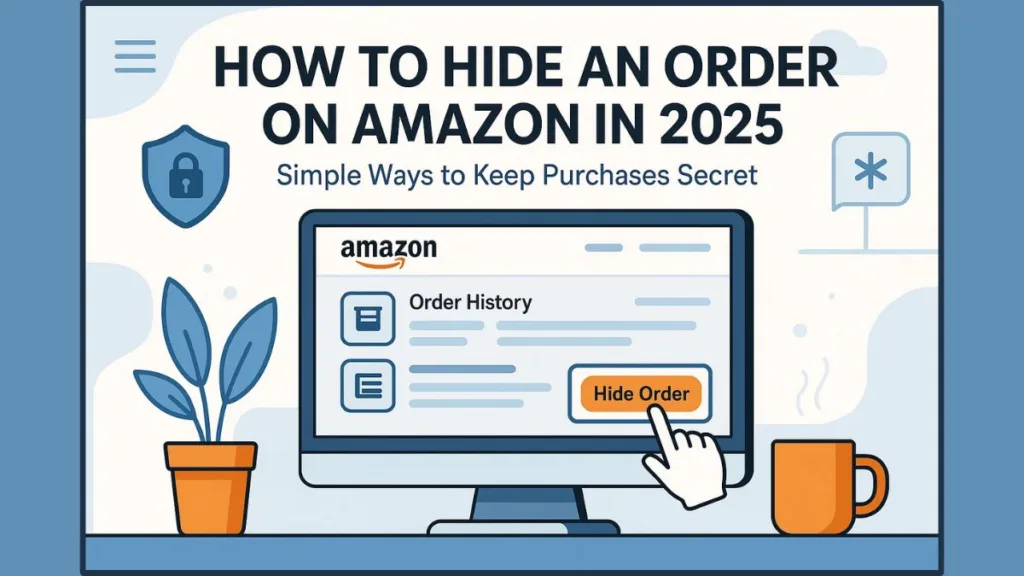
In 2025, Amazon made a major change — the Archive Order feature, once a go-to option for keeping purchases hidden, has been quietly removed or limited across many accounts. This shift has left countless users searching for alternative ways to conceal or manage their Amazon order history effectively.
Fortunately, there are still reliable methods and workarounds that let you hide, organize, and protect your Amazon orders. Let’s explore these options in detail and walk through every step to safeguard your privacy.
Why You Might Want to Hide or Archive an Amazon Order
There’s nothing wrong with wanting to maintain a little privacy — especially when your Amazon account is shared with family members, partners, or roommates. While Amazon doesn’t currently allow you to permanently delete purchase history, there are smart ways to minimize visibility.
Here are the most common reasons people want to hide an order on Amazon:
- Shared accounts: Many households share one Amazon account, making it easy for others to see what you’ve ordered.
- Surprise gifts: You don’t want a birthday or holiday surprise to be spoiled by a notification or order preview.
- Personal purchases: Some items are private by nature and better left unseen by others.
- Digital privacy: Many users prefer not to have their buying habits tracked or displayed.
Regardless of your reason, Amazon offers tools like order archiving, Amazon Household, and browsing history management to help you stay in control of your account’s visibility.
Can You Still Hide or Archive Orders on Amazon in 2025?
For years, the Archive Order button was a simple yet powerful tool for anyone looking to hide Amazon order history. It allowed you to remove an item from your visible order list and move it into a private section called “Archived Orders.”
However, in 2025, Amazon began removing this feature in phases. Here’s what has changed:
Official Amazon Statement: “Starting August 19, 2025, the Archived Orders view will be removed. Any previously archived orders will now appear in your main order history.”
This means:
- Some users still have the Archive Order button (mostly on older accounts or certain regions).
- Others no longer see it at all, especially when using the Amazon mobile app.
- The feature will soon be completely removed globally.
If your account still supports it, you can continue to archive and unarchive orders for now. Below is a detailed guide on how to do it before the feature disappears completely.
How to Archive Orders on Amazon Using Desktop
If your Amazon account still offers the Archive Order button, here’s how to use it to hide an order quickly and efficiently.
Step-by-Step Guide to Archive an Order
- Sign in to your Amazon account using a desktop browser (this option won’t appear on mobile apps).
- Go to Accounts & Lists > Your Orders.
- Locate the item or order you wish to hide.
- Click on Archive Order next to that purchase.
- Confirm your selection when prompted.
Your order will then move to the Archived Orders section, effectively hiding it from your main order history.
How to View Archived Orders on Amazon
- Go to Accounts & Lists > Your Account > Archived Orders.
- Here you’ll find a list of all archived purchases.
- These items won’t appear in your regular order history, but they remain accessible if needed.
How to Unarchive an Order
- Visit the Archived Orders section.
- Find the order you want to restore.
- Click Unarchive Order — it will immediately reappear in your main order list.
Key Points to Remember
- Archiving hides orders but doesn’t delete them permanently.
- You can archive up to 500 orders per account.
- The feature is only available on desktop browsers.
- Archived orders can still be searched manually if someone knows specific details.
How to Hide Amazon Orders Without the Archive Button
If the Archive Order button is missing from your account, don’t worry — there’s still a manual way to do it. This workaround involves modifying a special Amazon URL to hide your order manually.
Manual Method to Hide Orders Without Archive Option
- Log in to your Amazon account on a desktop browser.
- Navigate to Accounts & Lists > Your Orders > Archived Orders.
- Find any previously archived order.
- Right-click on Unarchive Order and choose Copy Link.
- The link will look something like this:
https://www.amazon.in/gp/css/order-history/archive/ref=ppx_yo_dt_b_d_archiveOrder_button_unarchive_405_o03?archiveRequest=0&orderIds=<Input_ORDER_ID>&token=XXXXXXXXXX - Edit the copied link by changing
archiveRequest=0toarchiveRequest=1. - Replace
<Input_ORDER_ID>with the Order ID of the purchase you want to hide. - Paste the updated link into your browser’s address bar and press Enter.
If successful, you’ll see the message:
“Your order has been archived.”
That order will now disappear from your main order history and move into the Archived Orders section.
Notes About This Method
- This workaround works only if you already have at least one archived order.
- Amazon may disable this method as it continues to remove the Archive functionality.
- On mobile devices, use Desktop Site Mode to perform these steps.
As of July 18, 2025, this trick still works, though it may be patched soon.
How to Hide Orders on Amazon from Family or Spouse Using Amazon Household
If you’re sharing your Amazon account and privacy is a concern, setting up Amazon Household is the best long-term solution.
Amazon Household allows two adults to share Prime benefits (like free shipping, Prime Video, and Kindle perks) while maintaining separate accounts, purchase histories, and recommendations.
How to Set Up Amazon Household
- Visit the Amazon Household setup page.
- Click on Add Adult.
- Enter your spouse’s or family member’s email address.
- Both accounts must accept the invitation to share Prime benefits.
- Once set up, each adult has their own private order history.
Benefits of Using Amazon Household
- Separate order histories: Each member’s orders remain private and hidden from others.
- Shared Prime membership: Enjoy Prime without sharing account visibility.
- Ideal for couples and families: Perfect for maintaining privacy while enjoying convenience.
- Keeps recommendations accurate: Personalized suggestions are based on your own activity.
If you frequently share your Amazon account with family, Amazon Household(now Amazon Family) is the safest and most official way to protect your privacy.
Additional Ways to Protect Your Amazon Privacy
Even if archiving isn’t available, you can still take control of your Amazon account privacy using the following strategies:
1. Clear Your Browsing History
- Go to Your Browsing History > Remove Items.
- This ensures that recently viewed products don’t show up in suggestions.
2. Use Private Browsing or Incognito Mode
- Shop using Incognito Mode in Chrome, Safari, or Edge.
- Prevents your searches and clicks from being saved in Amazon’s browsing history.
3. Disable Alexa Purchase Announcements
- Go to the Alexa app > Settings > Notifications > Amazon Shopping.
- Turn off Order Updates to prevent Alexa from announcing what’s arriving.
4. Manage Delivery Privacy
- Use Amazon Locker for discreet deliveries.
- Choose gift packaging to conceal product details.
5. Use Separate Accounts When Needed
- For complete separation, create a secondary Amazon account solely for personal or gift-related purchases.
Each of these privacy methods complements the others, giving you multiple layers of control over what others can see.
Limitations of Hiding and Archiving Orders on Amazon
Even with these tools, there are a few things you should know:
- You cannot permanently delete order history.
- The Archive feature works only on desktop browsers and is being phased out.
- Amazon limits archiving to 500 orders per account.
- Once the Archive function is completely removed, manual methods may no longer work.
Understanding these limits ensures that you know what to expect while managing your Amazon order history privacy.
Final Thoughts on How to Hide an Order on Amazon
While Amazon has removed the Archive Order button for many users, there are still effective ways to hide or manage your order history.
To summarize:
- Use the Archive Order feature if it’s still available in your account.
- Try the manual URL workaround if the button is gone.
- Set up Amazon Household for ongoing privacy when sharing accounts.
- Clear browsing history and manage Alexa notifications to keep purchases discreet.
These methods ensure your Amazon account remains private, your surprises stay surprises, and your shopping habits remain your own.
Being proactive and using these privacy tools helps you maintain control, even as Amazon continues to evolve its systems and features.
Frequently Asked Questions (FAQ)
Q1: Can you really hide an order on Amazon?
Yes. You can hide orders using the Archive Order feature, the manual URL method, or Amazon Household. Permanent deletion is not possible.
Q2: How do I delete a purchase from my Amazon history permanently?
Currently, Amazon does not allow permanent deletion of purchase history. You can, however, archive orders and clear your browsing history for extra privacy.
Q3: How do I hide an Amazon order in the app?
The Archive feature is not available in the app, but you can open Amazon in Desktop Site mode on your mobile browser and follow the same steps.
Q4: How many orders can you archive on Amazon?
You can archive up to 500 orders per Amazon account.
Q5: Does Amazon Household hide your orders?
Yes. When you use Amazon Household, your order history remains private and separate from other members, even though you share Prime benefits.
Visit Our Post Page: Blog Page
Discover more from Izoate
Subscribe to get the latest posts sent to your email.