
Want to keep your connections private? Learn how to hide your friend list on Facebook in 2026. Step-by-step guides for mobile and PC!
In the rapidly evolving digital landscape of 2026, privacy has shifted from being a luxury to a fundamental necessity. As we spend more of our lives in the “Metaverse” and integrated social ecosystems, the data points we leave behind—including our social connections—can be used in ways we never intended. One of the most critical steps in securing your online identity is learning how to hide your friend list on Facebook.
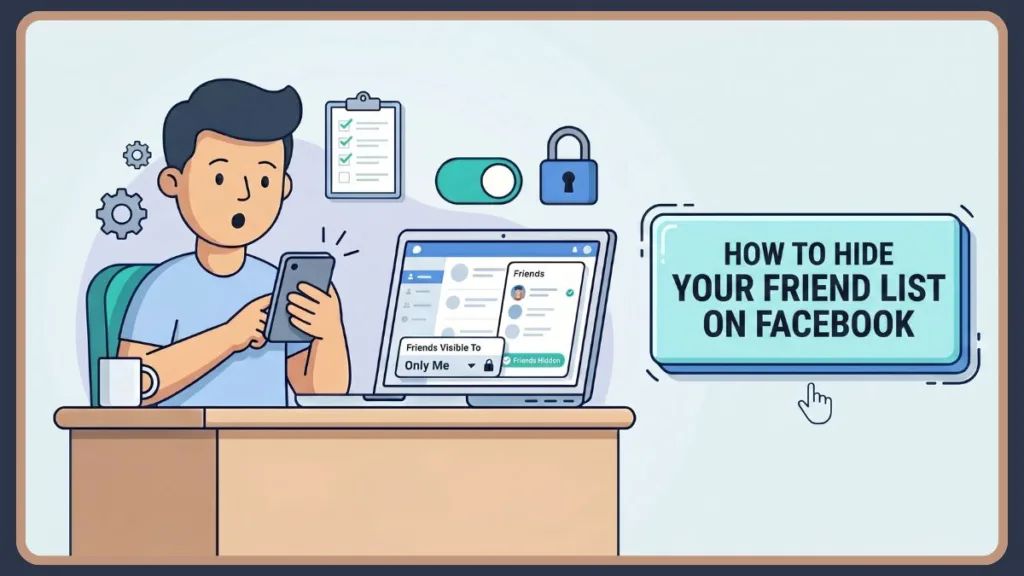
By default, Facebook often sets your connections to “Public.” This means that recruiters, total strangers, or even data-harvesting bots can map out your social circle, identifying your family members, colleagues, and close friends. Whether you are looking to make your friends list private on Facebook to avoid targeted ads, prevent “social engineering” attacks, or simply value your anonymity, this guide provides you deep dive into every setting, shortcut, and nuance available today.
Why Privacy Matters More Than Ever in 2026
Before we dive into the “how-to,” it is vital to understand the “why.” In 2026, the way facebook privacy settings 2026 function has changed. With the rise of advanced AI-driven search tools, a public friend list is essentially a public map of your life.
The Risks of a Public Friend List:
- Data Scraping: Automated bots can scrape public friend lists to create “shadow profiles” of you and your connections.
- Social Engineering: Scammers use your friend list to see who you trust. They then clone those profiles to send you malicious links, a tactic known as “spear-phishing.”
- Professional Boundaries: In the modern workplace, keeping your professional and personal lives separate is harder than ever. A public list allows employers to see your social associations, which may not always align with your professional persona.
- Privacy Parity: Many users are unaware that even if they are private, their friends’ public settings can expose them. Learning to limit who can see my friends on Facebook is the first step in a larger privacy hygiene routine.
Quick Summary: The “Only Me” Shortcut
For those who need an immediate solution without reading the full technical breakdown, here is your “emergency” fix. To achieve a total facebook hide friend list result, you must navigate to your privacy settings and switch the audience selector to “Only Me.”
Quick Tip: The “Only Me” setting is the strongest privacy tier on the platform. It doesn’t just hide the list from strangers; it hides it from everyone except you. This is the gold standard for those who want to make friends list private Facebook style.
How to Hide Your Friends List on Facebook Desktop: A Detailed Walkthrough
While mobile usage is higher, the desktop version of Facebook offers the most granular control over your facebook privacy friends list settings. If you are using a computer (Windows, Mac, Linux, or Chromebook), follow these detailed steps to hide friends list facebook desktop users see.
Step 1: Accessing the Global Settings Menu
Log into your account at www.facebook.com. In the top-right corner, you will see your profile picture icon (usually a circle). Click this to open the primary account menu. From here, select Settings & privacy, and then click the secondary Settings option.
Step 2: Navigating the Privacy Dashboard
Once you are in the main Settings area, look at the left-hand sidebar. In 2026, Meta has consolidated many of these features into the “Accounts Center,” but the Privacy tab remains the hub for profile visibility. Click on Privacy.
Step 3: Locating “How People Find and Contact You”
Scroll down the center pane until you find the section titled How people find and contact you. This section is the gatekeeper for your profile’s discoverability. You will see several options here, including who can send you friend requests and who can see your email address.
Step 4: Editing Your Friends List Visibility
Look for the line that says “Who can see your friends list?”. On the far right of this line, click the Edit button. This will expand a hidden menu with a dropdown box.
Step 5: Choosing the Right Audience
This is the most critical part of the process to change who can see your friends on facebook. The dropdown menu offers several distinct tiers:
- Public: Anyone on or off Facebook can see your list.
- Friends: Only people you are officially friends with can see the list.
- Friends except…: Perfect for hiding the list from specific people (like coworkers or that one nosy relative).
- Specific friends: The opposite of the above; only a few chosen people can see it.
- Only Me: The ultimate privacy setting.
Select Only Me and click close. Facebook automatically saves and syncs your changes across all your devices.
How to Hide Your Friends List on Facebook Mobile (iPhone & Android)
The mobile interface is updated frequently, often leading to confusion for users trying to hide friends list on facebook android or iPhone. In 2026, the app uses a streamlined “Privacy Shortcut” system, but the manual route is still the most reliable way to make my friends list private on facebook.
For iOS (iPhone and iPad) Users:
- The Menu Icon: Open the Facebook app and tap the Menu icon (your profile picture with three horizontal lines) in the bottom-right corner.
- Settings Gear: Tap the Gear icon in the top right, or scroll to the bottom and tap Settings & Privacy > Settings.
- Audience and Visibility: Scroll down until you reach the Audience and visibility section. This is where Meta houses all “Who can see…” settings.
- Find the Shortcut: Tap on How people find and contact you.
- Selection: Tap Who can see your friends list?. If you only see three options, tap See More to reveal the Only Me option.
- Confirmation: Once you tap your choice, a blue checkmark will appear, confirming your hide friends list facebook mobile update.
For Android Users:
Android users follow a nearly identical path, though the Menu icon is located in the top-right corner.
- Tip: If you are using “Facebook Lite,” the settings are under a simplified “Privacy Shortcuts” menu, but the core logic remains the same. Search for “Friends List” in the settings search bar if you can’t find it manually.
Advanced Privacy: Hiding Your List from Specific People
Sometimes, a “one size fits all” approach doesn’t work. You might want your best friend to see your connections but want to hide friends list from specific people facebook has identified as “Restricted” or “Acquaintances.”
Using the “Friends Except…” Feature
This is a powerful tool for those who want to hide friends on facebook without unfriending.
- Follow the steps to reach the “Who can see your friends list?” setting.
- Select Friends except….
- A list of your friends will appear. Check the boxes next to the names of people you want to “blind” to your friend list.
- This is ideal for maintaining professional boundaries without the social awkwardness of a “Block” or “Unfriend” action.
Custom Lists and the “Restricted” Category
If you want to limit who can see my friends on facebook permanently for certain people, add them to your Restricted List.
- People on your Restricted list can only see your Public posts and information.
- If your friend list is set to “Friends,” people on the Restricted list will not see it, as they are treated as “Public” viewers for privacy purposes.
The “Mutual Friends” Catch: Why Your List Isn’t 100% Invisible
One of the most frequent complaints is: “Why can people still see my friends after I hid my list?” Understanding this is key to mastering facebook friends privacy settings.
The Double-Lock Logic
Facebook’s privacy architecture is built on a “mutual consent” model.
- Your Profile: You control who sees the list on your page.
- Their Profile: Your friend controls who sees the list on their page.
If you and Sarah are friends, and you set your list to “Only Me,” a stranger visiting your profile will see 0 friends. However, if Sarah has her list set to “Public,” that same stranger can visit Sarah’s profile and see you listed as her friend.
Mutual Friends Visibility
Even with a hidden list, if someone visits your profile, Facebook will still show Mutual Friends. This is currently a hard-coded feature intended to help people verify identities. You cannot hide the fact that you share 10 friends with a visitor, though you can hide the rest of the 490 friends you don’t have in common. This is a primary reason why people ask who can see my friends on facebook even after they’ve toggled the settings.
Bonus: Related Privacy Settings for a Secure 2026 Profile
To truly make friends list private facebook secure, you should look at the surrounding settings that often leak information.
How to Hide Followers on Facebook
Many users forget that “Friends” and “Followers” are two different lists. To hide followers on facebook:
- Go to Settings > Audience and visibility > Followers and public content.
- Adjust Who can see the people, Pages and lists you follow? to Only Me.
Blocking and Removing Friends
If the reason you want to hide your list is a specific individual harassing you, a simple setting change might not be enough.
- Remove friend on Facebook: This breaks the connection but may still allow them to see public info.
- Block someone on Facebook: This is the nuclear option. They will no longer be able to see your profile, tag you, or even find you in a search.
Hiding Future Friend Requests
To stop strangers from even trying to join your circle:
- Go to How people find and contact you.
- Change Who can send you friend requests? from “Everyone” to “Friends of friends.”
Troubleshooting: “I Hid My List, But It’s Still There!”
If you’ve followed this guide and your list still appears public, check these three common issues:
- The “View As” Tool: Don’t trust what you see on your profile. Use the “View As” tool (the eye icon on your profile page) to see exactly what a stranger sees.
- App Cache: Sometimes the mobile app doesn’t refresh immediately. Clear your app cache or log out and back in to see the changes.
- Global Privacy Control (GPC): In 2026, some browsers have GPC settings that might conflict with site-specific settings. Ensure your browser isn’t overriding Facebook’s internal toggles.
FAQ
How do I hide my friends list on Facebook mobile?
Go to Settings > Audience and visibility > How people find and contact you > Who can see your friends list? and choose “Only Me.”
How do I hide my friends list on Facebook desktop?
Navigate to Settings & privacy > Settings > Privacy > How people find and contact you and click Edit next to your friends list visibility.
Can people still see mutual friends if I hide my friends list?
Yes, mutual friends are always visible to the common connection and cannot be fully hidden due to Facebook’s current transparency policy.
How to hide friends list from specific people on Facebook?
Use the “Friends except…” audience selector to manually exclude certain individuals from viewing your list.
Why can people still see my friends after I hid my list?
This usually happens because your friends have their lists set to public, or the person is seeing “Mutual Friends” which remain visible by default.
Does Facebook notify people if I hide my friend list?
No. Changing your privacy settings is a private action and does not generate a notification to your friends or the public.
How do I hide my friends list from the public?
Set your friends list audience to “Friends” or “Only Me” to ensure anyone not on your list sees nothing.
Can I hide my friends list from my spouse or a specific friend?
Yes, by using the “Friends except…” or “Specific friends” settings, you can hide your list from anyone, even those you are currently friends with.
How do I hide my “Following” list?
This is handled under Followers and public content in your settings. Set “Who can see the people, Pages and lists you follow” to “Only Me.”
What is the difference between “Only Me” and “Restricted”?
“Only Me” hides a specific piece of data (like your friend list) from everyone. “Restricted” is a label you put on a person so they can only see your public-facing profile content.
Conclusion: Taking Back Your Digital Narrative
Securing your facebook friends privacy settings is more than just a technical chore; it is an act of digital self-care. In 2026, your data is your currency, and your social connections are a significant part of that value. By taking the time to hide friends list from public facebook views and mastering the “Only Me” setting, you are significantly reducing your vulnerability to identity theft, social engineering, and unwanted surveillance.
Remember, privacy is not a one-time setup. As Facebook (Meta) continues to update its interface and AI capabilities, you should perform a “Privacy Audit” every few months.
Visit Our Post Page: Blog Page
Discover more from Izoate
Subscribe to get the latest posts sent to your email.