
Not sure how to list something on Facebook Marketplace? Learn how to create a Marketplace listing in 2026, add your photos and item details, set your price, and publish your item for sale.
If you’ve got items sitting around the house that you no longer need, Facebook Marketplace is one of the easiest ways to turn them into cash. Whether you’re selling a sofa, an old smartphone, camera gear, or a pile of clothes, Marketplace can put your listing in front of buyers in your area — and the whole process is simpler than you might expect.
The basic idea is straightforward: take some photos, fill in your item details, set a price, and publish. But knowing what to include in each section of your listing can be the difference between a post that attracts real interest and one that sits ignored for weeks.
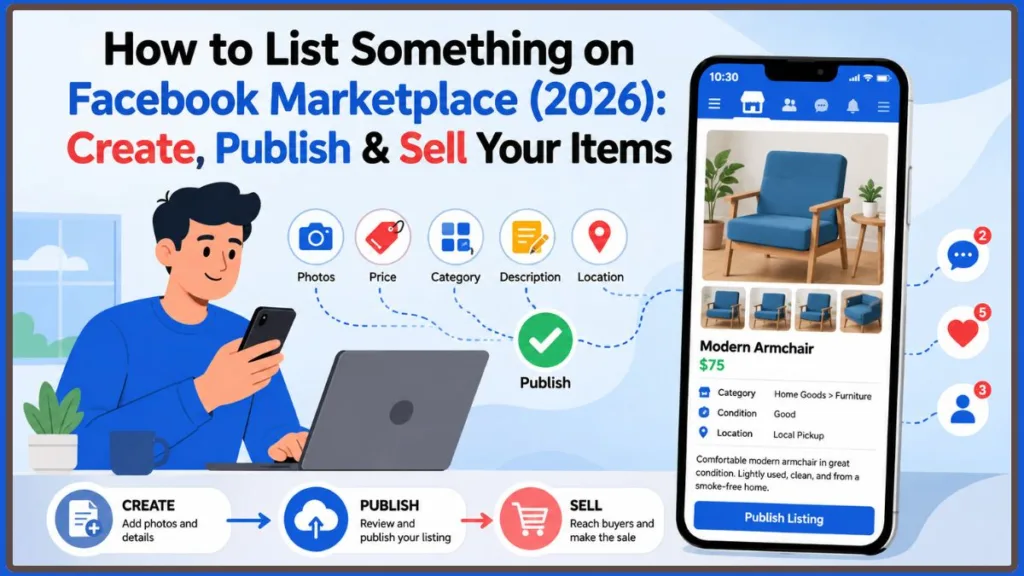
This guide walks you through everything you need to know — from creating your first listing to handling buyer messages and completing the sale safely.
Quick answer: To list something on Facebook Marketplace, open Marketplace, select Sell or Create new listing depending on your device and interface, choose Item for sale when appropriate, add your photos and item details, set your price, choose the available category and condition, review the listing, and select Publish.
Before You Create Your Facebook Marketplace Listing
A little preparation before you open Marketplace can save you a lot of time. Buyers tend to ask predictable questions, so having the answers ready before you start means you won’t have to pause halfway through or go back and edit later.
Gather Everything You’ll Need
Before you start building your listing, it helps to think like a buyer. What would you want to know before agreeing to meet a stranger and hand over money? Start by collecting clear photos of the item from multiple angles, along with a descriptive title that includes the brand, model, or size where relevant. You’ll also want your asking price decided in advance, along with an honest assessment of the item’s condition — including any flaws or damage worth mentioning.
For physical items, measurements and dimensions matter more than people often realize, especially for furniture. A buyer may be planning to fit your table into a specific corner of their apartment, and if the dimensions aren’t in the listing, they’ll either skip it or send you a message asking — which slows everything down. Similarly, note the color, key specifications, and any accessories or extras included with the sale. Rounding things out with your preferred pickup location or general area gives buyers a practical sense of whether the transaction is even feasible for them.
Think about the questions someone would ask before agreeing to meet you. If you’re selling a dining table, a buyer is probably going to want to know the dimensions, material, color, and whether there are any scratches. If you’re selling an Android phone or an iPhone, they’ll want to know the model, storage, and whether everything works. Getting ahead of those questions in your listing means fewer back-and-forth messages later.
Make Sure Your Facebook Account Is in Good Shape
Since Marketplace is connected to your Facebook account, make sure you can log in and access it normally before getting started. Having a clear profile picture and some basic profile information can also make your account look more trustworthy to buyers checking who they’re dealing with. When someone is about to hand over cash to a stranger, they naturally want a quick sense of who that person is — a complete-looking profile can help with that first impression.
You don’t need to create a Facebook Business Page just to sell items on Marketplace. A regular personal account works fine for most sellers, whether you’re clearing out a few things from your home or doing a bit of casual reselling on the side.
It’s also worth knowing that Marketplace listings must follow Facebook’s Commerce Policies. Facebook has a dedicated help section covering prohibited items, listing rules, and responsible buying and selling — it’s worth a quick look before you list anything you’re unsure about.
How to List Something on Facebook Marketplace Step by Step
The steps below reflect how the listing process generally works based on Facebook’s current guidance. The exact labels, buttons, and options you see can vary depending on your device, Facebook app version, location, account, and the current interface — so treat these as a general workflow rather than a guaranteed step-by-step match for every screen.
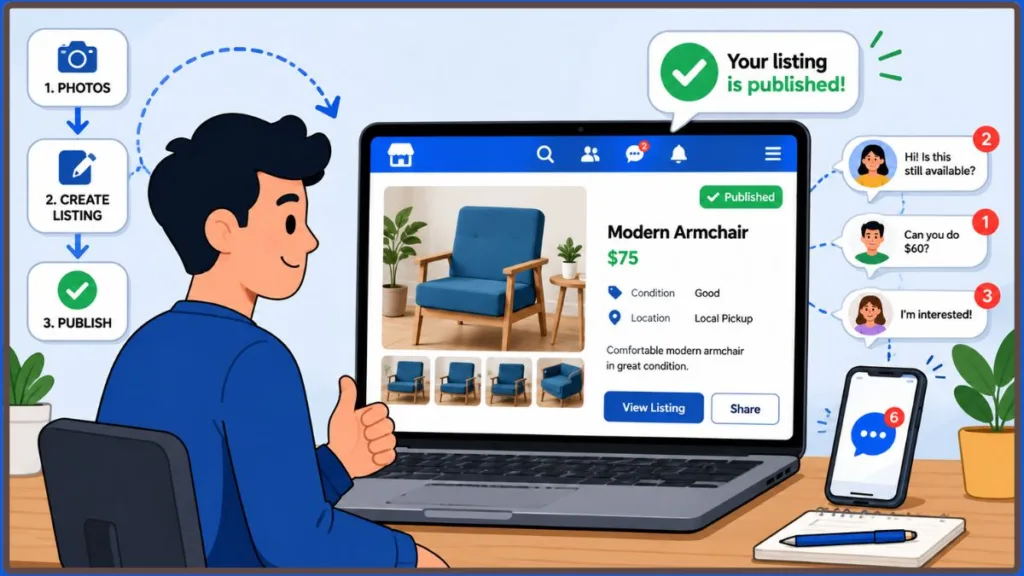
Step 1: Open Facebook Marketplace
Log in to Facebook and navigate to Marketplace. On desktop, you’ll typically find Marketplace in the left-side menu on your Feed. On mobile, look for the Marketplace icon in the app’s navigation bar, though its exact position can vary depending on which version of the app you’re running and your device.
Once Marketplace opens, look for the option to start a new listing before moving forward.
Step 2: Start a New Listing
On desktop, the current general flow uses Create new listing. On mobile, you may see Sell, followed by Create listing. Either way, selecting that option is what opens the listing creation form where you’ll enter your item details.
Step 3: Choose the Right Listing Type
For most items you want to sell, choose Item for sale. Facebook may offer other Marketplace listing types — such as vehicles or property-related listings — depending on the current interface, your location, your account, and what you’re listing. Make sure the listing type you select actually matches what you’re offering, as choosing the wrong type can make your item harder for the right buyers to find.
Step 4: Add Your Photos (and Video if Useful)
Your photos are the first thing a buyer notices, so they’re worth taking seriously. A dark, blurry photo against a cluttered background can make even a great item look unappealing — and in a marketplace full of competing listings, a buyer will simply scroll past yours without a second thought.
When taking your photos, use natural lighting or a well-lit room where possible. Place the item against a clean, simple background so nothing distracts from what you’re actually selling. Photograph the item from multiple angles — front, sides, back, and top — and include close-ups of any details that matter to a buyer. Most importantly, show any scratches, dents, stains, or damage clearly rather than trying to hide them.
For example, if you’re selling an armchair, don’t just photograph the front. Show the back, the seat, the legs, and any visible wear. If you’re selling a camera, photograph the body, lens mount, screen, and any included accessories. The more thoroughly your photos answer visual questions, the less time you’ll spend explaining things in messages.
Where the current listing flow supports it, Facebook allows you to add both photos and video to your listing. A short video can be especially helpful for items where movement or operation matters — like showing an appliance actually working, a camera powering on normally, or a chair’s condition from different angles as you move around it.
One important tip: Don’t hide visible flaws. Showing them clearly reduces surprises at pickup and actually helps attract buyers who understand exactly what they’re getting.
Step 5: Write a Title Buyers Can Understand
Your title needs to tell buyers exactly what the item is — without making them guess. A vague title like “Nice Chair” doesn’t give a buyer much to work with. Something like “IKEA POÄNG Armchair – Light Brown – Good Condition“ is far more useful and gives buyers more specific terms to search for.
Here are a few examples of how to approach titles for different types of items. For electronics, something like Samsung Galaxy S23 – 128GB – Unlocked – Excellent Condition tells a buyer everything they need to know at a glance. For clothing or shoes, Nike Air Max 270 Women’s Size 8 – Barely Worn is clear, specific, and immediately useful. For furniture, Solid Oak Coffee Table – 48 Inches – Minor Surface Scratches sets honest expectations before the buyer even opens the listing. For kitchen items, Calphalon 10-Piece Nonstick Cookware Set – Like New is far more descriptive than simply writing “Pots and Pans.”
Including the brand, model, size, or condition in your title gives buyers more specific terms to search for and makes the listing easier to understand at a glance.
Step 6: Choose the Most Accurate Category
Select the category that most closely matches your item based on the options Facebook currently shows you. A camera may appear under an electronics or photography-related category, depending on what’s currently available. Furniture may have its own dedicated section, or it may fall under a broader home goods category. Clothing items will typically have subcategories by type or gender, though the exact options can vary.
The principle stays the same regardless of interface: choose the category that most accurately reflects what you’re selling. Accurate categorization helps your listing reach people who are genuinely browsing for that type of item, rather than general shoppers who aren’t interested in what you have.
Step 7: Set a Price That Makes Sense
Pricing is one of the biggest decisions you’ll make when creating a Marketplace listing, and it’s worth taking a few minutes to research before settling on a number. Search for comparable listings in your area and compare their asking prices, condition, included accessories, and how long similar listings appear to have been available. That gives you a more realistic picture of where your item fits in the current market.
A practical approach many sellers find helpful is to decide on three numbers before publishing: your asking price (what you list it at), your comfortable price (what you’d happily accept), and your minimum (the lowest you’ll go). That way, when someone messages you asking “what’s the lowest you’ll take?” — you already know your answer and don’t have to make a snap decision under pressure. This is practical seller advice rather than an official Facebook pricing method, but many sellers find it useful when negotiating locally.
Where the current listing interface supports it, you can enter 0 to indicate that an item is free — which can be handy for things you just want gone quickly without the hassle of negotiating.
Step 8: Select the Item’s Condition Honestly
Be accurate when choosing the condition. The available options can vary by listing type and the current Marketplace interface, but common choices include New, Like New, Good, and other conditions depending on what Facebook currently shows. If the item has visible damage, choose the condition that actually reflects that rather than bumping it up a tier to attract more clicks. A buyer who shows up expecting something in better shape than advertised is unlikely to leave happy — and it wastes both your time and theirs.
Adding a brief written explanation alongside the condition you select also helps. A note like “Good condition. Minor scratches on the tabletop. All drawers open and close smoothly.” gives a buyer a much clearer picture than just selecting “Good” with no context. The more specific you are, the more confidence a buyer has going into the transaction.
Step 9: Write a Clear, Honest Description
Your description doesn’t need to be long — it just needs to answer the questions a buyer is likely to have before deciding whether to message you. Think about what information would affect their buying decision and make sure it’s all there.
Cover the brand and model, condition details, measurements or dimensions, color, included accessories or extras, known flaws, and your general pickup location. For a short, practical listing, something like this works well: “Excellent condition, barely used. Includes original box and accessories. Minor cosmetic wear on the right side. Pickup available near Central Park on weekdays.” That covers everything a buyer needs to know without padding it out unnecessarily.
For more technical items, include the specifications that actually matter to the buyer — storage capacity for electronics, load capacity for shelving, compatibility notes for accessories, and so on. A buyer shopping for a specific laptop model wants to know the RAM, storage, and battery condition. Giving them that information upfront saves everyone time.
Step 10: Add Your Location and Selling Preferences
Depending on your account, location, item, and current Marketplace eligibility, you may have options for local pickup, delivery, or shipping. For local sales, include your general area without sharing your exact home address in the public listing. Something like “Pickup near downtown Austin” gives buyers enough to know whether the distance works for them without exposing more personal information than necessary.
Keep in mind that shipping and checkout availability can vary by location, account, item, and current Marketplace eligibility. Work with the options currently shown in your listing interface rather than assuming every selling option will be available to you.
If you’re using the mobile app, you may also have the option to share your listing in additional places — such as relevant buy-and-sell groups or your Facebook profile — depending on your current interface, account, and eligibility.
Step 11: Review Your Listing Before You Publish
Before you hit publish, read through the entire listing as if you were a buyer seeing it for the first time. Use this quick checklist:
- Clear photos — well-lit and showing the item accurately
- Specific title — includes brand, model, size, or condition where relevant
- Accurate price — reflects current comparable listings
- Correct category — matches the actual item
- Honest condition — reflects the item’s real state, including any flaws
- Complete description — answers common buyer questions
- Pickup/selling options checked — location is clear without sharing unnecessary personal details
Catching a mistake before publishing is always easier than editing after buyers have already started messaging you.
Step 12: Publish Your Listing
When everything looks good, select Next (if required) and then Publish. If the Next button isn’t available, Facebook’s current guidance notes that this usually means a required field is incomplete — so double-check that all necessary information has been filled in before trying again.
Once published, the listing remains subject to Facebook’s Marketplace policies and any applicable review or approval process.
How to List on Facebook Marketplace From Your Phone
The mobile app is a convenient option because you can take photos directly with your phone’s camera and add them to your listing without any extra steps. There’s no need to transfer files or resize images — you can shoot, upload, and publish all from the same device.
Listing an Item Using the Facebook App
The exact navigation can vary between app versions, devices, and regions, but the general flow on both iPhone and Android follows a similar pattern. Open Facebook and navigate to Marketplace, then tap Sell or the equivalent option currently available in your version of the app. Select Create listing, choose the appropriate listing type, and add your photos or video where supported. From there, enter your title, price, category, condition, and description, select any available listing options such as additional groups where eligible, review everything carefully, and tap Publish.
Android users may find that Marketplace and some controls appear in slightly different positions depending on the version of the app installed, but the core steps remain generally consistent across devices.
How to List on Facebook Marketplace From a Computer
If you prefer working on a larger screen, or if your photos are already saved on your computer, the desktop version of Facebook is a practical alternative. Some sellers find it easier to write longer descriptions and review listing details on a full-size keyboard before publishing.
Finding Marketplace on Desktop
From your Facebook Feed, select Marketplace from the left-side menu, then choose Create new listing, followed by Item for sale. The exact placement of these controls may vary depending on your current desktop interface and account.
Creating and Publishing Your Listing on Desktop
After selecting Item for sale, click Add photos and upload your images, then add a video if relevant and supported. Fill in all the item details, complete any required fields, select Next, review the listing carefully, and select Publish.
The desktop version may present some fields in a slightly different layout compared to the mobile app, so follow the current options shown on your screen rather than relying on an older tutorial or screenshot.
How to Improve Your Facebook Marketplace Listing
Getting your listing published is the first step. Making it easy for the right buyer to find — and trust — is the next part.
Lead With Photos That Do the Selling for You
Think of your first image as the one that needs to make someone stop mid-scroll. Use good lighting, a clean background, and show the actual item rather than a stock photo or a manufacturer’s image pulled from the internet. Buyers want to see the exact condition of the item they’re considering, not an idealized version of what it looked like when it was new.
Your photos are one of the first things worth improving if a listing isn’t getting the attention you expected. Multiple angles can answer visual questions before a buyer even sends a message, which makes the whole process faster for both of you and reduces the chance of an in-person surprise that derails the sale.
Write Titles Using Words Buyers Actually Search For
If someone is looking for a cookware set on Marketplace, they’re probably searching for “nonstick pots and pans” or “Calphalon cookware” — not just “kitchen stuff.” Matching your title to how people actually search gives buyers more specific terms to work with and makes the listing easier to understand at a glance.
Give Buyers the Details They Need Upfront
The more relevant information you include in your listing, the fewer back-and-forth messages you’ll have to deal with. Dimensions are essential for furniture because a buyer needs to know if it fits their space. Size and condition matter most for clothing because those are the first things someone filters by. Model and included accessories can make or break an electronics sale because buyers often need to confirm compatibility before committing.
If buyers keep asking the same question after your listing goes live, that’s a clear signal the answer belongs in your listing — go back and add it.
Price With Negotiation in Mind
Marketplace buyers often try to negotiate, especially for local pickup items. If you’re open to offers, pricing your item slightly above your comfortable price gives you flexibility to come down without dropping below what you’re actually willing to accept. If you’d rather keep the price firm, stating “price is firm” clearly in your listing sets expectations from the start and saves both parties time.
What to Do After Publishing Your Marketplace Listing
Once your Facebook Marketplace listing is published, the next step is staying responsive and managing the interest that comes in.
Keep an Eye on Your Messages
Interested buyers will reach out through Facebook Messenger, so checking your messages regularly is important. A genuine inquiry that goes unanswered can result in the buyer moving on to another listing. A short, clear reply is usually all it takes to keep the conversation going. For example: “Yes, still available! It’s in great condition and includes the original accessories. I can do pickup this Saturday near downtown.”
Handle Offers Confidently
Because you already decided your minimum before publishing, you’re in a good position to respond to offers without feeling pressured. You can counter an offer, accept it, or politely decline — whichever makes sense depending on how the offer compares to your pre-decided numbers. Having that framework in place before anyone messages you makes the negotiation feel much less stressful.
Arrange a Safe Pickup
For local sales, try to meet in a public place during daylight hours when possible. A busy parking lot, a shopping center, or a similar well-lit public space works well for smaller items. If the item is large and requires pickup from your home, consider having another person present or taking other reasonable precautions to make the situation more comfortable.
Understand When Shipping Makes Sense
Shipping can expand your potential buyer pool beyond your immediate area, but it’s not available to everyone. Shipping and checkout availability can vary by location, account, item, and current Marketplace eligibility. For large or bulky items like furniture, arranging local pickup is often the more practical approach — though always check the options currently available in your listing interface.
Why Your Marketplace Listing Might Not Be Getting Views
If your listing has been up for a while without much interest, there are several common things worth checking before you assume the item simply won’t sell.
Start with your photos. Dark, blurry, or poorly framed images can make a good item look unappealing no matter how well-priced it is. Replacing weak images with clear, well-lit photos is one of the first things worth improving. Next, review your title — if it’s too vague or generic, a buyer searching for something specific may not come across your listing.
Check that your category actually matches your item, since an inaccurate category can put your listing in front of the wrong audience. Look at your price compared to similar local listings and consider whether yours is noticeably higher than comparable items in similar condition. Review your description and ask yourself honestly whether it answers the questions a buyer would have before reaching out.
Often, revisiting a few of these elements is all it takes to refresh a listing that has gone quiet. Updating a weak title, replacing blurry photos, or adjusting the price to align with comparable listings can make your listing more competitive.
If your listing was flagged or didn’t appear as expected, check Facebook’s Marketplace help resources for information about listing approvals and policies before reposting.
How to Manage Your Listings After Publishing
Publishing an item is not the end of the process — especially once you have several listings active at once.
Edit a Listing When Details Change
If you need to update your price, fix a description, or replace a photo, edit the listing rather than leaving buyers with outdated information. This is especially important if you’ve reduced the price since publishing or if a detail you originally included has changed — for example, if you’ve since discovered an additional accessory is included, or noticed a new flaw you hadn’t previously mentioned. Facebook’s Marketplace tools include options for editing active listings at any time.
Mark Items as Pending or Sold
Facebook provides options to mark listings as Available, Pending, or Sold, although the exact controls can vary by current Marketplace interface. Once you’ve agreed to sell to someone, marking the item as Pending lets other potential buyers know it’s no longer actively available before they reach out. This is useful because it sets expectations for anyone who finds the listing and considers sending a message.
When the transaction is complete, mark it as Sold. Facebook notes that a sold listing is no longer visible to other people on Marketplace, and buyers who previously messaged you about it may receive a notification that the item has been sold.
Facebook Marketplace Safety Tips Every Seller Should Know
Selling locally is convenient, but every transaction deserves a bit of care — especially when you’re meeting someone you’ve never encountered before.
Keep Buyer Communication in Messenger
Keeping conversations within Facebook Messenger gives you a record of what was discussed and can make the transaction easier to keep organized. Be cautious if a buyer immediately tries to move the conversation to a different platform or messaging app without a clear reason — that can sometimes be an early indication that something isn’t right.
Watch Out for Payment Red Flags
Most Marketplace transactions go smoothly, but it’s worth knowing the warning signs. Be cautious with buyers who ask for unnecessary personal information, send unusual or overly complicated payment instructions, or claim they accidentally paid too much and ask for a refund before you’ve actually received anything. Similarly, watch out for anyone who pressures you to act quickly without giving you time to think, asks you to accept payment via gift cards or wire transfers, or wants to send a check for more than the asking price.
If something about a payment request feels off, trust that instinct. You don’t need to continue a transaction if a buyer pressures you or asks you to do something you’re uncomfortable with.
Protect Your Personal Information
Don’t share passwords, security codes, or sensitive personal details with buyers. Share only what’s genuinely needed to complete the transaction — your general pickup area, your availability, and the item details are all a buyer needs from you at the listing stage.
Facebook has dedicated Marketplace guidance covering safe buying and selling practices and how to avoid common scams — it’s worth reviewing if you’re new to selling online or if something about a transaction feels unusual.
Ways to Grow Your Marketplace Selling Over Time
You don’t need to run a full reselling business to benefit from a more organized approach to Marketplace selling. Even if you’re just decluttering occasionally, a few simple habits can make the whole experience smoother and more rewarding.
Share Listings in Relevant Buy-and-Sell Groups
Facebook supports selling through Marketplace as well as local buy-and-sell groups. If a relevant group exists for the type of item you’re selling, its rules allow listings, and the option to share to groups is available in your current interface and account, it can be worth posting there as well.
A local furniture group makes sense for a dining table. A photography buy-and-sell group may make sense for a camera lens. A neighborhood declutter group might be perfect for general household items. The key is making sure the item genuinely fits the group before posting — irrelevant listings in niche groups tend to get ignored or removed. Keep in mind that additional sharing or placement options can vary by account, listing type, and current Marketplace interface.
Track Your Sales and Expenses
If you sell items regularly, a simple spreadsheet can give you a clearer picture of whether your activity is actually worthwhile over time. Record the item name, date listed, asking price, final sale price, date sold, and any related expenses such as shipping materials or purchase cost. Calculating sale price minus purchase cost minus expenses gives you a more honest view of what you’re actually earning — far more useful than just looking at what landed in your pocket after each individual sale.
Learn From the Questions Buyers Ask
If multiple buyers ask the same question — “Is this solid wood?” or “Does it come with a charger?” — that’s a clear sign the answer should be in your listing. Use those patterns to improve future listings and reduce the time you spend answering repetitive messages. Over time, paying attention to what buyers ask tells you a lot about what information matters most to the people shopping in your area.
Frequently Asked Questions About Facebook Marketplace
How do I list something on Facebook Marketplace?
Open Marketplace, select Create new listing or the Sell option depending on your device and current interface, choose Item for sale when appropriate, add your photos and item details, review everything, and publish. The general process is similar on both desktop and mobile, though the exact labels and layout can vary by device, app version, location, and account.
How do I get more views on my Marketplace listing?
Focus on the fundamentals: clear photos, a specific title, the right category, an accurate condition description, a competitive price, and a description that answers common buyer questions. You can also consider listing in relevant local buy-and-sell groups where the rules allow it and the option is available to you. Avoid relying on unverified claims about how Facebook’s algorithm works — the most reliable approach is making your listing as accurate and useful as possible.
How do I avoid scams on Marketplace?
Keep communication in Messenger, avoid sharing sensitive personal information, be cautious with unusual payment requests, and arrange pickups in public places when practical. Facebook has dedicated resources covering Marketplace scam prevention, and reviewing those guidelines is especially helpful if you’re selling for the first time.
What should I do if someone makes a lowball offer?
Decide your minimum before you publish so you’re ready to respond calmly when an offer comes in below what you were hoping for. You can counter the offer with a number closer to your asking price, hold firm, or simply decline — all of which are reasonable responses. Having your numbers decided in advance makes this much easier to handle without feeling flustered.
Why is my Marketplace item not selling?
Start by reviewing your photos, title, category, description, condition, and price. Compare your listing with similar ones in your area and make sure you’re answering the questions a buyer would need answered before reaching out. In many cases, revisiting one or more of those elements is all it takes to bring renewed interest to a listing that has gone quiet.
Can I offer shipping on Marketplace?
Not necessarily. Shipping and checkout availability can vary by location, account, item, and current Marketplace eligibility. Always check the options currently shown in your listing interface rather than assuming shipping will or won’t be available to you. For large or bulky items, local pickup is often the more practical choice regardless.
What if I have a dispute with a buyer?
Start by reviewing the conversation, stay calm, and try to resolve the issue through Messenger. For platform-related problems, use Facebook’s Marketplace support and help resources rather than trying to handle everything informally. Keeping a record of your conversations in Messenger from the start makes resolving disputes much more straightforward.
Final Thoughts: A Marketplace Listing That Buyers Can Trust
Creating a clear item for sale on Facebook Marketplace doesn’t take long once you understand what each part of the listing is actually for.
Start with clear photos, write a specific title, choose the right category, describe the item’s condition honestly, set a realistic price, and provide the details a buyer needs before they ever send a message. Then review everything carefully and publish.
After that, stay responsive, keep your listings updated, and take sensible precautions when arranging a local pickup. Facebook’s current Marketplace tools support creating and managing listings, marking items as Pending, Sold, or Available, and — where eligible — selling with shipping, though availability can vary depending on your account, location, item, and current interface.
The best Marketplace listing isn’t the one with the flashiest description — it’s the one that makes a buyer think: “I know exactly what this is, what condition it’s in, what it costs, and how I can get it.” That kind of clarity is what turns a listing into a sale.
Visit Our Post Page: Blog Page
Discover more from Izoate
Subscribe to get the latest posts sent to your email.