
Want to keep your Prime Video account secure in 2026? Learn how to log out of Amazon Prime on TV using simple steps. From navigating smart TV menus to deregistering devices remotely and clearing app data. Stay in control of your streaming privacy today.
Streaming movies and shows on Amazon Prime Video has become second nature for millions of people around the world. It’s fast, convenient, and filled with endless entertainment options. But sometimes, account security and privacy matter more than convenience. Whether you’re checking out of a hotel, selling your old television, or simply wish to keep your watch history private from roommates, learning how to log out of Amazon Prime on TV can help you maintain control over your account.
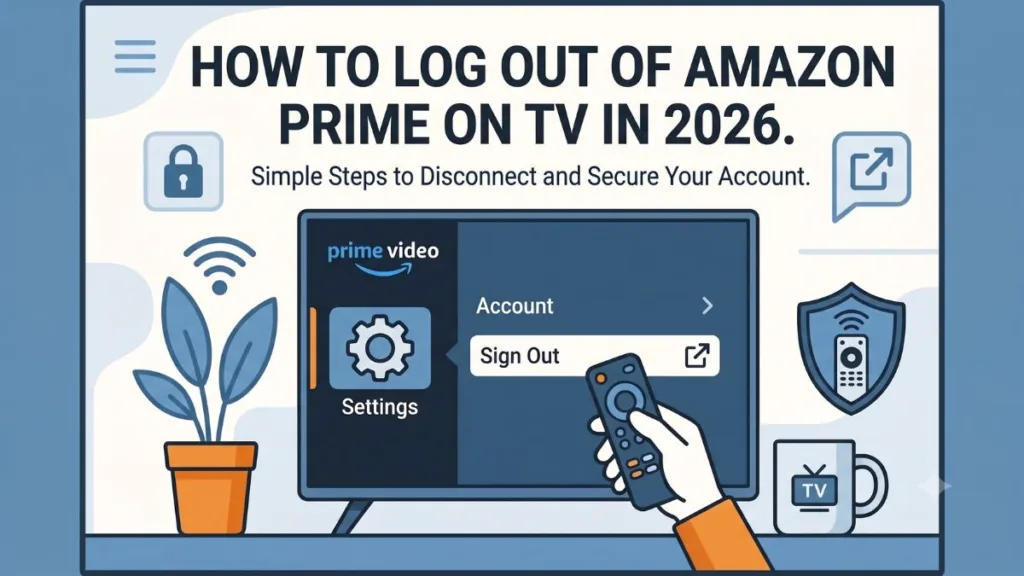
How To Sign Out of Amazon Prime Video On TV
In 2026, navigating smart TV interfaces has become notoriously confusing — the log-out button is often hidden inside labyrinthine menus, or completely replaced by terminology like “Deregister Device.” This shift has left countless users searching for alternative ways to disconnect their accounts effectively.
If you are wondering how to sign out of Prime Video on smart TV, there are still reliable methods and workarounds that let you sign out, manage your devices, and protect your Amazon account. Let’s explore these options in detail and walk through every step tailored for different brands, operating systems, and scenarios to safeguard your privacy.
Why You Might Want to Log Out of Amazon Prime on TV
There’s nothing wrong with wanting to secure your account — especially when your Amazon login gives users access to not just Prime Video, but potentially your broader Amazon shopping ecosystem. While Amazon makes it easy to switch profiles, sometimes a complete sign-out is necessary.
Here are the most common reasons people want to log out of Amazon account on TV:
- Privacy Concerns: Your viewing history, recommendations, and watchlist are linked to your account. Logging out ensures others can’t access this information.
- Account Security: If you share a public TV (like at an Airbnb) with others, logging out prevents unauthorized digital rentals or access to your Amazon account. If you forgot password security best practices recently, keeping unfamiliar devices logged in is extra risky.
- Switching Accounts: If multiple users access the device, logging out allows you to log in with a completely different primary Amazon account rather than just switching viewing profiles.
- Device Management: Regularly logging out from inactive devices (or when selling/giving away a TV) helps keep your account secure and reduces potential unauthorized usage. It is often safer to unlink account access entirely.
Regardless of your reason, Amazon offers tools like in-app sign-outs, remote device management, and app-data clearing to help you stay in control of your account’s visibility and Prime membership perks.
Best Practice: Before you begin, ensure your TV is connected to the internet, your Prime Video app is installed and updated, and you have your Amazon account credentials handy just in case.
Can You Still Find the Sign-Out Button on TVs in 2026?
For years, a simple “Log Out” button was standard across all streaming apps. However, Amazon has increasingly integrated its video app into its larger device ecosystem. Here is what has changed:
- Terminology Shifts: On many modern TVs, the action is now officially called “Deregistering” rather than “Signing Out.” You essentially have to deregister Amazon Prime from TV.
- The Profile Trap: The “Sign out” button might not show up on Kid’s or other secondary profiles. You must switch back to the primary account profile to log out.
- Ecosystem Locking: On devices like the Amazon Fire TV Stick, the app doesn’t have a sign-out button at all; you must deregister the entire device to remove access.
If your TV app still supports a direct sign-out, you can do it using your remote. Below is a detailed guide on how to do it across various platforms, as well as what to do if the button is missing completely.
How to Log Out of Amazon Prime Directly on Smart TVs
Smart TVs come in various brands and operating systems. You can usually access Prime Video via a dedicated button on the smart TV remote or from the TV’s Apps menu. If you need to sign out of Prime Video on Roku / Fire TV / Samsung TV, the process is similar across platforms, though specific steps vary based on your TV model.
1. Samsung Tizen Smart TVs
- Turn on your Samsung Smart TV and launch the Prime Video app.
- Navigate to the Settings menu within the app (usually by moving the cursor to the top of the screen or using the options button).
- Look for options like Account Settings, Manage Account, or Settings.
- Select Sign Out or Logout. Confirm the action if prompted.
Note: If no logout option is visible, proceed to delete the app or clear cache as explained below.
2. LG webOS Smart TVs
- Open the Prime Video app.
- Use your remote to go to the Settings gear icon, accessible typically from the menu bar.
- Navigate to the Account or Sign Out option.
- Select Sign Out and confirm. You will be returned to the login screen.
Troubleshooting: If you cannot find the sign-out option or see unexpected error codes, consider deleting and reinstalling the app or resetting the app data.
3. Android TV and Sony Bravia
- Power on your Android TV and open the Prime Video app.
- Use the remote to navigate to the Settings menu (via a Settings gear icon or within the main menu).
- Select Settings and then navigate to Account & Settings.
- Choose Sign Out or Log Out and confirm your choice.
4. Chromecast with Google TV
Though Chromecast uses the Google TV interface, the app is accessed directly via the Google Play Store.
- Open the Prime Video app.
- Navigate to Settings within the app.
- Select Sign Out and confirm.
Tip: To prevent unauthorized access on shared devices, consider removing the app entirely or signing out of your Google account.
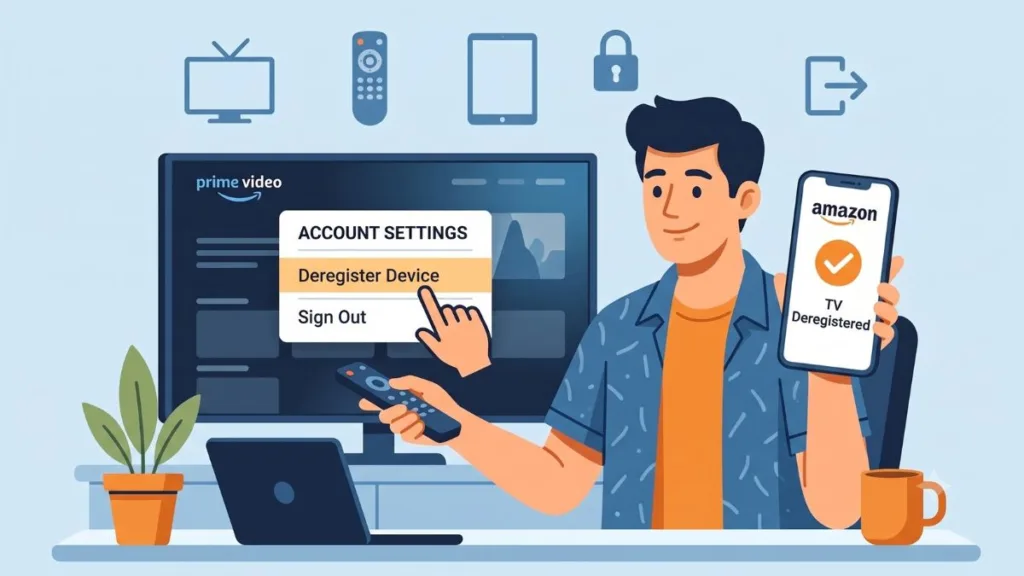
How to Sign Out of Prime Video Remotely (The Easiest Method)
If the button is missing from your TV, or if you left your account logged in at a hotel thousands of miles away, don’t worry. Learning how to log out of Prime Video remotely is often the easiest way to sign out of Amazon Prime Video on any device, directly from the Amazon website or your smartphone apps.
Method 1: Using a Computer Web Browser
- Go to Amazon.com and log in with your email/phone and password.
- Hover your mouse over the Accounts & Lists option in the top-right corner. A drop-down menu with a bevy of options will appear.
- Click on Manage Your Content and Devices (or just the Devices tab).
- Look for the “Amazon apps installed on devices” section and click on Prime Video.
- You will see a list of every TV, phone, and tablet using your account under Registered devices.
- Click Deregister beside the specific device you want to disconnect.
- Confirm by selecting Deregister.
Method 2: Using the Amazon Shopping Mobile App
- Open the Amazon Shopping app on your Android or iPhone.
- Tap on the You tab (the person icon or the three-line menu button in the lower-right corner) and go into Your Account.
- Scroll down to the Account settings section and tap on Devices (or Manage Your Content and Devices > Devices tab).
- Look for the “Amazon apps installed on devices” section and tap on Prime Video.
- Hit Deregister right under the TV or device you want to disconnect, and confirm.
Method 3: Using the Prime Video Mobile App
- Open the Prime Video app on your Android or iPhone.
- Tap your profile picture icon (the middle icon at the bottom that resembles a person).
- Tap the Settings gear icon at the top right.
- Tap Registered devices (about halfway down) and wait 30-40 seconds for the list to load.
- Tap the Deregister (or Sign out) button under the TV from which you want to log out remotely.
- Tap Are you sure? (or Sign Out) to confirm.
Important Note for Mobile Users: If you choose to use the Prime Video mobile app to sign out of the phone itself (by going to Settings > Signed in as/My Account > Sign out), you will be logged out from other Amazon apps on that phone as well.
How to Log Out of Amazon Prime from a Fire TV Stick (The Catch)
If you are using an Amazon Fire TV Stick, the Prime Video app is baked directly into the operating system. Because of this, the Prime Video app on Fire TV Stick doesn’t offer a log-out option.
To sign out of Prime Video, you must deregister your entire Fire TV Stick from your Amazon account:
- In the Prime Video app on your Fire TV Stick, open the left navigational menu bar and select Settings from the primary profile.
- Choose Account, followed by Change Account on Fire TV.
- You will be taken to the Firestick settings. Select Amazon Account.
- Select Deregister and confirm.
Alternate Method: Navigate to your main device Settings > My Account or Accounts & Profiles > Amazon Account > Deregister or Remove Account.
Warning: This logs you out from the entire Firestick, not just Prime Video. Some personal data may remain, so if you want to start completely from scratch (like when selling it), go to Fire TV Settings > My Fire TV > Reset to Factory Defaults.
Alternative Ways to Deactivate Prime Video on TV Devices
In cases where the app interface glitches or doesn’t provide a clear logout option, you can force a logout using these workarounds:
1. Clearing App Data (Android-based devices)
- Go to your TV’s main system Settings > Apps.
- Find Amazon Prime Video and select Storage.
- Choose Clear Data or clear cache or Clear Storage. Reopen the app, and it will prompt you for login credentials. You can also try to force stop app before clearing data.
2. Reinstall the Amazon Prime Video App
- Uninstall app from your device’s app store.
- Reinstall it. During setup, you can often choose to log out of existing accounts or set up a new one.
3. Change Your Amazon Password
- If you suspect someone is using your account and you cannot locate their TV on your registered devices list, a simple way to sign out of all devices is to change your primary Amazon account password.
Final Thoughts on Managing Your Prime Video Account
Managing your Amazon Prime account on TV devices might seem straightforward, but nuances across different platforms can make the process confusing. Staying informed about how to log out properly helps maintain your privacy and prevents unauthorized access.
Regularly review the connected devices list in your Amazon account settings, enable two-factor authentication for added security, and consider changing your password periodically. Keep your devices and apps updated, and always sign out after use when sharing public televisions to safeguard your streaming activity and personal data.
Frequently Asked Questions (FAQ)
Q1: Why is there no sign-out button on my Amazon Prime Video app?
The sign-out button is often hidden if you are viewing the app through a Kid’s or secondary profile. Switch back to the primary account profile, go to Settings, and scroll to the bottom. Additionally, Fire TV Sticks do not have an app-level sign-out button; you must deregister the whole device.
Q2: Does uninstalling the Prime Video app log me out?
Not always. On many smart TVs, if you just uninstall app, it leaves your cached login credentials saved on the device. To ensure you are signed out, either clear cache data or deregister the device remotely via the Amazon website.
Q3: How do I log out of Prime Video on someone else’s TV?
You don’t need physical access to their TV. Go to Amazon.com on a web browser, navigate to Accounts & Lists > Devices > Prime Video, find their TV on your registered list, and click Deregister.
Q4: Do I need an active Prime subscription to log out of a TV?
No. You do not need an active Amazon Prime subscription to sign out of your TV. As long as your Amazon account is linked to the same email address, you can sign out via the Amazon website by managing your devices.
Q5: How do I sign out of Prime Video on the web?
On the Prime Video website, simply click on your name at the top right and select Sign out from the drop-down menu. You will be logged out from the Prime Video website immediately
Visit Our Post Page: Blog Page
Discover more from Izoate
Subscribe to get the latest posts sent to your email.