
Want your favorite Spotify song to ring when someone calls? Spotify’s DRM blocks it directly, but this GarageBand method works. See the exact steps.
Want your favorite Spotify song to ring every time someone calls? You’re not alone, but there’s a catch: Spotify doesn’t let you set its songs as ringtones directly. This guide explains why, then walks through the methods that do work, including GarageBand, the Files app, and the Tone Store, so your iPhone sounds exactly the way you want.
Your ringtone plays dozens of times a day, so it’s no surprise people want something better than the default “Reflection.” Spotify is where most of us find and replay our favorite songs, so it feels natural to want one of those tracks as the sound your phone makes.
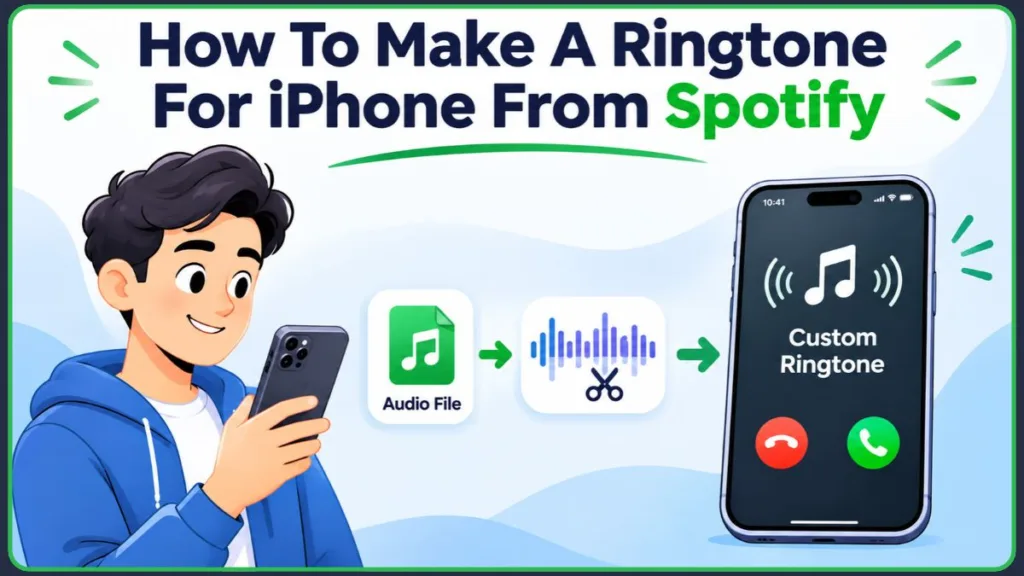
If you’ve already tried and hit a wall, you haven’t done anything wrong. The good news is that a workaround exists, and it’s easier than it looks.
How to Set a Spotify Song as a Ringtone on iPhone (The Short Answer)
Here’s the honest answer: there is no “Set as ringtone” button in Spotify, and no Premium setting that adds one. What you can do is build a ringtone from an unprotected copy of the same song, using Apple’s free GarageBand app.
Below, we’ll cover why Spotify songs are locked, what you can use instead, and every step to create and set your custom ringtone.
Why Do People Want a Spotify Song as Their iPhone Ringtone?
There’s nothing wrong with wanting your phone to sound like you. Here are the most common reasons people go custom:
- Personal style: A song you love makes your phone feel like yours.
- Contact-specific tones: Give your partner, boss, or mom their own sound and know who’s calling without looking.
- Standing out: Default ringtones are heard everywhere, and a custom one is instantly recognizable.
- Saving money: Making your own is free, and buying a ready-made tone costs only a small fee.
Whatever your reason, the process is the same, and it’s easier than it sounds.
Can You Use Spotify Songs as iPhone Ringtones in 2026?
Not directly. Spotify songs are protected, and iPhone ringtones need to be real audio files.
In practice, this means:
- You can’t pick a Spotify song from Settings > Sounds & Haptics > Ringtone.
- You can’t import a Spotify track into GarageBand.
- Spotify Premium and offline downloads don’t change this.
If you’re after the sound of a song you love, the workaround is simple: get an unprotected version of that song and turn it into a ringtone. We’ll cover exactly how below.
Why Spotify Songs Can’t Be Used as Ringtones (DRM Explained)
The reason is DRM, short for Digital Rights Management. When you stream a song on Spotify, you aren’t getting a file. You’re getting permission to listen inside the Spotify app, and the music is protected so nothing else on your phone can open it.
GarageBand follows the same rule. Apple notes that a dimmed file in GarageBand is protected or hasn’t been downloaded to your iPhone, and that a protected file can’t be used for a ringtone.
Spotify’s own User Guidelines also prohibit circumventing any technology used by Spotify, its licensors, or any third party. That’s why tools claiming to “convert” Spotify songs are risky, and why this guide doesn’t recommend them.
Do Spotify Premium and Offline Downloads Work as Ringtones?
No. This is one of the most common points of confusion, because paying for Premium feels like it should unlock more.
Here’s what each feature actually does:
- Spotify Premium: Gives you offline listening, but not ownership of the music files.
- Offline downloads: Stay inside the Spotify app. Spotify’s community team confirms that downloaded songs can’t be played outside the Spotify app.
- Files app: Downloaded Spotify songs never appear here because they aren’t saved as normal MP3 or M4A files.
- Music library: Spotify songs don’t show up here either.
Think of Premium as a better way to listen, not a way to own the song.
What You Need Before You Start
Before you begin, make sure you have:
- An iPhone running iOS 26 or iOS 27
- The free GarageBand app from the App Store
- An unprotected audio file of your song (MP3, AAC/M4A, WAV, or AIFF)
- A few minutes of free time
Which Audio File Types Work in GarageBand?
Apple says GarageBand on iPhone can import AIFF, WAV, Apple Loops, AAC, and MP3 files.
M4A files are usually AAC-based, so most import without trouble. Copy-protected files won’t import.
How Long Can a Custom iPhone Ringtone Be?
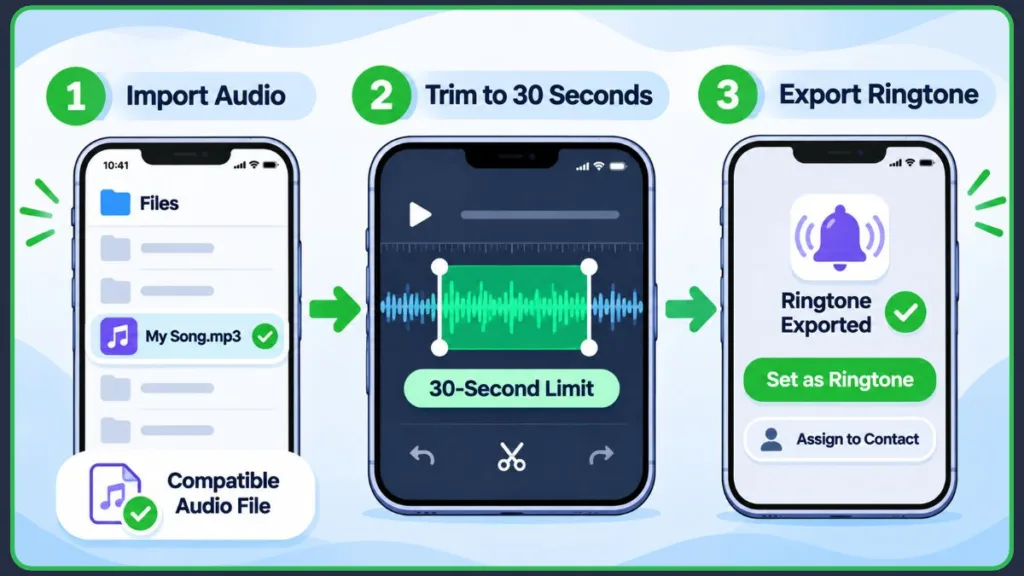
A custom iPhone ringtone can be up to 30 seconds long. This is the 30-second ringtone limit.
If your clip is longer, GarageBand will offer to shorten it automatically, or let you cancel and trim it yourself.
Trimming it yourself is the better option. You choose which part plays, such as the chorus or the opening riff.
Where to Get an Unprotected Copy of Your Song
Since Spotify’s version is locked, you need another route to the same track. Here are the safe, legal options.
1. Buy the Ringtone From the Tone Store
- Go to Settings > Sounds & Haptics > Ringtone > Tone Store.
- Apple lets you buy new sounds there, billed to your Apple Account.
- This is the quickest route if the song you want is available.
2. Buy the Song From the iTunes Store
- Purchased songs download to your Music library as ordinary files.
- They work in GarageBand once they’re downloaded to your iPhone.
3. Use a Song You Already Own
- Songs from a CD you ripped or an earlier purchase will work.
- Downloaded Apple Music subscription songs will not. They’re protected and show up dimmed.
4. Use Your Own Recording or Royalty-Free Audio
- A voice memo, a recorded sound, or a loop you made works fine.
- Royalty-free sites offer tones you can use without worry.
How to Make a Ringtone on iPhone Using GarageBand (Step by Step)
If your song is an unprotected audio file, GarageBand is the tool that turns it into a ringtone. The whole process takes about five minutes.
Step-by-Step Guide to Create the Ringtone
- Save your audio file to the Files app, or make sure the song is downloaded to your Music library.
- Open GarageBand and start a new project. Choose Audio Recorder.
- Tap the Tracks view icon at the top of the screen.
- Tap the instrument icon on the left to select the track, then tap the Loops Browser button.
- Choose your source: tap Files and select Browse items from the Files app, or tap Music for a downloaded song.
- Touch and hold the file, then drag it all the way to the left in the Tracks view. This makes the ringtone start right away, with no silence at the beginning.
- Trim the clip to 30 seconds or less by dragging its left and right edges. Press play to check that it starts and ends where you want.
- Tap the Navigation button at the top left and choose My Songs to save the project.
- Select your song (press and hold it, or tap More > Select), then tap Share > Ringtone.
- Name your ringtone and tap Export.
When the export finishes, tap Use sound as to replace your Standard Ringtone or text tone, or choose Assign to contact to give it to one person.
Key Points to Remember
- Only unprotected audio files will import.
- Long files may be cut off unless you set the song section length to Automatic first, because otherwise only the part that fits the current section is imported.
- Ringtones are capped at 30 seconds.
- You can re-export a ringtone any time you want a different section of the song.
How to Set Your New Ringtone in Settings
If you skipped the Use sound as prompt, you can set the ringtone manually:
- Open Settings.
- Tap Sounds & Haptics.
- Tap Ringtone.
- Tap your custom ringtone in the list. You’ll hear a preview, and it’s set right away.
How to Set a Different Ringtone for a Specific Contact
- Open the Contacts app and select the person.
- Tap Edit.
- Tap Ringtone and choose your custom tone.
- Tap Done.
Apple’s guide covers the same steps: tap Edit on the contact card, then tap Ringtone or Text Tone and choose a sound.
How to Set a Spotify Song as a Ringtone Without a Computer
You don’t need a Mac or PC. If the audio file is on your iPhone, everything happens on the device:
- Get an unprotected audio file onto your iPhone (a purchase, a download, or a recording).
- Open GarageBand and import it through the Loops Browser.
- Trim it to 30 seconds or less.
- Export it as a ringtone.
- Choose it in Settings > Sounds & Haptics > Ringtone.
How to Make an iPhone Ringtone From an MP3 File
If your file is an MP3, the steps are nearly identical:
- Save the MP3 to the Files app.
- In GarageBand, import it from Files using the Loops Browser.
- Trim it, export it as a ringtone, and select it in Settings.
Why Are Spotify Songs Greyed Out in GarageBand?
If a song appears dimmed in GarageBand’s Music tab, it’s usually one of these:
- Protected file: Apple Music subscription songs and Spotify content are locked.
- Not downloaded: Cloud-only songs aren’t on your iPhone yet.
The fix: Use a purchased song or an unprotected MP3 or AAC file instead.
Why Can’t I Find My Song in the Files App?
If you saved something and can’t find it, work through these checks:
- Wrong location: Search for the file name inside Files.
- Spotify download: These never appear in Files, because they were never real files.
- Wrong or protected format: GarageBand accepts MP3, AAC, WAV, and AIFF, but not copy-protected files.
- iCloud not synced: Give the file a moment to finish downloading.
iOS 26 vs. iOS 27: Does the Ringtone Process Change?
The ringtone process works the same on both versions. One thing changed in iOS 27: Sounds & Haptics now has three sections, Ringtone, Alarms and Timers, and Alerts and System Sounds, with a Match Ringtone Volume option for the last two.
That change is about volume. Your custom ringtone is still chosen under Sounds & Haptics > Ringtone.
As of November 2026, Apple’s GarageBand ringtone instructions remain the official method. Menus can shift between updates, so if a button looks different on your iPhone, look for the closest match.
Troubleshooting: Ringtone Missing, Cut Off, or Silent
Most problems have a quick fix:
- Ringtone doesn’t show up in Settings: Re-export it from GarageBand and check the top of the Ringtone list.
- File won’t import: Make sure it’s an unprotected MP3, AAC, WAV, or AIFF file.
- Ringtone cuts off early: Trim the clip to 30 seconds or less before exporting.
- Export fails or plays silently: Close GarageBand, restart your iPhone, and try again.
Limitations of Making a Spotify Ringtone on iPhone
It helps to know the boundaries before you start:
- You can’t use Spotify songs directly, even with Premium.
- Ringtones are limited to 30 seconds.
- You always need a legal, unprotected copy of the song.
- Apple may change GarageBand or Settings menus in future iOS updates.
Knowing these limits helps you set realistic expectations and skip the unsafe shortcuts.
Final Thoughts on Making a Spotify Ringtone for iPhone
Spotify doesn’t let you turn its songs into ringtones, but you can still get the song you love ringing on your iPhone.
To summarize:
- Spotify’s protection blocks direct use, even with Premium and offline downloads.
- Get an unprotected version of the song, or buy the tone from the Tone Store.
- Use GarageBand to trim it to 30 seconds and export it as a ringtone.
- Set it in Settings > Sounds & Haptics > Ringtone, or assign it to a single contact.
Do this once, and every call after that sounds like you.
Frequently Asked Questions (FAQ)
Q1: Can you make a ringtone for iPhone from Spotify?
Not directly. Spotify songs are protected, so they can’t be exported. You can make a ringtone from an unprotected copy of the same song, or buy one in the Tone Store.
Q2: How do you make a Spotify song your iPhone ringtone?
Get an unprotected audio file of the song, import it into GarageBand, trim it to 30 seconds or less, export it as a ringtone, and select it in Settings > Sounds & Haptics > Ringtone.
Q3: Can you use Spotify Premium songs as iPhone ringtones?
No. Premium allows offline listening inside the app only. The downloads can’t be used outside Spotify.
Q4: Can you convert Spotify songs into iPhone ringtones?
Not within Spotify’s rules, which prohibit circumventing its content protection. Use an unprotected version of the song instead.
Q5: How do you make a Spotify ringtone using GarageBand?
Import an unprotected MP3 or AAC file through the Loops Browser, trim it, then tap Share > Ringtone and Export.
Q6: How do you set a Spotify song as a ringtone without a computer?
Use the Files app and GarageBand directly on your iPhone. No computer is needed.
Q7: How do you set a custom ringtone on an iPhone?
Go to Settings > Sounds & Haptics > Ringtone and tap your tone. For a single contact, edit their card and choose a ringtone.
Q8: How long can a custom iPhone ringtone be?
Up to 30 seconds.
Visit Our Post Page: Blog Page
Discover more from Izoate
Subscribe to get the latest posts sent to your email.