
Learn how to remove an email address from Outlook Auto Complete. Delete unwanted email suggestions, clear the AutoComplete cache, and fix old recipients.
Have you ever started typing a quick message, only to accidentally select an outdated or misspelled email address from the drop-down list? It is an incredibly common mistake, especially when you are rushing to get through your morning inbox.
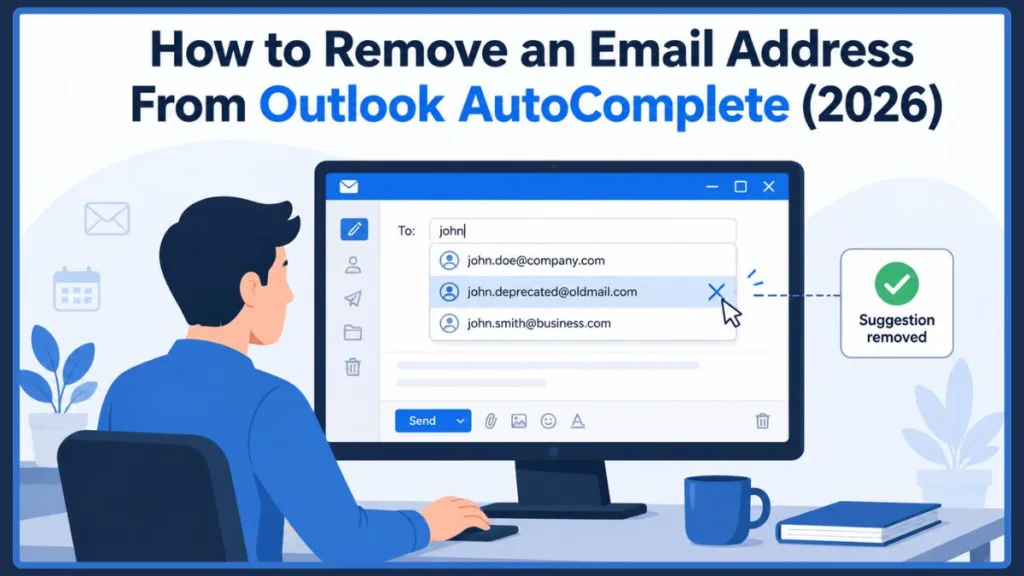
The autocomplete feature is meant to be a helpful timesaver, but it quickly becomes a frustrating headache when it stubbornly holds onto the wrong contact information. If you are tired of double-checking every message to ensure it is going to the right person, learning how to remove an email address from autocomplete is a quick process. We are going to walk through the official steps so you can get your inbox back in order.
Quick Answer
To remove an email address from the Outlook AutoComplete list:
- Open a new email message.
- Click inside the To field.
- Type the first few letters of the unwanted recipient.
- Hover over the suggested email address.
- Click the X beside the suggestion or highlight it and press Delete.
The email suggestion is immediately removed from the Outlook AutoComplete cache.
What Is Outlook AutoComplete?
Before you start clicking around, it helps to understand exactly what you are trying to fix. Outlook’s AutoComplete feature is designed to remember your recently used recipients to speed up your email drafting process.
However, it is important to know that AutoComplete is not the same as your actual Contacts.
According to Microsoft’s official documentation, Outlook builds the AutoComplete list from recipients you’ve previously emailed. These email suggestions are stored separately from your Contacts. The AutoComplete list functions as a temporary cache of recent recipients rather than your permanent address book. This is exactly why you might see an old co-worker’s deactivated email address or a mistyped address pop up in your suggestions, even if you never actually saved them as a formal contact.
According to Microsoft Learn documentation, the AutoComplete list is also known internally as the nickname cache. This cached data is generated automatically when you send an email. For advanced users, it is worth noting that the Outlook AutoComplete cache is stored locally in a hidden RoamCache file (specifically, a
.datfile) on your computer, meaning it functions entirely independently of your organization’s Global Address List (GAL) or your personal Contact list.
How to Remove an Email Address From Outlook AutoComplete
If you just need to delete an email suggestion for one or two specific people, you can handle it directly from the compose screen. According to Microsoft’s official guidance, here is the standard way to clear a specific entry:
- Open a New Email message, just as you normally would.
- Click into the To field and type the first few characters of the incorrect email address or name.
- When the drop-down suggestion list appears, move your mouse pointer over the incorrect suggestion to highlight it. Be careful not to actually click or select the name!
- You will see a small “X” icon appear to the right of the highlighted suggestion. Click the X to remove the suggested email address.
The Alternative Keyboard Method: If you are navigating your inbox quickly and don’t want to use your mouse, or if you simply don’t see the “X” button, you can also highlight the unwanted suggestion using your arrow keys and press the Delete key on your keyboard.
Version-Specific Steps to Delete an Email Suggestion
Depending on the device or software version you are using, the process to remove suggested contacts in email may vary slightly based on Microsoft’s current interface standards:
- Outlook for Mac: When typing in the To field, use your keyboard’s down arrow to highlight the incorrect email address. Press the Delete key, or click the small X to the right of the name.
- The new Outlook and Outlook on the web: Start typing the name in the To line. Highlight the suggestion and select the X beside it.If you accidentally delete the wrong person, there is no undo button—you will need to send them a new email to re-add them to your recent recipients.
- Outlook Mobile (iOS and Android): The mobile app pulls your recent recipients directly from the server. There is no manual “X” button to delete an autofill email address directly within the Outlook mobile app. To remove an entry, you must delete it using Classic Outlook, the new Outlook, or Outlook on the web. Once removed on your computer, the change will automatically sync to your mobile device.
Why Removing an Autocomplete Suggestion Doesn’t Delete the Contact
You might be wondering if hitting delete will completely wipe this person from your digital life. You can rest easy!
As noted in Microsoft’s documentation, there is a strict separation between your Outlook AutoComplete cache and your actual Outlook Contacts. Clicking the “X” or pressing the delete key only prevents that specific name and email combination from appearing in your temporary autocomplete list. It does not delete the person from your actual contacts folder or remove them from your broader Microsoft account.
How to Clear Your Entire Auto-Complete List
If you have had your email account for years, your Outlook AutoComplete list might be hopelessly cluttered with old vendors, former colleagues, and one-time project contacts. In this case, you don’t have to delete them one by one.
Based on Microsoft’s support documentation, many Outlook versions include options to clear or disable the AutoComplete list, although the available settings and their locations vary depending on whether you’re using Classic Outlook, the new Outlook, or Outlook on the web.
- In Classic Outlook for Windows: You can typically find this by navigating to File > Options > Mail, scrolling down to the Send messages section, and clicking the Empty Auto-Complete List button.If you prefer using command-line shortcuts, Microsoft Support recommends an alternative method: Close Outlook, press the Windows key + R to open the Run dialog box, type
Outlook.exe /CleanAutoCompleteCache, and press Enter. This command forces Outlook to clear the nickname cache upon startup. - In the new Outlook and Outlook on the web: The exact steps and menu locations vary. If you are using these versions, you should refer to your specific version’s settings rather than looking for the Classic Outlook menus, as the features and layouts are not identical across all versions. However, based on the latest Microsoft documentation, you can clear the Suggested People list in the new Outlook for Windows and Outlook on the web by clicking the Settings (gear icon) in the top right corner, navigating to General > Privacy and data, and under the Suggested people section, selecting the button to Clear data or Clear data and turn off to disable the feature entirely.
Depending on your server synchronization, Microsoft states it can take up to 48 hours for your cleared AutoComplete list to fully reflect across all your connected devices.
Troubleshooting Outlook AutoComplete
The X Doesn’t Appear
If you don’t see the X icon next to the name, you can still remove the suggested email address. Try highlighting the suggestion using your keyboard’s arrow keys and pressing the Delete key.
It is also worth noting that in certain recent updates, Microsoft temporarily retired the “Contact Masking” feature (the “X” button) for some Exchange Online users, before ultimately restoring it due to user feedback. If you still do not see the X, verify that you have installed the latest Office updates via File > Office Account > Update Options.
Delete Doesn’t Work
If pressing the delete key doesn’t work, ensure the suggestion is actually highlighted and not fully selected. Keep in mind that behavior may differ across Outlook versions, particularly between the desktop app and the web version. If you use Classic Outlook and standard methods fail, your local .dat cache file might be corrupted. In these rare cases, using the /CleanAutoCompleteCache command mentioned above is the most effective way to empty the auto-complete cache and resolve the glitch.
The Email Address Keeps Coming Back
If you’ve already deleted an entry but see it pop up again, Microsoft explicitly states that Outlook automatically recreates AutoComplete suggestions after you send another email to the same recipient.
If the email keeps returning despite you not emailing them, check if you have an outdated entry saved in your actual Contacts folder. Outlook prioritizes official contact cards, so you may need to open your Address Book and manually delete or update the contact card.
Frequently Asked Questions (FAQ)
Can I remove one email suggestion without clearing the entire AutoComplete list?
Yes. Outlook lets you remove individual email suggestions by clicking the X next to the unwanted recipient or by highlighting the suggestion and pressing the Delete key. This removes only that specific entry from the Outlook AutoComplete cache without affecting the rest of your suggestions.
Will deleting the autocomplete suggestion delete my contact?
No. Deleting an entry from the suggestion list only removes it from the temporary cache. It will not delete the person from your official Contacts or address book.
Why did the deleted email address come back?
Because sending another email recreates the suggestion. If you successfully remove a name from the list but later send a brand new email to that exact person, Outlook’s system automatically recreates the autocomplete suggestion and saves it for next time.
Why can’t I remove an email address from AutoComplete?
If you are struggling to delete an entry, it is usually because the suggestion isn’t properly highlighted before you press delete. It could also be because you are using a different Outlook version (the feature can behave slightly differently in Outlook on the web versus the desktop app), or the address keeps being recreated because you have emailed that person again.
How do I stop my web browser or Outlook from suggesting old email addresses entirely?
If you want to completely disable autofill email addresses, you can turn off the AutoComplete feature. In Classic Outlook, go to File > Options > Mail, scroll to the Send messages section, and uncheck the box that says “Use Auto-Complete List to suggest names when typing in the To, Cc, and Bcc lines.” In the new Outlook or web versions, you can turn off the feature by navigating to Settings > General > Privacy and data and disabling “Suggested people.”
Wrapping Up Your Inbox Cleanup
Removing a frustrating AutoComplete suggestion is a very quick fix once you know where to look or what key to press. Taking a few seconds to clear your Outlook AutoComplete cache can save you from the embarrassment of sending an important message to the wrong person. Just remember that while clearing this cache won’t delete your actual contacts, Outlook will happily recreate the suggestion if you ever email that address again!
Have you had a chance to try the keyboard trick, or have you run into any other weird quirks while managing your inbox? Drop a comment below to share your experiences or ask any questions!
Visit Our Post Page: Blog Page
Discover more from Izoate
Subscribe to get the latest posts sent to your email.