
Worried about losing your GTA 6 progress on PS5 or Xbox? Learn how to save in GTA 6 and protect your gameplay with reliable saving methods. From securing important story progress to avoiding autosave mistakes, keep your progress safe and continue your adventure without starting over.
Grand Theft Auto VI changes how saving works compared to GTA 5, and those adjustments have caught plenty of players off guard at launch. Between a relocated manual save menu, a greyed-out Save Game button during missions, no mission replay feature, and launch-day crash reports wiping out hours of progress, relying on GTA 6 autosave alone is a major risk in Leonida.
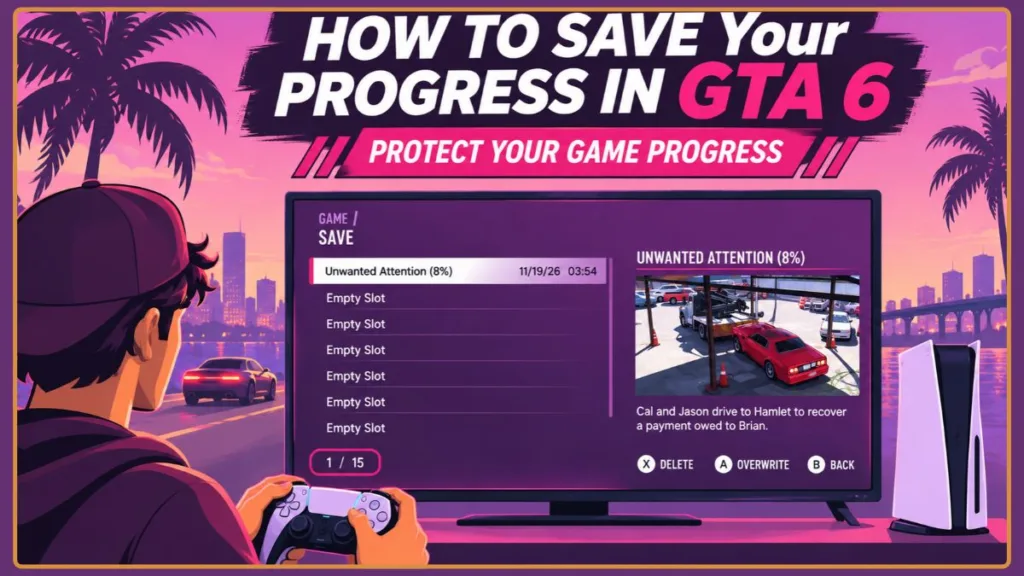
Below is everything you need to know about how to save in GTA 6 on PS5 and Xbox, why the Save Game option locks up, how to check for a missing autosave after a crash, and the smartest way to organize your 15 save slots.
Quick Answer: To manually save your game in GTA 6, press Options (PS5) or Menu (Xbox Series X|S), navigate to Game > Save Game, and choose one of the 15 manual save slots. Keep in mind that GTA 6 manual save only works during free roam after completing the Prologue—it remains locked during active missions.
How to Manually Save in GTA 6 (PS5 & Xbox Series X|S)
You can create a GTA 6 manual save from almost anywhere in the open world as long as you are not currently inside an active mission. Follow these steps:
- Open the Pause Menu: Press the Options button on PS5 or the Menu button on Xbox Series X|S.
- Select Game: Navigate to the Game tab on the second row of the pause menu alongside Map, Store, Help, Photo Studio, and Settings.
- Choose Save Game: Select Save Game, which is the top option right above Load Game and New Game.
- Pick a Save Slot: Choose an Empty Slot to create a brand-new save file, or highlight an existing manual save to overwrite it.
- Confirm and Wait: Confirm your choice—if overwriting, the game prompts “Overwrite saved game?”—and wait for the save icon to finish before closing the game.
Important Note for GTA 5 Players: Stop searching for a GTA 6 quick save phone icon or driving back to a safehouse bed. Rockstar removed the need for beds and phone quick-saves because Game > Save Game works from anywhere in free roam.
Why Can’t I Save in GTA 6? (4 Common Fixes)
If you open the Game tab and see GTA 6 Save Game greyed out with a dim Select prompt, it is usually an intentional game restriction rather than a broken menu. Here are the four reasons you can’t save in GTA 6 and how to fix each one.
1. You Are Still in the Prologue
Manual saving is completely disabled throughout the opening Prologue sequence, forcing you to rely on autosave until the intro concludes. Manual saving unlocks once you finish Brian’s first job and arrive at Jason’s house at the marina.
Pro Tip: Because a console crash or power outage during the Prologue can force you to restart from scratch, finish the opening sequence in one sitting and create your first manual save the second it unlocks.
2. You Are Inside an Active Mission
You cannot save during missions in GTA 6. GTA 6 game system design director Ben Rollinson explained to Radio Times that mid-mission saving was considered, but supporting fresh loads into every checkpoint alongside all other saved game states risked breaking the experience—so Rockstar kept manual saving limited to free roam.
While a mission is active, the pause menu displays the chapter and mission title along with two rewind options instead:
- Retry Checkpoint: Rewinds you to the most recent mid-mission checkpoint.
- Restart Mission: Restarts the entire current mission from the beginning.
Finish the mission—or fail and exit out of it—to restore access to Game > Save Game in the open world.
3. You Are Caught in a Scripted Free-Roam Transition
Even outside a main story mission, players have noticed the Save Game button staying temporarily greyed out during scripted open-world transitions, phone calls, or active events. Keep moving until the event wraps up and full free roam resumes, then reopen Game > Save Game.
4. Cheats Are Enabled
GTA 6 cheat codes unlock after you beat the main story campaign and complete specific in-game challenges. Activating any cheat—including the $250,000 money code—immediately disables saving, along with trophies and achievements, for the rest of that play session. To re-enable saving, quit out and load a clean save file created before entering any cheat code.
Does GTA 6 Have Autosave? (And the Launch-Day Crash Trap)
Yes—GTA 6 includes an automatic autosave system that cannot be toggled off. It writes to 1 dedicated autosave slot kept separate from your 15 manual save slots, automatically triggering after story missions, major milestones, significant purchases, and notable open-world events, while also acting as a safety net if you get Busted or Wasted.
However, three launch-day pitfalls have already cost players hours of progress:
- Crashes and Power Outages Can Wipe Unsaved Hours: Reports across PS5 and Xbox Series X|S—including streamer JasonTheWeen losing roughly 10 hours of progress and Reddit players losing 4 to 15 hours after crashes, overheating, or power cuts—prove that relying purely on autosave is risky. Rockstar has not confirmed exact autosave intervals, and mid-mission progress is not immediately written to your save list.
- Autosaves Are Hidden Inside Save Game: If your console crashes and you think your GTA 6 autosave disappeared, do not panic right away. Autosaves never appear in the Save Game screen—they are only visible under Game > Load Game. Also keep in mind that the autosave label reflects where the last autosave triggered (for example, still displaying Prologue while you are partway through a Chapter 1 mission), not your exact live location.
- The Single Autosave Overwrite Trap: Because GTA 6 only maintains one autosave slot, loading an older manual save immediately replaces your active autosave.
Critical Warning — Prevent Autosave Overwrites: Never load an older manual save until you save your current playthrough into a spare manual slot first. Loading an earlier file overwrites your single autosave slot, which can permanently erase recent progress.
Cloud Saves and Crash Recovery Tips
If you are trying to recover a lost save in GTA 6 or protect your playthrough going forward, check your console’s cloud backup settings:
- Xbox Series X|S: Automatically backs up and syncs your GTA 6 saves to your Microsoft account for free while connected online.
- PS5: Requires an active PlayStation Plus subscription for automatic cloud save backups.
- Fixing PS5 Load Freezes: If your save freezes shortly after auto-loading on PS5, boot into Safe Mode to rebuild the PS5 database and clear the cache. Always avoid hard-powering off your console, as sudden shutdowns can drop you back to your last completed manual save.
How to Load or Delete a Save in GTA 6
Whenever you need to jump back to an earlier point in your campaign or delete old files, head into the Load Game menu:
- Open the pause menu (Options on PS5 or Menu on Xbox) and select Game.
- Choose Load Game, located directly underneath Save Game.
- Browse your saved files—each slot displays the mission name, completion percentage, and timestamp, with your automatic backup clearly tagged as
(Autosave)in front of the mission name. - Press Cross (PS5) or A (Xbox) to load a save, or press Square (PS5) to delete an unwanted file.
Watch Out for New Game: The New Game option sits directly beneath Load Game inside the Game menu and restarts the entire campaign from the very beginning. Double-check your selection before confirming so you don’t accidentally wipe your session momentum.
Best Way to Use Your 15 Save Slots (No Mission Replay Workaround)
Unlike GTA 5, GTA 6 launched with no mission replay menu—once you complete a story mission, there is no menu to jump back in and replay it. Across a 50-to-100-hour campaign filled with pivotal heists and branching story choices, your 15 manual save slots act as your only mission replay workaround.
Use this slot blueprint to safeguard your run and keep your favorite missions accessible:
| Slot Allocation | Purpose | Why It Matters |
|---|---|---|
| Slot 1 | Post-Prologue Anchor | Create this the moment manual saving unlocks at Jason’s marina house so you never have to replay the intro. |
| Dedicated Chapter Slots | Start of Each Chapter | Keep one untouched file at the start of every chapter (or roughly every 7% of story progress) to revisit any point in the narrative. |
| Branching Choice Slots | Pre-Heist & Major Choices | Make a fresh manual save right before major heists or pivotal story decisions so you can test alternate outcomes without restarting. |
| Rotating Everyday Slots (2–3 Slots) | Post-Mission & Free-Roam Backups | Alternate between at least two slots after every mission and long free-roam session so a crash or accidental overwrite never costs you hours. |
| Final Clean Slot | Post-Story Pre-Cheat Save | Once you finish the story and unlock cheats, preserve one clean, untouched save file to return to after causing chaos. |
Best Habit to Build: Save manually via Game > Save Game immediately after every completed mission, major purchase, or extended free-roam session—and rotate between at least two slots so a single bad save never traps your playthrough.
Frequently Asked Questions
How many save slots does GTA 6 have?
GTA 6 gives you 15 manual save slots plus 1 dedicated autosave slot. Your autosave never overwrites any of your manual save files, though every new autosave replaces the previous autosave.
Can you save during missions in GTA 6?
No—Save Game is greyed out during active missions. If something goes wrong mid-mission, you can only use Retry Checkpoint or Restart Mission from the pause menu, then manually save once you return to free roam.
Why did my GTA 6 autosave disappear after a crash?
First, check Game > Load Game, because autosaves never appear in the Save Game screen. If no recent save appears there after a crash or power outage, the game likely had not written a recent autosave before shutting down, meaning you will need to resume from your last manual save or check your PlayStation Plus or Xbox cloud sync.
Is there a quick save button in GTA 6?
There is no dedicated Quick Save button or in-game phone app shortcut like in GTA 5. Instead, opening the pause menu and selecting Game > Save Game lets you manually save from anywhere in free roam.
Visit Our Post Page: Blog Page
Discover more from Izoate
Subscribe to get the latest posts sent to your email.