
Was this Amazon product cheaper before? Learn how to see price history on Amazon; check historical lows and past price drops to spot genuine discounts before you buy.
Few things are more frustrating than buying something on Amazon at what looks like a great price and finding it cheaper a few days later. You thought you had secured a bargain. Then the price drops and that impressive discount suddenly looks far less attractive.
The problem is simple: a percentage-off badge does not prove you are getting a good deal. A product advertised at 30% off might have been selling at the same price for weeks. A crossed-out price can also make an ordinary offer look like a major saving.
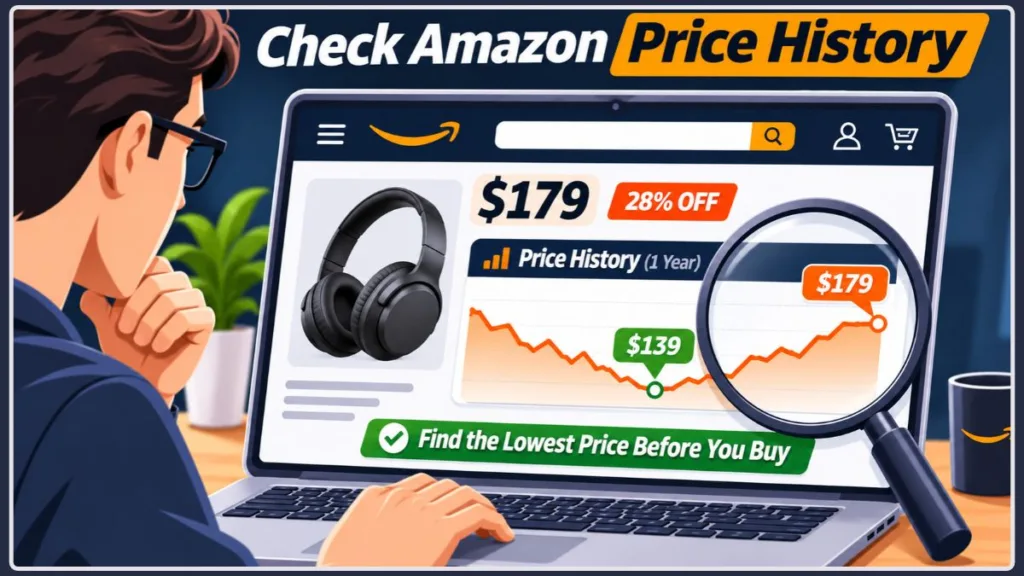
Amazon uses automated dynamic pricing. Product prices can change frequently based on inventory levels; seasonal demand; and competing retailers. A crossed-out list price or manufacturer’s suggested retail price (MSRP) is only a reference figure. It does not prove what shoppers actually paid last week or last month.
That is why you should check Amazon price history before making a purchase. Compare today’s price with previous selling prices and decide whether to buy now or wait. Judge the deal by its actual pricing history rather than the discount Amazon displays.
How to See Price History on Amazon Using the Built-In Feature
Start with Amazon’s own Price History feature before installing a third-party browser extension. It gives you a direct way to check previous prices on eligible product detail pages.
Amazon integrates the feature across nine supported marketplaces: the US; UK; Canada; Germany; France; Italy; Spain; Japan; and India.
More than 100 million shoppers worldwide have used the feature hundreds of millions of times in 2026. You also do not need an Amazon Prime membership or an Echo device just to view historical prices.
How to Check Price History on the Amazon App and Desktop
You do not need a separate tracker for a basic Amazon price check. Open the built-in chart on your phone or computer:
- Open the Amazon Shopping app on your iPhone or Android device. Alternatively visit Amazon in your desktop browser. Sign in to your account.
- Search for the product you are considering and open its product detail page.
- Look for the Price History link beside the displayed price.
- Tap or click Price History to open the interactive pricing graph.
- Switch between the available timeframes to compare today’s price with previous months and the past year.
Important: The button’s exact position and product eligibility can vary by region and product category. Keep your Amazon Shopping app updated. However an updated app does not guarantee that the feature will appear on every listing.
How to Use Alexa for Shopping to Check Past Prices
Cannot find the Price History link? Use Alexa for Shopping instead of repeatedly refreshing the product page.
Amazon rebranded its shopping assistant from Rufus on May 13 2026. It gives you another way to ask about historical prices directly from a product listing.
Open an Amazon product detail page and tap the Alexa for Shopping icon. You can find it in the bottom-right corner of the Amazon Shopping app or in the top navigation bar on desktop.
Ask questions such as:
- “What’s the price history?”
- “Is this the lowest price recently?”
- “Has this item been on sale in the past 30 days?”
The assistant responds with the historical price graph and context about recent price drops. Use it as an alternative when the direct Price History link is unavailable.
How to Set Native Price Alerts and Enable Auto-Buy
Checking a product’s historical price is only the first step. You can also monitor its price or compare alternatives through the Alexa for Shopping Price History panel.
It offers three additional options:
- Set Price Alert: Select Set Price Alert and enter the price you are willing to pay. Amazon can notify you when the listing drops to your target price.
- Enable Auto-Buy — US Prime Members Only: Where available you can authorize Alexa for Shopping to complete the purchase automatically when the price reaches your target. Understand the five conditions before enabling it. Auto-Buy is currently restricted to US Prime members; applies exclusively to Fulfilled by Amazon (FBA) listings; requires a saved default payment method and shipping address; tracks base prices only and excludes promotional coupons and extra discounts; and places a single-unit order with a reported 24-hour cancellation window before shipping.
- Find Better Value Alternatives: Select Find better value alternatives to compare similar highly rated products at lower prices. For example checking a $99 pair of brand-name earbuds may surface well-reviewed alternatives that offer similar everyday performance for a fraction of the price.
Important: Auto-Buy is identified here as a feature for US Prime members only. Check its availability and conditions before enabling it. An automatic purchase is not the same as a price alert. Make sure you understand what you are authorizing before allowing Amazon to place an order.
How to Read Amazon Price History Charts and Spot a Genuine Deal
Opening an Amazon price chart is easy. Knowing how to interpret its price movements is what protects you from overpaying.
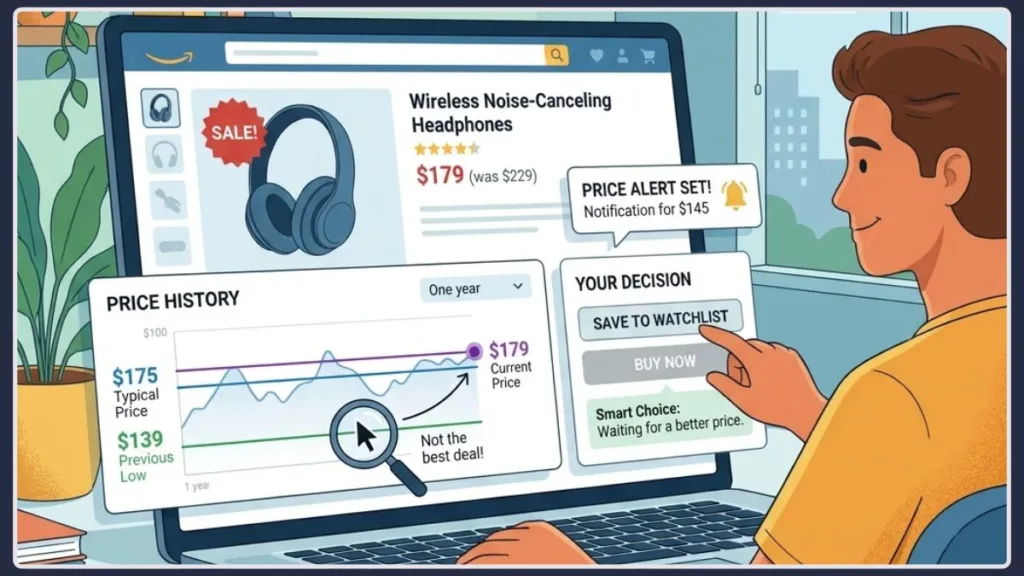
Do not focus only on the biggest discount percentage. Your goal is to determine whether today’s selling price is genuinely competitive compared with what shoppers have paid before.
How Far Back Can You Check Amazon Price History?
Amazon’s built-in tool displays up to one full year of past prices. The available timeframes depend on your marketplace.
- Most supported marketplaces: The US; UK; Canada; and Europe offer 30-day; 90-day; and 365-day views.
- Select regions such as India: Display 30-day; 60-day; and 365-day windows.
Buying recommendation: Whenever a purchase can wait inspect the 365-day view rather than judging an offer from the last 30 days alone. A short timeframe can make a routine markdown look rare. A full year gives you a better chance of spotting seasonal price drops and previous lows.
A one-year chart may not be enough for older products. When you need multi-year price history use Keepa or CamelCamelCamel to inspect longer-term price movements.
How to Interpret a Price Chart: A Worked Example
Consider a pair of wireless noise-canceling headphones advertised at a large discount. The listing looks tempting but the one-year chart reveals whether the deal actually deserves your money.
Worked Example — Wireless Noise-Canceling Headphones
- Struck-through List Price: $249
- Today’s Listing Price: $179 (displayed as “28% off”)
- What the 365-Day Price Chart Shows:
- Typical selling price — flat baseline: $175
- 90-day high — upper band: $229
- 365-day low — lower band: $139 (reached during Prime Day and Black Friday)
The Verdict — Wait. Do Not Buy: The 28% discount looks compelling but today’s $179 price sits $4 above the product’s typical selling price and $40 above its annual low. You are not getting an exceptional deal just because Amazon displays a discount badge. Instead of buying immediately set a price-drop alert at $145 and wait for the next downward price cycle.
Apply that same framework whenever you evaluate an Amazon listing. Look beyond the advertised discount and pay attention to the chart’s actual price movements.
- Read the price band: A price near the upper edge of its 1-year range is a wait signal. A price touching the lower band or matching previous lows is a buy signal.
- Check the typical selling price: Look for the relatively steady price level where the chart spends most of the year. Compare today’s offer with that baseline rather than the crossed-out list price.
- Look for out-of-stock reseller spikes: On external trackers such as Keepa and CamelCamelCamel gaps or dotted segments on Amazon’s direct price line signal stockouts. When Amazon runs out of inventory on popular electronics third-party sellers often list new and used units well above retail. Waiting for Amazon’s solid stock line to return can help you avoid paying an artificial scarcity markup.
Keep this in mind: A historical low is a useful benchmark. It is not a promise that the product will never become cheaper. Price history shows what happened in the past. It cannot predict what Amazon will charge next month.
Five Quick Checks Before You Click Buy
A price chart gives you useful context but it cannot capture every detail of a listing. Before placing a discounted order verify these five things:
- Match the exact variant: Different colours; sizes; storage tiers; and model years carry separate ASINs and separate price histories. Confirm that you are reviewing the exact version you intend to buy.
- Check the seller: Verify whether Amazon or a third-party merchant is fulfilling the order. Do not assume every offer on an Amazon product page comes directly from Amazon.
- Calculate the real checkout total: Price-history trackers handle shipping costs differently. Amazon’s native chart uses the Featured Offer price which includes seller-added shipping fees. CamelCamelCamel excludes shipping and handling while Keepa’s shipping treatment depends on the specific price-history series. Charts can also omit clippable on-page coupons; bank or card instant discounts; and Subscribe & Save tiers. Always check the final amount you will actually pay.
- Watch seasonal and launch cycles: Price dips often cluster around Prime Day (late June); early holiday markdowns (often starting in September); Black Friday; Cyber Monday; and major regional shopping events. Previous-generation tech can also become cheaper just before a new model launches. However do not assume every product reaches its lowest price during a major sale.
- Cross-check one major rival retailer: For expensive electronics and appliances compare the exact model number with competing retailers in your region. Examples include Walmart or Best Buy in the US; Argos or Currys in the UK; and major local department and electronics stores. Competitors frequently match or beat Amazon’s prices with comparable delivery speeds.
Before you buy: Check the exact model; seller; historical selling price; shipping treatment; and final checkout total. A large advertised discount is not enough to establish that an offer is worth purchasing.
How Amazon Keepa and CamelCamelCamel Handle Shipping Costs
Shipping costs can make two similar-looking price charts represent very different delivered prices. Do not assume every historical price tracker records the same information.
The shipping treatment differs between Amazon; Keepa; and CamelCamelCamel.
- Amazon’s native Price History: Amazon’s historical chart uses the lowest Featured Offer price for each day or week. Seller-added shipping fees are included and temporary price errors are excluded. The Featured Offer is the offer displayed with Amazon’s Add to cart or Buy now buttons. It is not a complete record of every seller’s possible offer.
- Keepa: Shipping inclusion depends on the price-history series you select. Keepa’s standard Amazon price history does not carry a general shipping-inclusive designation. Its Marketplace New and Marketplace Used histories changed to the lowest landing price — including shipping — from February 23 2026. Keepa also provides specific shipping-inclusive histories such as New FBM with shipping and New Buy Box with shipping. Historical offer and shipping information can still contain gaps because seller offers are not updated continuously.
- CamelCamelCamel: Its recorded prices exclude shipping and handling because Amazon does not provide this information to the tracker. It records the lowest prices for Amazon; Third Party New; and Third Party Used offers. It can indicate whether an item qualifies for Prime shipping but that does not mean shipping charges are included in the historical price.
Important: Amazon includes seller-added shipping in its Featured Offer history. CamelCamelCamel excludes shipping and handling. Keepa varies by price-history series. Always check what the chart represents before comparing prices.
How to Track Amazon Prices Using Keepa
Amazon’s built-in chart gives you a useful starting point but it has a one-year lookback limit. When you need lifetime price history beyond one year; dedicated mobile tracking; or wider international coverage Keepa is the stronger option.
Keepa is the strongest external Amazon price history tracker in this article for shoppers who want more detailed tracking. It supports 11 Amazon marketplaces: the US; UK; Canada; Germany; France; Italy; Spain; Japan; India; Mexico; and Brazil.
How to Find a Product and Read Its Chart on Keepa
You can access Keepa’s website; dedicated iOS and Android apps; and desktop browser extensions for Chrome; Edge; Firefox; Safari; and Opera.
Follow these steps to find a product and inspect its price history:
- Install the Keepa browser extension or open the Keepa website or mobile app.
- Select your language and the correct Amazon marketplace so the currency and seller records match your local store.
- Open an Amazon product page. The extension embeds a full multi-year chart beneath the product summary without requiring extra clicks. On the website or app search by product title or paste the listing URL.
- Compare the colour-coded lines for Amazon’s direct price (orange); third-party New (blue); third-party Used (black); Lightning Deals; and out-of-stock gaps.
Pay particular attention to Keepa’s shipping information. Not every price-history series represents the same delivered price.
- Amazon price history: The standard Amazon price series does not carry a general shipping-inclusive designation.
- Marketplace New and Used: From February 23 2026 these histories represent the lowest landing price which includes the listing price plus shipping.
- New FBM with shipping: This is a specific price-history series that includes shipping.
- New Buy Box with shipping: This series also explicitly includes shipping.
Keepa’s historical offer and shipping records can contain gaps because seller offers are not refreshed continuously.
Important: Do not assume every Keepa price line represents the delivered price. Check which price-history series you are viewing. This is particularly important when comparing merchant-fulfilled offers or Buy Box prices.
How to Set Amazon Price Drop Alerts and Track Wish Lists
Once you find a product worth monitoring you do not need to keep checking the same page manually. Keepa lets you create a free account and set up automated price alerts.
- Open the Track product tab directly above Keepa’s embedded chart or inside the mobile app.
- Enter your target price for the seller category you prefer: Amazon; 3rd-party New; or Used. Choose your tracking duration.
- Switch to Advanced view if you need stricter tracking conditions. Then select Email; Web Push; or Telegram notifications.
Keepa can also import an Amazon Wish List. This is useful when you are monitoring several products at once.
Amazon restricts how many items import in a single batch. If an import gets cut short split larger shopping lists across multiple smaller wish lists before importing them into Keepa.
Keepa Free vs. Keepa Pro: Do Regular Shoppers Need to Pay?
For everyday shoppers no — start with the free plan.
Keepa’s free tier includes embedded lifetime price history charts; price-drop and back-in-stock alerts; basic deal browsing; the browser extension; and mobile apps.
Keepa tightened free tracking allowances in 2026. However casual shoppers monitoring a handful of products rarely run into those limits.
Keepa Pro is reported at €29/month (or €290/year) compared with the previously reported €19 monthly price. The reported increase date is February 3 2026.
The €29 monthly and €290 annual figures are consistent with recent pricing checks. However the exact increase date and the full trial and discount terms were not independently confirmed in Keepa’s accessible official pricing information. The reported terms state that there is no free trial or discounts. Keepa bills in euros.
The paid plan is designed primarily for Amazon sellers and resellers who need advanced marketplace data such as:
- Sales Rank (BSR) history
- Buy Box statistics
- Offer counts and stock history
- Product Finder
- Product Viewer
- Seller Lookup
- Variation analytics
Developer API plans are billed separately starting at €49/month.
Pricing note: Treat the €29/month and €290/year figures as the latest reported pricing rather than a permanent price guarantee. Confirm the subscription amount and terms on Keepa’s official website before paying. Developer API plans are separate from Keepa Pro.
For regular shoppers: The free tier covers the core price-history and tracking features described above. Keepa Pro is aimed primarily at sellers and resellers who need advanced marketplace data.
How to Check Amazon Price History Using CamelCamelCamel
CamelCamelCamel is another option for checking Amazon price history. It is a fast no-account alternative for inspecting lifetime price charts on supported Amazon stores.
Before relying on it check its marketplace coverage. CamelCamelCamel’s official Features page and its extension information publish two different eight-marketplace lists.
- CamelCamelCamel Features page: Canada; France; Germany; Italy; Japan; Spain; the United Kingdom; and the United States.
- The Camelizer’s marketplace selection information: Australia; Canada; France; Germany; Italy; Spain; the United Kingdom; and the United States.
The lists are inconsistent. Japan appears on the Features page while Australia appears in The Camelizer’s marketplace selection information.
Do not assume that the website and extension support exactly the same regional stores. Check the marketplace selector for the product you want to track.
If you shop on a regional store such as India; Mexico; or Brazil use Amazon’s built-in tool or Keepa instead.
How to Look Up Products Read Charts and Set Alerts
You do not need to install an extension just to check a product’s history on CamelCamelCamel.
- Copy the product URL or ASIN from a supported Amazon listing.
- Open the CamelCamelCamel website. Verify your regional Amazon store and paste the URL into Find Amazon Products.
- Inspect the chart. The green line tracks Amazon’s direct price. Toggle 3rd party New and 3rd party Used under Price Type to compare marketplace sellers.
- Review the “Good Deal” and “Best Price” markers at the top alongside the Highest; Lowest; and Average summary table below the graph. You can also browse Popular Products and Top Price Drops to find active discounts.
- To create a price watch without registering an account enter your target price and email address directly above the chart.
Important: CamelCamelCamel excludes shipping and handling charges though it indicates whether an item qualifies for Prime shipping. Check your actual checkout total before deciding that the charted price is the cheapest available offer.
How to Install and Use The Camelizer Extension
Prefer checking prices without leaving Amazon? The Camelizer offers a desktop browser extension for viewing CamelCamelCamel charts and alerts while you browse.
Its official documentation explicitly lists Chrome; Firefox; and Safari. The extension is also listed with compatibility information for Edge; Opera; and Chromium browsers like Brave through the Chrome Web Store.
However the browser lists are not consistent across CamelCamelCamel’s official pages. Check the relevant extension store before installing it.
- Visit The Camelizer browser extension page and open your browser’s official extension store.
- Install The Camelizer.
- Open a supported Amazon listing and click the camel icon in your toolbar to view the popup chart and set email alerts.
There are two practical limitations to consider before installing it.
First The Camelizer does not work on mobile browsers and CamelCamelCamel has no official mobile app. Second the Chrome extension (v3.0.16) has not been updated since June 7 2024 while Firefox was last updated in February 2023.
Some users report 403 errors or blank popup charts. If the extension stalls open the CamelCamelCamel website directly or use Keepa instead.
Practical note: You do not need to keep troubleshooting a browser extension when the tracker website itself can provide the price chart.
Other Ways to Track Amazon Prices: Built-In Browsers and Multi-Store Tools
Keepa and CamelCamelCamel are useful when you want dedicated price tracking. However you may prefer not to install another Amazon extension or may want to compare products across several retailers.
Three mainstream tools offer alternatives: Google Chrome Shopping Insights; Microsoft Edge Shopping; and PayPal Honey Droplist. Their availability and features depend on your browser; marketplace; and product listing.
Google Chrome Shopping Insights: No Extension Required
Google Chrome includes built-in Shopping Insights and price tracking in Australia; Canada; India; Japan; and the US.
To enable it sign in to Chrome with your Google Account. Sync your tabs and history. Then turn on “Make searches and browsing better”.
- On desktop: Open a supported product page and click Shopping Insights in the top-right corner of the address bar. You can view recent price history and variant price ranges. Then toggle on Save and Track Price. Alternatively click the Bookmark star. Chrome saves trackable items to Bookmarks and lists > Shopping list with Track price enabled automatically. Manage email alerts under Settings > Google services > Get price tracking notifications.
- On Android: Open a product page and tap Price is low in the address bar followed by Track. You can also tap More (⋮) > Track prices. View tracked items under Bookmarks > Tracked products.
Important: Chrome Shopping Insights does not appear for every product or region. Check the supported marketplace; Google Account sign-in; sync; and browsing settings before assuming the feature is broken.
Microsoft Edge Shopping Features: No Extension Required
Microsoft Edge offers another built-in option with Price History; Price Comparison; Price Tracking; and Cashback directly in desktop Edge on Windows and macOS.
You must sign in with a personal Microsoft account. These features are not supported on Edge mobile apps.
Microsoft is actively moving these tools from the classic blue Shopping tag icon in the address bar into the Copilot in Edge sidebar. The rollout starts in the US in early November 2026 with additional markets following.
If shopping insights do not appear on supported Amazon listings update Edge and check the setting here:
Settings and more (…) > Settings > Privacy, search, and services > Search and connected experiences > Save time and money with Shopping in Microsoft Edge.
Important: Edge’s shopping tools are changing and their availability depends on the rollout in your region. Do not assume that instructions for an older version of Edge will match your current browser.
PayPal Honey Droplist Extension and App
PayPal Honey takes a different approach from Chrome and Edge. You need its browser extension or mobile app to use its shopping features.
Its Droplist monitors supported items across partnered retailers — including Amazon; Walmart; Target; and Macy’s — and emails you when a listing drops below your chosen threshold.
To add an item on desktop:
- Open the product page.
- Click the h toolbar icon.
- Scroll down in Honey Tips.
- Click Add to Droplist.
- Select the exact options including size; colour; and condition.
- Click Save Item.
You can manage saved products under My Stuff > Droplist on Honey’s website. For more details see Honey’s official explanation of Droplist.
There are a few limitations worth knowing. Droplist excludes shipping; tax; and handling. Its availability is also limited to select regional storefronts.
It is primarily a price-drop alert watchlist rather than a tool for detailed multi-year price-chart analysis.
Remember: Honey can help you watch a price. Do not confuse a simple drop alert with a complete historical price record.
Why Is Amazon Price History Not Showing or Working?
Cannot find the chart or get it to open? Do not immediately assume something is wrong with your Amazon account.
The feature may be unavailable for your marketplace or listing. You may also be dealing with a technical problem.
Start by separating marketplace eligibility limits from actual loading issues. The problem may be that Amazon is not showing the Price History button on a particular product page. It may also be that the button appears but the Amazon price chart is not loading.
Third-party trackers such as Keepa and CamelCamelCamel can have separate extension or product lookup problems.
The Price History Button Is Missing From the Amazon Product Page
If Amazon Price History is not showing beside the product price check these possibilities before changing your account settings:
- You are signed out: Sign in to your Amazon account and reload the page.
- You are on the wrong page: The built-in Price History link appears on eligible product detail pages. Do not expect to find it directly on Amazon search results or category pages. Open the individual product listing first.
- Unsupported marketplace: Amazon’s built-in chart covers nine countries: the US; UK; Canada; Germany; France; Italy; Spain; Japan; and India. Make sure you are browsing the correct regional Amazon store rather than a different marketplace.
- Ineligible product or listing: Amazon only promises the feature on eligible product detail pages. It does not publish a complete list of every product category or listing condition that qualifies. A newly launched product; a recently created ASIN; or a newly added product variation may not have enough recorded pricing data to display a useful chart.
- You have selected a different product variation: Choose the exact size; colour; storage capacity; model; or edition you intend to purchase. Different variations can have separate ASINs and separate price histories.
- The feature is missing from only one listing: Open a few other product pages on the same Amazon marketplace. If Price History appears on other products but not the one you want to buy the problem is more likely related to that listing’s eligibility or available history than your entire account.
Important: A missing Price History button does not automatically mean Amazon has removed the feature. Amazon provides the chart on eligible listings rather than promising that every product page will display it.
Amazon Price History Is Not Loading or the Chart Is Blank
If the Price History button appears but the graph does not open or the Alexa for Shopping panel gets stuck while fetching data work through these fixes:
- Update the Amazon Shopping app: Open the App Store or Google Play Store and check whether a newer version is available. Install the update before testing again.
- Close and reopen the app: Fully close the Amazon Shopping app and launch it again. Then return to the same product detail page.
- Refresh the product page: On desktop reload the Amazon listing. On mobile close the product page and open it again.
- Sign out and sign back in: A fresh account session can help when the shopping panel does not respond correctly.
- Check your internet connection: Open another website or app to confirm that your connection is working. Switch between Wi-Fi and mobile data if the page continues to stall.
- Test the same product on another device: Open the exact listing in a desktop browser if the Amazon app is not loading the chart. You can also try the Amazon Shopping app if the desktop page is unresponsive.
- Temporarily disable browser extensions: Ad blockers or other extensions can sometimes interfere with page elements. Test the Amazon listing with unnecessary extensions disabled and reload the page.
- Check another product: Open a second eligible listing and try its Price History link. If that chart loads normally the original product may have a listing-specific issue. If several product pages fail the problem may be related to your browser; connection; or Amazon’s service.
Amazon Price History Is Not Available for This Product
Sometimes the product page opens normally but Amazon does not provide any historical pricing information. This is different from a chart that fails to load.
The likely explanation is that the listing does not have an available Price History record or does not qualify for Amazon’s built-in feature.
Newly launched products and newly created variations are worth checking carefully. A product may have a current selling price but not enough recorded pricing data to produce a useful historical chart.
You may also be viewing a variation whose ASIN differs from the one you originally checked.
Try these steps:
- Open the product detail page and select the exact variation you want.
- Check whether the displayed product details and ASIN match the item you intend to purchase.
- Look for the Price History link again after selecting the variation.
- Open the listing on another supported Amazon marketplace only when you intend to compare that marketplace’s actual offer. Do not treat its price as the same local checkout price.
- Search for the exact product or ASIN on Keepa or CamelCamelCamel to see whether either tracker has a historical record.
Remember: A missing chart is not proof that the product’s price has never changed. It may simply mean that Amazon or the third-party tracker does not have a usable record for that particular listing.
Keepa Is Not Showing Price History on Amazon
If the Keepa price history chart is missing from an Amazon product page the issue may be related to the extension; marketplace; or selected ASIN.
Use these checks before reinstalling Keepa:
- Scroll down the Amazon product page: Keepa’s embedded chart may appear below the product information rather than beside the current price. Scroll further down before assuming the extension is missing.
- Enable the Keepa extension: Open your browser’s extension manager and confirm that Keepa – Amazon Price Tracker is installed and switched on.
- Check site permissions: Make sure Keepa is allowed to run on the Amazon marketplace you are visiting. Review the extension’s site access settings if the chart does not appear.
- Refresh the product listing: Reload the Amazon product page after enabling or changing extension permissions.
- Confirm the regional Amazon store: Keepa needs to match the marketplace you are browsing. For example Amazon.in and Amazon.com are different stores. Select the correct marketplace in Keepa before looking up the product.
- Select the exact product variation: Choose the intended size; colour; storage capacity; or edition so that Keepa tracks the correct ASIN.
- Search using the ASIN: If the embedded chart still does not appear open the Keepa website or app and search by the product’s ASIN or paste its product URL directly.
You can identify where the problem sits by testing Keepa outside Amazon.
If the Keepa website displays the price chart but the embedded chart is missing on Amazon the problem is more likely related to the browser extension or its permissions.
If Keepa cannot find a chart on its website either check the marketplace and ASIN again. The product may not have enough recorded tracking history.
Troubleshooting tip: Test the Keepa website before removing the extension. This helps you distinguish an embedded chart problem from a product lookup or historical-data issue.
CamelCamelCamel or The Camelizer Is Not Working
When CamelCamelCamel is not showing price history or The Camelizer displays a blank popup check the product URL and marketplace before assuming the service is unavailable.
- Use a product detail page URL: Copy the URL from the individual Amazon product page rather than an Amazon search results page; category page; or shortened shopping link.
- Search by ASIN: If CamelCamelCamel cannot identify the product from its URL paste the product’s ASIN into the search box.
- Check marketplace support: Confirm that the selected Amazon store is supported by CamelCamelCamel. It does not provide Amazon India price tracking. Use Amazon’s native Price History feature or Keepa for Amazon.in instead.
- Check whether the extension icon is hidden: In Chrome click the Extensions puzzle icon and look for The Camelizer. If the icon appears in the menu you can pin it to the browser toolbar for easier access.
- Remember the mobile limitation: The Camelizer is not available for mobile browsers. Use the CamelCamelCamel website directly on your phone instead of trying to open the desktop extension.
- Work around a 403 error: If The Camelizer returns a 403 error or opens a blank chart paste the product URL or ASIN directly into the CamelCamelCamel website. You can also switch to Keepa if the website or extension continues to fail.
Important: The Camelizer extension and CamelCamelCamel website are separate ways to access the tracker. A broken browser popup does not necessarily mean the product’s price history is unavailable on the website.
Amazon Price Drop Alerts Are Not Working
A price-history chart may work correctly even when you do not receive a notification. If an Amazon price drop alert is not working check the tracking settings rather than repeatedly refreshing the product page.
For Keepa:
- Open your Keepa account and go to the product’s Track product settings.
- Confirm that the product is still being tracked and that the tracking duration has not expired.
- Check the target price for the correct offer category: Amazon; 3rd-party New; or Used.
- Open the notification settings and verify that your preferred method — Email; Web Push; or Telegram — is selected.
- Check your email spam or junk folder if you selected email notifications. Review your browser notification settings if you use Web Push.
For CamelCamelCamel:
- Open the product’s price chart on the CamelCamelCamel.
- Check the target price entered for the correct seller category.
- Confirm that the email address attached to the price watch is correct.
- Check your spam or junk folder for a notification from CamelCamelCamel.
Remember that a price alert only monitors the price category and conditions you selected. An alert for an Amazon-sold offer may not behave like a watch for a third-party New listing.
Check the selected seller type before assuming the alert has failed.
How to Identify Whether Amazon or Your Price Tracker Is Causing the Problem
Use this quick diagnosis to narrow down the cause without repeatedly reinstalling apps or extensions:
| What you notice | What to check next |
|---|---|
| Price History is missing from only one product | Check listing eligibility and the selected ASIN or variation. |
| Price History is missing from several Amazon products | Check the correct marketplace; account session; app version; browser; and connection. |
| The Amazon link appears but the chart does not open | Try Alexa for Shopping and test the same listing on another device. |
| Keepa works on its website but not on Amazon | Check the browser extension; site permissions; and product-page placement. |
| Keepa and CamelCamelCamel cannot find the same product | Confirm the marketplace and ASIN. The listing may not have enough recorded data. |
| The Camelizer icon is missing | Check the browser’s Extensions menu and pin the icon to the toolbar. |
| The Camelizer shows a 403 error or blank popup | Use the CamelCamelCamel website directly or switch to Keepa. |
| A price alert does not arrive | Check the target price; seller category; active tracking status; notification method; and spam folder. |
Best troubleshooting approach: First check the exact Amazon marketplace and product variation. Then test the same listing through Amazon’s app or desktop website. Finally compare it with Keepa or CamelCamelCamel. This helps you identify whether the issue comes from Amazon’s listing eligibility; the browser or app; or the third-party tracker.
Frequently Asked Questions About Amazon Price History
Did Amazon Get Rid of Its Price History Feature?
No. Amazon expanded it. In May 2026 Amazon renamed Rufus to Alexa for Shopping and rolled out up to 365 days of built-in price history across nine countries.
If the inline button is missing on an eligible product sign in to your account or ask Alexa for Shopping directly.
Is Amazon Price History Free?
Yes. Amazon’s native Price History chart is free and does not require a Prime membership. Prime is only needed for US Auto-Buy.
Keepa and CamelCamelCamel also offer lifetime charts and price-drop alerts for free. Keepa charges €29/month for its pro seller analytics. The reported annual Keepa Pro price is €290/year. Confirm current subscription terms before paying.
Is Amazon Price History Accurate?
Native and third-party charts provide useful records of historical retail prices. This makes them more dependable than crossed-out reference prices. However what a chart records depends on the tool and price series.
Amazon’s native chart uses the lowest Featured Offer price for each day or week. It includes seller-added shipping fees and excludes temporary price errors.
Keepa’s shipping treatment varies by series while CamelCamelCamel excludes shipping and handling.
Graphs may also omit brief Lightning Deals; clippable coupons; bank discounts; and other checkout adjustments. Always verify the final checkout total for your exact product variant before buying.
Is Keepa Better Than CamelCamelCamel?
For most shoppers yes.
Keepa embeds charts directly on Amazon pages; offers iOS and Android apps; sends Telegram notifications; and covers 11 international marketplaces including Japan; India; Mexico; and Brazil.
CamelCamelCamel is still a fast lightweight alternative for supported Amazon stores. Its official marketplace lists differ: the Features page includes Japan while The Camelizer’s marketplace information includes Australia. Check the regional selection for the specific service you plan to use.
Does CamelCamelCamel Track Lightning Deals and Coupons?
Generally no. Short-lived Lightning Deals frequently end before CamelCamelCamel logs them. Clippable coupons also apply at checkout rather than changing the posted listing price.
Keepa captures Lightning Deal dips more reliably although neither tracker records every clipped coupon or card offer.
Is CamelCamelCamel Safe to Use?
Yes when you use its official website and official browser extension stores.
The website does not require an account for charts or email price watches. The Camelizer extension does not display ads; affiliate tags; or use third-party analytics.
However that does not mean the extension collects no information. It offers optional anonymous usage statistics which can include:
- Extension version and build number
- Opening and closing the extension
- Button and link clicks
- Screen and browser dimensions
- A randomized anonymized installation ID
The extension also needs to transmit the Amazon or CamelCamelCamel page URL and some page content to identify the product and current price. Your email address is needed if you use the price-watch feature.
The extension’s listed permissions include activeTab; scripting; and storage with access described for CamelCamelCamel and supported Amazon stores. Its privacy disclosures also identify website content and personally identifiable information among the data handled.
The website itself funds operations through ads and Amazon affiliate links.
Final shopping reminder: Smart online shopping means checking the evidence instead of reacting to urgency. Before adding a non-essential item to your cart check Amazon’s built-in 365-day Price History. Compare the current listing with its typical selling price and annual low rather than trusting a crossed-out badge. For bigger purchases check multi-year lows on Keepa or CamelCamelCamel as well. If today’s price is near the top of the chart set a price-drop alert and let the tracker watch for a better opportunity.
Visit Our Post Page: Blog Page
Discover more from Izoate
Subscribe to get the latest posts sent to your email.