
Getting ready for a birthday or Secret Santa but unsure how to share your Amazon Gift List without sending an edit invite or exposing your address? Learn how to share an Amazon Gift List with friends from desktop or mobile. From choosing View Only access and checking shipping privacy to hiding purchased gifts and writing a no-pressure message, send the right link and make gift giving easier for everyone.
Sending a gift list to friends shouldn’t feel like a privacy risk—or a subtle cash grab. Yet most people hesitate to hit send for two very real reasons: they don’t want to expose their home address, and they aren’t sure how to drop a link into a chat without sounding pushy.
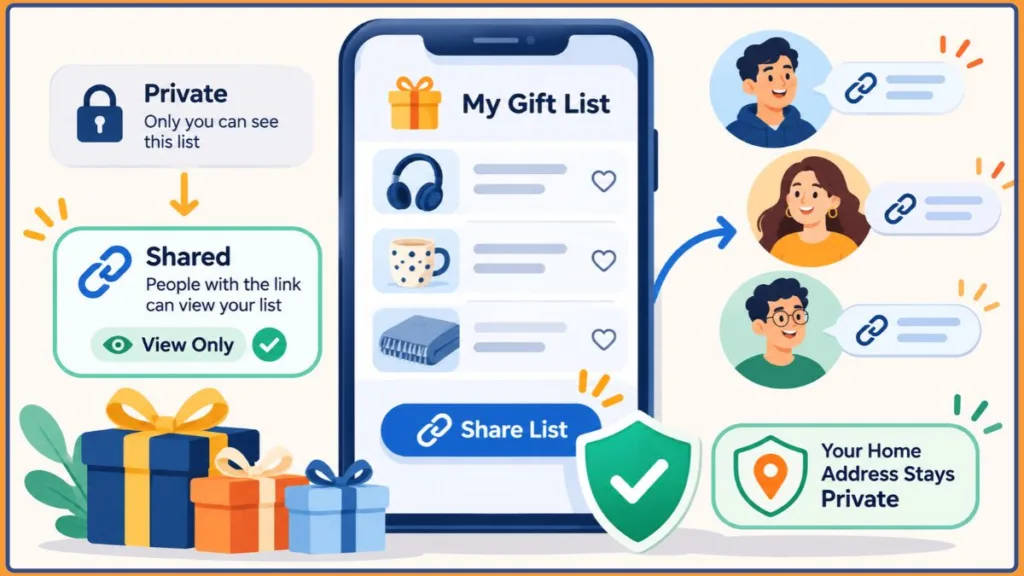
Learning how to share an Amazon gift list with friends takes less than a minute once you know which buttons to tap. The real difference comes down to locking in the right privacy settings—especially after Amazon’s March 25, 2026 third-party shipping update—and framing the link so your friends feel relieved to have it.
Quick Steps: Open your list in the Amazon app or browser > tap Invite (or Send list to others) > choose View Only > select Copy Link. Before sending, open the three dots (
…) > Manage List to set visibility to Shared, enable Don’t spoil my surprises, and verify your shipping address settings.
Wish List vs. Custom Gift List: Pick the Right Format Before Sharing
Before copying a link, make sure you built the right type of list. Amazon splits its gifting tools into standard Amazon Wish Lists and Amazon Custom Gift Lists (part of its Registry hub), and they behave differently once friends open them.
| Feature | Standard Amazon Wish List | Amazon Custom Gift List (Registry) |
| Best For | Casual birthdays, Secret Santa, holiday exchanges, year-round saving | Milestone birthdays, housewarmings, graduations, group celebrations |
| Address Privacy | Masks street address from buyers at checkout | Masks street address from buyers at checkout, with event-specific address controls |
| Group Contributions | Not supported | Supported via an Amazon Gift Card Fund (store credit, not direct cash) |
| Thank-You Tracker | No dedicated tracker | Built-in list showing who bought what and when |
| Personalization | Basic title and text description | Custom cover photo, welcome note, and event date |
| Surprise Protection | Don’t spoil my surprises hides bought items from you | Shows gift status if you open the tracker |
| Price-Drop Alerts | Built into your personal list view | Focused on gifting rather than personal deal tracking |
Quick rule of thumb: Stick with a standard Amazon Wish List for casual friend exchanges, Secret Santa pools, or a running list you keep all year. Choose a Custom Gift List for milestone birthdays or housewarmings where you want thank-you tracking or group contributions.
Important: Amazon does not automatically convert a standard Wish List into a Custom Gift List, so choose your format before you start adding items.
How to Share Your Amazon Gift List With Friends (Without Sending an Edit Link)
Amazon’s menus differ slightly between phones and computers, so follow the path for your device.
Sharing From the Amazon App (iOS & Android)
- Open the Amazon Shopping app and tap the Me tab (profile icon) at the bottom of the screen.
- Tap Lists and select the gift list you want to share.
- Tap + Invite (or the Share arrow icon) near the top of your list.
- Select View Only.
- Tap Copy Link to paste it anywhere, or pick a direct shortcut like Text Message or Email.
Sharing From a Desktop Browser
- Sign in on Amazon, hover over Account & Lists in the top-right corner, and click Your Lists.
- Click the name of your gift list in the left-hand sidebar.
- Click + Invite (or Send list to others) near the top-right corner of the list header.
- Choose View Only.
- Click Copy Link to paste into a chat, or select Email to send it straight through Amazon.
“View Only” vs. “View and Edit” — Don’t Click the Wrong One
When Amazon prompts you to invite people, you’ll see two permission levels:
- View Only: Friends can browse your list, read item notes, and buy gifts without altering anything. Always pick this option for birthdays, holidays, and friend exchanges.
- View and Edit: Invited users can add, delete, and edit items on your list. Reserve this strictly for collaborating with a partner, roommate, or co-host on a shared event or household list.
If you accidentally send an edit link, open the three-dot menu (…) > Manage collaborators (or Manage List) to revoke edit access and copy a fresh View Only link.
Pro Tip: Before dropping your link into a group chat, paste it into an incognito or private browser window. You’ll immediately see the exact page your friends land on—making it easy to confirm the link loads properly and doesn’t grant edit access.
4 Amazon Gift List Privacy Settings to Lock Down Before Sharing
Open the three dots (…) at the top right of your list and tap Manage List to lock down four essential privacy settings before sharing.
1. Set List Visibility to “Shared” (Never “Public”)
Amazon offers three visibility tiers:
- Private: Visible only to you. Friends cannot open your link.
- Shared: Only people with your direct link can view the list; it stays hidden from Amazon’s public search results.
- Public: Anyone online can search your name or email and browse your items.
Select Shared for friend groups so your link works cleanly without exposing your list to strangers or coworkers.
Troubleshooting Note: If a friend clicks your link and hits an error page, your list is still set to Private. Switching visibility to Shared inside Manage List unlocks that exact same URL immediately—you don’t need to send a new link.
2. Understand Address Masking & the March 25, 2026 Third-Party Update
Many shoppers assume an Amazon gift list hides their street address under every circumstance. Here is how address privacy actually works now:
- What buyers see at checkout: When a friend orders from your list, Amazon applies address masking on the checkout screen—hiding your full street address and displaying only your name, city, and state.
- What changed on March 25, 2026: Amazon removed the Wish List setting that previously blocked third-party sellers from fulfilling gift orders. When a friend buys an item sold and shipped by a third-party marketplace seller, Amazon shares your delivery address with that seller and its logistics partners to complete shipment—and third-party tracking updates can sometimes surface delivery details to the buyer.
If you’re only sharing with close real-life friends who already know where you live, standard checkout masking is usually plenty. If you’re sharing in a larger online friend group, Discord server, or office Secret Santa, protect your home address with one of three workarounds:
- Set Shipping Address to “None”: Clear the shipping address field in Manage List. Friends can still see your items and ship gifts to themselves to hand you in person—or message you when they need an address.
- Use a P.O. Box or non-residential address: Amazon recommends using a P.O. Box or another non-residential delivery address for lists shared with wider circles.
- Stick to “Shipped by Amazon” items: Check the fulfillment line below the Buy button before adding products and avoid third-party-fulfilled storefronts whenever possible.
Important Limitation: Amazon Lockers cannot be set as a delivery address for Amazon Wish Lists or Gift Registries.
3. Hide Purchased Gifts & Stop Duplicates With “Don’t Spoil My Surprises”
Inside Manage List, check two boxes to avoid duplicate gifts:
- Keep purchased items on your list (flags bought gifts as Purchased for other shoppers instead of removing them silently).
- Don’t spoil my surprises (hides purchased status from you for several weeks while still marking items as bought for everyone else).
If you accidentally try to order an item for yourself that a friend already bought, Amazon will display a quick duplicate warning first. Keep two caveats in mind: this setting only prevents duplicates when friends buy directly through your list link (or manually click Buying this gift elsewhere), and you’ll need to resist clicking the Reveal option on your own list.
4. Check for Outdated List Addresses (The Separate-Address Trap)
Check the Recipient field and saved shipping address inside Manage List before copying your link. It’s easy to leave an old apartment unit, workplace address, or outdated name sitting on a list you originally created years ago.
Quick Check: Your Wish List shipping address is stored separately from your default Amazon checkout address. Moving and updating your address for personal orders will not automatically update older Wish Lists—you must update each list inside Manage List.
Want Zero Address Sharing & Auto-Expiring Links? Share Your Cart Instead
If you don’t want your shipping address attached to a link at all—or you already saved gift ideas inside your regular Amazon cart and don’t want to rebuild a Wish List—you can skip Amazon’s native lists and use our free Chrome extension, CartShare.
Instead of exposing a live Amazon account list, CartShare converts your Amazon cart (every item and quantity) into a single plain, untagged link with no account required:
- Zero address sharing: When your friend opens the link, they add the items into their own Amazon cart in one click. Your home address and Amazon login are never tied to the link—completely avoiding Amazon’s 2026 third-party seller address rules.
- Auto-expiring links: Choose a lifespan of 1, 3, 7, 14, or 30 days when creating your link. Once that window ends, the link stops working automatically, so nothing stays live longer than you intended.
- Instant clipboard copy: Add products to your cart like normal, click Create Share Link, select your duration, and paste the link straight into a text, email, or chat.
Best Use Case: CartShare works best for 1-on-1 gifting—like sending ideas to a partner, best friend, or single Secret Santa match—or when gifts will be handed over in person. Because friends check out through their own cart without a shared Purchased tracker, stick with a native Amazon Wish List whenever multiple friends are shopping from the same list and need duplicate-gift protection.
How to Share Your Amazon Gift List Without Feeling Awkward
When to Send Your Link (And When to Wait)
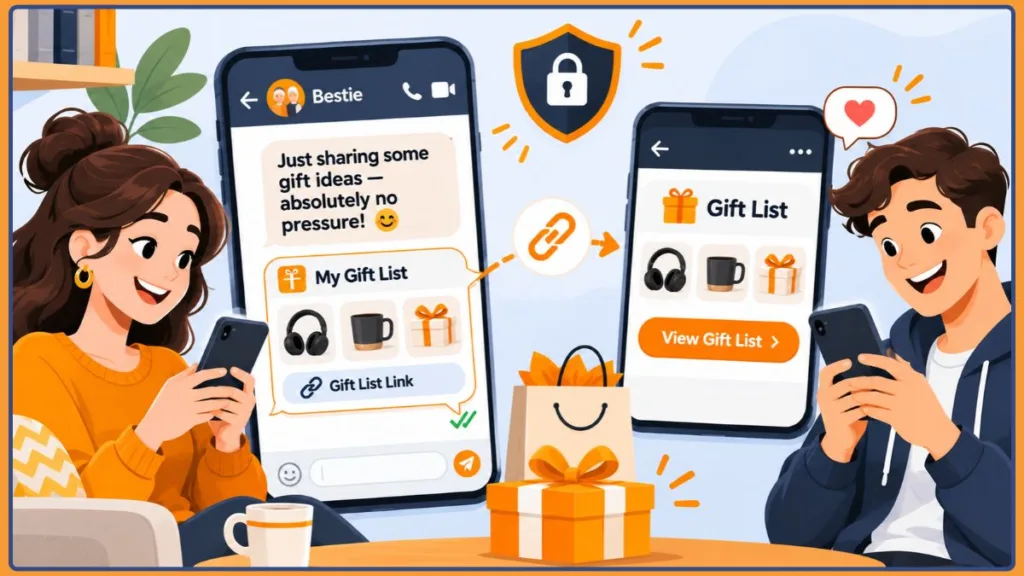
Send your link proactively only when everyone has already opted into a gift exchange (like Secret Santa, White Elephant, or an established friend-group birthday tradition). For every other occasion, wait until someone asks what you want—and frame the link as a zero-pressure time-saver that removes the guesswork for them.
4 Copy-Paste Message Templates for Friends
1. When a friend texts asking what you want (1-on-1)
“Honestly, you don’t have to get me anything at all! If you’re looking for ideas though, I keep a running Amazon list of random things I’ve been eyeing—zero pressure to stick to it, just figured it might save you some brainpower: [Link]”
2. Organizing a friend-group Secret Santa or holiday exchange
“To make Secret Santa way easier this year, let’s all drop our Amazon gift links in this thread by Friday! Let’s keep ideas under $35 and make sure we share ‘View Only’ links. Here’s mine to kick us off: [Link]”
3. Casual birthday dinner invite (when people keep asking)
“Truly, just showing up for dinner is the best gift! Since a couple of people texted asking for ideas, I threw a few small things on a quick list here—feel free to ignore it completely: [Link]”
4. Long-distance friend exchange
“Since we’re doing long-distance birthday swaps this year, here’s my Amazon link so neither of us has to stand in line at the post office! Send me yours too so I can grab something for you: [Link]”
3 Last-Minute Tweaks That Prevent Checkout Headaches for Friends
Before hitting send, run a quick scan to eliminate the three issues that most often trip up friends at checkout:
- Add sizing and preference notes. Tap the three dots next to any item and select Add comment, quantity & priority to list your shirt size, color preference, or notes like “Paperback or used is totally fine” so friends don’t have to ask.
- Set accurate item quantities. Inside that same Add comment, quantity & priority menu, update the Needs count for anything you want multiples of (like matching mugs or picture frames) so Amazon doesn’t mark the item complete after the first purchase.
- Clear out-of-stock or overpriced listings. Remove items marked Currently Unavailable or suddenly inflated by third-party resellers so friends don’t hit dead ends.
Frequently Asked Questions
Does an Amazon Gift List show my home address to friends?
At checkout, Amazon displays only your name, city, and state—though under the March 25, 2026 policy update, third-party sellers receive your address to fulfill orders, so set your shipping address to None or a P.O. Box for maximum privacy.
How do I keep friends from buying me duplicate gifts on Amazon?
Open three dots (…) > Manage List and turn on both Keep purchased items on your list and Don’t spoil my surprises so bought gifts are marked as Purchased for other friends while staying hidden from your view.
Can friends view my Amazon Wish List if they don’t have an Amazon account?
Yes. Anyone with a Shared or Public link can open and browse your list in a regular web browser without signing in, though they will need an Amazon account to check out directly through Amazon.
Can I revoke access after I’ve already shared my Amazon Gift List?
Yes. Open Manage List and switch visibility back to Private to deactivate your shared link immediately. If you invited specific people with edit permissions, open Manage collaborators to remove their access at any time.
If I share one Amazon Gift List, can friends see my other Wish Lists?
No. Each Amazon list has its own independent privacy setting, so sharing a link to one gift list will never expose your other Private lists to friends.
Visit Our Post Page: Blog Page
Discover more from Izoate
Subscribe to get the latest posts sent to your email.