
Stop Outlook from automatically marking emails as read when you select, preview, or scroll through them. Follow the steps for New Outlook and Classic Outlook.
Does Outlook automatically mark your emails as read when you select them, preview them, or scroll through your inbox? This behavior can make it difficult to keep track of messages you still need to answer, especially if you use unread emails as reminders.
The problem is particularly frustrating when you want to review an email without losing its unread indicator. Fortunately, you can change Outlook’s automatic read-status settings, although the correct solution depends on which version you’re using.
Microsoft’s 2025 Work Trend Index reported that the average worker in its Microsoft 365 telemetry received 117 emails per day, with most skimmed in under 60 seconds. The research doesn’t establish that automatic read status causes missed emails, but it illustrates why efficient inbox management matters.
In this guide, you’ll learn how to stop Outlook from automatically marking emails as read, keep previewed messages unread, adjust the mark-as-read delay, and troubleshoot the problem when the usual fix doesn’t work.
Key insight: An unread email isn’t necessarily an email you haven’t seen. It can also be a reminder that you haven’t replied, completed a task, or recorded important information. Choose your Outlook settings based on how you use unread status to manage your inbox.
Quick Fix: Stop Outlook From Automatically Marking Emails as Read
Choose the instructions for your version of Outlook.
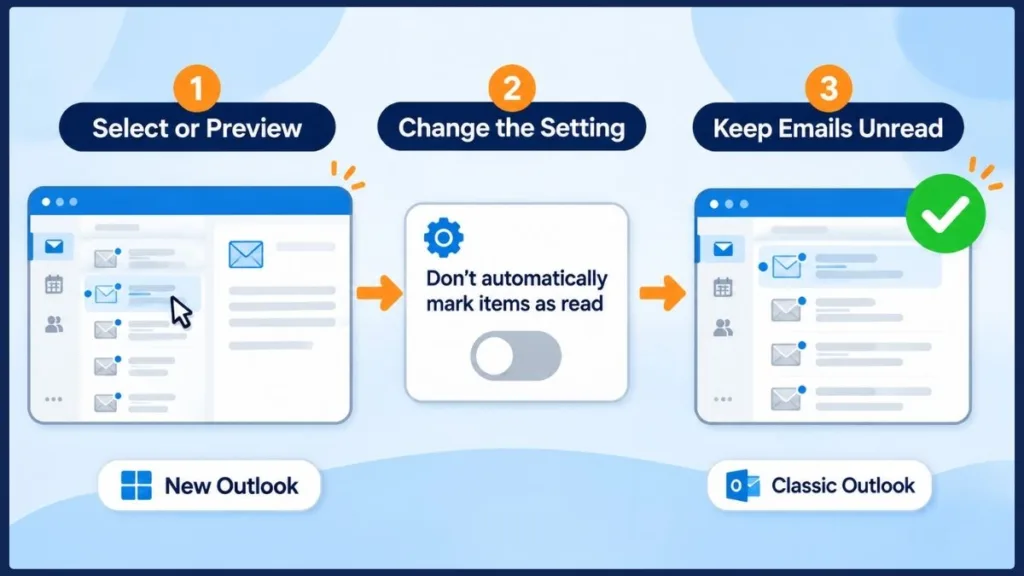
- New Outlook for Windows: Open Outlook and select Settings. Go to Mail > Message handling. Under Mark as read, select Don’t automatically mark items as read, then select Save.
- Outlook on the web: Open Outlook in your browser and select Settings. Navigate to Mail > Message handling, if available in your interface. Under Mark as read, choose the option that prevents automatic marking and save your changes.
- Classic Outlook for Windows: Go to File > Options > Advanced > Reading Pane. Clear both Mark items as read when viewed in the Reading Pane and Mark item as read when the selection changes. Select OK.
These settings control automatic read-status changes caused by viewing or selecting messages. For the official instructions, see Microsoft’s guides to configuring the Reading Pane and marking messages as read or unread.
Quick tip: If you use Classic Outlook and want to prevent emails from becoming read while moving between messages, check both Reading Pane options. Disabling only one trigger may not prevent the other from changing the message’s status.
Important: If you disable automatic marking, emails can remain unread even after you open them in a separate window. You’ll need to mark them as read manually when you’re finished.
How to Stop Outlook From Marking Emails as Read When Scrolling
If emails become read as you move through your inbox, scrolling itself may not be the cause. Outlook can change a message’s status when it’s displayed in the Reading Pane or when the selected message changes, depending on your settings.
The distinction matters because disabling only one automatic-marking option may not prevent the other behavior.
Best practice: Test the behavior with a single unread message before changing several settings. Select it, preview it, move to another email, and then check its status. This helps identify which action triggers the change.
1. New Outlook: Don’t Mark Emails as Read Automatically
Use these steps if you’re using the New Outlook desktop application on Windows.
- Open Outlook.
- Select the Settings gear icon.
- Navigate to Mail > Message handling.
- Find the Mark as read section.
- Choose Don’t automatically mark items as read.
- Select Save.
Microsoft documents this settings path in its New Outlook Reading Pane guide.
This option is useful if you regularly select emails to inspect their subjects or preview their contents without intending to finish processing them.
For example, imagine that your inbox contains an unread meeting invitation, a customer request, and an email with an invoice. You select the meeting invitation to check the time, then move to the customer request. With automatic marking disabled, the meeting invitation can remain unread until you explicitly change its status.
How to verify the change
Open an unread message, preview it, and select another message. Return to the original email and check whether it still appears unread.
If the message remains unread, the setting is working for that test. Repeat the test with the view you normally use, because a filtered inbox can introduce additional behavior.
Actionable advice: After changing the setting, test both a message preview and a separately opened message. If your goal is to keep every message unread until you manually update its status, confirm that behavior before relying on unread emails as task reminders.
2. Outlook on the Web: Stop Automatic Read-Status Changes
If you use Outlook.com or Outlook through a browser, look for the corresponding setting in the web interface.
- Open Outlook in your browser.
- Go to Settings > Mail > Message handling.
- Locate the Mark as read controls.
- Select the option that prevents automatic marking.
- Save your changes.
If the menu labels differ, use the available Reading Pane or message-handling settings for your version. Microsoft’s Outlook on the web support provides additional guidance for its web interface.
Don’t confuse the Reading Pane’s layout with its read-status behavior. Moving the pane to the right or bottom changes where the message appears; it doesn’t necessarily change when Outlook marks it as read.
Practical tip: If the settings path in your browser doesn’t match these instructions, look for the wording around Mark as read rather than assuming a missing menu means the feature is unavailable. Outlook interfaces can differ, so verify the specific controls displayed in your account.
3. Classic Outlook: Disable Automatic Mark as Read
Classic Outlook for Windows provides separate controls for messages viewed in the Reading Pane and messages selected as you navigate through the message list.
To disable both behaviors:
- Open Classic Outlook.
- Select File > Options.
- Choose Advanced.
- Under Outlook panes, select Reading Pane.
- Clear Mark items as read when viewed in the Reading Pane.
- Clear Mark item as read when the selection changes.
- Select OK to save the changes.
Both checkboxes matter.
The first prevents automatic read-status changes caused by viewing an email in the Reading Pane. The second controls whether changing the selected message causes the previous item to be marked as read.
Suppose you select an unread email to inspect its contents, then click another email to compare details. If the selection-change option is enabled, Outlook can mark the first message as read as you move on. Clearing that checkbox prevents this particular trigger.
Microsoft documents both controls in its official guide to changing how messages are marked as read.
Expected result: Messages should remain unread when previewed or selected, provided the corresponding automatic-marking behaviors have been disabled.
Remember: The Reading Pane setting and the selection-change setting address different actions. When troubleshooting Classic Outlook, verify each one separately instead of assuming one checkbox controls every automatic read-status change.
Which Outlook Mark-as-Read Setting Should You Choose?
You don’t necessarily need to disable automatic marking entirely. The best setting depends on whether you want to prevent status changes, delay them, or manage them manually.
| Your preferred behavior | Setting to choose |
|---|---|
| Keep previewed emails unread | Don’t automatically mark items as read |
| Stop selection changes from marking messages as read in Classic Outlook | Clear Mark item as read when the selection changes |
| Give yourself more time to review a message | Use a delayed-marking option where available |
| Mark messages read only when you’ve finished handling them | Disable automatic marking and update messages manually |
| Mark a message read when selected | Choose an immediate automatic-marking option |
The available controls differ between Outlook versions. Classic Outlook provides separate Reading Pane options, while New Outlook places its read-status settings under Settings > Mail > Message handling.
Decision tip: Choose automatic marking if you prefer Outlook to manage message status for you. Use a delay if you want more time to preview messages. Disable automatic marking if preserving unread status is more important than changing message status automatically.
What Happens if You Disable Mark as Read in Outlook?
When you choose Don’t automatically mark items as read, Outlook stops automatically changing a message’s read status through that disabled behavior.
An email can therefore remain unread even if you select it, preview it, or open it in a separate window.
You can still mark messages as read manually. Disabling automatic marking does not remove the Mark as Read or Mark as Unread commands.
This approach is helpful if you use unread messages as reminders. For example, you might preview a work request while finishing another task, then return later when you’re ready to respond. The unread indicator remains a reminder that the email still needs attention.
The trade-off is that you’ll need to manage message status yourself. If you prefer Outlook to update messages automatically but want more time to preview them, using a delay may be a better choice.
Best practice: Treat unread status as a deliberate workflow choice. If you turn off automatic marking, make it part of your routine to mark completed messages as read. Otherwise, your inbox may accumulate unread messages even after you’ve handled them.
How to Change Outlook’s Mark-as-Read Timing
If you want Outlook to stop marking emails as read so quickly without disabling the feature altogether, try a delay.
In Classic Outlook:
- Open File > Options > Advanced.
- Under Outlook panes, select Reading Pane.
- Enable Mark items as read when viewed in the Reading Pane.
- Enter the number of seconds Outlook should wait before changing the status.
- Select OK.
For example, you could configure a 30-second delay. Outlook will wait for the specified period after you select and view a message in the Reading Pane before marking it as read.
Microsoft documents this timing control in its read/unread message instructions.
New Outlook also offers delayed marking through Settings > Mail > Message handling. Choose the available timing option and save your changes.
A delay is useful when you want to scan messages quickly without immediately changing their status. However, it doesn’t guarantee that every email you haven’t fully processed will remain unread indefinitely.
Choose a delay if you still want automatic read status. Disable automatic marking if you want to control each message manually.
Practical example: If you often preview emails to decide which ones need a reply, a short delay may give you enough time to move between messages without an immediate status change. If you routinely return to messages hours later, manual marking is generally a better fit for preserving unread status.
Can You Make Outlook Mark Emails as Read Only When You Double-Click Them?
Some users want a particular workflow: a single click should select or preview an email without marking it as read, while double-clicking to open the message separately should count as reading it.
This expectation is different from simply disabling automatic marking. The available behavior depends on your Outlook version.
How This Works in Classic Outlook
Classic Outlook has separate controls for reading messages in the Reading Pane and changing the selected message.
You can disable the automatic-marking behaviors associated with those actions and test the result using your usual message-opening workflow.
However, disabling these controls should not be treated as a guarantee that every opening, replying, forwarding, or closing action will update message status in the same way. Test the specific behavior you need.
Important distinction: Disabling automatic marking means Outlook won’t automatically update the message through the disabled triggers. It doesn’t create a universal rule that double-clicking must be the only action that marks a message as read.
Why New Outlook Doesn’t Offer the Same Double-Click-Only Behavior
New Outlook’s available Mark as read options include immediate marking, delayed marking, marking when a message is popped out or the selection changes, and disabling automatic marking.
The important limitation is that marking an item as read when it’s popped out or when the selection changes combines two triggers. It doesn’t mean the email will become read only when you double-click it.
A Microsoft Q&A discussion updated in August 2026 describes this limitation and the alternative of manual marking. You can read the discussion about marking emails as read only when opened.
In New Outlook, the practical choices are:
- Accept automatic marking: Use the option that marks messages as read when they’re popped out or when the selection changes, understanding that either action can trigger it.
- Keep messages unread until you choose: Select Don’t automatically mark items as read and manually mark messages as read when appropriate.
The second option offers more control over read status, but it requires additional manual steps.
Best practice: If your priority is preventing accidental read-status changes, choose manual marking rather than relying on a double-click-only behavior that the available New Outlook controls don’t provide.
Why Does Outlook Keep Marking Emails as Read?
If you’ve changed your settings but emails still become read unexpectedly, identify the exact situation before trying more fixes.
The Reading Pane Is Triggering the Change
The Reading Pane displays the contents of a selected email without requiring you to open a separate window.
If automatic marking is enabled, Outlook can change the message’s status after you view it. Disable automatic marking or configure a delay if you want more time to review the email.
The Selection-Change Setting Is Enabled
In Classic Outlook, the selection-change checkbox determines whether moving to another message can mark the previous item as read.
If messages change status as you navigate through the inbox, check this setting before changing unrelated options.
The Issue Occurs Only in the Unread Filter
This is an important edge case that a standard Reading Pane tutorial may overlook.
New Outlook may provide an additional option called Always keep items unread unless I explicitly mark them as read in its Unread filter settings. This setting affects how messages behave when you’re viewing items through the Unread filter.
A Microsoft Q&A discussion from December 2025 describes a related difference between the regular Unread filter and an Unread Search Folder. The reported behavior is that the setting applies to the Unread filter in a mailbox or folder, but doesn’t automatically change the normal read-status behavior of an Unread Search Folder. Applying the Unread filter within that Search Folder may produce a different result. This is community troubleshooting guidance, so verify the behavior in your own version rather than assuming every build behaves identically.
See the Microsoft Q&A discussion about New Outlook and unread Search Folders.
If the problem happens only in an Unread filter or Search Folder, test the same email in your normal Inbox. This helps distinguish a filter-specific issue from the main automatic-marking behavior.
Troubleshooting tip: Don’t change the main Mark as read setting repeatedly if the issue occurs only in a filtered view. First compare the same message in the regular Inbox, the Unread filter, and any Unread Search Folder you use. The difference can help narrow down which setting or view needs attention.
New Emails Become Read Before You Open Them
Messages becoming read while you browse is different from incoming emails appearing read before you interact with them.
If newly arriving messages already appear read, test a new message in the desktop client and Outlook on the web, where possible. Compare the results before assuming the Reading Pane is responsible.
If the issue persists across clients despite the appropriate settings being disabled, document the steps and seek account-specific help from Microsoft Support.
Key insight: Troubleshoot the actual symptom. An email becoming read after you select it is not the same problem as a newly received message appearing read before you touch it. Identifying when the status changes prevents you from wasting time on unrelated settings.
How to Troubleshoot Outlook When It Still Marks Emails as Read
Follow this sequence to narrow down the cause without repeatedly changing unrelated settings.
Step 1: Confirm the Correct Setting Is Saved
Return to the appropriate settings for your Outlook version.
For New Outlook, check Settings > Mail > Message handling. For Classic Outlook, return to File > Options > Advanced > Reading Pane and verify both relevant checkboxes if you want to prevent preview- and selection-triggered read-status changes.
Step 2: Test One Unread Message in the Normal Inbox
Choose an unread message, select it, view the preview, and then select another email. Check the original message’s status.
If you’ve disabled automatic marking, it should remain unread through the behavior controlled by that setting.
Step 3: Repeat the Test in the View Where the Problem Occurs
If the issue happens only when you filter for unread messages or use an Unread Search Folder, inspect the corresponding view and settings.
Compare the result against your normal Inbox. Don’t assume that a filtered view follows every behavior in the same way as the regular message list.
Step 4: Compare Another Outlook Client
If the mailbox is available in both New Outlook and Outlook on the web, repeat the test in the second interface.
If only one client exhibits the issue, investigate that client’s settings and behavior first. If both show the same unexpected status changes, record the reproduction steps before seeking account-specific support.
Step 5: Escalate if the Problem Persists
If incoming messages become read without interaction, or messages keep changing status despite the relevant settings being disabled, collect a clear example and contact Microsoft Support.
Avoid immediately reinstalling Outlook or modifying unrelated account settings. First establish when the change happens, where it happens, and whether the same message behaves differently in another client.
Actionable troubleshooting checklist:
- Confirm the Outlook version.
- Verify the automatic-marking settings.
- Test one unread message in the normal Inbox.
- Compare the Unread filter or Search Folder if relevant.
- Test another Outlook client if the issue continues.
Record which action changes the message’s status. That information makes further troubleshooting more focused.
How to Keep Emails Unread in Outlook Until You’re Ready
After disabling automatic marking, you can manage read status manually to keep track of messages that still require attention.
Mark an Email as Read Manually
In supported Outlook desktop versions:
- Right-click the email.
- Select Mark as Read.
You can also use Ctrl+Q on supported Windows versions.
Mark an Email as Unread Again
If you opened an email but want to use it as a reminder, right-click it and select Mark as Unread.
The keyboard shortcut is Ctrl+U in supported Outlook desktop versions.
Microsoft documents these commands in its official guide to marking messages as read or unread. Note that keyboard-shortcut availability can vary by Windows version.
Time-saving tip: If you handle many messages, use the right-click menu for individual items and the available selection commands for groups of messages. This helps you keep unread status aligned with what still needs action.
Use Unread Status as a Task Reminder
If your inbox doubles as a to-do list, a simple workflow can help:
- Disable automatic marking as read.
- Preview messages while deciding which ones need attention.
- Leave action items unread until you’ve replied, completed the task, or recorded the necessary information.
- Mark processed messages as read manually.
For example, you might preview a customer support request, move to another email, and return later to write your reply. The first message remains unread as a reminder rather than appearing processed simply because you viewed its contents.
This approach depends on consistently updating message status yourself. If you prefer Outlook to manage read status automatically, use a delay or another appropriate automatic-marking option instead.
Workflow best practice: Unread status works best as a reminder when you apply it consistently. Decide what “read” means in your workflow—viewed, understood, or fully handled—and choose a marking method that matches that definition.
Frequently Asked Questions
Why Does Outlook Automatically Mark Emails as Read?
Outlook can mark messages as read when they’re displayed in the Reading Pane or when the selected message changes. The exact behavior depends on your Outlook version and the active settings.
How Do I Stop Outlook From Marking Emails as Read When Scrolling?
In New Outlook, open Settings > Mail > Message handling and choose Don’t automatically mark items as read. In Classic Outlook, open File > Options > Advanced > Reading Pane and clear the Reading Pane and selection-change checkboxes.
Can I Keep Emails Unread Until I Manually Mark Them as Read?
Yes. Choose the no-automatic-marking option for your version of Outlook, then use Mark as Read when you’re ready to update a message’s status.
Can I Make New Outlook Mark Emails as Read Only When I Double-Click Them?
New Outlook doesn’t provide a separate double-click-only trigger in its documented Mark as read choices. If you want messages to remain unread until you explicitly change their status, disable automatic marking and mark them manually.
What Should I Do if Outlook Still Marks Emails as Read?
Verify the correct settings for your Outlook version, test a fresh unread message in the normal Inbox, and compare another client if necessary. If the problem occurs only in an Unread filter or Search Folder, investigate that view before assuming the main setting has failed.
Is Marking an Email as Read the Same as Sending a Read Receipt?
No. Read status indicates whether Outlook considers a message read or unread in your mailbox. A read receipt is a separate notification mechanism that may inform the sender that a message was opened, depending on the recipient’s settings and mail-system support. Changing automatic read-status settings is not the same as configuring read receipts.
Conclusion
If Outlook keeps marking emails as read while you browse your inbox, start by changing the automatic read-status settings for your version.
New Outlook and Outlook on the web use the Message handling controls, while Classic Outlook provides separate Reading Pane and selection-change options. Choose a delay if you want Outlook to mark messages read after you’ve had time to review them, or disable automatic marking if you want to manage each message manually.
The key distinction is between preventing automatic read-status changes and delaying them. Test the behavior in the view where the problem occurs, especially if you’re using an Unread filter or Search Folder, to identify the setting that actually controls your workflow.
Final takeaway: If you want full control over which emails remain unread, disable automatic marking and update messages manually. If you want Outlook to continue managing read status, use a delay where available. The right choice depends on how you use unread messages to manage your work.
Visit Our Post Page: Blog Page
Discover more from Izoate
Subscribe to get the latest posts sent to your email.