
Is GTA 5 stuck recording your gameplay? Learn how to stop or cancel a recording on PC, PS5, PS4, and Xbox, and stop Action Replay from triggering by accident again.
You’re in the middle of a heist, a police chase, or a mission you’ve already failed twice, and suddenly you notice it: a small red dot blinking in the corner of your screen. Your frame rate might even start to stutter. GTA 5 is recording, and you have absolutely no idea when you turned that on.
The good news is you haven’t broken anything, and you’re not stuck with this recording forever. Stopping it takes one quick button combo, whether you’re playing on a keyboard, a PS5 or PS4 controller, or an Xbox pad. This guide walks you through exactly how to stop recording in GTA 5 on every platform, why the game keeps doing this without you asking it to, and how to stop it from happening again.
Why Does GTA 5 Keep Recording on Its Own?
Before you go digging through settings, it helps to know that your game probably isn’t glitching. What’s actually happening is a built-in feature called Action Replay.
What Action Replay Actually Does
Action Replay runs quietly in the background and constantly buffers your gameplay so you can save a great stunt, a funny death, or a chaotic shootout right after it happens, without having had to hit record beforehand. It’s a genuinely useful feature for anyone who wants to capture cool moments without planning ahead for them. The catch is that the buttons used to trigger it overlap with things you do all the time during normal gameplay.
The Exact Button Combo That Sets It Off
If you play on a controller, this usually comes down to one specific habit: holding Down on the D-pad to check your map while also tapping your sprint button rapidly. The game reads that combination as the shortcut for starting Action Replay, so you end up recording without ever meaning to. Once you know that’s the trigger, you can start to catch yourself doing it and avoid the accidental recordings altogether.
How to Stop Recording in GTA 5 on PC
On PC, recording is tied directly to your function keys, which makes it easy to bump into by accident while reaching for a weapon or trying to sprint.
Here’s what each key does by default:
| Action | PC Control |
|---|---|
| Start recording | F1 or ALT + F1 |
| Stop and save | F2 or ALT + F2 |
| Cancel without saving | F3 or ALT + F3 |
If you want to keep the footage: press F2 or ALT + F2. This stops the capture and saves the clip to your drive.
If you just want it gone: press F3 or ALT + F3. This cancels the recording completely and discards the footage instead of saving it, which is the better option if you triggered it by accident and don’t want a random clip cluttering your storage.
What to Do If Your Function Keys Aren’t Working
If you press F2 or F3 and your screen brightness or volume changes instead, your function keys are probably locked to your laptop’s media controls. Hold down the Fn key at the same time as F2 or F3, and the recording shortcut should work as expected.
Check Your Custom Keybinds
If you’re pressing what you believe are the right keys and the recording still won’t stop, you may have changed your controls at some point without remembering. Here’s how to check:
- Press Escape to pause the game.
- Go to Settings.
- Select Key Bindings.
- Scroll down to the Rockstar Editor section.
- Review your recording and Action Replay shortcuts.
From here, you can also reassign these commands to keys you’re less likely to hit by accident, which is worth doing if this keeps happening to you.
How to Stop Recording in GTA 5 on PS5 and PS4
Console recording controls work a little differently since they’re tied to your character selection wheel rather than dedicated buttons.
- Hold Down on the D-pad to open the character wheel.
- Look at the bottom-left corner of your screen for the recording prompts.
- Press Circle to cancel the recording without saving it.
- Press Square to stop and save the recording.
One thing worth knowing: opening the wheel slows down time if you’re in Story Mode, but in GTA Online the action keeps moving in real time, so find some cover before you do this mid-firefight.
Don’t Mix This Up With Your Controller’s Share or Create Button
If a PlayStation system menu pops up instead of the in-game prompt, you didn’t trigger GTA 5’s recorder at all — you hit your controller’s Create button (called Share on older PS4 controllers), which handles your console’s own screen recording completely separately from the game. To stop that kind of recording, double-tap Create or Share rather than using the D-pad method above.
How to Stop Recording in GTA 5 on Xbox
The steps on Xbox mirror PlayStation, just with different face buttons.
- Hold Down on the D-pad to bring up the character wheel.
- Press B to cancel the recording without saving.
- Press X to stop and save the recording.
Xbox’s Capture Button Works Separately, Too
Just like on PlayStation, your controller’s dedicated Capture button controls Xbox’s own system-level recording, not GTA 5’s in-game Rockstar Editor. If you see an Xbox notification saying a clip was captured, that’s your console talking, not the game. Hold the Share button to stop that kind of recording.
How to Stop GTA 5 From Recording Automatically
Stopping a recording that’s already happening is one thing. Keeping it from starting in the first place is a different problem, and the fix depends on your platform.
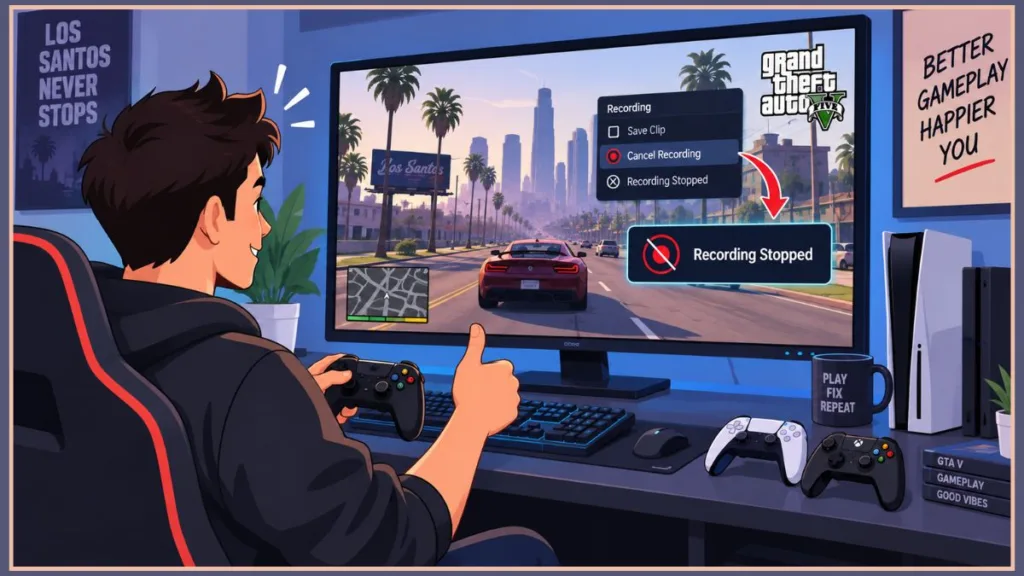
On PC: Remap the Shortcut
Since Action Replay is tied to specific keys, the most reliable fix is moving it somewhere you won’t hit by accident:
- Press Escape and go to Settings.
- Select Key Bindings.
- Scroll to the Rockstar Editor commands.
- Reassign Action Replay and manual recording to keys you rarely use, like your numpad.
On Console: It’s a Habit Fix, Not a Setting
Unfortunately, there’s no menu option to fully disable Action Replay on PS5, PS4, or Xbox. Since the trigger is holding D-pad down while sprinting, the simplest workaround is breaking that combo up:
- Stop moving for a second before you check your map.
- Open the D-pad wheel on its own.
- Release it, then go back to sprinting.
It takes a little retraining, but once the habit sticks, you’ll trigger the recorder far less often.
It Might Not Even Be GTA 5
If you’ve fixed your keybinds or your habits and clips are still showing up, the recording might not be coming from the game at all. A few background tools love to record without asking:
- Windows Game Bar — Go to Settings > Gaming > Captures and turn off background recording.
- NVIDIA GeForce Experience — Open the app, find Instant Replay, and turn it off along with the in-game overlay.
- AMD Adrenalin — Check the Adrenalin software for its own background recording toggle and disable it the same way.
These tools run quietly in the system tray, so it’s easy to forget they’re even installed, let alone recording in the background.
How to Delete Unwanted GTA 5 Recordings and Free Up Space
Even a handful of accidental clips can eat into your storage over time, and a build-up of unnecessary video files can also cause stuttering while the game writes them to disk. Clearing them out regularly keeps things running smoothly.
- Press Pause to open the main menu.
- Scroll all the way to the Rockstar Editor tab.
- Select Clip Management.
- Scroll through your saved clips and highlight the ones you don’t need.
- Follow the on-screen prompt to delete them permanently.
Keep in mind you can’t access this menu while you’re actively in a mission or a GTA Online session, so you may need to head to Story Mode first.
Want to Record on Purpose? A Quick Word on Better Tools
If you’re actually trying to capture gameplay for YouTube or Twitch rather than avoid it, the built-in Rockstar Editor has real limits — recordings cap out around 60 minutes, and the capture process itself can strain your system. If you’re serious about content creation, a lightweight tool like OBS Studio on PC, or a dedicated capture card if you’re on console, will generally give you longer recordings and more control without the same performance hit.
Frequently Asked Questions
What button do you press to stop recording in GTA 5? On PC, press F2 or ALT + F2. On PS5 or PS4, hold Down on the D-pad and press Square. On Xbox, hold Down on the D-pad and press X.
How do I cancel a recording without saving it? On PC, press F3 or ALT + F3. On PlayStation, hold Down on the D-pad and press Circle. On Xbox, hold Down and press B.
Where are GTA 5 recordings saved? On PC, you’ll find them under Documents > Rockstar Games > GTA V > videos > clips. On console, open the Rockstar Editor tab from the pause menu and go to Clip Management to view or delete them.
Is stopping a recording different in GTA Online versus Story Mode? No, the controls are identical. The only real difference is that opening the character wheel slows down time in Story Mode, while GTA Online keeps running in real time.
Why does my PS5 keep recording trophy or achievement moments? That’s a separate PS5 system setting, not something GTA 5 controls. Head to Settings > Captures and Broadcasts > Captures, and turn off auto-capture for trophies under Auto-Captures.
Wrapping Up
That flashing red recording indicator has a way of showing up at the worst possible moment, but getting rid of it only takes a second once you know the right combo for your platform. On PC, it’s F2 to save or F3 to cancel. On PS5, PS4, and Xbox, it’s the character wheel plus Square/Circle or X/B.
If Action Replay keeps triggering on its own, adjusting your PC keybinds or breaking the D-pad-and-sprint habit on console should cut down on accidental clips going forward. And if you’re still seeing recordings after trying all of this, it’s worth checking whether something like Windows Game Bar or GeForce Experience is the real culprit.
Got a fix that worked for you, or still stuck? Drop a comment below and let us know what platform you’re on.
Visit Our Post Page: Blog Page
Discover more from Izoate
Subscribe to get the latest posts sent to your email.