
Does the wrong music keep interrupting your GTA 6 experience? Learn how to change radio in GTA 6 with easy methods for switching stations on PS5 and Xbox.
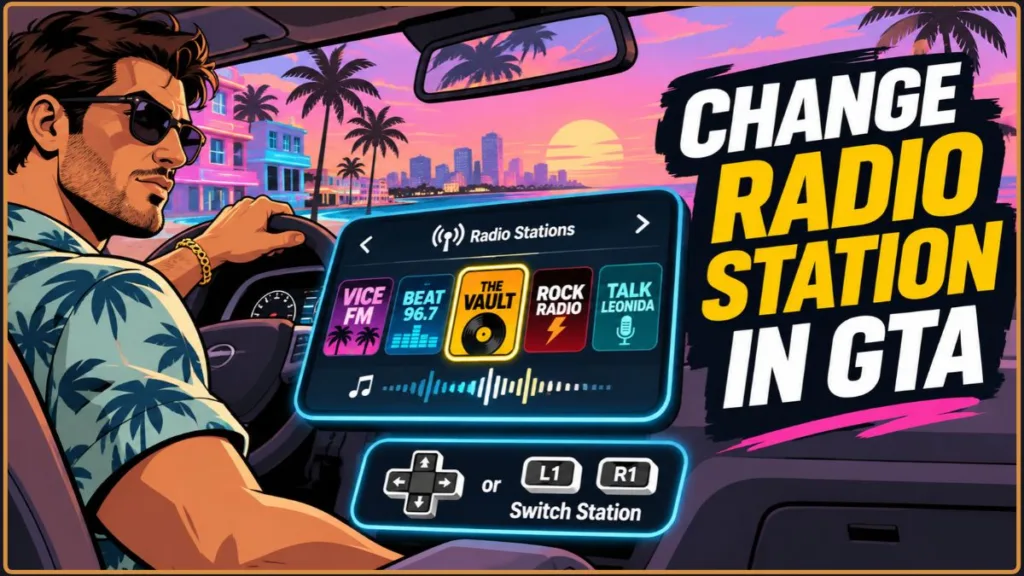
Cruising through Leonida with the wrong station playing, trying to silence music before an important mission conversation, or looking for a way to continue a podcast after leaving your vehicle? GTA 6 gives you more control over in-game audio than previous Grand Theft Auto games, but its radio wheel, on-foot listening and On-Demand features work differently depending on what you’re doing. Understanding how these systems fit together makes it easier to manage music without interrupting your time in Vice City.
GTA 6 Radio Controls at a Glance
The radio controls are available during gameplay, so you don’t need to pause the game every time you want another station. The same basic radio menu works across supported vehicles and, once you have equipped headphones, while walking.
| Action | PS5 | Xbox Series X|S |
|---|---|---|
| Open radio menu | Hold Left on D-pad | Hold Left on D-pad |
| Cycle radio stations | L1 / R1 | LB / RB |
| Select a station directly | Right analog stick | Right analog stick |
| Confirm your selection | Release Left on D-pad | Release Left on D-pad |
| Turn radio playback off or on | X | A |
| Open On-Demand programming | Hold Left on D-pad, move right stick down | Hold Left on D-pad, move right stick down |
| Browse podcast episodes | Square | X |
| Start or toggle playback | X | A |
Remember: Releasing Left on the D-pad confirms the highlighted radio station. The X/A button serves a different purpose: it toggles the current radio or headphone playback. You don’t need to press it simply to confirm an ordinary station selection.
Why Your Radio Buttons Change With Controller Layouts
If you’re switching between GTA games or using a different controller scheme, some familiar inputs may not behave the way you expect. GTA 6 separates control schemes for different gameplay situations, including on-foot movement, aiming, melee combat, vehicles, aircraft, bicycles and swimming.
That distinction matters because a button used for one action while walking may have another purpose when you’re driving or fighting. However, the core radio shortcut is Left on the D-pad on both PS5 and Xbox. The main platform difference is the shoulder-button naming: PlayStation uses L1/R1, while Xbox uses LB/RB.
GTA 6 also provides Default, Classic and Left-Handed control configurations. These affect the broader control experience, so don’t assume that a button combination you remember from GTA V works in every situation.
Before troubleshooting the radio, check your active scheme:
- Pause GTA 6 and open Settings.
- Select Control Scheme.
- Check the configuration you currently use.
- Review the on-screen control information for the relevant gameplay mode.
You shouldn’t need to change your entire control scheme just to switch stations. Start with the radio shortcut and check your selected configuration only when other actions or prompts are also behaving unexpectedly.
How to Change Radio Stations in GTA 6
The radio wheel lets you browse broadcasts without leaving your vehicle or interrupting exploration. You can cycle through stations with the shoulder buttons or use the right analog stick to highlight a specific option.
The same basic selection process works in cars, motorcycles, boats and aircraft. You can also use it with radios placed around the game world.
Changing Radio Stations on PS5
On PlayStation 5, use the D-pad and shoulder buttons to move through the available stations.
- Enter a vehicle or approach a radio you can interact with.
- Hold Left on the D-pad to open the radio menu.
- Press L1 or R1 to move between available stations.
- To choose a particular broadcast directly, move the right analog stick and highlight the station you want.
- Release Left on the D-pad to confirm your selection and start listening.
The radio interface helps you identify the station before committing to it. Use the displayed station information and current track details to decide whether you want to keep browsing or return to the selected broadcast.
When to use each input: L1/R1 is the quicker option when you’re moving through the station lineup. The right analog stick is more useful when you already know which station you want and would rather select it directly.
If you have changed your control configuration, check the current on-screen prompts rather than assuming every GTA V input carries over.
Changing Radio Stations on Xbox Series X|S
Xbox players use the same radio menu, with the corresponding Xbox shoulder-button labels.
- Enter a vehicle or approach an available radio.
- Hold Left on the D-pad to open the radio selection menu.
- Press LB or RB to cycle through the stations.
- Alternatively, use the right analog stick to highlight your preferred broadcast.
- Release Left on the D-pad to confirm the selection.
These inputs apply to both Xbox Series X and Xbox Series S. You don’t need a separate radio shortcut for each console.
The most important distinction is between choosing a station and toggling playback. Releasing the D-pad confirms the highlighted station; pressing A turns the current playback off or back on.
How to Silence Radio and Music in GTA 6
Turning off music in GTA 6 isn’t a single universal action. You might want to stop the current vehicle broadcast, remove your headphones while exploring, or prevent licensed songs from playing in a recorded video. Each situation has a different solution.
1. Mute the Current Radio or Prevent Automatic Playback
When a station is already playing, use the radio menu to turn it off without cycling through the entire lineup.
- Hold Left on the D-pad to open the radio menu.
- Press X on PS5 or A on Xbox to toggle the current radio playback off.
- Use the same input again when you want to resume listening.
You can use this during a mission when you want to concentrate on dialogue, avoid background music or hear more of the surrounding environment.
There is also a separate setting for players who don’t want the vehicle radio starting automatically whenever they enter a car.
- Pause the game and open Settings.
- Select Audio.
- Find Vehicle Radio in the setup options.
- Change the setting to Off.
This setting controls vehicle radio behaviour when you enter a vehicle. It is different from manually muting the station currently playing through the radio wheel.
Use the distinction to choose the right option:
- Radio wheel toggle: Stops the current playback immediately.
- Vehicle Radio: Off: Prevents vehicle radio playback from starting automatically when you enter a vehicle.
- Manual station selection: Lets you choose another broadcast without changing the automatic radio preference.
2. Stop On-Foot Playback by Removing Headphones
When you’re listening to music outside a vehicle, you can stop on-foot playback by removing your headphones through the equipment wheel.
- Hold L1 on PS5 or LB on Xbox to open the loadout wheel.
- Press R1 on PS5 or RB on Xbox to move to the Items tab.
- Use the right analog stick to highlight the Headgear slot.
- Select your equipped headphones and press X on PS5 or A on Xbox to remove them.
You can also use the radio menu while your headphones are equipped and toggle playback with X/A. The equipment wheel is useful when you specifically want to stop using the headphones rather than simply pause the audio.
This distinction matters during exploration. Removing the headphones changes your character’s on-foot listening setup; turning off radio playback leaves the equipment available for later use.
3. Disable Licensed Music for Streaming
If you record gameplay or stream GTA 6, the Mute Licensed Music setting is worth checking before you start.
Licensed tracks from real-world artists can create copyright complications for recorded content. This setting mutes licensed music while leaving the game’s original score available.
To enable it:
- Pause GTA 6.
- Open Settings.
- Navigate to Audio.
- Locate Mute Licensed Music in the SETUP group.
- Change the option to On.
You can return to the same menu and turn the setting off when you want to hear the full soundtrack again.
The setting is not the same as muting every sound in the game. It targets licensed music, while the original score and other audio remain available. Music captions can also continue appearing when the relevant caption option is enabled.
If you only want to lower the background music instead of removing licensed tracks, adjust the Music slider in the Audio volume settings.
Streaming Tip: Enable Mute Licensed Music before recording or starting a livestream. It reduces the risk of licensed tracks appearing in your content, but it isn’t a guarantee against every possible copyright claim.
The Easiest Way to Change Stations While Driving
When you’re driving through Vice City or travelling between locations in Leonida, the shoulder buttons are generally the most practical way to change stations.
Use L1/R1 on PS5 or LB/RB on Xbox to cycle through broadcasts. This keeps your right thumb available for camera control instead of making you move it away from the analog stick to browse the lineup.
The right analog stick is still useful when you want to select a particular station directly. It’s a better option when you’re looking for a specific broadcast rather than moving through stations one at a time.
Your choice also depends on what you’re doing:
- During normal cruising: Use the shoulder buttons to browse stations without making a direct selection.
- When looking for a specific station: Use the right analog stick to highlight it.
- During a mission with important dialogue: Toggle playback off with X/A instead of searching for a quieter station.
- When you don’t want music as you enter vehicles: Set Vehicle Radio to Off in the Audio settings.
You also don’t need separate radio instructions for every vehicle type. The same radio selection shortcut works across cars, motorcycles, boats and aircraft. You can use the radio interface with radios found around the game world as well.
Taking GTA 6 Radio Beyond Your Vehicle
GTA 6 doesn’t restrict music and podcasts to vehicle speakers. You can listen while walking through Leonida by purchasing and equipping headphones or earbuds.
This changes how you use the radio system. Instead of treating music as something that only plays during a drive, you can take your selected broadcasts and On-Demand programming with you when you leave a vehicle.
Why Your Phone Doesn’t Have a Music App
If you’re looking for a dedicated music application on Jason or Lucia’s smartphone, you’re checking the wrong place.
You can open your in-game phone by pressing Up on the D-pad. It provides access to applications such as Messages, Snapmatic and WAI NK, but you don’t need a separate Music, Radio or Podcast app to manage ordinary audio playback.
Instead, GTA 6 connects on-foot listening to your equipped headphones. You access radio stations and On-Demand programming through the same radio menu used in vehicles.
The phone still has other uses, including the WAI NK scanning feature required for The Vault Radio unlock. However, opening the phone isn’t necessary every time you want to change music while walking.
Common Mistake: If you can’t find a music player on your smartphone, your game isn’t necessarily glitched. Purchase and equip headphones first, then access the radio menu using Left on the D-pad.
Where to Find and Buy Headphones
You can purchase headphones from electronics stores marked with a headphones icon on the map. You don’t have to search every shop manually: the GTA 6 Index provides a way to locate electronics stores and sort them by proximity.
Open the GTA 6 Index, navigate to the Style tab and select Electronics. The category displays shops that sell items such as headphones and earbuds, helping you find the nearest available store.
GTA 6 offers different headphone styles and appearances. The key difference is cosmetic and financial: you don’t need to buy an expensive model simply to unlock on-foot listening.
| Headphone Type | Price | Description |
|---|---|---|
| In-Ear Headphones | $119 at Zeke’s Gadgets | Compact earbuds and an inexpensive early option |
| Over-the-Ear Headphones | Approximately $200 | Larger, cushioned headphones with a different appearance |
Prices can vary by store and model, so treat the second figure as an approximate price rather than a fixed price across every electronics shop. The important point is that both styles provide access to on-foot music and podcast playback.
Also remember that Jason and Lucia need their own headphones. Buying a pair for one character doesn’t automatically give the other character an equipped pair.
The Best Early-Game Stop: Zeke’s Gadgets
If you’re still progressing through the early story around Hamlet, visit Zeke’s Gadgets. It’s one of the first electronics stores where you can purchase headphones.
The shop is located in Hamlet, near the early-game area described in the original route as Cicada Avenue. It is a useful first stop before travelling farther into Vice City or exploring the Leonida Keys.
Headphones at Zeke’s Gadgets cost $119 and are available in six different colours. That makes the shop a practical option when you want to unlock on-foot listening without spending more on a premium-looking model.
You can also use the Electronics category in the GTA 6 Index to find other stores. This is particularly useful when you’re farther away from Hamlet or want to compare the available electronics shops.
How to Equip Headphones and Toggle On-Foot Listening
Buying headphones is only the first step. You must equip them through the Items tab before using them while walking.
Follow these steps:
- Hold L1 on PS5 or LB on Xbox to open your loadout wheel.
- Press R1 on PS5 or RB on Xbox to move to the Items tab.
- Use the right analog stick to highlight the Headgear slot.
- Select your purchased headphones and press X on PS5 or A on Xbox to equip them.
- Close the equipment wheel and return to normal gameplay.
With your headphones equipped, you can access music without entering a vehicle:
- Make sure you’re outside a vehicle.
- Hold Left on the D-pad to open the radio menu.
- Use the shoulder buttons or right analog stick to select a station.
- Release Left on the D-pad to confirm your choice.
- Press X on PS5 or A on Xbox to toggle playback when you need to stop or resume listening.
You can now listen while travelling through Port Gellhorn, exploring Vice City or moving between locations across the Leonida Keys.
To stop using the headphones entirely, open the loadout wheel again and remove them from the Headgear slot.
Troubleshooting Tip: If the radio menu doesn’t appear while walking, check that your headphones are equipped and that you’re outside a vehicle. If you’ve been involved in a fight, also check the ground around your character: headphones can be knocked off during combat and may need to be picked up again.
Accessing On-Demand Podcasts
GTA 6 also includes On-Demand programming, which lets you choose recorded shows and podcast episodes instead of relying exclusively on live radio stations.
You can access this feature inside a vehicle or while walking with headphones equipped. It uses the same radio menu, but you need to move into the On-Demand section rather than browsing the regular station list.
To find podcasts:
- Hold Left on the D-pad to open the radio menu.
- Move the right analog stick downward to reach the On-Demand section.
- Use Square on PS5 or X on Xbox to browse available episodes.
- Highlight the episode you want to hear.
- Press X on PS5 or A on Xbox to start playback.
Unlike regular radio broadcasts, On-Demand programming lets you choose individual episodes. You don’t need to wait for a particular show to appear in a live station rotation.
This is useful when you want a specific programme during a longer drive or prefer spoken audio while exploring the map.
Pausing and Resuming Podcast Episodes
You can manage podcast playback through the On-Demand section of the radio menu.
When you want to take a break, reopen the radio menu and return to the On-Demand section. This lets you pause the current podcast rather than having to abandon the episode and find it again later.
Use this when:
- A mission requires you to pay attention to dialogue.
- You want to stop listening before leaving your vehicle.
- You need to switch to live radio for a while.
- You want to resume the same episode during a later part of your play session.
The practical advantage is that you don’t have to treat each podcast session as a separate listen. GTA 6 retains the playback position, making it easier to return to an unfinished episode.
Does GTA 6 Sync Podcast Playback Between Vehicles and Walking?
Yes. GTA 6 can retain your On-Demand listening position when you switch between vehicle and on-foot listening.
For example, you can start a podcast while driving from the Leonida Keys towards Vice City, leave your vehicle halfway through the episode, equip your headphones and return to the same On-Demand programme.
You don’t need to start the episode from the beginning. Reopen the On-Demand section and continue from the saved playback position.
The important distinction is that playback synchronisation doesn’t mean the podcast must continue uninterrupted through every change in activity. You may need to open the On-Demand menu and resume the episode after switching between vehicle and headphone listening.
This makes podcasts a practical option for longer exploration sessions, particularly when you frequently move between vehicles and locations.
Switching From Podcasts Back to Live Radio
When you’re finished listening to a podcast, you can return to live radio through the same selection menu.
- Hold Left on the D-pad to open the radio menu.
- Move away from the On-Demand section and return to the standard radio station list.
- Use L1/R1 on PS5 or LB/RB on Xbox to browse broadcasts.
- Highlight your preferred station.
- Release Left on the D-pad to confirm your selection.
You can move between live radio and On-Demand programming without restarting the game or opening the pause menu.
Use live radio when you want a changing mix of music and broadcasts. Choose On-Demand when you want to control which episode plays and where you resume it.
Which GTA 6 Radio Stations Are Worth Tuning Into?
Once you understand how to switch between stations, take some time to explore Leonida’s radio lineup. GTA 6 covers several music styles, from contemporary Latin music and country to African music, metal, pop and Southern hip-hop.
The following stations are useful starting points if you want to explore different parts of the soundtrack.
| Radio Station | Music Genre | On-Air Hosts and Associated Performers |
|---|---|---|
| Cocoteo FM | Modern Latin: bachata, merengue, dembow and reggaeton | El Martillo (Bad Bunny) and La Gata (RaiNao) |
| Back Country Radio | Renegade country | MW (Morgan Wallen) and Delta Dawne (Lana Del Rey), with Mud Dog Mike as a roving reporter |
| AfroBank FM | African music, including classics, amapiano and 3-step | Burna (Burna Boy) and Palmsy (Palms Trax) |
| The Chamber 106.6 | Metal | DJ Kerry (Kerry King) and DJ Tom (Tom Araya) |
| Flash FM | Pop | Robyn and Alex (Alex Consani) |
| Dirty South Classics | Southern rap and regional hip-hop classics | Trick (Trick Daddy) and Trina |
Flash FM is a good choice for upbeat pop while driving through Vice City. It also carries a familiar connection to the earlier Vice City setting, making it an interesting station to revisit.
If you prefer Latin music and reggaeton, try Cocoteo FM. Its mix includes bachata, merengue, dembow and reggaeton, giving it a different sound from the more traditional pop stations.
Back Country Radio is suited to players exploring the Grassrivers and Port Gellhorn. Its renegade country identity fits the rural parts of Leonida, while the appearances from MW, Delta Dawne and roving reporter Mud Dog Mike give the station a distinct on-air personality.
For African music, AfroBank FM moves between 20th-century classics and contemporary sounds such as amapiano and 3-step. It’s a useful alternative when you want something different from the main pop and hip-hop options.
For heavier music, tune into The Chamber 106.6, featuring DJ Kerry and DJ Tom. Dirty South Classics is another option when you want Southern rap and regional hip-hop.
These six stations provide a useful starting point, but they aren’t a complete description of everything available on the radio dial. Explore the other stations in-game when you want to discover more of Leonida’s music and talk programming.
Finding The Vault’s Hidden Radio Content
The regular radio lineup isn’t the only audio content worth discovering. GTA 6 also includes hidden content connected to locations and interactive elements around Vice City.
One notable discovery is The Vault Radio, which you can unlock by scanning a poster near The Vault nightclub using the WAI NK app.
The station isn’t part of the standard radio selection when you first start playing. You need to visit the nightclub and scan its poster before the additional broadcast becomes available.
Follow these steps:
- Travel to The Vault nightclub in Downtown Vice City.
- Enter through the main entrance.
- Look for the red or pink poster featuring a gas-mask design.
- Hold Up on the D-pad to bring up your smartphone.
- Open the WAI NK app.
- Use R1 on PS5 or RB on Xbox to activate the scanning function.
- Aim the scanner at the poster and complete the scan.
Once you’ve scanned the poster, The Vault Radio is added to your radio selection. You can then listen to its electronic and rave music mixes through your vehicle radio or equipped headphones.
The station offers a different listening experience from ordinary radio broadcasts. Instead of the usual mix of station hosts, music rotations and interruptions, The Vault focuses on continuous club-style DJ mixes.
The discovery is also useful for completion-focused players because unlocking the station is associated with the game’s 100% completion checklist.
Frequently Asked Questions
What button changes the radio in GTA 6?
Hold Left on the D-pad to open the radio wheel. Use L1/R1 on PS5 or LB/RB on Xbox to cycle through available stations. You can also use the right analog stick to select a particular broadcast directly.
How do you turn on radio in GTA 6?
Hold Left on the D-pad to open the radio menu, highlight a station and release the D-pad to confirm your selection. If playback is muted, press X on PS5 or A on Xbox to toggle it back on.
How do you turn off radio in GTA 6?
Hold Left on the D-pad and press X on PS5 or A on Xbox to toggle the current radio playback off. Use the same input again when you want to resume listening.
Can you stop the radio from playing automatically when entering a vehicle?
Yes. Open Settings → Audio and change Vehicle Radio to Off. This controls whether vehicle radio playback starts automatically when you enter a vehicle. You can still select a station manually when you want to listen.
Can you change radio stations while driving in GTA 6?
Yes. Hold Left on the D-pad and use L1/R1 on PS5 or LB/RB on Xbox to cycle through stations. The shoulder buttons are convenient because your right thumb remains available for camera control.
Can you listen to music while walking in GTA 6?
Yes. Purchase headphones or earbuds from an electronics store, equip them through the Items tab and hold Left on the D-pad to access radio stations while outside a vehicle.
Do you need a phone app to play music in GTA 6?
No. You don’t need a dedicated Music, Radio or Podcast app on the smartphone. Manage ordinary audio playback through the radio menu using Left on the D-pad. The WAI NK app has a separate use when scanning the poster to unlock The Vault Radio.
Can you listen to podcasts without entering a vehicle?
Yes. Equip headphones, hold Left on the D-pad and navigate to On-Demand programming. You can browse and play available podcast episodes while walking.
Does GTA 6 remember your podcast progress?
Yes. On-Demand playback retains your listening position when you switch between vehicles and on-foot headphone listening. Reopen the On-Demand section to continue an unfinished episode from where you left off.
How do you mute licensed radio music in GTA 6?
Open Settings → Audio from the pause menu and enable Mute Licensed Music. This disables licensed music tracks while leaving the original game score available.
Can you change the radio on boats, bikes and planes in GTA 6?
Yes. The same radio selection shortcut works across cars, motorcycles, boats and aircraft. Hold Left on the D-pad to open the radio menu and use the corresponding controller inputs to select another station.
Where can you buy headphones in GTA 6?
You can purchase headphones at electronics stores around Leonida. Zeke’s Gadgets in Hamlet is a useful early-game option, where a pair costs $119. You can also use the Electronics category in the GTA 6 Index to locate other stores.
How do you unlock The Vault Radio in GTA 6?
Visit The Vault nightclub in Downtown Vice City, find the red or pink gas-mask poster near the entrance, open the WAI NK app and scan it using R1 on PS5 or RB on Xbox. Completing the scan adds The Vault Radio to your available stations.
Conclusion
GTA 6’s radio system is easier to manage once you understand the difference between live stations, on-foot headphone playback and On-Demand podcasts. Use the radio wheel for quick station changes, the Audio settings to control automatic vehicle playback, and headphones when you want to take music beyond your vehicle.
For longer listening sessions, On-Demand programming lets you choose episodes and return to your previous playback position after switching between walking and driving. You can also explore the radio lineup across Leonida and unlock The Vault’s additional club mixes by scanning its hidden poster.
Visit Our Post Page: Blog Page
Discover more from Izoate
Subscribe to get the latest posts sent to your email.