
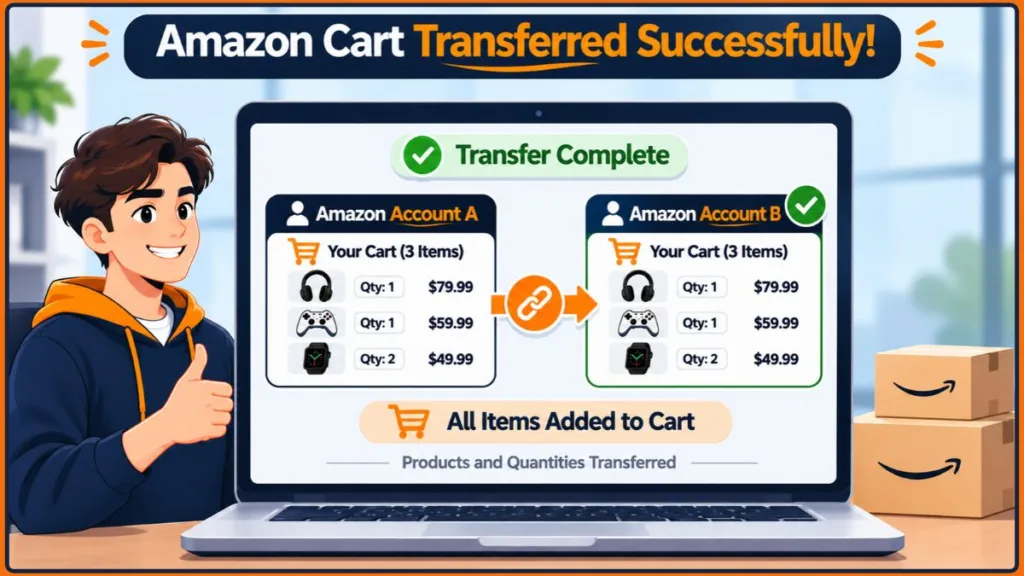
Need to move your Amazon cart to another account? Transfer every item and quantity with one link, or use Wish Lists, Amazon Family, and Business Shared Cart.
Amazon does not include a built-in “Transfer Cart” button for personal accounts because every shopping cart—along with its “Saved for Later” section—is associated with an individual account or guest shopping session. However, you can transfer an Amazon cart to another account by exporting your products into a single shareable link, opening that link while signed into Account B, and adding every available item and quantity in one go.
Which method works best depends on how many items you are moving and what type of account you use:
- 4 or more items or exact quantities: Use a browser extension like CartShare by Izoate Tech to copy your entire cart in about 30 seconds.
- 1–3 items or mobile-only shopping: Use a temporary Amazon Wish List, build a multi-item Amazon URL, or copy individual product links manually.
- Coworkers inside the same company account: Use Amazon Business Shared Cart, Amazon’s built-in feature for sharing purchasing requests within an organization.
- Partner or spouse with Prime in the same home: Link accounts through Amazon Family (formerly Amazon Household) so you can use shared Prime shipping directly from your own account without transferring your cart at all.
Sending a cart to someone else instead? If you are coordinating a group gift, sending a family wishlist, or handing off an order for someone else to review, see our complete guide on how to send your Amazon cart to someone else.
Important Security Rule: Never share your Amazon password just to let someone view or check out your cart. Using a cart link, Wish List, or Amazon Business Shared Cart moves your items without exposing your login credentials, saved cards, or personal account information.
When You Need to Transfer an Amazon Cart
Re-searching a dozen products one by one—and double-checking every size, color, and pack count—wastes time and invites mistakes. Most shoppers need to move an Amazon cart to another account in one of six situations:
- Switching to a Prime or gift-card account: You filled a cart on your personal account, then remembered your partner’s or family’s account has Prime shipping or an unused gift card balance.
- Rescuing a signed-out (guest) cart: You added items while shopping on a shared or work computer without logging in and want to transfer your Amazon cart without signing in on that device. Because a guest cart lives in your browser session and cookies, clearing cookies, closing a private window, or switching devices can wipe it instantly.
- Separating personal and work purchases: You tossed office supplies into a personal cart and need to split only the work items over to a separate account.
- Recovering from a locked or restricted account: Your primary account is temporarily on hold—for example, during an accidental policy restriction review—and you need to understand your options for an urgent purchase through another household or friend’s account. Only do this where Amazon permits it; transferring products should never be used to circumvent an account restriction or an active enforcement decision.
- Migrating to a brand-new account: You opened a fresh Amazon account and want to carry over your active cart without rebuilding it from scratch.
- Consolidating team or household orders: You want to combine multiple carts into a single checkout to reach free shipping thresholds or business Quantity Discounts.
Method 1: Transfer Your Entire Amazon Cart With 1 Link (Browser Extension)
When you have four or more items—or specific variations and quantities you cannot afford to lose—a cart-sharing browser extension is the fastest way to copy an Amazon cart to another account.
Why We Use CartShare for This Walkthrough
For this walkthrough, we use CartShare by Izoate Tech because it requires no sign-up, keeps generated cart links plain and untagged (no affiliate tracking on your cart links), and lets links expire automatically.
CartShare lets you select the products you want to share, preserve their quantities, choose an expiration window, and generate one link for the receiving account. The recipient can open that link without installing the extension.
Other extensions, such as AMZ Cart Share, also provide link-based cart-sharing workflows. Older Cart ID tools, such as Share-A-Cart, use a separate code or import process, so check the recipient’s current instructions before assuming the same link-based process applies.
Product disclosure: CartShare is developed by Izoate Tech. Only the Amazon products you select are sent to Izoate Tech’s server to generate your shareable cart link. CartShare does not need your Amazon password, payment details, or shipping address to create that link. It does not run in the background or track your browsing. CartShare is an independent tool and is not affiliated with, endorsed by, or sponsored by Amazon.
Step 1: Export Your Cart From Account A (or a Guest Session)
- Open your Amazon shopping cart in a desktop browser (Chrome, Edge, or Brave). You can be signed into Account A or browsing in a signed-out guest cart.
- Optional — Move only part of your cart: If you only want to transfer specific items (such as work supplies mixed into a personal cart), deselect the items you want to leave behind using the checkboxes before generating your link.
- Click the CartShare icon in your browser toolbar—or the floating CartShare button on the Amazon page—and click Create Share Link.
- Choose an expiration window (1, 3, 7, 14, or 30 days). Because you are transferring the cart to your own second account right now, pick 1 day so the snapshot expires automatically instead of sitting online indefinitely.
- Your link is copied to your clipboard automatically.
Remember — Cart Links Are a Static Snapshot: A generated cart link captures your cart at the exact moment you click Create Share Link. If you add, remove, or change quantities in Account A afterward, the old link will not update—you must generate a new link.
Step 2: Switch to Account B Without Logging Out (2 Fast Tricks)
You do not have to sign out of Account A and fight through two-factor authentication codes just to open the link in Account B. Use whichever shortcut fits your setup:
- Option A — Incognito Window or Second Browser Profile (Desktop): Open an Incognito/Private window (or a separate Chrome/Edge profile already signed into Account B), paste the cart link into the address bar, and press Enter. Account A stays untouched in your main window.
- Option B — Desktop-to-Phone Handoff (Mobile): If Account B is already logged into your smartphone, send the copied link to yourself via messaging or scan a QR code from your extension if available, then open it on your phone’s browser—no extension installation is needed on the receiving device.
Step 3: Import the Items and Clean Up Account A
- Open the link while signed into Account B and review the product list and quantities on Amazon’s Add to Shopping Cart confirmation page.
- Click to add all available items directly into Account B’s Amazon cart.
- Verify your cart: Importing appends the transferred products to Account B’s existing cart—it will not overwrite or delete anything already sitting there. Check quantities and variations before checking out.
- Return to Account A and delete the transferred items if you want a clean move rather than keeping duplicates in both accounts.
Method 2: Transfer an Amazon Cart Without an Extension
If you are working strictly on an iPhone or Android phone—or prefer not to install a browser extension—you can still move your items using Amazon’s built-in tools and product-link methods.
Option A: The Temporary Amazon Wish List Method (Built-In)
- Sign into Account A and open your shopping cart.
- Open each product (or select Move to List where available) and save every item into a new Wish List named something temporary like Cart Transfer.
- Go to Accounts & Lists > Your Lists, and select your temporary list.
- Click + Invite (or Send list to others), set permissions to View Only (or View and Edit if you want both accounts to collaborate on adding and removing items), and copy the invite link.
- Open that link in Account B and click Add to Cart on each product one by one.
The catch: You have to touch every product twice—once to save it into the list and once to move it into Account B’s cart—and item quantities do not transfer. Every product resets to a quantity of 1, so you must manually re-enter multiples before checking out. Note also that only the list owner can generate a shareable invite link, and Wish Lists do not lock product prices if a limited-time deal expires.
Planning a large event or group haul? Amazon Registries work similarly to Wish Lists and are a useful built-in alternative when moving or sharing large lists for weddings, baby showers, or big events.
Option B: Manual Link Copy-Paste (Best for 1–3 Items on Mobile)
For a small cart of one to three items on mobile, skipping lists altogether is faster.
- Open each product page in Account A.
- Tap Share and Copy Link.
- Paste the links into a note, spreadsheet, Google Doc, or message to yourself.
- Open each link while logged into Account B.
- Add the products to your new cart and manually enter the quantities you need.
This method is simple, works without installing a browser extension, and is particularly useful when transferring only a few products.
Option C: Build a Multi-Item Amazon Add-to-Cart URL (No Extension, Keeps Quantities)
If you want to preserve exact quantities without installing any browser extension, you can try Amazon’s multi-item add-to-cart URL format using each product’s 10-character ASIN (found in the product URL right after /dp/).
Note: This is an advanced URL-based method rather than a guaranteed, officially documented consumer cart-transfer feature. Test it with your products and regional storefront before relying on it for a large purchase.
- Copy the ASIN for each product in Account A (for example,
B012NH05UW). - Combine them into a single URL using
ASIN.1,Quantity.1,ASIN.2,Quantity.2, and so on. - Use the following example format:
https://www.amazon.com/gp/aws/cart/add.html?ASIN.1=FIRST_ASIN&Quantity.1=2&ASIN.2=SECOND_ASIN&Quantity.2=1 - Replace the sample ASINs and quantities with your actual product details.
- Open that URL while signed into Account B and confirm the products and quantities before checking out.
Regional Tip: Match the domain to your storefront (such as
amazon.com,amazon.co.uk, oramazon.in) before pasting the ASIN parameters. Product availability and URL behavior can differ between regional marketplaces.
Amazon Cart Transfer Methods Compared
Use this table to choose the method that matches your cart size, device, and quantity requirements.
| Method | Keeps Quantities? | Partial Transfer? | Works on Mobile? | Best For |
| Browser Extension (e.g., CartShare) | Yes | Yes | Import via link | 4 or more items, desktop-to-desktop, or desktop-to-phone |
| Amazon Wish List | No (resets to 1) | Yes | Yes | No-extension users with small carts or ongoing collaboration |
| Manual Link Copy-Paste | No | Yes | Yes | 1–3 items on iPhone or Android |
| Native Multi-Item Amazon URL | Yes, when the URL works for the selected products | Yes | Yes | Tech-savvy, zero-extension transfers that preserve quantities |
| Amazon Business Shared Cart | Yes | Yes (checkboxes) | Desktop (mobile expansion planned) | Coworkers inside the same Amazon Business organization |
Method 3: Transferring Between Work Accounts With Amazon Business Shared Cart
If you are trying to move items from your work account to a purchasing manager or coworker inside the same Amazon Business organization, you do not need a workaround at all.
On August 21, 2026, Amazon Business announced Shared Cart, a native collaborative feature that lets teams share purchasing requests with pricing visibility and built-in compliance controls. It works within the Amazon Business environment without requiring a separate cart-sharing extension.
- Open your Amazon Business cart on desktop and click Share.
- Use the checkboxes if you only want to transfer part of your cart instead of every item.
- Add an optional note explaining the purchase reason, project code, or deadline.
- Look up a colleague by name or email within your organization—which can send them an automatic notification—or generate an internal shareable link to paste into email or chat.
- The receiving buyer opens the cart and reviews the request before completing the purchase.
When the receiving buyer opens the cart, they can see the requestor’s name, exact quantities, item pricing, total cart value, and the organization’s compliance tags (“preferred” or “restricted” labels). The shared workflow is designed to work alongside existing approval workflows, ESI, and Punchout integrations where enabled.
Bonus Business Capabilities: Authorized buyers can combine multiple shared carts into larger orders to unlock Quantity Discounts and lower shipping fees. They can also use the ship to multiple addresses checkout option to route shared items to different departments or buildings in a single order.
Important limitation: Amazon Business Shared Cart is intended for users inside the same Business account organization and is currently available on desktop, with mobile expansion planned. To move items between a personal Amazon account and a separate personal or business account, use Method 1 instead.
Wait—Do You Even Need to Transfer? Try Amazon Family First
If your only reason for moving your cart to a partner’s or spouse’s account is to use their Amazon Prime shipping, you may not need to transfer your cart at all.
Amazon Family (formerly Amazon Household) lets eligible household members use shared Prime benefits while maintaining their own Amazon accounts.
Amazon’s current US Amazon Family structure supports:
- Up to two adults, each with their own Amazon account.
- Up to four teens, added as profiles or eligible teen accounts.
- Up to four children, added as profiles managed by a parent or guardian.
- Amazon Photos storage sharing with up to five other family members, subject to the separate Photos family-plan feature.
Prime members can share eligible benefits such as Prime delivery, exclusive deals and events, Prime Video, Prime Reading, and supported third-party benefits. Other regional or membership-specific perks, such as fuel savings, depend on availability and eligibility.
How to Link Your Amazon Family Accounts
- On desktop, go to Accounts & Lists > Your Account > Your Amazon Family (or in the Amazon Shopping app, tap Me > Your Account > Manage Your Amazon Family).
- Invite the other adult account and follow Amazon’s household verification steps.
- Confirm eligible Prime benefit sharing under the sharing settings.
- Check out directly from your own shopping cart with eligible Prime benefits—zero cart transfers required.
Privacy Clarification: Linking accounts through Amazon Family does not merge your shopping carts. Adults maintain separate accounts and active carts, but that does not mean all account information and purchases remain completely private.
Amazon Family supports shared order history. Depending on the sharing settings, adult members may see each other’s purchases in the Your Orders section and Buy Again recommendations. Members can manage order-history sharing through Amazon Family settings > Family Shopping > Share orders with my family. Individual orders can also be marked private, and members can disable order-history sharing.
Payment sharing is another important consideration: the Family Organizer shares their payment method with the other adult for household verification. That payment method may be used by the other adult for eligible purchases. Review these settings before linking accounts if you want to keep payment details and shopping activity separate.
What Transfers to the New Account (And What Doesn’t)
Whether you use a browser extension, a Wish List, or an Amazon Business Shared Cart, transferring a cart moves product data, not account-level benefits or checkout settings. Use the table below to avoid surprises at checkout.
| Transfers Automatically or Can Be Recreated | Does NOT Transfer Automatically |
| Exact products (Amazon ASINs) | Clipped coupons and promo codes (must be re-clipped in Account B) |
| Selected variations (size, color, pack count) | Live prices and Prime-exclusive discounts (recalculated for Account B) |
| Item quantities (via extensions, working native URLs, and Business Shared Cart) | Payment methods, saved shipping addresses, or order history |
| Amazon Haul items, when supported by the selected transfer tool | Saved for Later items (stored separately from the active cart) |
| Amazon Fresh and Whole Foods products only through a workflow that specifically supports their separate grocery carts | Automatic transfer of Fresh and Whole Foods items through an ordinary Amazon.com cart link |
| Selected items and quantities through compatible cart-sharing extensions | Stock reservations (items remain available to other buyers until checkout) |
| — | Deleted or sold-out listings (skipped or shown as unavailable in Account B) |
| — | Cross-country storefronts (e.g., Amazon.com cannot directly transfer a cart into Amazon.co.uk or Amazon.in) |
Important grocery-cart distinction: Amazon Fresh and Whole Foods Market products use a separate grocery cart rather than the standard Amazon.com shopping cart. You should not assume that a regular cart-sharing link automatically includes these items. CartShare’s listed support covers the regular Amazon cart and Amazon Haul cart; check the current capabilities of any transfer tool before using it for grocery orders.
Cart Expiration, Guest Cookies, and Stock Holds Explained
Understanding how Amazon handles cart data helps prevent items from mysteriously vanishing mid-transfer.
- 90-day signed-in cart window: According to Amazon Associates documentation, qualifying products added to a customer’s cart through an Associates link can remain in the cart until it expires, usually after 90 days. This is a documented referral-link cart window, not a guaranteed retention period for every signed-in cart or every product.
- Guest carts expire faster: A signed-out guest cart is stored through your browser session and cookies. Clearing cookies, closing an Incognito/Private window, or switching devices can erase the cart before you transfer it. Export guest carts immediately.
- No stock hold or price freeze: Placing an item in your cart—or putting it in a transfer link—does not reserve inventory or lock in a Lightning Deal. Stock is only claimed once an order is placed.
- Seller Max Order Quantity limits: Some sellers enforce a Max Order Quantity cap on high-demand or low-stock listings to prevent inventory hoarding. If your imported quantity exceeds that seller cap, Amazon will automatically lower the quantity in Account B or prevent you from adding the extra units.
How to Move Your “Saved for Later” Items to Another Account
Amazon stores your Saved for Later list separately from your active shopping cart, so a standard cart transfer leaves those items behind. If you want to move Saved for Later items to another Amazon account, use this quick 3-step trick:
- Temporarily move or deselect your active cart items (or transfer your active cart first and clear it).
- Scroll down to Saved for Later in Account A and click Move to cart on every item you want to migrate.
- Generate a fresh cart link with your extension, import those items into Account B’s cart, and click Save for later on them inside Account B.
Tip: Remember that moving an item back into the cart can affect its displayed price and availability. Check each product before generating your second transfer link.
Moving an Amazon Haul Cart?
Amazon Haul items can appear alongside regular Amazon shopping products in the desktop shopping experience. CartShare’s current listing specifically says it works with your regular Amazon cart and Amazon Haul cart, displaying both in one list.
To transfer Haul items, open the relevant cart experience and check that your selected products appear in the CartShare list before generating the link. Confirm that the destination account supports the same listings and quantities.
Keep one caveat in mind: Amazon Haul is not supported on Amazon Business accounts, so if Account B is a Business account, Haul items will not check out there.
Frequently Asked Questions About Amazon Cart Transfers
Does transferring an Amazon cart delete items already in the second account?
No. Importing a cart link appends the transferred products to Account B’s existing shopping cart without erasing anything already sitting there. If the same item is already in Account B’s cart, Amazon may combine or adjust the quantity based on the product listing and seller limits, so do a quick quantity check before checkout.
Can I transfer an Amazon cart without signing into my first account?
Yes. Amazon lets you build a guest shopping cart while signed out, and compatible browser extensions can export that guest cart into a shareable link without an Amazon login. You only need to sign into an Amazon account when you are ready to import the items into Account B and check out. Just make sure you export it before closing a private window or clearing browser cookies, which can wipe guest cart data.
Does the second account need the browser extension installed?
No, not when you use a link-based tool such as CartShare. Only the browser exporting the cart from Account A needs the extension installed. Once you generate the shareable link, you can open it on another desktop browser, Incognito window, iPhone, or Android device signed into Account B and add the items.
Other cart-sharing tools use different workflows. Some rely on Cart IDs or recipient-side import steps, so check the specific extension’s instructions before transferring.
Can I transfer an Amazon Fresh or Whole Foods cart to another account?
Amazon Fresh and Whole Foods Market items are stored in a separate grocery cart, not the standard Amazon.com cart. That means an ordinary Amazon cart-sharing link will not automatically transfer those products.
You may be able to move grocery products through a dedicated workflow if the selected tool specifically supports the Amazon Fresh or Whole Foods cart. CartShare’s listed support covers the regular Amazon cart and Amazon Haul cart, so do not assume it transfers grocery-cart items. Check the tool’s current compatibility before relying on it.
Is transferring my cart with an extension safe for my Amazon login?
Yes, provided you choose a reputable tool with clear permissions and a transparent privacy policy. Cart links package product identifiers (ASINs) and quantities—not your Amazon password, saved credit cards, or shipping address.
For example, CartShare states that only the items you select are sent to Izoate Tech’s server to build the link. It does not access your Amazon login, payment details, or address to create a cart link. It also supports auto-expiring links and does not add affiliate tracking.
CartShare is developed by Izoate Tech and is independent of Amazon. Always review an extension’s current permissions and privacy disclosures before installing it.
Can I transfer a cart between different countries (like Amazon.com to Amazon.co.uk)?
No. A transferred cart link is designed for the same regional Amazon marketplace where it was created. Because product listings, seller stock, ASIN availability, prices, and storefront rules vary between countries, you cannot directly transfer an Amazon.com cart into Amazon.co.uk, Amazon.ca, or Amazon.in. You may need to find the equivalent products on the destination storefront and add them again.
Does Amazon Family (formerly Amazon Household) let you share a shopping cart?
No. Amazon Family lets eligible adults in the same household share Prime shipping and other supported benefits, but it does not merge their active shopping carts. Each adult continues to use an individual Amazon account and cart.
However, Amazon Family can share order history depending on the household’s sharing settings. Members can manage order-history sharing and mark eligible purchases as private. Review those settings before linking accounts if shopping privacy is important to you.
Does transferring a cart reserve stock or lock in the current price?
No. Neither sitting in a cart nor generating a transfer link holds inventory or freezes a sale price. Account B sees Amazon’s live pricing and current availability at the moment of import, and stock is only reserved once checkout is completed.
Why did some items drop or lower their quantity when I imported my cart?
Three things can cause missing items or adjusted quantities during an import: the product sold out or the seller deleted the listing, the seller enforced a Max Order Quantity limit per customer, or the items were sitting in Saved for Later rather than your active cart when you exported the link.
Also check whether the receiving account uses the same regional Amazon storefront and whether the selected product variations are still available.
Which Amazon Cart Transfer Method Should You Choose?
Transferring an Amazon cart to another account does not have to mean searching for every product again or manually rebuilding your entire order.
For larger carts, a browser extension such as CartShare makes it easier to move selected products and quantities through one shareable link. For smaller carts, Amazon Wish Lists and manual product links work without installing anything. Tech-savvy shoppers can also test a multi-item Amazon URL, while coworkers inside the same purchasing organization can use Amazon Business Shared Cart.
Before choosing a method, check whether your items are stored in the regular Amazon cart, Saved for Later, Amazon Haul, or a separate grocery cart. Also remember that transferring products does not move Prime benefits, payment methods, shipping addresses, coupons, stock reservations, or account history.
Choose the method that matches your cart size and destination account, review the imported quantities, and complete checkout from the account you actually intend to use.
Visit Our Post Page: Blog Page
Discover more from Izoate
Subscribe to get the latest posts sent to your email.