
Sent an email to the wrong person or noticed a missing attachment? Let’s learn how to undo send in Outlook, try Recall on eligible unread messages within your Microsoft 365 organization, and delay outgoing emails so you can correct mistakes before delivery or send a follow-up afterward.
You click Send in Outlook, then notice the wrong recipient, a missing attachment, or a sentence you meant to change. The first thing to check is whether Outlook is still holding the message or has already sent it.
That difference determines whether you can undo the send, recall the message, or only send a correction.
Outlook has several ways to stop or retrieve an email, but they do not work the same way. Undo Send gives you a few seconds to cancel a message before it leaves Outlook. Recall attempts to retrieve an email after sending, but only works with eligible Microsoft 365 work or school accounts. Delay Delivery holds outgoing messages in the Outbox, giving you more time to edit or cancel them.
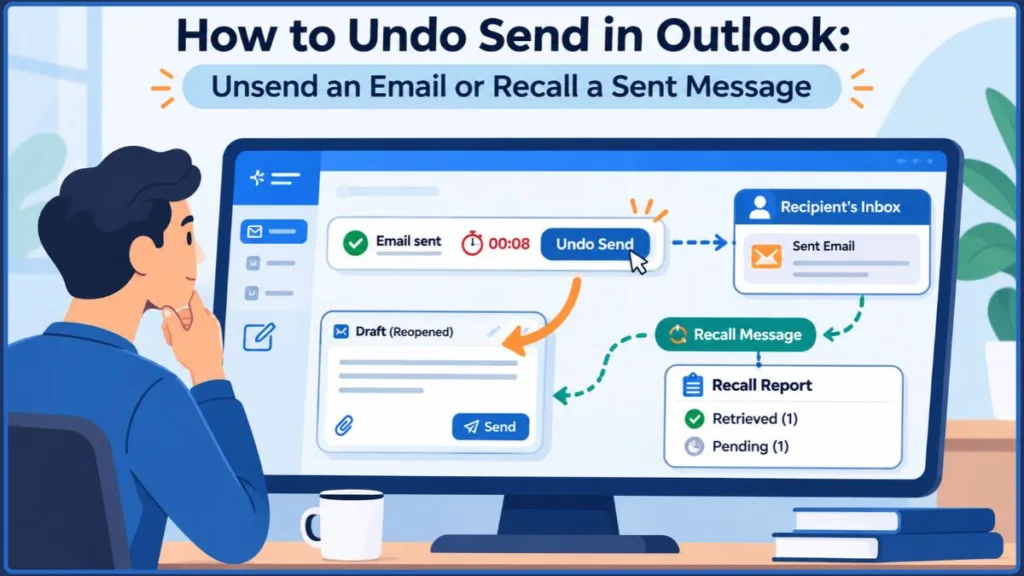
The steps also change depending on whether you use New Outlook, Classic Outlook, Outlook on the web, Outlook.com, or Outlook for Mac. Start with the version you use so you don’t waste time searching for a button that isn’t available in your app.
Quick Answer: Can You Undo Send in Outlook?
Yes, but the method depends on how long ago you sent the email and which Outlook account you use.
- New Outlook for Windows: Select Undo when it appears after sending. You can configure the delay for up to 10 seconds.
- Outlook on the web: Check Settings > Mail > Compose and reply for the Undo send setting. The available delay is generally up to 10 seconds for supported work or school accounts.
- Outlook.com: Enable Undo send in Settings > Mail > Compose. You can set a delay of up to 30 seconds.
- Outlook for Mac: Set the delay under Outlook > Settings > Composing. The available options run from 5 to 120 seconds.
- Classic Outlook for Windows: Use a Delay Delivery rule to hold outgoing messages in the Outbox. It does not have the same built-in Undo Send countdown.
- Outlook Mobile: There is no equivalent configurable Undo Send countdown. Eligible Microsoft 365 work or school accounts can use Recall for supported messages.
If the Undo button has disappeared, the message has usually passed its cancellation window. For a work or school account, check whether Recall Message is available. For a personal Outlook.com account or an email sent to Gmail, you will generally need to send a correction because Recall is not supported.
What Is Undo Send in Outlook?
Undo Send creates a short delay between the moment you select Send and the moment Outlook releases your email for delivery.
During that delay, Outlook displays an Undo option. Selecting it cancels the pending send and returns the message to the compose window. You can then change the recipient, edit the message, add the missing attachment, or delete the draft.
The important detail is that the email has not been delivered yet. Outlook is giving you time to stop the outgoing message before it leaves.
For example, suppose you send an email and immediately notice that you attached the wrong file. If your Undo Send delay is set to 10 seconds and you select Undo within that window, Outlook reopens the message. You can remove the incorrect file, attach the right one, and send it again.
Once the countdown expires, that cancellation opportunity is gone. You cannot use the same Undo button to retrieve a message that Outlook has already sent.
Undo Send vs. Recall Message vs. Delay Delivery vs. Schedule Send
These four Outlook features solve different problems. Choosing the wrong one can waste the time you have to correct an outgoing email.
| Outlook feature | What happens when you use it | When to use it |
|---|---|---|
| Undo Send | Outlook holds the message briefly and lets you cancel it before delivery. | You notice a mistake immediately after selecting Send. |
| Recall Message | Outlook attempts to retrieve an email already sent to eligible recipients. | You sent a message to someone in the same Microsoft 365 organization and the message is still unread. |
| Delay Delivery | Outlook keeps a message in the Outbox for a set period before sending it. | You want a longer review period in Classic Outlook. |
| Schedule Send | Outlook holds an individual message until the date and time you select. | You want an email to arrive later rather than immediately. |
Don’t confuse Undo Send with Recall. Undo Send stops a message before delivery. Recall attempts to retrieve a message after it has been sent, and it cannot guarantee that the recipient will not see it.
Identify Your Outlook Version Before You Try to Unsend an Email
The quickest way to find the correct setting is to identify the Outlook app and account you are using.
| Outlook version | What you can use |
|---|---|
| New Outlook for Windows | Built-in Undo Send and Recall for eligible Microsoft 365 accounts |
| Outlook on the web (work or school) | Undo Send where available, plus Recall for eligible accounts |
| Outlook.com (personal) | Undo Send for up to 30 seconds; no traditional Recall |
| Classic Outlook for Windows | Delay Delivery rules and Recall for eligible accounts |
| Outlook for Mac | Undo Send for 5–120 seconds and Recall in supported versions |
| Outlook Mobile | Recall for eligible Microsoft 365 work or school accounts; no configurable Undo Send countdown |
You should also check which account sent the email. Having a Microsoft email address does not automatically mean you can recall every message. A personal @outlook.com account and a Microsoft 365 work or school account have different recall capabilities.
How to Enable Undo Send in Outlook
You must enable the cancellation delay before sending an email. Outlook cannot add extra time to a message that has already passed its Undo Send window.
How to Undo Send in New Outlook for Windows
New Outlook includes a built-in Undo Send setting. You can increase the delay to a maximum of 10 seconds.
- Open New Outlook on your Windows computer.
- Select the Settings gear in the upper-right corner.
- Open Mail and select Compose and reply.
- Find the Undo send section.
- Set the delay to the number of seconds you want, up to 10 seconds.
- Select Save.
After enabling the feature, compose an email and select Send. Outlook displays an Undo option for the configured period.
If you notice a mistake, select Undo before the countdown ends. Outlook stops the pending send and reopens the message so you can make changes.
If you do not select Undo in time, Outlook sends the email normally. You will then need to check whether Recall is available for your account.
How to Undo Send in Outlook on the Web
For a supported Microsoft 365 work or school mailbox, check the web settings for the Undo Send option.
- Open Outlook on the web and sign in to your work or school account.
- Select the Settings gear.
- Go to Mail > Compose and reply.
- Scroll to the Undo send setting.
- Select the available delay, generally up to 10 seconds.
- Select Save.
Send a test message to an account you control. The Undo prompt should appear after you select Send. Select it before the delay expires to return the message to the compose window.
If the setting is missing, do not look for it under Classic Outlook’s File or Rules menus. Your mailbox, Outlook interface, or organization configuration may not expose the same option. Use the Recall or Delay Delivery method available to your account instead.
How to Enable Undo Send in Outlook.com
Outlook.com is the personal webmail service used with addresses such as @outlook.com, @hotmail.com, and @live.com. It supports Undo Send but does not support traditional message Recall.
You can configure a delay of up to 30 seconds:
- Open Outlook.com in your browser.
- Select Settings in the upper-right corner.
- Go to Mail > Compose.
- Find the Undo send section.
- Choose how long Outlook.com should wait before sending your messages.
- Select Save.
After setup, Outlook.com displays an Undo prompt at the bottom of the message list whenever you send an email. The prompt stays available for the period you selected.
Select Undo before the prompt disappears. Outlook.com cancels the pending send and lets you return to the message.
Important: Outlook.com does not provide a way to recall a message after it has been sent. The Undo Send delay is your opportunity to stop delivery before that happens.
How to Undo Send in Outlook for Mac
Outlook for Mac lets you set a longer cancellation period than New Outlook for Windows. You can choose a delay from 5 seconds up to 120 seconds, depending on the supported account and Outlook version.
- Open Outlook on your Mac.
- Select Outlook from the menu bar.
- Open Settings.
- Select Composing.
- Find the message delay setting.
- Use the up or down controls to select your preferred delay, from 5 to 120 seconds.
After you send an email, Outlook displays an Undo prompt at the bottom of the window. Select it before the configured delay expires.
The message returns to the compose window instead of being delivered. Make the correction and select Send again when the email is ready.
This is not true post-delivery Recall. The setting simply gives Outlook more time to hold the message before sending it.
Can You Undo Send in Outlook Mobile?
Outlook for iPhone and Android does not provide the same configurable Undo Send countdown found in New Outlook, Outlook.com, or Outlook for Mac.
You cannot use the mobile app to set a 10-second or 30-second cancellation delay for every outgoing email. However, eligible Microsoft 365 work or school accounts can use Recall on supported messages.
To retrieve an eligible message, follow the Recall instructions under the Outlook Mobile section below. The same Microsoft 365 organization and unread-message requirements apply.
How to Delay Sending Emails in Classic Outlook
Classic Outlook for Windows does not use the same built-in Undo Send countdown as New Outlook. However, you can create a Delay Delivery rule that holds outgoing messages in the Outbox before sending them.
This gives you more time than the short Undo Send window. You can configure the rule to delay messages by up to 120 minutes.
Create a Delay Delivery Rule in Classic Outlook
Use this method when you want Outlook to hold every outgoing email for a set period.
- Open Classic Outlook.
- Select File from the ribbon.
- Choose Manage Rules & Alerts.
- Select New Rule.
- Under Start from a blank rule, choose Apply rule on messages I send.
- Select Next.
- To apply the delay to every outgoing message, leave the conditions unchecked and select Next.
- When Outlook asks whether the rule should apply to every message you send, select Yes.
- Under the actions list, select defer delivery by a number of minutes.
- In the rule description, select the underlined a number of link.
- Enter the delay, from 1 to 120 minutes, and select OK.
- Select Next to configure any exceptions you need.
- Name the rule and make sure Turn on this rule is selected.
- Select Finish.
After you select Send, the message remains in the Outbox until the delay period has passed.
You can open a held message to review its recipients, subject, body, and attachments. If you no longer want to send it, remove it from the Outbox before Outlook releases it.
Important: This is a client-side rule. Keep Classic Outlook running and connected while the delay is active. If Outlook is closed or disconnected, the rule cannot process the message as intended during that period.
How to Cancel an Email in the Classic Outlook Outbox
If the delay rule has already held your message, check the Outbox before attempting Recall.
- Open the Outbox folder.
- Find the email you want to stop.
- Open it if you need to confirm that it is the correct message.
- Delete it from the Outbox if you no longer want it sent.
If the email is no longer in the Outbox, it may already have left Outlook. At that point, a Delay Delivery rule cannot pull it back. Check whether your Microsoft 365 account supports Recall.
Use Schedule Send When You Only Need to Delay One Email
You do not need a permanent Delay Delivery rule when you only want to send one particular email later.
In supported versions of New Outlook:
- Compose your email.
- Select the dropdown arrow beside Send.
- Choose Schedule send.
- Select one of the suggested times or choose a custom date and time.
- Confirm the scheduled send.
Outlook holds the scheduled message until the time you selected. You can return to the scheduled message before delivery to cancel the schedule and make changes.
Schedule Send is different from Undo Send: it lets you choose a future delivery time rather than giving you a few seconds to cancel an email immediately after sending. It is also not available for every account type, including IMAP and POP accounts in New Outlook.
How to Recall an Email in Outlook After Sending
If the Undo Send countdown has expired, Recall Message may still help. Unlike Undo Send, Recall works after you have selected Send and Outlook has released the message.
However, Recall is not a universal unsend feature. It is designed for eligible Microsoft 365 work or school accounts, and both you and the recipient must be in the same organization. The recipient must also not have opened the message.
Check Whether Your Email Is Eligible for Recall
Before searching for the Recall button, check these requirements:
- You and the recipient use Microsoft 365 work or school email accounts.
- Both accounts belong to the same Microsoft 365 organization.
- The recipient has not opened the original message.
- Your organization has not disabled Recall through its administrator settings.
Recall does not work for messages sent to personal Gmail, Yahoo, Outlook.com, Hotmail, or other external email accounts.
For example, if you send an email from your company Microsoft 365 account to a colleague in the same organization, Recall may retrieve it if the colleague has not opened it. If you send the same email to a personal Gmail address, Recall cannot retrieve it.
How to Recall an Email in New Outlook
If your account meets the requirements, use these steps:
- Open New Outlook.
- Select Sent Items in the folder pane.
- Double-click the email you want to recall so it opens in a separate window.
- Find and select Recall Message on the ribbon.
- Confirm the recall request.
Outlook processes the request and sends a Message Recall Report to your inbox. Open the report to check whether the recall succeeded, is pending, or failed.
If you cannot find Recall Message, first check that you opened the sent email in a separate window. If the button is still missing, verify that both accounts meet the Microsoft 365 organization requirements.
How to Recall an Email in Outlook on the Web
For an eligible Microsoft 365 work or school mailbox, you can also recall a message from Outlook on the web.
- Open Outlook on the web.
- Select Sent Items.
- Double-click the email you want to recall.
- Select Recall Message from the ribbon.
- Confirm the request.
Wait for the Message Recall Report in your inbox. It shows whether Outlook retrieved the message or whether the attempt is still pending or failed.
Do not confuse Outlook on the web with Outlook.com. The work or school version can support Recall when the organization requirements are met. Personal Outlook.com accounts cannot use this feature.
How to Recall an Email in Classic Outlook
Classic Outlook for Windows includes the Recall This Message command for eligible Microsoft 365 or Exchange accounts.
- Open Classic Outlook.
- Select Sent Items.
- Double-click the email you want to retrieve.
- Open the Message tab.
- Select Actions > Recall This Message. If you cannot see Actions, check the available commands in the ribbon.
- Choose the action you need:
- Delete unread copies of this message attempts to remove the original email from recipients who have not opened it.
- Delete unread copies and replace with a new message attempts to remove the original and opens a replacement message for you to edit and send.
- Confirm the request.
If you choose the replacement option, Outlook opens a new message using the original email’s subject. Correct the content or attachment and select Send.
Recall is still an attempt, not a guarantee. If the recipient has already opened the original, or the message was sent outside your organization, the original may remain in their mailbox.
How to Recall an Email in Outlook for Mac
Message Recall is available in Outlook for Mac version 16.94 (Build 25010522) or later. It is not supported in legacy Outlook for Mac.
- Open Outlook for Mac.
- Select Sent in the folder pane.
- Double-click the email you want to recall.
- Select Recall from the ribbon.
- Confirm the request.
You can also Control-click the message to open its shortcut menu and select Recall, where available.
Outlook sends a Message Recall Report shortly after the request. Open the report to see whether the attempt succeeded, is pending, or failed.
If you are using an older Mac version and cannot find Recall, check the Outlook version before troubleshooting the account. Updating the app will not make an ineligible personal or external recipient account recallable.
How to Recall an Email in Outlook Mobile
Outlook Mobile supports Recall for eligible Microsoft 365 work or school accounts.
- Open the Outlook app.
- Go to Sent.
- Open the message you want to retrieve.
- Tap More options or the three-dot menu.
- Select Recall.
- Confirm the request.
Outlook sends you a report showing the recall result. If the option is missing, check the account type and whether the recipient is in the same Microsoft 365 organization. You can also try from New Outlook, Classic Outlook, or Outlook on the web.
How to Check the Outlook Message Recall Report
Do not assume a message has been retrieved just because you selected Recall. Open the report Outlook sends to your inbox and check the status.
| Recall status | What it means |
|---|---|
| Succeeded | Outlook successfully retrieved the message for the reported recipient or recipients. |
| Pending | Outlook has not completed the attempt yet. |
| Failed | Outlook could not retrieve the message. |
If the recipient’s mailbox is temporarily unavailable, Outlook may continue retrying a pending recall request for up to 24 hours before marking it as failed. That does not mean you have a guaranteed 24-hour window to recall any email. The message must still meet the Recall requirements.
How Long Do You Have to Unsend or Recall an Email in Outlook?
There is no single time limit for every Outlook version. The available cancellation period depends on your app and the setting you enabled before sending.
| Outlook version or method | Available delay |
|---|---|
| New Outlook for Windows | Up to 10 seconds |
| Outlook on the web for supported work or school accounts | Generally up to 10 seconds |
| Outlook.com | Up to 30 seconds |
| Outlook for Mac | 5–120 seconds |
| Classic Outlook Delay Delivery rule | 1–120 minutes |
| Recall Message | No universal guaranteed time window; eligibility depends on the account and whether the message has been opened |
Can You Unsend an Email in Outlook After 10 Seconds?
If you use New Outlook for Windows and your Undo Send delay is set to 10 seconds, you cannot use Undo after that countdown expires.
You can still check Recall if the message was sent from an eligible Microsoft 365 work or school account to someone in the same organization and remains unopened.
If you use Outlook for Mac, the Undo Send setting can be longer than 10 seconds. Outlook.com also supports a delay of up to 30 seconds.
Can You Recall an Email in Outlook After 1 Hour?
You cannot use the normal Undo Send button after one hour. Its cancellation period has already expired.
For a Microsoft 365 work or school account, you can still try Recall Message if the recipient has not opened the email and both accounts belong to the same organization. The elapsed time alone does not guarantee that Recall will work or fail.
If you sent the email to Gmail, Yahoo, or a personal Outlook.com address, Recall is not available. Send a follow-up message with the correct information instead.
Can You Recall an Email in Outlook After 24 Hours?
There is no general 24-hour Recall allowance that lets you retrieve any email within a day.
Microsoft may retry a pending Recall request for up to 24 hours when a recipient’s mailbox is temporarily unavailable. This is part of processing an existing recall attempt, not an extra cancellation period for every sent message.
If the recipient has already opened the email, Recall cannot retrieve it simply because you submit another request.
What to Do When You Cannot Unsend an Email in Outlook
When the Undo period has expired and Recall is unavailable or unsuccessful, you need to deal with the message that was sent.
Use the next action that matches the mistake:
- Missing attachment: Send a short follow-up email with the correct file attached. Check the attachment name before sending.
- Incorrect information: Send a corrected version and identify the detail that changed. Avoid sending another message that leaves the recipient unsure which version to use.
- Wrong recipient: Contact the unintended recipient and ask them to disregard or delete the email. If it contained confidential company information, notify your IT or security team immediately.
- Incorrect date, time, or meeting detail: Send a correction with the right information in the subject or opening sentence.
- Sensitive information: Follow your organization’s incident-reporting procedure. Do not rely on Recall as proof that the recipient did not receive or view the information.
Once an email has reached an external mailbox, Outlook cannot force the recipient’s email service to delete it. A correction or a request to disregard the message is the practical next step.
Why Can’t I Recall a Message in Outlook?
If the Recall Message option is missing or the recall attempt fails, check the account and message conditions before repeating the same steps.
Recall Message Is Missing
This usually means the account or Outlook version does not support Recall.
Check the following:
- You are using a Microsoft 365 work or school account, not a personal Outlook.com mailbox.
- The recipient is in the same Microsoft 365 organization.
- You opened the sent message in its own window rather than only selecting it in the message list.
- You are using a supported version of Outlook.
For Mac, also check that you are using version 16.94 or later. Legacy Outlook for Mac does not support the current Recall feature.
Outlook Recall Message Failed
A Failed status means Outlook could not retrieve the original message.
Common reasons include:
- The recipient opened the email before the recall was processed.
- The recipient uses Gmail, Yahoo, Outlook.com, or another external email service.
- The recipient belongs to a different Microsoft 365 organization.
- An administrator policy or mailbox condition prevents the recall.
- The recipient’s message was affected by mailbox rules or other processing.
Sending another recall request does not fix an account eligibility problem. Check the recipient and account requirements first.
The Undo Send Button Is Not Showing
Check that Undo Send is enabled in the Outlook account you used to send the message.
In New Outlook and supported web accounts, look under Settings > Mail > Compose and reply. In Outlook.com, open Settings > Mail > Compose. On a Mac, check Outlook > Settings > Composing.
If the button does not appear after sending, the feature may not be enabled, the account may not support the setting, or the cancellation period may already have expired.
The Undo Button Disappeared Before You Could Select It
The Undo prompt is temporary. Once the delay you configured expires, Outlook releases the message for sending and removes the cancellation option.
You cannot restore the expired countdown. Check Recall for an eligible work or school message, or send a correction if the recipient is outside your organization.
How to Prevent Email Mistakes Before Sending in Outlook
Outlook’s Undo Send and Recall features do not catch every problem before it happens. If you frequently send messages with the wrong recipient, missing attachments, or sensitive information, an outgoing-email check can help you catch those mistakes before delivery.
Sperry Software offers Outlook add-ins that check outgoing messages and display warnings when they match rules you configure. These tools are for prevention. They do not extend Outlook’s Undo Send countdown or retrieve an email that has already been delivered.
Safeguard Send for Microsoft 365
Safeguard Send for Microsoft 365 checks outgoing messages against configured conditions before they are sent. Depending on the rules set by your organization, it can warn you about:
- Sending to an address outside your company.
- Sending to specific email addresses or domains.
- Sending to too many recipients or attachments.
- Including sensitive number patterns or specified keywords.
- Sending a message that matches other configured rules.
It can display a warning so you can review the message before continuing. The Microsoft 365 version supports New Outlook, Classic Outlook, Outlook on the web, and supported Mac versions. Installation and rule management are handled through the Microsoft 365 environment.
Safeguard Send Core
Safeguard Send Core provides a smaller set of outgoing-email checks. Its supported rule conditions include external recipients, recipient count, attachment count, specified addresses or domains, and Reply All warnings.
The add-in is installed by a Microsoft 365 administrator. It is useful when an organization needs basic outgoing-message warnings without the broader rule set available in the full Microsoft 365 version.
Attachment Forget-Me-Not
Attachment Forget-Me-Not is designed for Classic Outlook on Windows. It scans outgoing messages for phrases such as “see attached” or “draft version” and prompts you when the message appears to need an attachment.
You can customize the keywords it checks and enable a warning for a blank subject line. It is useful when you regularly send files and want a reminder before an email leaves Outlook.
It is not a replacement for Undo Send and is not the same add-in as Safeguard Send for Microsoft 365.
Frequently Asked Questions About Undo Send in Outlook
Does Outlook Notify the Recipient When You Recall an Email?
Outlook sends a Message Recall Report to you so you can check the result. What the recipient sees can depend on the recall outcome and their mail environment. Do not assume that a recall attempt is invisible or that the original message was never seen.
How Do I Undo Send in Outlook 365?
In New Outlook, open Settings > Mail > Compose and reply, find Undo send, choose a delay of up to 10 seconds, and save the setting. When you send an email, select Undo before the prompt disappears.
If you use Classic Outlook for Microsoft 365, create a Delay Delivery rule instead.
Can You Cancel an Email That Is Still in the Outbox?
Yes. If a Delay Delivery rule is holding your email in the Classic Outlook Outbox, open the Outbox, find the message, and delete it before the delay period expires. Once Outlook has released the email for sending, deleting it from the Outbox is no longer an option. Check whether Recall is available if the message has already been sent.
Prevent Outlook Email Mistakes Before You Send
When you notice a mistake immediately after selecting Send, use Undo before its countdown expires. If you use Classic Outlook, check the Outbox when a Delay Delivery rule is holding the message.
For an email that has already been sent, check Recall Message only when both accounts belong to the same Microsoft 365 organization and the recipient has not opened the message. A personal Outlook.com account or an external Gmail recipient cannot be handled with traditional Recall.
Set up the available Undo Send delay before you need it, and use a Delay Delivery rule in Classic Outlook when you need a longer review period. That gives you a practical way to catch wrong recipients, missing attachments, and unfinished messages before Outlook sends them.
Visit Our Post Page: Blog Page
Discover more from Izoate
Subscribe to get the latest posts sent to your email.