
Not sure how to update your Uber app? Learn how to get the latest version of the Uber app on iPhone and Android.
You’re trying to book a ride and the app feels slow, buttons lag, or a feature you heard about is nowhere to be found. Before you assume something’s broken, it’s worth checking one simple thing first: whether you’re running an outdated version of the app.
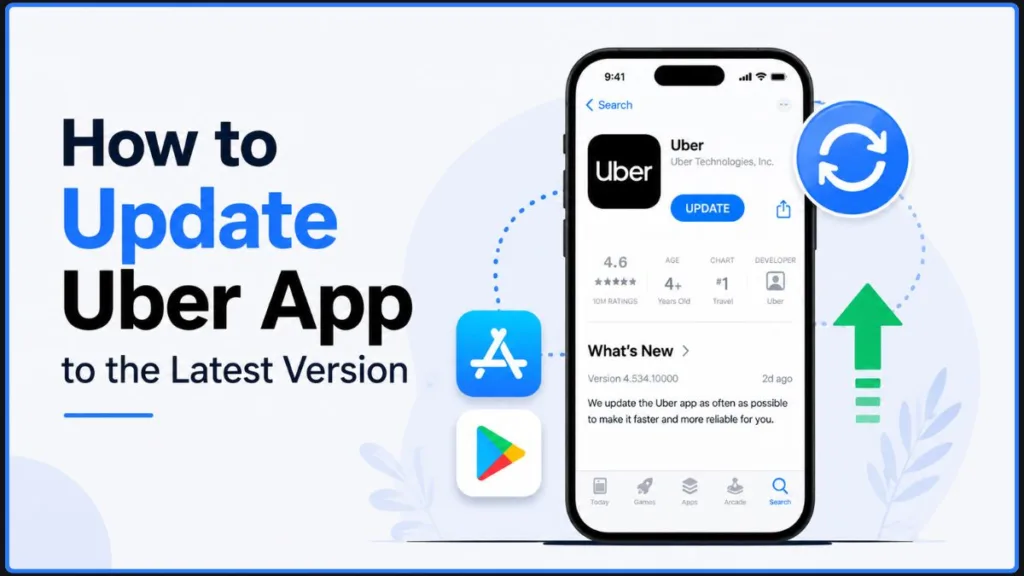
Here’s how to update Uber app on both iPhone and Android, check whether an update is currently available for your device, and fix the most common update problems — plus how to tell the difference between updating the app itself and updating your Uber account details.
Quick Answer: How to Update Uber App
If you just want the short version:
- On iPhone: Open the App Store, tap your profile icon, tap App Updates, then tap Update next to Uber (or Update All).
- On Android: Open the Play Store, tap your profile icon, tap Manage apps & device, find Uber under available updates, and tap Update.
If Uber doesn’t show a pending update, that typically means there isn’t a new version currently available for your device through that store — more on what that does (and doesn’t) tell you a bit further down.
Which Uber App Should I Download?
Uber has a few different apps, so it’s worth confirming you have the right one before you go looking for updates:
- Uber (Rider app) — the standard app used to book and track rides. This is what most people mean by “the Uber app.”
- Uber Driver — a separate app for people who drive with Uber.
- Uber Eats — Uber’s food delivery app, unrelated to ride booking.
- Uber Pro Card — a companion app tied to Uber’s debit card program for drivers and delivery partners.
If you’re booking rides as a passenger, look for the standard Uber app in your app store listing — that’s the one this guide focuses on.
Should I Update My Uber App?
Generally, yes. Keeping the app current can help with a few things:
- Security. Updates can include patches related to how your payment methods, like a saved card, Apple Pay, or Google Pay, are handled within the app.
- Stability. Bug fixes are a common part of most app updates, which can reduce crashes and glitches.
- New features. Newer safety tools or interface changes typically require the current app version to function.
- Avoiding a required update. If your installed version falls far enough behind, Uber can prompt you with a mandatory update before you’re able to continue using the app. Updating proactively can help you avoid running into that prompt at an inconvenient time.
Note: You may see specific operating-system or version requirements mentioned for other Uber apps, such as the Uber Pro Card app. Those requirements are specific to that app and shouldn’t be assumed to apply to the standard Uber rider app — check the requirement listed on the relevant app’s own store page.
How to Update Uber App on iPhone
- Open the App Store.
- Tap your profile icon (or photo) in the top-right corner.
- Tap App Updates.
- Find Uber in the list and tap Update next to it, or tap Update All.
On an iPad, you can typically find the same list by opening the App Store and selecting Updates in the sidebar.
If you see “Open” instead of “Update”: that means there isn’t a pending Uber update available for your device through the App Store at that moment. It doesn’t necessarily confirm you’re on the newest version Uber has ever released overall — see the section below on checking the latest version for more on that distinction.
How to Update Uber App on Android
Standard method:
- Open the Google Play Store app.
- Tap your profile icon in the top-right corner.
- Tap Manage apps & device.
- Under Updates available, find Uber and tap Update — or tap Update all.
Faster method (search directly):
- Open the Play Store and tap the search bar.
- Type “Uber” and tap the Uber app in the results.
- If a green Update button appears below the app’s name, tap it to download and install the update.
- Once installed, that button changes to Open.
If you see Open right away instead of Update, there’s currently no pending update for Uber through the Play Store on that device.
How Do I Check If My Uber App Has Been Updated?
There are two ways to check, and it’s worth understanding what each one actually tells you.
Through the App Store or Play Store: If there’s no pending Update button next to Uber, that store isn’t currently showing a newer version available for your specific device. This can depend on your device model, operating system version, region, and how the app-store rollout is being staged — so it’s a helpful signal, not an absolute guarantee that no newer version exists anywhere.
Inside the Uber app: Many versions of the Uber app show a version number somewhere in your account or profile area — for example, near the bottom of the Account section. Menu layouts can change between updates, so treat this as a general starting point rather than a fixed, permanent path, and look around your account or settings area if it’s not exactly where you expect.
Matching a version number confirms what’s currently installed on your device — it doesn’t, by itself, confirm that version is the newest one Uber has released everywhere.
What Is the Latest Version of the Uber App?
There isn’t one single “latest version number” that applies to every device at every moment — Uber, like most large apps, can roll out updates gradually by region, device type, and operating system.
The most reliable way to check what’s currently available for your device is to look at the app’s official listing:
- On iPhone, open the Uber app’s page in the App Store and check whether an Update button appears.
- On Android, open the Uber app’s page in the Google Play Store and check the same thing.
If an update shows there, that’s the latest version currently being offered to your device — no need to track down a version number elsewhere.
How to Enable Automatic Uber App Updates
If you’d rather not check manually, you can turn on automatic updates at the operating-system level.
Enable Automatic Updates on iPhone
- Open Settings.
- Tap Apps, then tap App Store.
- Under Automatic Downloads, toggle App Updates on.
With this on, Uber and your other apps can update in the background when a new version becomes available.
About Wi-Fi and cellular data: iPhone lets you manage whether app downloads and updates use cellular data through your device’s App Store settings and general cellular data controls. This applies to how your iPhone handles app updates generally — there isn’t a separate, Uber-specific Wi-Fi update setting. If you want to update iPhone apps via Wi-Fi only, check your cellular data settings for the App Store and adjust them there.
Enable Automatic Updates on Android
- Open the Play Store app and tap your profile icon.
- Tap Settings, then Network preferences.
- Tap Auto-update apps.
- Choose Over any network or Over Wi-Fi only, depending on your preference.
This setting applies to your apps generally, including Uber, rather than being something you configure per app through Uber itself.
How to Get Notified About Uber App Updates
There are two separate types of notifications worth knowing about here:
- App Store / Play Store notifications: On iPhone, you can go to Settings > Notifications > App Store and make sure notifications are enabled — this can surface general update-related alerts from the App Store. Android’s Play Store similarly manages its own notification settings.
- Uber’s in-app notifications: Inside the Uber app, you can check your notification preferences under Uber app settings. These typically cover ride, safety, and account-related alerts rather than a dedicated “new app update available” notice.
In short: update alerts mostly come through your phone’s app store, while Uber’s own in-app settings are more about ride and account notifications, not app-version alerts specifically.
Why Won’t My Uber App Update?
If an update is stuck, failing, or not showing up, work through these steps in order:
- Check your internet connection. A weak or interrupted Wi-Fi or cellular connection can cause an update to stall.
- Check your available storage. Limited storage space can prevent an update from downloading or installing.
- Restart your device. This can help clear temporary issues that interfere with installing updates.
- Update your phone’s operating system. An older iOS or Android version can sometimes prevent the current app version from installing.
- Check the app store again. Close and reopen the App Store or Play Store, since a pending update may just need a refresh to appear.
- Clear the Play Store cache (Android). Go to Settings > Apps, find the Play Store, and clear its cache — this can resolve some download issues.
If Uber still won’t update after trying these, reinstalling is a reasonable next step — covered below.
Should I Reinstall Uber App?
Reinstalling isn’t normally necessary just because a standard update is available — it’s more of a troubleshooting step for when updates are stuck or the app keeps crashing after other fixes haven’t worked.
If you’ve gone through the troubleshooting steps above and Uber still isn’t updating properly, here’s how to reinstall it:
- Press and hold the Uber app icon until a menu appears.
- Tap Delete App (iPhone) or Uninstall (Android), and confirm.
- Go back to the App Store or Play Store, search for Uber, and reinstall it.
- Open the app and sign back in.
About your data: Uninstalling the Uber app does not mean deleting your Uber account. Your account information is tied to your Uber account rather than stored only on your device, so you can typically sign back in after reinstalling. Before uninstalling, make sure you know the login details you use to access your account, since you’ll need them to sign back in.
How to Update My Uber Account Information
It’s worth being clear on the difference here, since these two things are often confused:
- Updating the app means installing a newer version of the Uber software, which is what most of this guide has covered.
- Updating your account means changing personal details tied to your profile, like your phone number, email, or payment method.
If you were searching for how to update my Uber account or how to update Uber account details, here’s the general path:
- Open the Uber app and go to your Account or profile area.
- Open Settings.
- Look for the option to edit the detail you want to change — phone number, email, or payment method.
- Follow the prompts shown on screen to confirm and save the update.
Menu labels and exact locations can shift between app versions, so if something isn’t exactly where described above, check around your account or profile settings for the relevant option.
How Do I Update the Uber Pro Card App?
If you use Uber’s debit card program as a driver or delivery partner, the Uber Pro Card app is a separate app from the standard Uber rider app — and it’s updated independently.
- Open the App Store or Google Play Store.
- Search for Uber Pro Card.
- If an Update button appears, tap it. If you see Open instead, there’s no pending update for that app on your device.
Any operating-system or version requirements you see for the Uber Pro Card app are specific to that app and shouldn’t be assumed to apply to the standard Uber rider app.
FAQs
Should I update my Uber app? Generally yes — updates can improve security, reduce bugs, and are sometimes required before you can continue using the app.
How do I check if my Uber app has been updated? Check the App Store or Play Store listing for a pending Update button, and look in your account or profile area inside the app for the installed version number.
Why won’t my Uber app update? Common causes include a weak connection, low storage, an outdated OS, or a temporary app-store glitch — work through the troubleshooting steps above.
How do I update the Uber Pro Card app? It updates separately from the rider app, through its own listing in the App Store or Google Play Store.
Which Uber app should I download? Most riders want the standard Uber app, separate from Uber Driver, Uber Eats, and Uber Pro Card.
Conclusion
Keeping the Uber app updated is usually a quick fix for glitches and gives you access to current features and security improvements — and it’s separate from keeping your account details, like your phone number or payment method, up to date. If you run into a stuck update, work through the troubleshooting steps before reinstalling, and remember that your account isn’t tied to whether the app is currently installed on your device.
Have you run into an Uber update that wouldn’t install? Let us know what worked for you in the comments below.
Visit Our Post Page: Blog Page
Discover more from Izoate
Subscribe to get the latest posts sent to your email.