
Got married? Update your Facebook name to your married surname while keeping your maiden name visible. Learn how to change both on your profile.
Why Update Your Facebook Name After Getting Married?
Imagine you’ve recently gotten married and started using your spouse’s last name. You’ve updated your name with family and friends, but when you open Facebook, your profile still displays your maiden surname. Now, you want to update it so people can recognise you by your new name without losing the connection to the name they’ve known you by for years.
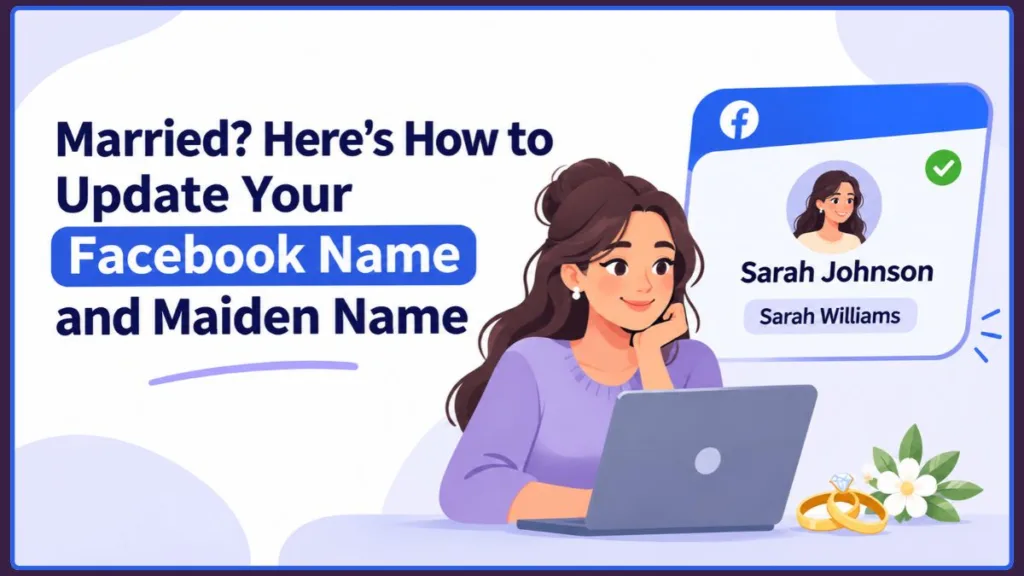
Facebook lets you change your primary profile name and add your maiden name as an additional name. This means you can display your married surname on your profile while keeping your previous name there for people who still know you by it.
Good to know: You don’t have to replace your maiden name entirely. You can keep it as an additional name while using your married surname as your primary Facebook name.
How Do I Change My Name on Facebook When I Just Got Married?
If you’ve decided to replace your maiden surname with your married surname, you can make the change from your existing Facebook profile settings. You don’t need to create another account or start with a new profile. Just open your name settings, enter your new surname, review how it will appear, and save the changes.
Facebook manages profile-name changes through Accounts Centre. However, as Meta gradually moves users to its newer Meta Account settings, you may see either option on your account. The steps below cover both desktop and mobile users.
How to Change Your Married Name on Facebook Using a Computer
If you use Facebook on a desktop or laptop, follow these steps to update your maiden surname:
- Open Facebook in your web browser and log in to your account.
- Click your profile picture in the top-right corner.
- Select Settings and privacy, then click Settings.
- Open Accounts Centre (or Meta Account, if that’s what your account displays).
- Click Profiles and select your Facebook account.
- Select Name to open the name-editing settings.
- Enter your new name, replacing your maiden surname with your married surname.
- Click Review change to check how your updated name will appear on your profile.
- Once you’re satisfied with the changes, click Save changes.
Facebook will apply the change if your new name meets its Name Standards. Follow any additional confirmation or verification instructions that appear on your account.
How to Change Your Married Name on Facebook Using the App
You can also change your Facebook name directly from the Facebook app on your Android phone or iPhone. The process is similar to the desktop version, but you’ll access your settings through the Menu.
- Open the Facebook app on your phone.
- Tap Menu (your profile picture or the menu icon, depending on your app version).
- Scroll down and tap Settings and privacy.
- Select Settings.
- Tap Accounts Centre (or Meta Account, if displayed).
- Open Profiles and select your Facebook account.
- Tap Name and enter your new married surname.
- Tap Review change and check how your updated name will appear.
- Tap Save changes to submit your name update.
Important: Facebook generally allows you to change your profile name only once every 60 days. So, double-check your new surname and its spelling before saving. If you’ve already changed your name within the last 60 days, you’ll usually need to wait until the restriction period ends before making another change.
How Do I Change My Maiden Name on Facebook After Marriage?
After updating your Facebook profile with your married surname, you may still want to keep your maiden name associated with your account. For example, friends from school, former colleagues, or relatives may still know you by your previous surname and have difficulty recognising your profile after the change.
Instead of replacing your married name, you can add your maiden name as an additional name on Facebook. This lets you keep your married surname as your primary profile name while retaining your previous name on the same profile.
How to Add Your Maiden Name Alongside Your Married Name
To add your maiden name, open your Facebook profile and look for the additional-name settings. Depending on your Facebook interface, you may find this option under your profile information or through Accounts Centre.
Follow these steps:
- Open Facebook and go to your profile.
- Select About and look for Details about you.
- Find the Other names section.
- Click or tap Add a nickname, a birth name… or the available option for adding another name.
- Open the Name type menu and select Maiden Name.
- Enter your maiden name as you want it to appear on your profile.
- Select Show at top of profile if you want it displayed alongside your married name.
- Click or tap Save to add your maiden name.
Some accounts may provide an additional-name option through Accounts Centre under Manage other names. The available settings can vary, so use the option displayed on your Facebook profile.
Important: Adding your maiden name doesn’t replace your married surname. Your married name remains your primary profile name, while your maiden name appears as an additional name.
How Do I Find My Maiden Name on Facebook?
After adding your maiden name, check your profile to make sure it has been saved correctly. Open your Facebook profile, select About, and look under Details about you or Other names for the name you added.
You can also check whether Show at top of profile is enabled. When selected, Facebook can display your maiden name alongside your primary profile name. Otherwise, it may remain listed in your additional-name information without appearing at the top of your profile.
Tip: If you want people who know you by your maiden surname to recognise your updated profile, check how the additional name appears before finishing. Adding it to your profile does not guarantee that everyone will find you through Facebook search.
Why Can’t I Change My Facebook Name to My Married Name?
Trying to replace your maiden surname with your married name, but Facebook won’t let you save the change? This can happen if you’ve changed your profile name recently, your new name doesn’t meet Facebook’s requirements, or the platform needs you to confirm your identity.
Before submitting another request, check these common reasons to understand why Facebook isn’t accepting your married surname.
Have You Changed Your Facebook Name Within the Last 60 Days?
One common reason Facebook won’t let you change your name is its 60-day name-change restriction. Facebook generally doesn’t allow users to change their profile name again until 60 days have passed since their previous name change.
For example, suppose you updated your Facebook name shortly before getting married. When you try to replace that surname with your new married name, Facebook may prevent you from making another change because the 60-day period hasn’t ended.
Important: If Facebook says you can’t change your name yet, check when you last updated it. You’ll generally need to wait until the 60-day restriction expires before trying again.
Does Your New Married Surname Meet Facebook’s Name Standards?
Facebook requires profile names to follow its Name Standards. If your new married name contains unsupported characters, unusual formatting, or information that doesn’t comply with these requirements, Facebook may reject your request.
Before trying again, check that:
- Your first and last names are spelled correctly.
- You’re not including unnecessary titles or decorative symbols.
- Your name follows Facebook’s naming and formatting requirements.
- You’re entering a name suitable for a personal profile rather than a business name or misleading text.
You can review Facebook’s official Name Standards to understand which names are permitted.
Is Facebook Asking You to Verify Your New Name?
Sometimes, Facebook may ask you to confirm your identity before accepting a name change. This means the platform needs additional information to verify your account or the name you’re requesting.
For example, after entering your married surname, you might see a prompt asking you to provide supporting documentation. Depending on the specific verification request, Facebook may ask for an accepted identity document or other proof that supports your name change.
A marriage certificate, updated passport, or another accepted identification document may be relevant, depending on what Facebook requests. However, you shouldn’t assume that every name change after marriage requires document submission.
Remember: Follow the specific instructions shown in Facebook’s verification process and submit only the documents requested through its official platform.
If Facebook still rejects your married name after you’ve checked these requirements, review the explanation provided with the rejection. You can also use Facebook’s name-change support form to report the issue and request further assistance.
How Do I Update My Marital Status on Facebook After Getting Married?
Once you’ve updated your Facebook name, you may also want to change your relationship status from Engaged or In a Relationship to Married. Keep in mind that changing your last name doesn’t automatically update your marital status. You’ll need to make this change separately from your profile settings.
To update your marital status on Facebook using a computer:
- Open Facebook and go to your profile.
- Click About below your profile information.
- Select Family and relationships.
- Find the Relationship status section and click Add a relationship status or Edit.
- Select Married from the available options.
- If you want to add your spouse, enter their name and select their Facebook profile when it appears.
- Choose who can see your relationship status using the Audience selector.
- Click Save to apply the changes.
You can also update it through the Facebook app by opening your profile, selecting See your About info, and finding the Relationship section. Tap Edit or Add relationship status, choose Married, adjust your audience, and save the changes.
What Happens When You Change Your Marital Status on Facebook?
When you change your relationship status to Married, the updated information can appear on your Facebook profile, depending on the privacy settings you’ve selected. People with permission to view this information may see your new status when visiting your profile.
Privacy tip: You don’t have to share your marital status with everyone. Use the Audience selector to choose who can see the update. You can select Only Me if you prefer to keep this information private.
Frequently Asked Questions About Facebook Name Changes After Marriage
How Do I Remove My Last Name on Facebook in 2026?
Facebook doesn’t provide a regular setting that lets everyone remove their last name and keep only their first name. Its main profile name should reflect the name you use in everyday life.
However, if you genuinely use one name (a mononym) rather than a first and last name, you can contact Facebook through its Help Center to request a single-name profile. Facebook may ask you to provide identification or other supporting information before reviewing your request.
Don’t use blank spaces, symbols, or an invented surname to bypass Facebook’s naming requirements.
Can I Change My Facebook Name Without Legally Changing My Name After Marriage?
You don’t necessarily have to complete a legal name-change process before using a different name on Facebook. Facebook’s policy focuses on the name you go by in everyday life rather than requiring every user to use the exact name on their legal documents.
However, your requested name must still follow Facebook’s Name Standards. Facebook may also ask you to confirm that the name you want to use is authentic, so approval isn’t guaranteed simply because you’ve gotten married.
Will Changing My Facebook Name Also Change My Messenger Name?
If you use Messenger with the same Facebook account, your updated Facebook profile name may also appear in Messenger when people view your account. You generally don’t need to create a separate Messenger name change just because you’ve updated your Facebook surname.
However, custom nicknames set within individual Messenger conversations are separate from your Facebook profile name. Changing your married surname won’t automatically replace those chat nicknames.
Will My Old Facebook Posts and Comments Show My New Name?
Changing your Facebook name doesn’t delete your previous posts, photos, or comments. Your existing activity remains associated with your profile, and Facebook may display your updated profile name alongside that activity.
However, don’t assume every old reference will change immediately. Saved screenshots, copied text, and some older references or cached views may still show your previous surname.
Can I Change My Facebook Name Back to My Maiden Name?
Yes. You can change your Facebook profile back to your maiden surname if you decide you no longer want to use your married name. For example, you might choose to restore your previous surname after a personal or legal name change.
You can submit the previous name through Facebook’s regular name settings, provided the name follows its Name Standards and your account is eligible for another change.
Keep Your Facebook Profile Updated After Marriage
Updating your Facebook profile after getting married is a simple way to make sure your new surname is reflected when friends and family visit your profile. Whether you’ve replaced your maiden surname with your spouse’s last name or started using a different married surname, you can update your existing Facebook profile without creating a new account.
You also don’t have to leave your maiden name behind completely. Adding it as an additional name lets you keep your married surname as your primary profile name while helping people who know you by your previous surname recognise your account. You can also update your marital status separately to reflect your new relationship status.
Before saving any changes, double-check your name and make sure it follows Facebook’s requirements, especially because of the 60-day name-change restriction. This way, you can update your Facebook profile with your married name while keeping the details that matter to you.
Visit Our Post Page: Blog Page
Discover more from Izoate
Subscribe to get the latest posts sent to your email.