
Does the Radio menu keep opening when you try to signal a turn in GTA 6? Learn how to use blinkers and hazard lights without triggering the wrong controls.
You’d think driving through Vice City would be simple: get behind the wheel, follow the road, and signal before turning. But GTA 6 has one input quirk that catches almost everyone off guard. Press a fraction of a second too long on the D-pad, and instead of triggering your left blinker, Jason or Lucia pulls up the Radio menu.
Here’s the exact control: tap D-Pad Left for your left turn signal or tap D-Pad Right for your right turn signal while driving on PS5 or Xbox Series X|S. Do not hold the button. Holding D-Pad Left opens the in-car Radio and Vehicle Controls menu, where your four-way hazard lights and deeper car functions live.
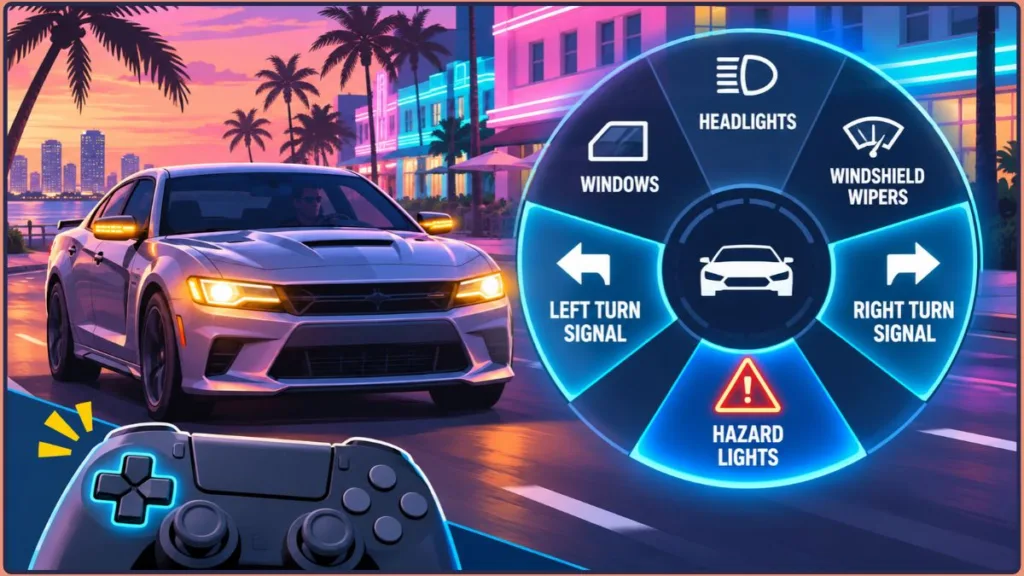
Unlike GTA 5 single-player—which needed PC mods for working indicators—GTA 6 builds manual turn signals, functional dashboard clusters, and multi-mode exterior lighting straight into Leonida’s default driving controls.
GTA 6 Blinker, Lighting & In-Car D-Pad Controls (PS5 & Xbox)
Both consoles share identical default driving bindings. Knowing what every D-pad direction does behind the wheel prevents accidental menu pop-ups at busy intersections:
| Vehicle Action | PS5 Input (Default) | Xbox Series X|S Input (Default) | Quick Note |
| Left Blinker / Turn Signal | Tap D-Pad Left | Tap D-Pad Left | Quick tap only; auto-cancels after turning |
| Right Blinker / Turn Signal | Tap D-Pad Right | Tap D-Pad Right | Works while moving or parked |
| Cancel Turn Signal Early | Tap same D-Pad direction | Tap same D-Pad direction | Use if you signaled on a straightaway |
| Check Engine & Body Condition | Press D-Pad Down | Press D-Pad Down | Displays color-coded vehicle health and fuel icons above the minimap |
| Open Vehicle Controls Menu | Hold D-Pad Left → Right Stick Up | Hold D-Pad Left → Right Stick Up | Slows gameplay without fully pausing |
| Hazard Lights (Four-Ways) | Hold D-Pad Left → Right Stick Up → L1 / R1 → Cross (X) | Hold D-Pad Left → Right Stick Up → LB / RB → A | Select Hazards inside Vehicle Controls |
| Quick Headlights Toggle | Tap Circle | Tap B | Full beam modes live inside Vehicle Controls |
| Leave Hazards & Engine On | Double-tap Triangle (while stopped) | Double-tap Y (while stopped) | Keeps lights, radio, and engine running on exit |
Using a custom preset? These bindings apply to the default layout. If you remapped controls, verify your driving inputs under Pause Menu → Settings → Control Scheme → Land / Water Vehicles.
How Manual Turn Signals Work Behind the Wheel
GTA 6 treats indicators as a fully manual driving system rather than tying them to your map route:
- Signal early or while parked: You can tap D-Pad Left or D-Pad Right before turning the wheel—useful when merging lanes, pulling onto a shoulder, or testing your lights while stationary.
- Auto-cancel vs. manual cancel: Once you finish a turn and straighten out, the indicator switches off automatically. If you trigger a blinker by mistake on a straight road, tap the same D-pad side again to cancel it.
- First-person confirmation: Because cars feature functional dashboard instrument clusters, you can monitor cabin indicators and lighting status from the cockpit without swinging the third-person camera around.
- GPS waypoints don’t trigger blinkers: Setting a route on the map—or tapping an attached location from a phone text message—handles navigation only. You can enable audible turn-by-turn callouts via Settings → Audio → GPS Voice, but you still have to tap your indicators yourself.
Why Your Blinkers Keep Opening the Radio or Partner Menu
If you reach for a turn signal and get pulled into a radial menu instead, you’re holding the directional button a fraction of a second too long. Both horizontal D-pad buttons are dual-mapped while driving:
- D-Pad Left: Quick tap = Left Blinker; Hold = Radio & Vehicle Controls Menu.
- D-Pad Right: Quick tap = Right Blinker; Hold = Partner Menu.
How to Prevent Accidental Menu Triggers
Give the directional button a single crisp tap and lift your thumb right away. If the radial menu still feels overly sensitive during fast turns, adjust its behavior under:
Pause Menu → Settings → Gameplay → Accessibility → Directional Button Actions
Switching between Hold and Hold & Release lets you tune how quickly the menu engages and closes. And if you do trigger the menu mid-corner, don’t yank the steering stick—gameplay slows down while the menu is open (though it doesn’t pause completely), giving you a split second to exit cleanly. If you intentionally want extra reaction time for a sharp turn at speed, activate Focus while driving to briefly slow time—just remember that Focus duration shrinks the faster you’re traveling.
How to Turn On Hazard Lights in GTA 6
Four-way hazard lights don’t have a standalone tap shortcut—you toggle them through the Vehicle Controls tab inside the in-car quick menu:
- Sit in the driver’s seat of any supported car or truck (works parked or moving).
- Hold D-Pad Left to open the in-car quick menu (it opens on Radio by default).
- Push Right Stick Up to switch to the Vehicle Controls tab.
- Cycle through the options with L1 / R1 (PS5) or LB / RB (Xbox) until Hazards is highlighted.
- Press Cross (X) on PS5 or A on Xbox to flash all four indicators. Repeat the steps to turn them off.
[Image Placeholder: In-game screenshot of the Vehicle Controls tab with the Hazards warning-triangle icon highlighted.]
UI quirk to know: Occasionally, a toggle icon inside Vehicle Controls won’t visually update immediately after you press Cross (X) / A. Close the menu and look at your car’s exterior lights directly to confirm all four indicators are flashing before hitting the button twice.
How to Keep Your Hazard Lights & Engine Running After Exiting
Stepping out of a vehicle normally kills the engine and exterior lights. To leave your hazards flashing, headlights glowing, and radio playing for roadside roleplay or a fast getaway:
- Bring your vehicle to a complete stop.
- Turn on your hazard lights (and headlights, if desired).
- Double-tap Triangle (PS5) or Y (Xbox) to step out with the ignition and electronics still running.
Stop completely first: Double-tapping Triangle / Y while the vehicle is still rolling will cause Jason or Lucia to bail out of the moving car.
Fallback exit trick: If the double-tap doesn’t register on a particular vehicle, tap Attack (Square on PS5 / X on Xbox) and immediately press Triangle / Y to exit. Expect your character to shove the door open with the melee/door-kick animation before stepping out.
Every Other Feature Inside the Vehicle Controls Menu
Beyond hazards, the Vehicle Controls tab houses an expanded suite of car controls. Available toggles vary by vehicle type (a pickup truck won’t list convertible options, and emergency vehicles expose extra lighting):
- Headlights (4 Modes): Cycle between Auto (adjusts for time of day and weather), Low Beam, High Beam (best for unlit Leonida backroads), and Off.
- Fog Lights & Police Lights: Compatible civilian models let you toggle fog lights, while emergency vehicles include dedicated police lighting controls.
- Engine Ignition: Manually shut off or restart the engine while staying seated inside the cabin.
- Windows: Roll side windows up or down independently of door controls.
- Sunroof & Convertible Roof: Open or close sunroofs on equipped cars, or retract and raise the roof on compatible convertibles.
- Trunk and Tailgate: Pop rear trunks or drop pickup tailgates directly from the driver’s seat—handy when inspecting cargo before offloading a ride.
Do Turn Signals Affect Police or NPC Traffic in GTA 6?
Directly? No—skipping your blinker won’t earn you a traffic ticket or trigger a wanted level. Likewise, NPC drivers don’t consistently yield just because your indicator is blinking.
So why are so many GTA 6 players suddenly stopping at red lights and signaling turns anyway? Leonida’s police force is far less forgiving than GTA 5‘s:
- Harder chases & lasting alerts: Simply breaking line of sight isn’t enough—officers remain alert around crime scenes, and police record the vehicle you were driving alongside your face and outfit. Push things all the way to the new six-star wanted level, and it cannot be cleared once triggered.
- Road rage is real: While blinkers won’t force NPCs out of your way, laying on your horn (L3 / LS) behind a slow driver does provoke a reaction—they’ll either floor it into traffic or snap and turn violent.
Using blinkers, proper beams, and hazards won’t give you a mechanical buff, but it fits naturally when keeping a low profile, cruising between missions, or driving unregistered cars without drawing unnecessary chaos.
Frequently Asked Questions
Does opening the Vehicle Controls menu pause GTA 6 while driving?
No. Holding D-Pad Left slows gameplay down significantly so you can toggle hazards, headlights, or roofs on the move, but the game does not fully pause. Keep an eye on oncoming lanes and intersections while navigating the menu.
Can you use blinkers on Jason’s starter truck and stolen cars?
Yes. Individual turn signals and core Vehicle Controls options—including hazards, headlights, windows, and engine toggles—work on both personal rides and stolen street vehicles. Model-specific features like sunroofs, tailgates, and convertible roofs only appear on compatible vehicles.
Can you control sunroofs, fog lights, and police lights from the same menu?
Yes. When you’re driving a compatible car, the Vehicle Controls menu includes toggles for sunroofs and fog lights, while police and emergency vehicles expose dedicated emergency light controls alongside standard headlights and hazards.
How do you check your car’s condition or fuel while driving in GTA 6?
Press D-Pad Down behind the wheel to display your vehicle’s circular Engine/Body Condition meter and gas indicator above the minimap. Engine health shifts from Green (healthy) to Orange (damaged), Red (critical), and a Red Cross (dead engine), while the fuel gauge alerts you when you’re running low.
What is the blinker key for GTA 6 on PC?
GTA 6 launched on PlayStation 5 and Xbox Series X|S, so official PC keyboard and mouse keybinds aren’t available yet. Default PC controls will be added here as soon as the PC edition releases.
Quick Driving Setup Before You Hit Vice City’s Roads
Before heading out on a long cruise or setting up roadside scenes, do three quick things: tap D-Pad Down in any stolen ride to check its engine health and fuel, enable GPS Voice under Settings → Audio if you prefer eyes-on-the-road navigation, and tweak Directional Button Actions if the Radio menu keeps hijacking your left turns.
Visit Our Post Page: Blog Page
Discover more from Izoate
Subscribe to get the latest posts sent to your email.