
Want to post a GIF in a YouTube comment but cannot find the GIF button? YouTube has introduced GIF comments, allowing viewers to attach animated GIFs to comments and replies on videos. The feature is being rolled out gradually, so you may see GIFs in other people’s comments without having the option to post one yourself.
When the feature is available, you can select an animation from the comment interface and publish it. However, the posting process differs between mobile and desktop, and some users may not have access to the feature yet.
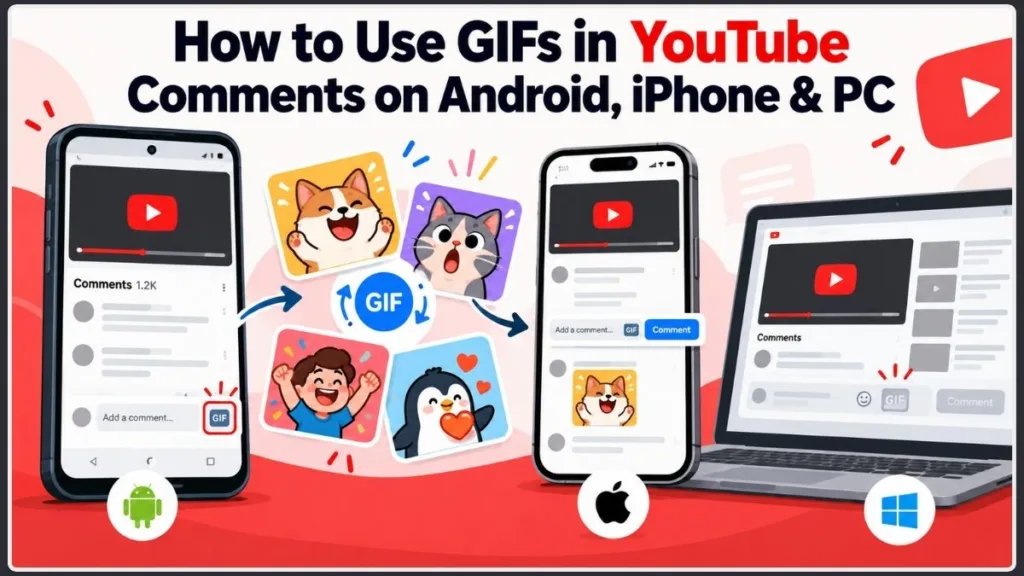
This guide explains how to use GIFs in YouTube comments on Android, iPhone, and PC, how to reply with a GIF, what to do when the GIF button is missing, and whether you can upload your own animated GIF.
Quick answer: Open the YouTube mobile app, navigate to a video’s comments, tap the comment field, and look for the GIF button. Choose an animation from the available library and submit your comment. If the button does not appear, check for an app update and remember that the feature may not have reached your account yet.
Practical tip: Before troubleshooting your phone, check whether the GIF button is missing only from your account or from the interface you are using. This helps distinguish a rollout limitation from a device-specific issue.
Does YouTube Have GIF Comments? Feature Availability and Rollout Status
Yes. YouTube introduced GIF comments in September 2026 and began rolling out the feature in October. It allows viewers to attach animated GIFs to comments, adding another way to express reactions to videos.
YouTube’s official Data API revision history confirms that the comment resource gained a new snippet.imageUrl property for images or animated GIFs attached to comments on September 30, 2026. Google lists November 2026 as the planned timeline for availability to all users.
The feature is being introduced gradually, so not every account necessarily has the same controls.
Here’s what you need to know:
- Android and iPhone: Look for a GIF button in the YouTube app’s comment composer.
- PC and Mac: The desktop website does not currently offer the same built-in GIF picker as the mobile app. Third-party extensions advertise alternative methods, but their reliability varies.
- Replies: Check whether the GIF option appears when replying to another viewer’s comment.
- YouTube Shorts: Open the Short’s comment section and check which controls are available in your account.
- Personal GIF files: Selecting a GIF through a comment picker is different from uploading an animation directly from your device.
The most important distinction is that seeing GIFs in other people’s comments does not guarantee that you can post one yourself. Your account may not have received the feature yet.
Key insight: Treat GIF viewing and GIF posting as two separate capabilities. Seeing someone else’s animated comment confirms that GIF content is appearing in the discussion, but it does not prove that your account has access to the posting control.
How to Add a GIF to a YouTube Comment: Step-by-Step Instructions
If your account has received the GIF-comment feature, posting an animation through the mobile app should be straightforward.
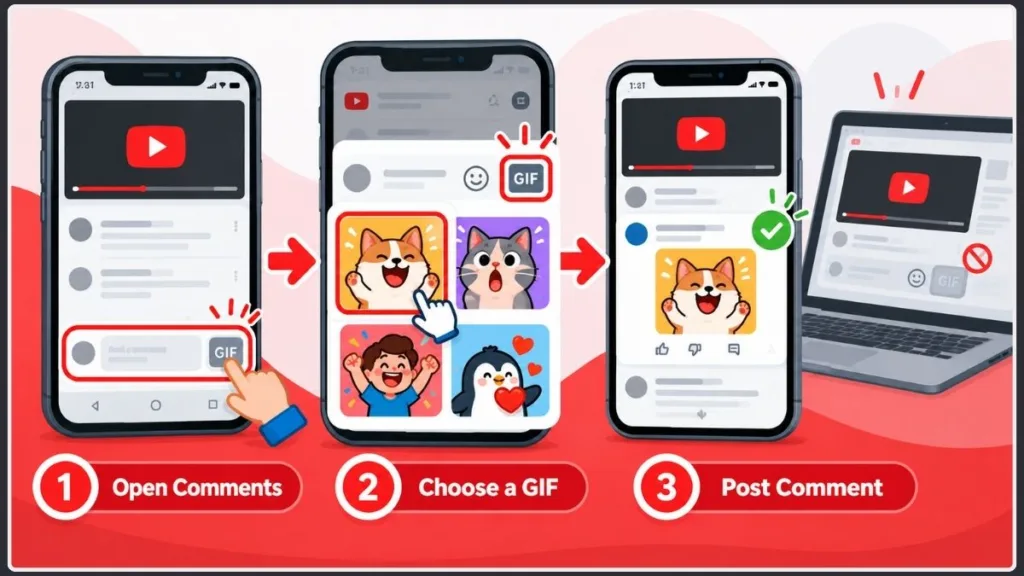
Follow these steps:
- Open the YouTube app on your phone.
- Select the video you want to comment on.
- Navigate to the comments section.
- Tap the field for adding a comment.
- Look for the GIF button in the comment composer.
- Tap the button to open the available GIF picker.
- Browse the animations and choose one that matches your reaction.
- Follow the on-screen controls to submit your comment.
After YouTube accepts the comment, the GIF should appear in the discussion.
For example, imagine you’re watching a gaming video where the player wins a difficult boss fight unexpectedly. Instead of typing “That was incredible!”, you could select a celebratory GIF to express the same reaction.
The GIF picker is the key part of the process. You do not need to paste a random GIF URL into the comment box when the built-in option is available.
Best practice: Confirm that the GIF appears in the published comment rather than assuming the submission worked. If it does not appear, check the actual result before submitting the same comment again.
Can You Post Text and a GIF in the Same YouTube Comment?
Yes, the current desktop extension listing for GIF Comments for YouTube describes a workflow that lets users write text and attach a GIF in the same comment. The listing also describes combining text and GIFs in replies. However, that is an extension-specific claim, not confirmation that every version of YouTube’s native mobile composer supports identical behavior.
When your interface supports both, a comment could look like this:
That final boss fight was wild!
You can then attach a reaction GIF that reinforces your message.
Before submitting, check the preview if one is available and make sure the text and animation match what you want to communicate.
If the GIF button is missing, do not repeatedly tap the comment field or reinstall the app. Check whether your account has received the feature first.
Actionable tip: Use text when the context of your reaction matters, and use a GIF to reinforce the emotion. Before posting, check that the combined comment communicates what you intended and that the interface has retained both elements.
How to Use GIFs in YouTube Comments on Android and iPhone
The basic process is similar on both mobile platforms. The main difference is how you access app updates and the exact placement of controls in your version of YouTube.
How to Use GIFs in YouTube Comments on Android
If you’re using an Android phone, first make sure YouTube is up to date.
- Open the Google Play Store.
- Search for YouTube and install an available update.
- Launch YouTube and open the video you want to comment on.
- Expand the comments section.
- Tap the comment field.
- Look for the GIF button near the text-entry controls.
- If the button is available, open the GIF picker.
- Select an animation and submit your comment.
If the GIF option appears, follow the on-screen instructions to finish posting.
You do not need to install a separate GIF keyboard to use the built-in YouTube feature. A third-party keyboard may help you share GIFs in other apps, but that does not guarantee YouTube will publish the result as an animated GIF comment.
What if the button does not appear after updating?
Your account may not have received the feature yet. An app update is worth checking, but it cannot guarantee access while YouTube is rolling out the feature.
Android tip: Update the official YouTube app first, then check the comment composer again. If the GIF button remains missing, avoid repeatedly reinstalling the app; the limitation may be related to feature availability rather than the installation.
How to Use GIFs in YouTube Comments on iPhone
The process is almost identical on an iPhone.
- Open the App Store.
- Search for YouTube and install any available update.
- Open the YouTube app.
- Navigate to the video and its comments section.
- Tap the field for adding a comment.
- Look for the GIF button.
- Select an animation and submit your comment if the option is available.
If you cannot find the button, close and reopen YouTube and check the comment composer again. You can also try another video to make sure you are looking in the correct place.
Updating the app is a sensible first step, but it does not automatically unlock every feature. Two people using the same iPhone model may see different controls while the rollout is in progress.
iPhone tip: Check the comment-entry controls rather than assuming the GIF button must be in a particular position. Interface placement may change as YouTube updates the app.
Do You Need a Separate GIF Keyboard to Comment on YouTube?
No. When YouTube’s built-in GIF picker is available, you can select an animation directly through the comment interface.
A separate GIF keyboard is not a confirmed solution for accounts that lack the native GIF button. Copying an animation or pasting a URL into the comment field may produce a link or text rather than an attached GIF.
For the intended YouTube GIF-comment experience, start with the built-in picker whenever it is available.
Best practice: Avoid installing extra keyboard apps just to unlock a YouTube feature that has not reached your account. First confirm that the native GIF option is available; a separate keyboard does not guarantee that YouTube will accept an animation as a GIF comment.
How to Reply to a YouTube Comment With a GIF
Want to react to somebody else’s comment rather than start a new discussion? Check whether the GIF option appears in the reply composer.
- Open the video’s comment section.
- Find the comment you want to respond to.
- Tap Reply.
- Look for the GIF button in the reply field.
- If available, open the GIF picker.
- Select an animation and submit the reply.
For example, if another viewer writes, “I never expected that ending,” you could respond with a surprised GIF instead of typing a long explanation.
One important detail: check the reply field itself. Do not assume that a GIF option available when creating a new comment will necessarily appear in every reply interface.
The same principle applies to YouTube Shorts. Open the Short’s comment section and check whether the GIF option appears in the comment or reply composer. Because the rollout is still in progress, verify the actual interface rather than assuming every account has the same controls.
If you cannot see the GIF button in a reply, check whether the feature is available in your account before trying unrelated workarounds.
Reply tip: Check the controls in the reply composer separately from those in a new-comment field. If the GIF option is unavailable in the reply interface, do not assume that a third-party keyboard or a subscription will enable it.
How to Use GIFs in YouTube Comments on PC or Desktop
If you want to use GIFs in YouTube comments on a PC, there is an important limitation: the desktop website does not currently provide the same native GIF picker as the mobile app.
Some browser extensions advertise a way to add GIFs to comments and replies. However, the available reports are mixed, and installing an extension does not guarantee that a GIF will be accepted by YouTube.
For example, the Chrome Web Store listing for GIF Comments for YouTube advertises a Tenor-based GIF picker and says that GIFs submitted through its method are visible to other viewers without the extension. In contrast, the maintainer of the separate Desktop GIFs open-source project reported that YouTube began rejecting its desktop GIF submissions on October 14, 2026.
These reports concern different extensions, so one tool’s failure does not prove that every desktop method is broken.
Important: A desktop extension displaying a GIF picker is not proof that YouTube will accept the comment. Extension compatibility can change, so check recent reports and verify the published result before relying on a workaround.
How to Post GIFs in YouTube Comments on a Computer Using a Browser Extension
If you decide to try a desktop extension, follow these checks:
- Open your browser’s official extension store.
- Find the extension and review its developer, recent updates, permissions, and user feedback.
- Install it only if you are comfortable with the permissions it requests.
- Open YouTube and navigate to a video or Short.
- Open the comment field or click Reply.
- Look for the GIF button added by the extension.
- Select a GIF and follow the extension’s posting instructions.
- Check the published YouTube discussion to confirm that the GIF appears as an animation.
Do not assume that seeing a GIF in an extension’s preview means the comment was successfully submitted.
Desktop best practice: Review extension permissions before installing one, use the official browser extension store, and confirm that the published GIF is visible in YouTube itself. If the extension only displays the animation locally, other viewers may not see it.
Can Other Viewers See GIFs Posted Through YouTube Extensions?
It depends on the extension’s implementation.
Some extensions advertise that they submit a GIF as a regular YouTube GIF comment, which other viewers can see without installing the extension. Others use custom text tags or rendering systems.
A user report on Reddit describes a GIF submission that appeared as a literal identifier rather than an animation. (Reddit discussion about YouTube GIF comments) This illustrates why it is important to distinguish a native GIF comment from extension-specific output.
Before relying on a desktop workaround, verify that the published comment is visible as an animation on YouTube itself. If the extension only displays the GIF locally, other viewers may not see the same thing.
For most readers, the simpler option is to use the official mobile app when the GIF feature is available.
Verification tip: If possible, inspect the published comment from a browser or device that does not have the extension installed. This helps you distinguish a GIF that has been published for other viewers from one that is only rendered locally.
Why Is the GIF Button Missing From YouTube Comments?
If you can see GIFs posted by other viewers but cannot post one yourself, the first thing to check is whether the feature has reached your account.
Google’s YouTube Data API revision history lists November 2026 as the planned timeline for availability to all users. During the rollout, viewing and posting experiences may differ.
The correct solution depends on what you are seeing.
| What happens | Possible explanation | What to do |
|---|---|---|
| No GIF button in the mobile app | The feature may not have reached your account | Update YouTube and check again later |
| Other people post GIFs, but you cannot | Viewing and posting availability may differ | Check your own comment composer |
| The GIF button is missing on PC | The native desktop interface lacks the same picker | Check current extension options or use mobile |
| The GIF picker opens, but posting fails | The submission method may be unsupported | Read the error message and check the extension’s status |
| The comment displays a GIF identifier as text | The method may use a custom format or an incompatible submission workflow | Confirm whether a native animation was actually published |
| You cannot post any comment | Comments may be disabled or restricted | Check the video’s comment availability and your sign-in status |
Troubleshooting tip: Start with the symptom you actually see. A missing button, a rejected submission, a text identifier, and a disabled comment box are different problems and may require different solutions.
Why Is the GIF Comment Feature Not Available on Your Account Yet?
YouTube is rolling out GIF comments gradually. One viewer may see the GIF button while another viewer using the same phone model does not.
What to do: Check that your app is up to date, then check again later. There is no confirmed setting that forces the feature to appear immediately.
Key insight: Repeatedly reinstalling the app is unlikely to force access if the feature has not reached your account. Check for an update once, then verify availability again later.
How to Update the YouTube App if the GIF Button Is Missing
An outdated app is worth checking before investigating other causes.
On Android, open the Google Play Store and check the YouTube listing. On iPhone, check the app in the App Store.
Install an available update, reopen YouTube, and check the comment composer again. Remember that updating the app cannot guarantee access while the feature is being rolled out.
Best practice: Update through the official Google Play Store or Apple App Store. Avoid downloading unofficial versions of YouTube to gain access to a feature.
YouTube GIF Comments on Desktop: Availability and Limitations
The desktop interface differs from the mobile app. If there is no native GIF option in your computer’s comment field, refreshing the page is unlikely to add a control that the interface does not provide.
You can investigate third-party extensions, but review recent reports before installing one or relying on a previously working method.
Desktop tip: Before installing an extension, check whether it has recent reports of successful submissions. Older instructions may no longer work after changes to YouTube’s comment system.
Why Was Your YouTube GIF Comment Rejected or Displayed as Text?
This is different from the GIF button being missing.
If you use an extension and the published comment contains a string such as a GIF identifier instead of an animation, the extension may be using a custom format or an outdated submission method.
Do not repeatedly submit the same failed comment. Check the extension’s latest documentation and confirm whether the GIF is visible to other viewers as an animation.
Actionable advice: Stop repeating a failed submission until you understand the error. Check the extension’s current status and the published comment before trying the same method again.
Why Can’t You Post Any Comment on a YouTube Video?
If the entire comment box is missing or you cannot submit a normal text comment, the issue may not be related to GIFs.
YouTube’s comment settings documentation explains that comments may be unavailable on videos marked as made for kids, private videos, and videos where comments are disabled or otherwise restricted.
Check whether ordinary comments are available before troubleshooting the GIF feature specifically.
Quick check: Try to determine whether you can submit an ordinary text comment. If you cannot, resolve the underlying commenting restriction before troubleshooting the GIF picker.
Can You Upload Your Own GIF to YouTube Comments?
The phrase “upload a GIF to YouTube” can refer to several different tasks: attaching a GIF to a comment, sharing a GIF link, uploading a GIF to a Community post, or publishing an animation as a video.
These are not interchangeable.
Important distinction: A GIF comment is not the same as a GIF Community post or an animated video upload. Choose the method that matches what you want to publish.
Can You Upload Your Own GIF File Directly to a YouTube Comment?
The documented GIF-comment workflow uses an in-app picker rather than a conventional file-upload control in the comment composer.
The GIF Comments for YouTube Chrome extension listing describes a Tenor-based picker and says its tool supports GIFs rated G for all ages. This is a restriction stated by that particular extension, not a complete official list of YouTube’s GIF-comment rules.
Google’s YouTube Data API comments reference confirms that a comment can contain an image or animated GIF, but it does not establish every consumer-facing restriction or prove that users can attach arbitrary local GIF files from their devices.
If you want to post a reaction, use the GIF picker available in your interface rather than assuming that the ordinary comment box accepts a local file.
Best practice: Distinguish between what YouTube’s own interface supports and what a third-party extension offers. An extension’s file or rating restrictions should not automatically be treated as universal YouTube rules.
Can You Use GIPHY GIF Links in YouTube Comments?
Pasting a URL to a GIF is not necessarily the same as attaching an animated GIF through YouTube’s picker.
The extension referenced above describes Tenor-based selection and says its tool does not support GIPHY links. This is an implementation-specific limitation. It should not be interpreted as a complete statement of every YouTube comment capability.
If a GIF link is not accepted as an animated comment, use the available picker instead.
Practical tip: If your goal is to post an animated reaction, use the built-in picker when possible rather than assuming that an external GIF URL will behave like an attached animation.
How to Upload a GIF to a YouTube Community Post
Yes. This is a useful alternative if you want to share your own animation rather than react to somebody else’s video.
According to YouTube’s official Community post help documentation, creators can upload GIFs with Community posts. The documented guidelines allow up to 10 images per post, support JPG, PNG, GIF, and WebP formats, and set a maximum file size of 16 MB per image. YouTube also suggests a 1:1 aspect ratio for images shown in the feed.
To upload your own GIF as a Community post:
- Open YouTube and navigate to your channel’s Posts or Community section.
- Start a new post.
- Choose the image-upload option.
- Select a supported GIF file from your device.
- Add any accompanying text.
- Publish the post.
These steps are for a Community post, not a video comment. If your goal is to react under another person’s video, use the GIF-comment feature when available.
File tip: If you’re preparing a GIF for a Community post, check the file size and format before uploading. Keeping the animation within YouTube’s published requirements helps avoid upload problems.
Can You Upload a GIF as a YouTube Video?
Uploading an animation as a video is a separate task.
YouTube’s video-upload help documentation explains how to upload supported video files through YouTube Studio or the mobile app. GIF is not listed among YouTube’s recommended video-upload formats.
If you want to publish your own animated artwork as a video, convert it into a supported video format before uploading it.
Choosing the right method: Use a GIF comment to react to a video, a Community post to share an animated image with your audience, or a supported video format to publish animation as a video.
Frequently Asked Questions About YouTube GIF Comments
Does YouTube Have GIF Comments for Everyone?
Yes. YouTube announced GIF comments in September 2026 and began rolling out the feature in October. The mobile GIF button may not yet be available to every account. Google’s developer documentation lists November 2026 as the planned timeline for availability to all users.
How Do I Use GIFs in YouTube Comments on Android or iPhone?
Open the YouTube app, navigate to a video’s comments, tap the comment field, and look for the GIF button. Select an animation and submit the comment. If the button is missing, check for an app update and account availability.
Can You Use GIFs in YouTube Comments on PC Without an Extension?
The desktop website does not currently provide the same native GIF picker as the mobile app. Third-party extensions advertise alternatives, but their behavior varies. Check the latest extension reports and verify that a GIF actually publishes before relying on a workaround.
Can You Reply to a YouTube Comment With a GIF?
Check for the GIF button after tapping Reply beneath a comment. If it is available, select an animation and submit the reply. Do not assume the feature is available in every account or interface during the rollout.
Can You Use GIFs in YouTube Shorts Comments?
Open a Short’s comment section and look for the GIF option. If it appears in the comment or reply composer, follow the on-screen instructions. Feature availability may vary during the rollout.
Do You Need YouTube Premium to Use GIF Comments?
The available official documentation does not establish a YouTube Premium requirement for GIF comments. If the button is missing, check app updates and feature availability before assuming that you need a subscription.
Why Does My YouTube GIF Comment Show as Text Instead of an Animation?
This can happen when a desktop extension submits a custom GIF identifier or uses a method that no longer works with YouTube. Check the extension’s current documentation and confirm that the published comment appears as an animation to other viewers.
Can I Upload My Own GIF File to a YouTube Comment?
Direct uploads of arbitrary GIF files are not a confirmed option in the standard comment workflow. Use the available GIF picker for comments. YouTube does support uploading GIFs to Community posts, subject to its published file-type and size guidelines.
Can You Upload a GIF to YouTube as a Video or Community Post?
Yes, YouTube supports GIF uploads for Community posts. You can upload a GIF of up to 16 MB as part of a post, subject to YouTube’s format and content rules. Uploading a GIF as a video is a different process and may require converting it to a supported video format.
Why Can I See GIFs in YouTube Comments but Cannot Post One?
The feature is rolling out gradually, so your account may have viewing access before the posting option appears. Check your app version and comment composer, then try again later if the button is still missing.
Final Thoughts: How to Use GIFs in YouTube Comments Successfully
Using GIFs in YouTube comments is straightforward once the feature becomes available: open the comment composer, select an animation, and publish your reaction. You can also look for the GIF option when replying to another viewer or commenting on a Short.
If the button is missing, check your app version and rollout status. On a computer, distinguish YouTube’s native interface from third-party extensions and verify that any workaround actually publishes an animation visible to other viewers.
For your own artwork, remember that uploading a GIF to a Community post is supported, while uploading a GIF as a video requires a supported video format.
Final tip: Before choosing a workaround, identify your goal: posting a reaction in a comment, replying to another viewer, sharing your own GIF in a Community post, or publishing animation as a video. Choosing the correct method saves time and avoids unnecessary tools.
Have you received the GIF button in your YouTube comments yet? Check your app and share your experience in the comments below.
Visit Our Post Page: Blog Page
Discover more from Izoate
Subscribe to get the latest posts sent to your email.